+86 152 8002 3723
QVoteProfessional Audience Response System software offers the most convenient functions for your interactions.
QClickThe most convenient educational software for working with Microsoft PowerPoint to quickly set up various question types and generate intelligent feedback reports.
QCameraQCamera by QOMO allows for real-time streaming from cameras and document cameras. Annotate, save snapshots, record, and manipulate camera images instantly.
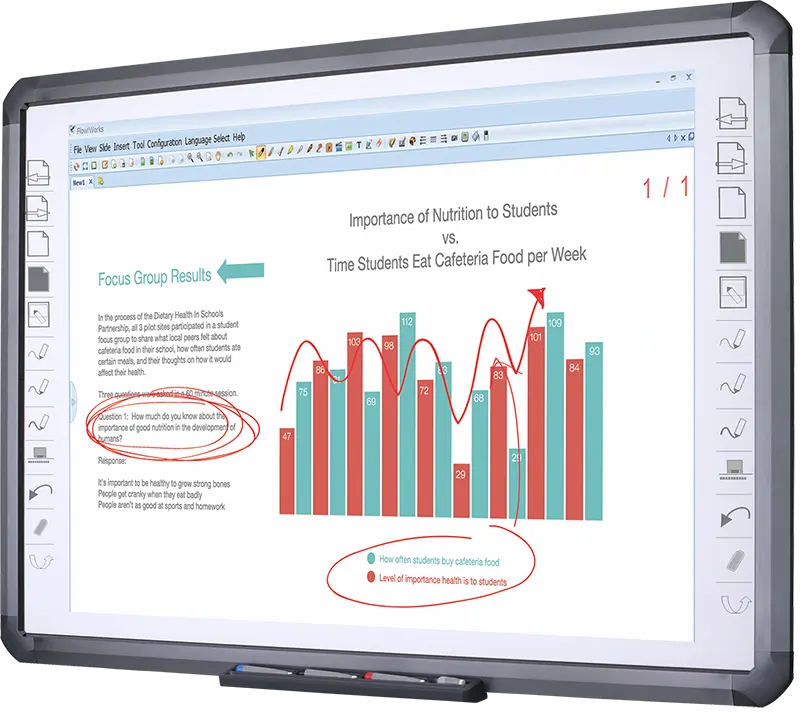
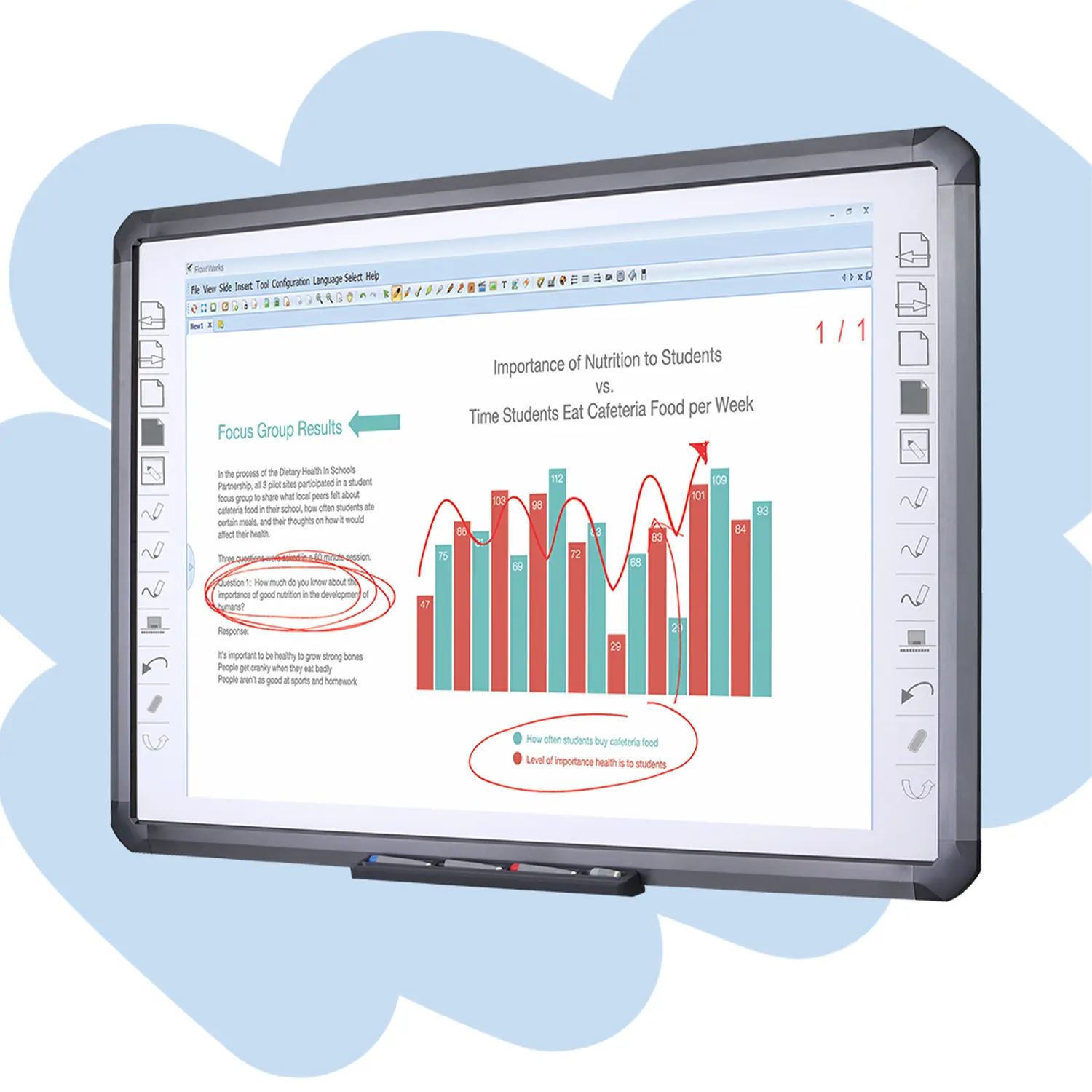
Flow!Works ProUser - friendly whiteboard software, it encompasses a wide range of presentation tools and powerful functions, delivering the most professional presentation experience to you.
Flow!WorksFlow!Works incorporates more educational tools, further enhancing the interactivity and fun - factor of your teaching.
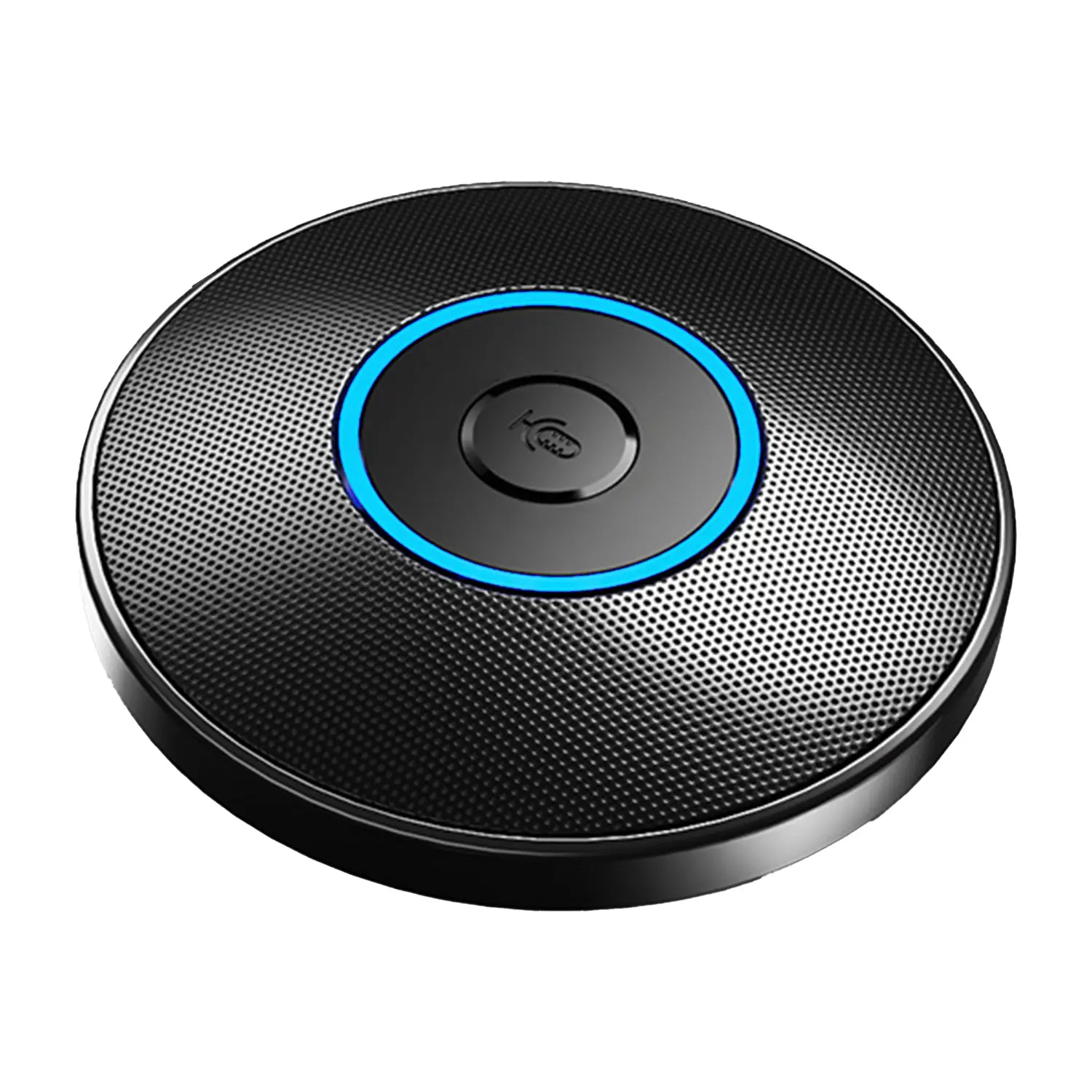
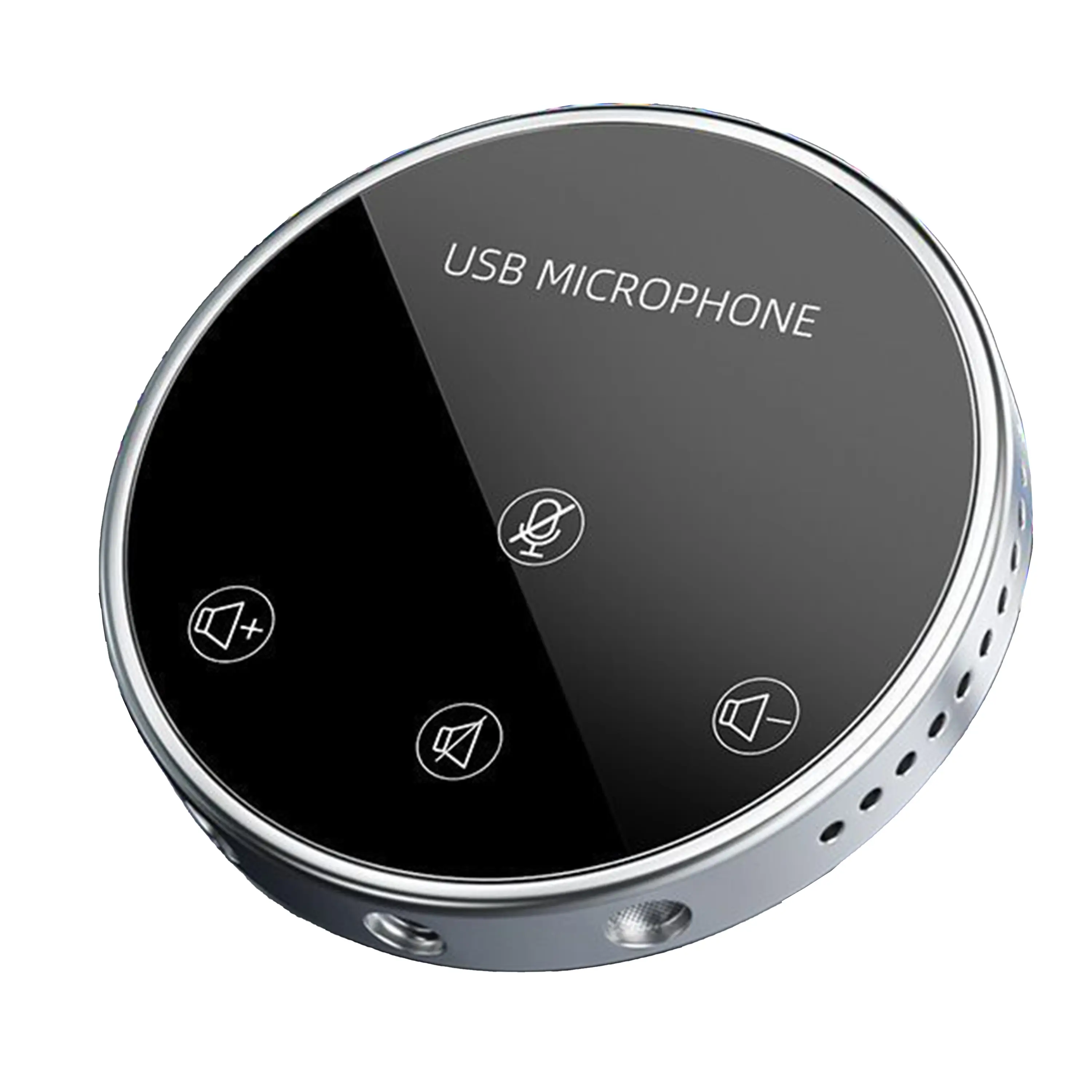
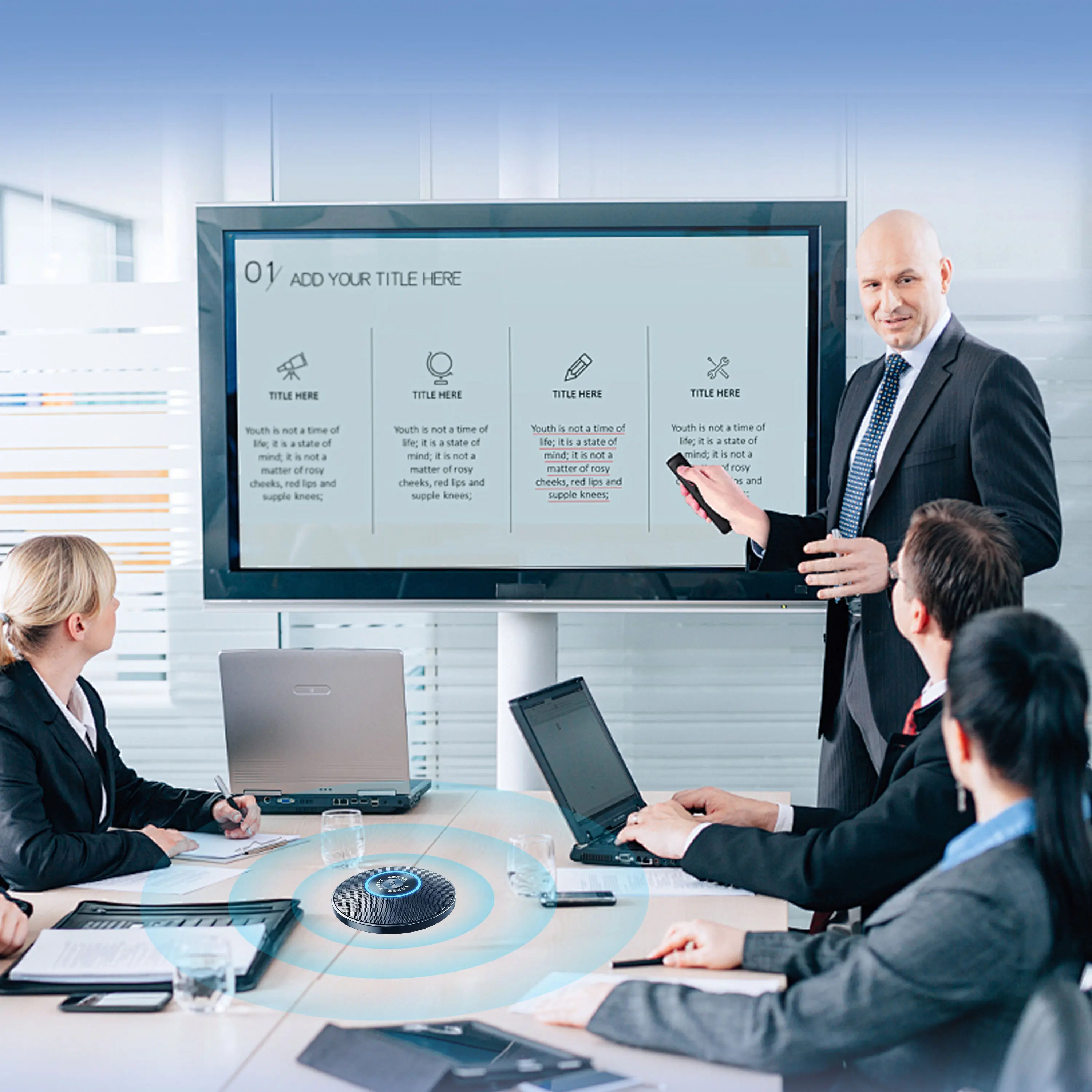
Conference Microphone● USB
● Plug and Play
● Intelligent Noise-Canceling
● 10ft/3m Extended Pickup Range
● 360° Omnidirectional Pickup
Conference Speakerphone● USB-C
● Plug and Play
● Intelligent Noise-Canceling
● 10ft/3m Extended Pickup Range
● 360° Omnidirectional Pickup
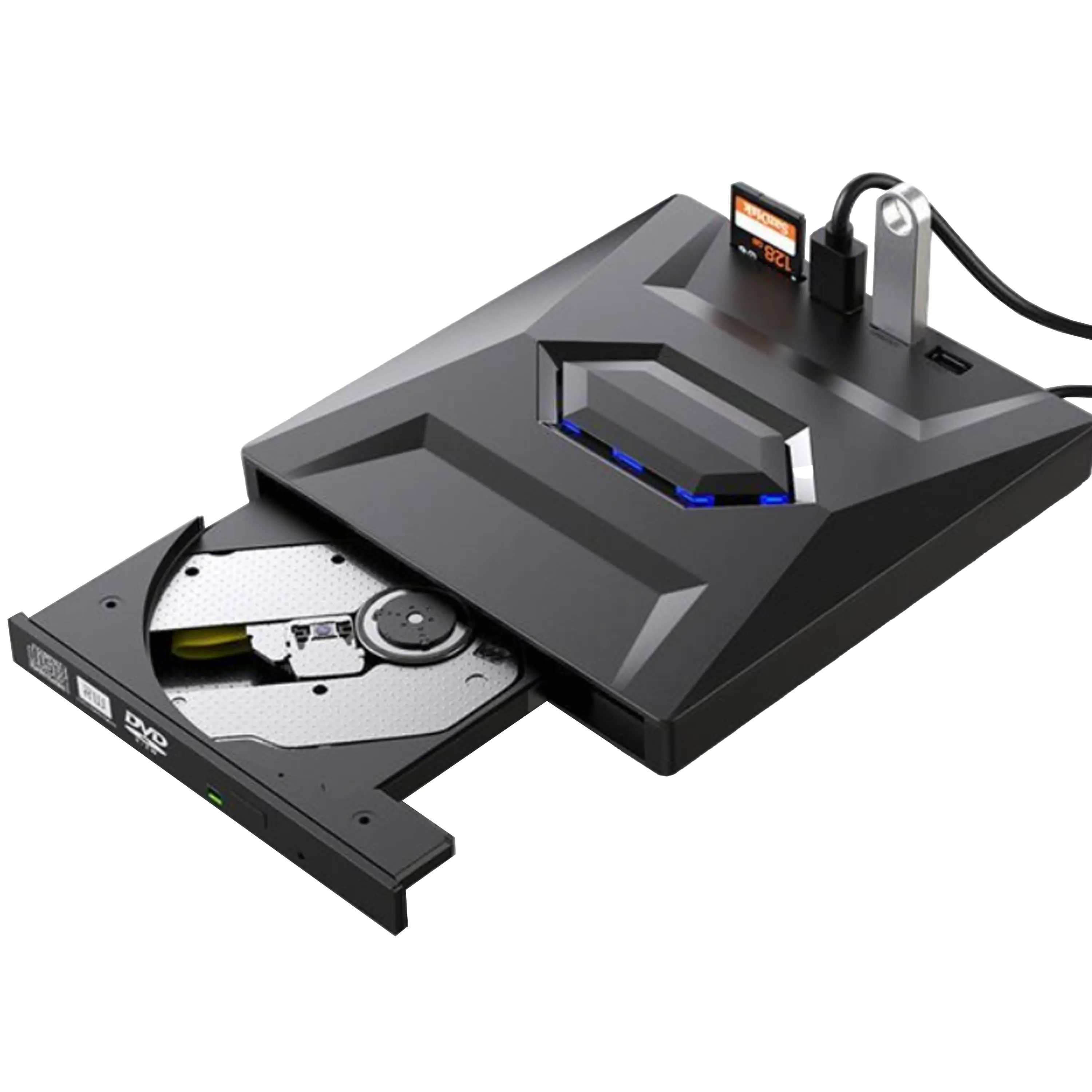
USB External CD/DVD Drive• USB and USB-C
• USB 3.0
• 8x DVD and 24x CD write/read speeds
• Portable
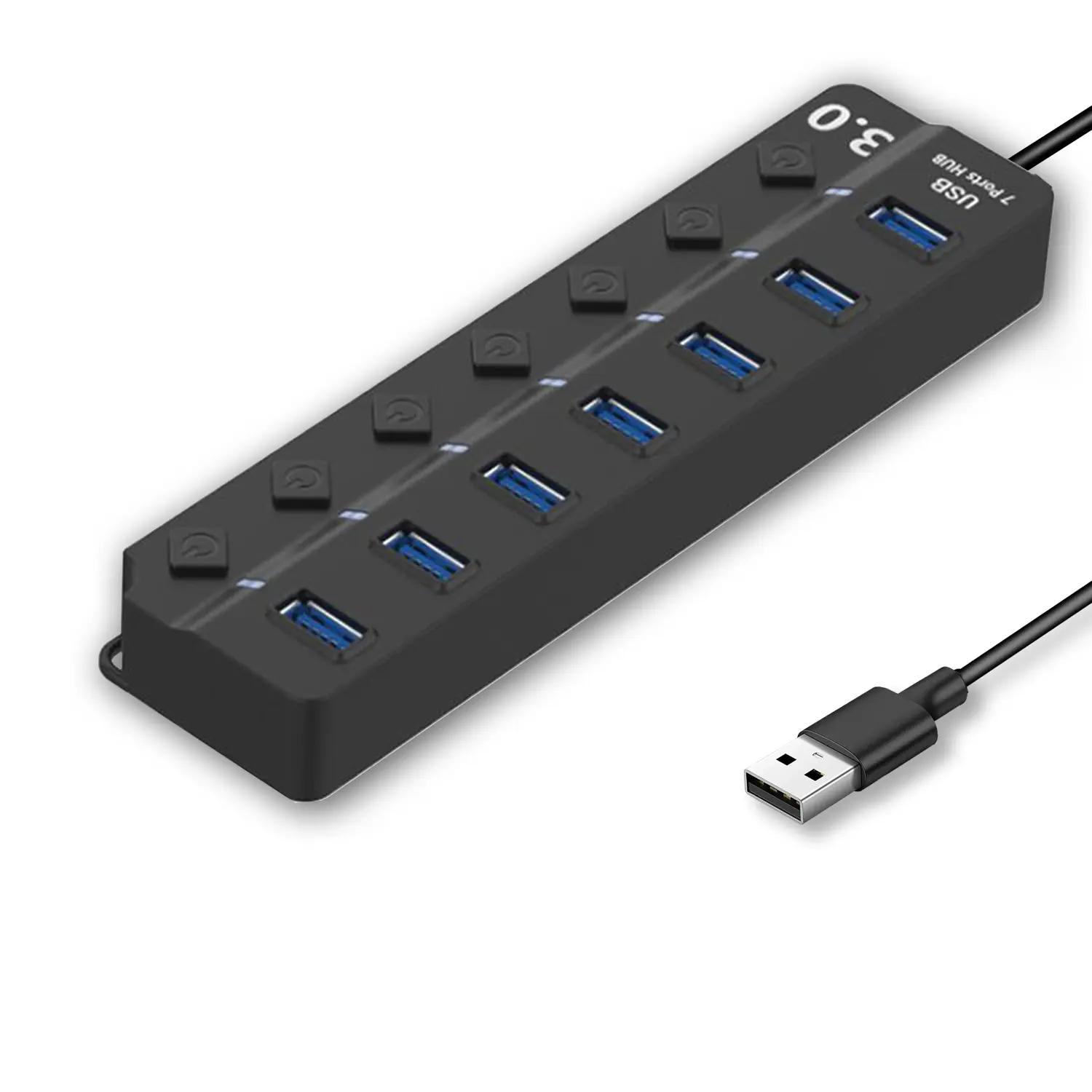
7-Port USB 3.0 Hub● USB 3.0
● Plug and Play
● 7-in-1 USB Hub
● Individual On/Off Switches
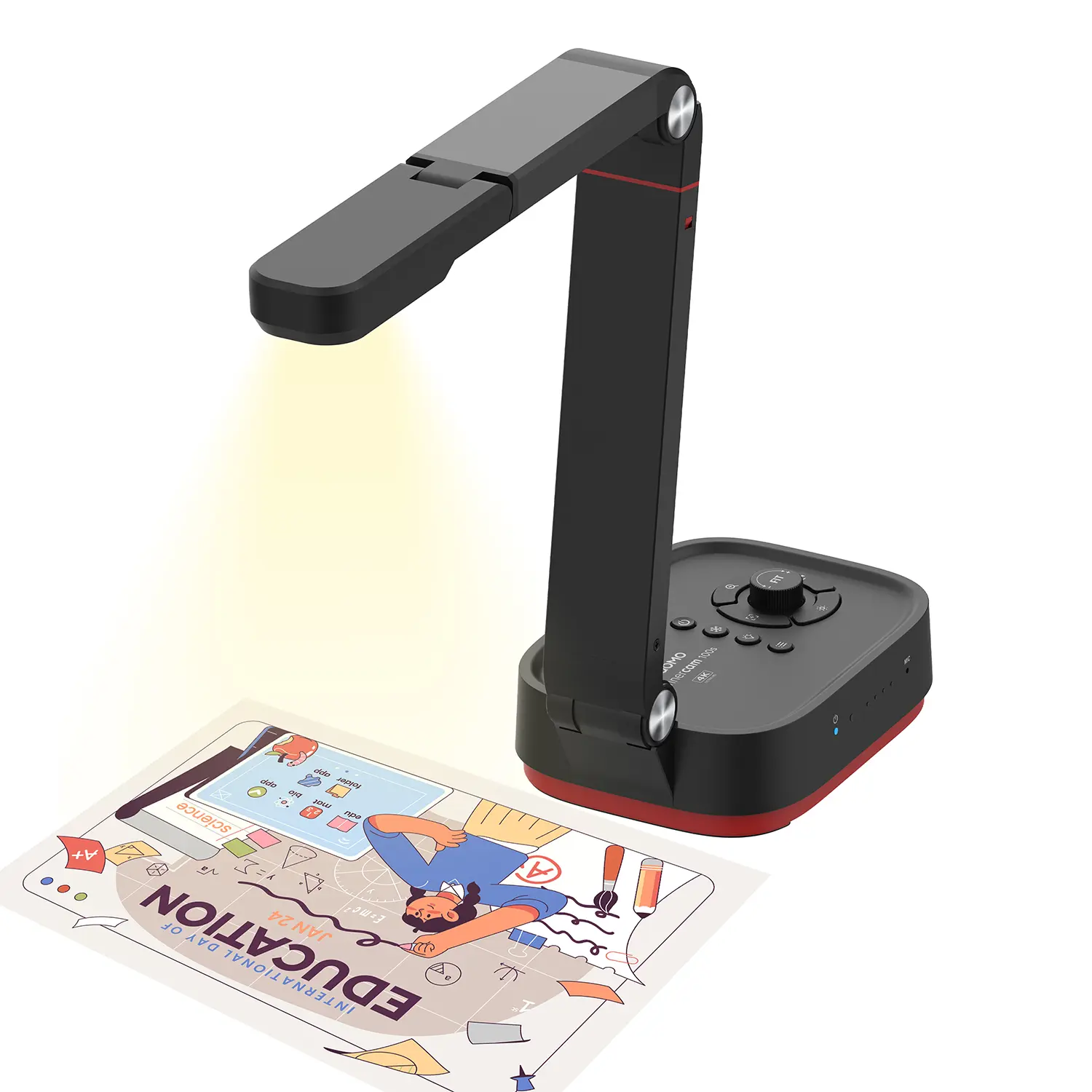
Revolutionize Your Presentations and Document Display with QWC 100S Document Camera
Enhance Call Experience: New Conference Microphone Now Available
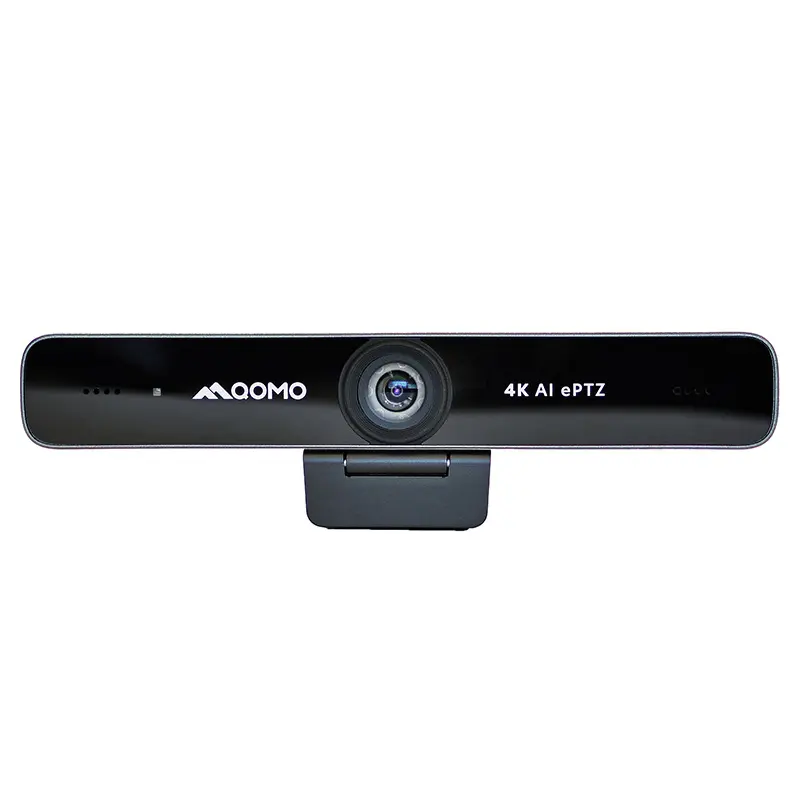
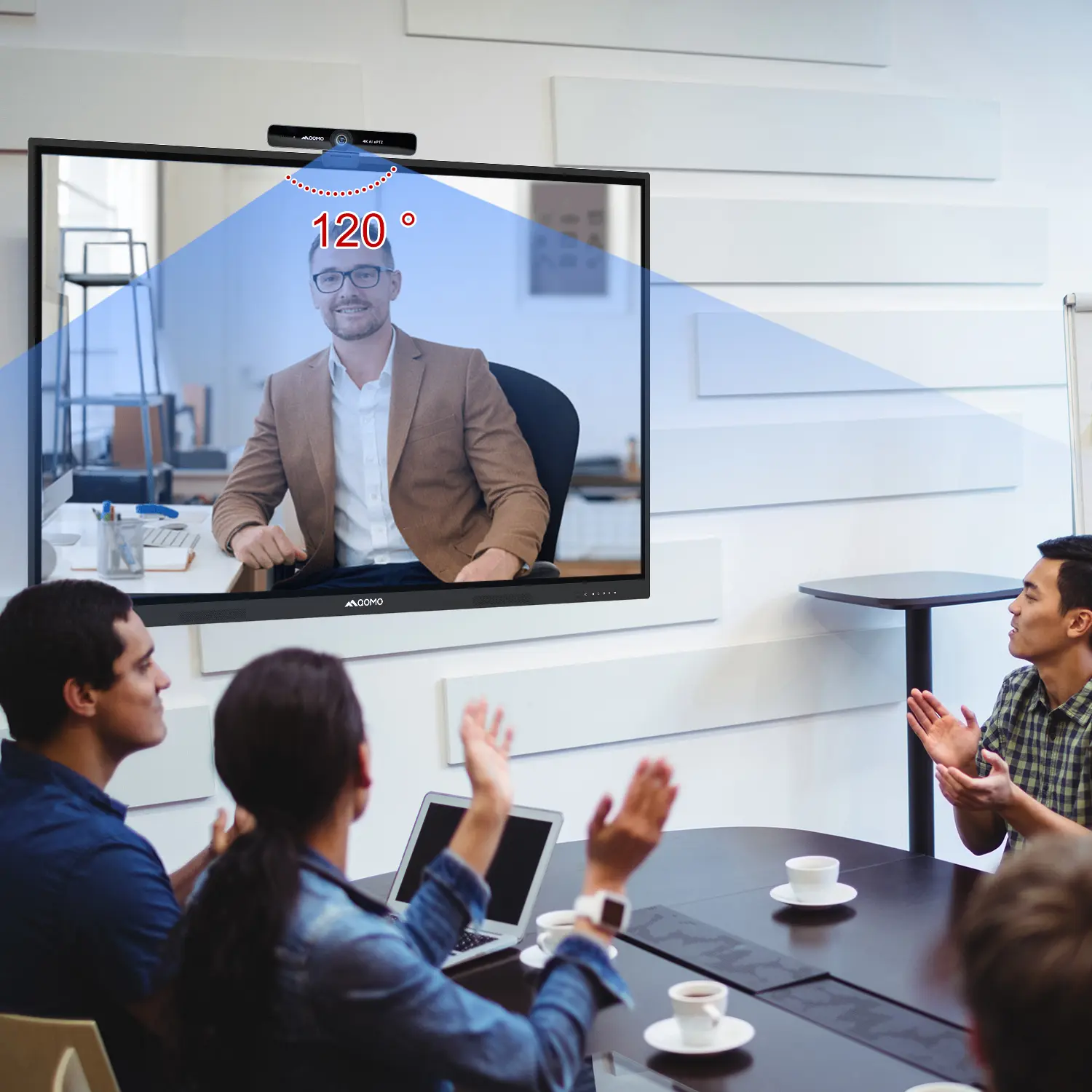
AI-Powered Face-Tracking Webcam
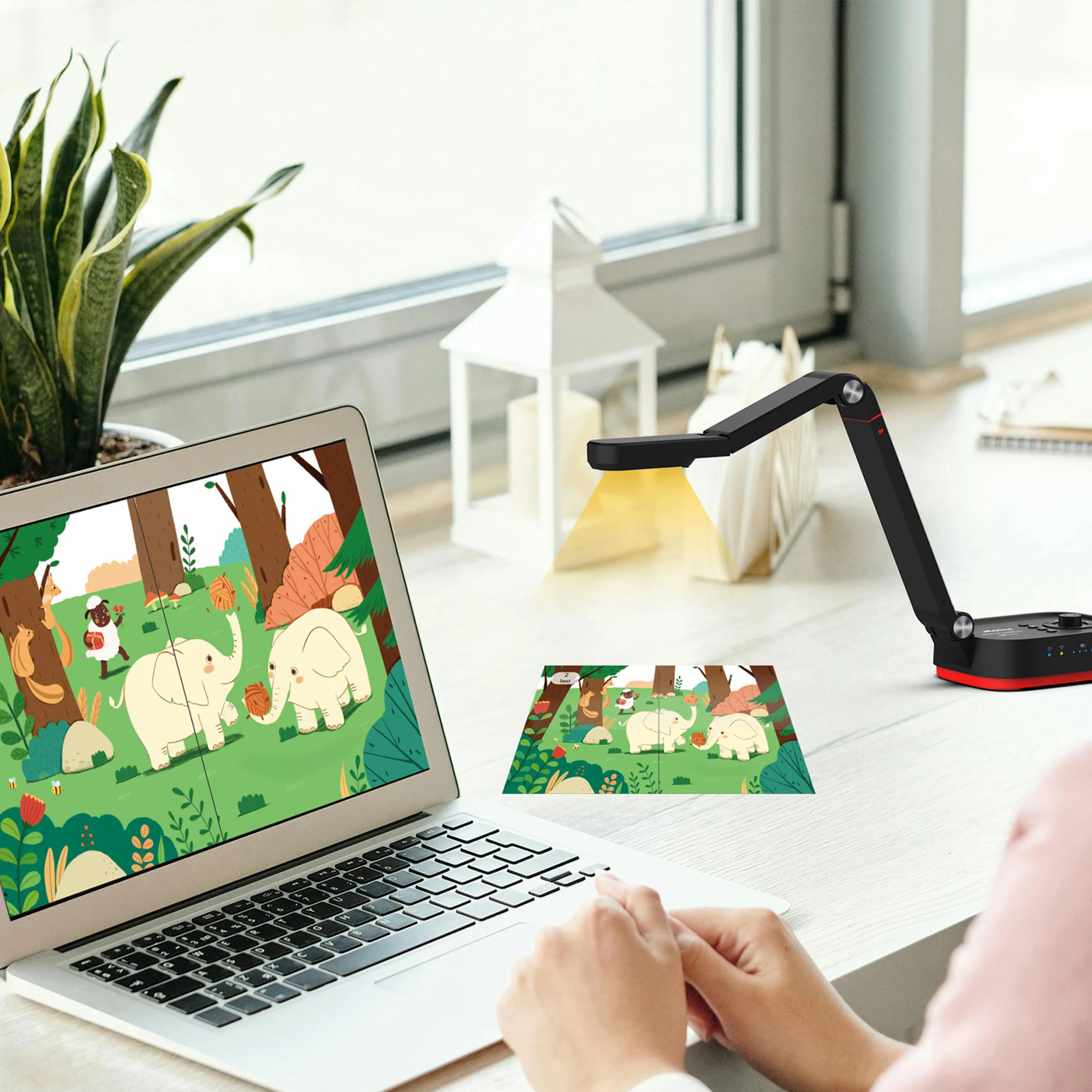
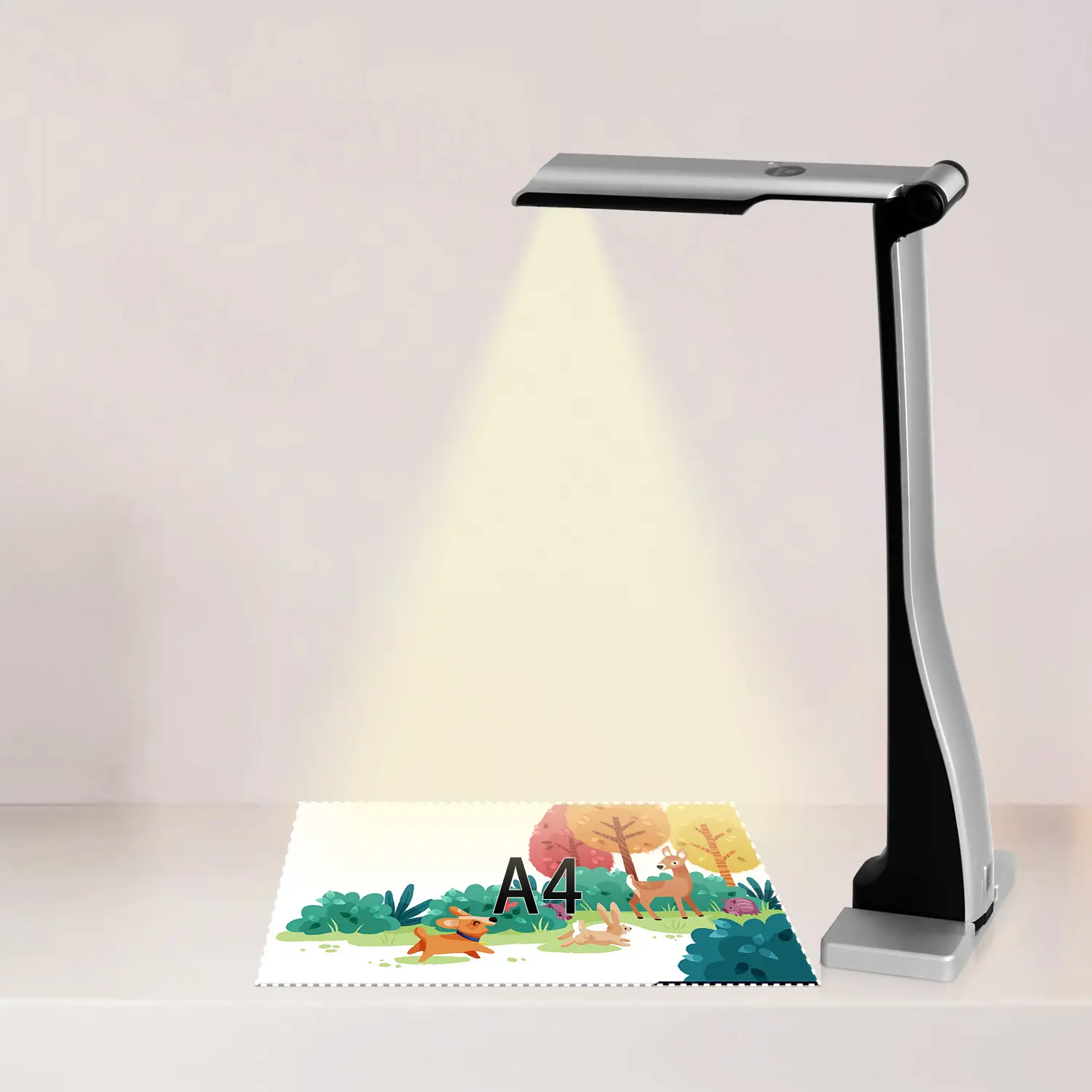
Portable Document Camera Recommendations
Classic Design, Exceptional Functionality: QPC 22 Document Camera
Wireless Screen Mirroring Solution for All Devices
Latest Audience Response System: QRF 999
Introducing the QPC 80H3 Gooseneck Document Camera
Creating a Smart Integrated Classroom: What Do You Need?
Wireless Connectivity Upgraded: WiFi-Free Wireless Document Receiver
Flow!Works Pro: Interactive Whiteboard Software for Engaging Classrooms
How to Choose the Perfect Document Camera and Elevate Productivity
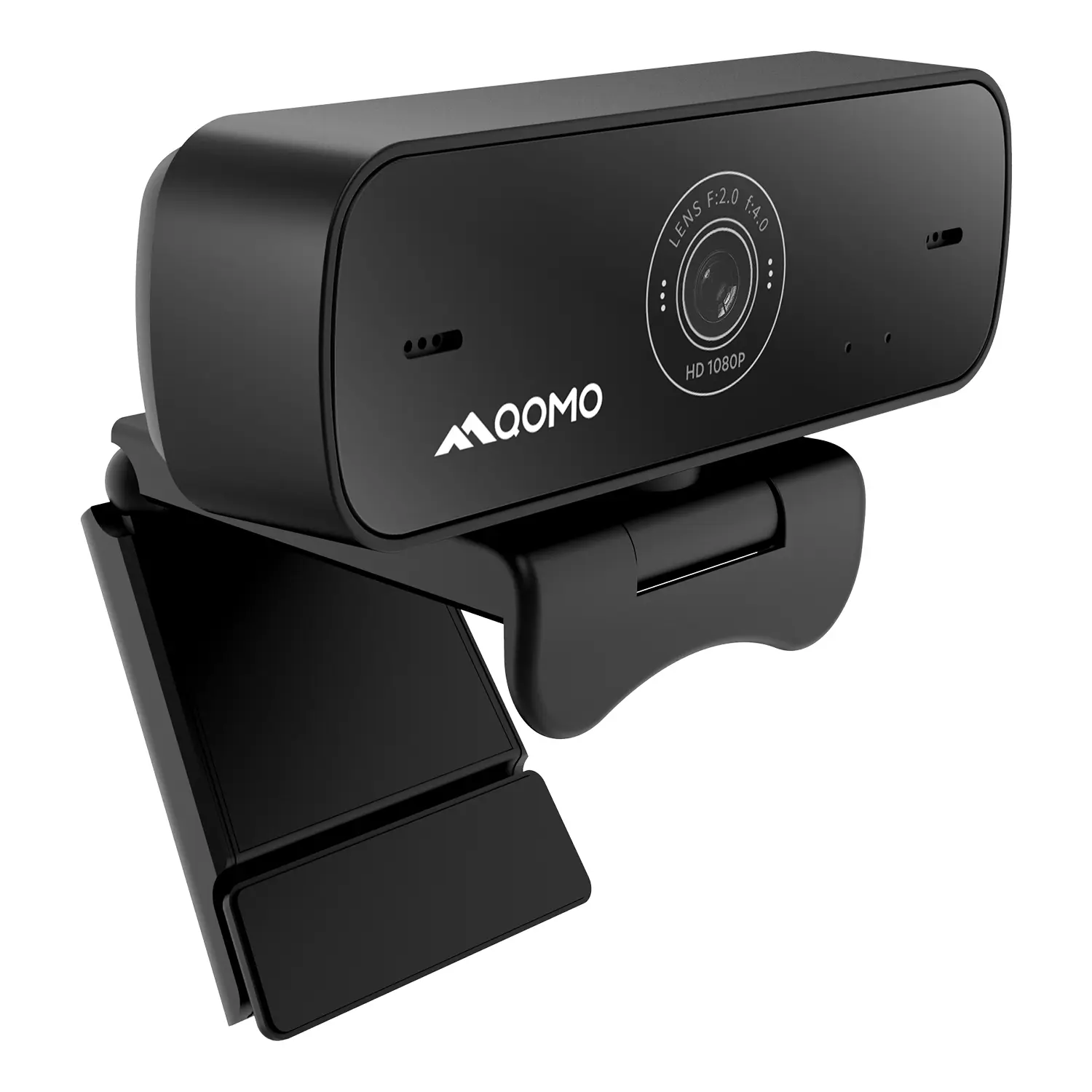
QWC 004 Conference Webcam: The Top Choice for Remote Education
QCamera: Dedicated Software for Document Cameras to Elevate Your Presentations
QRF999 Voice Response System: Enhancing Teacher-Student Interaction
Work From Home? Maybe You Should Try This Document Camera
The Ultimate Educational Tool: Gooseneck Document Camera
60GHz Millimeter-Wave Wireless Screen Sharing: QShare 100
What Does a Modern Conference Room Need?
QD5000 Document Camera: Unimaginable Versatility!
QWC 004: The Most Cost-Effective Webcam
QVote Interactive Classroom Response System Software
Functionality, Aesthetics, Portability! Meet the QWC 100S Document Camera!
Why Choose the BundleBoard H/H2 Interactive Flat Panel?
Save Your Budget—Introducing the All-New QPC 70 Document Camera!
QIT 600F3: Revolutionize Your Presentations
QCamera: Professional Document Camera Software
QPC 5: The Ultimate 4K Portable Document Camera
Elevate Your Meetings in Seconds: QWC 006 Webcam
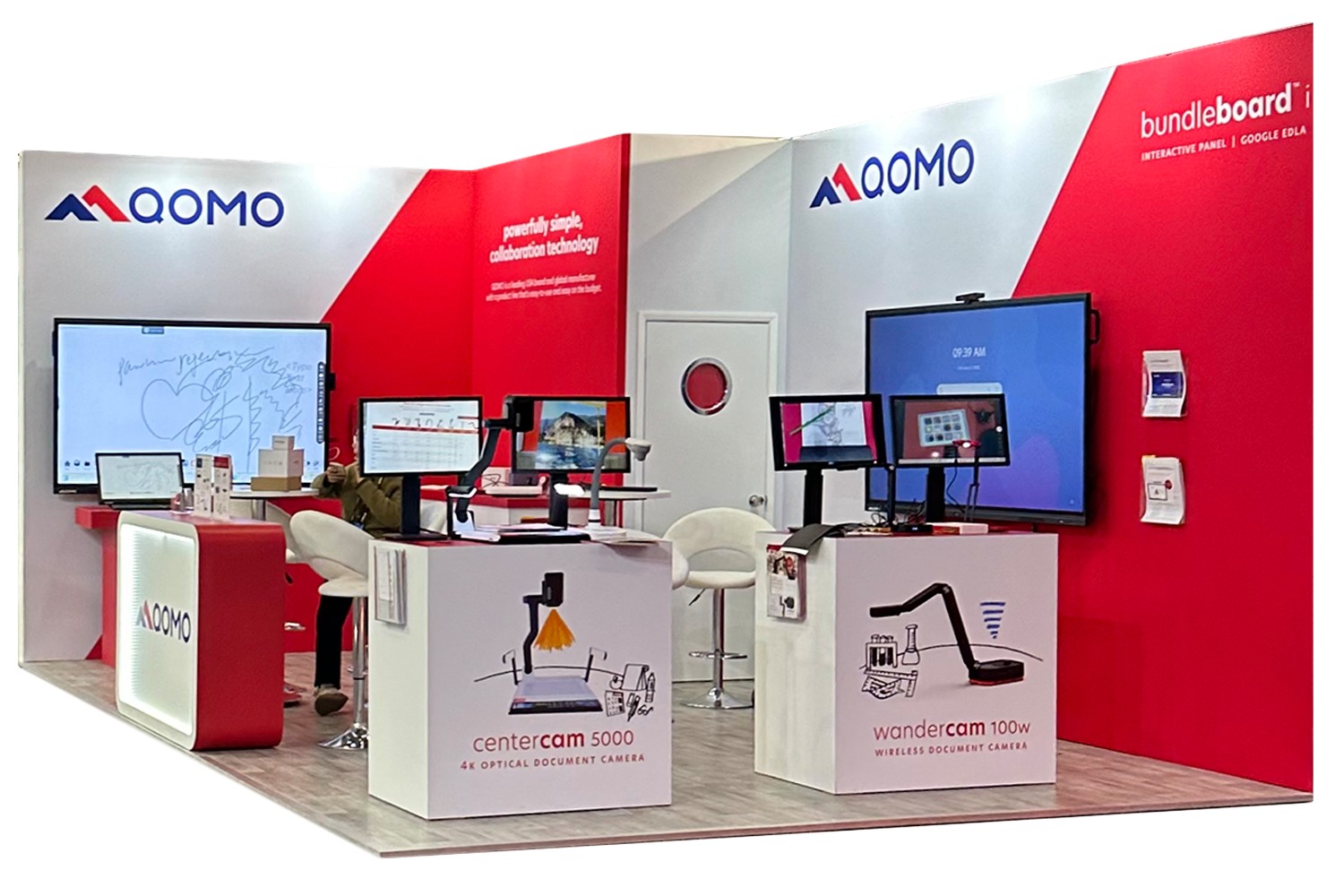
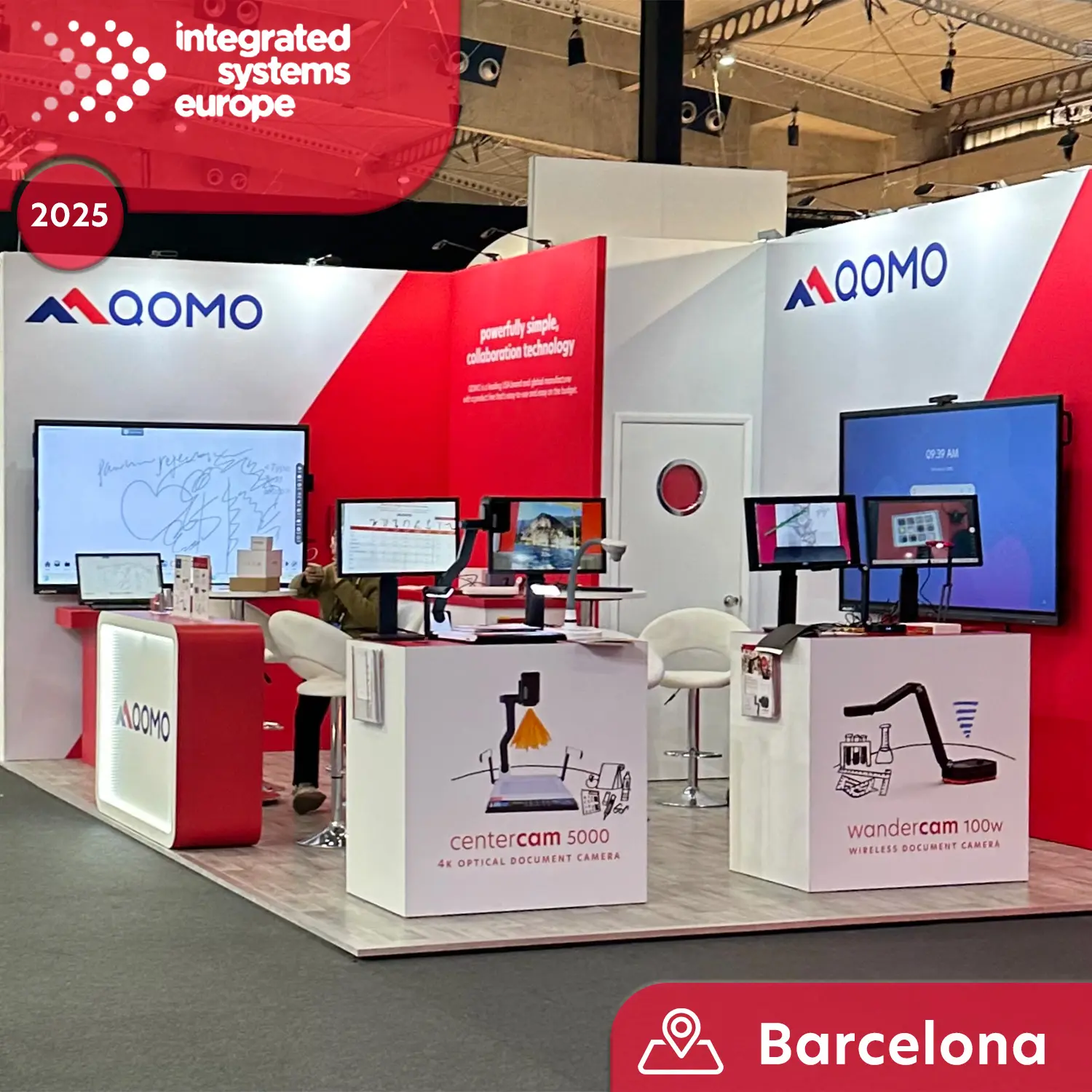
Meet QOMO at ISE 2025
Wireless Document Camera Solution, Revolutionizing Wireless Technology
QRF Series, Transform Your Classroom!
QOMO, Building Intelligent Classrooms
QOMO QShare100 New Release
Outstanding Office Equipment Recommendations
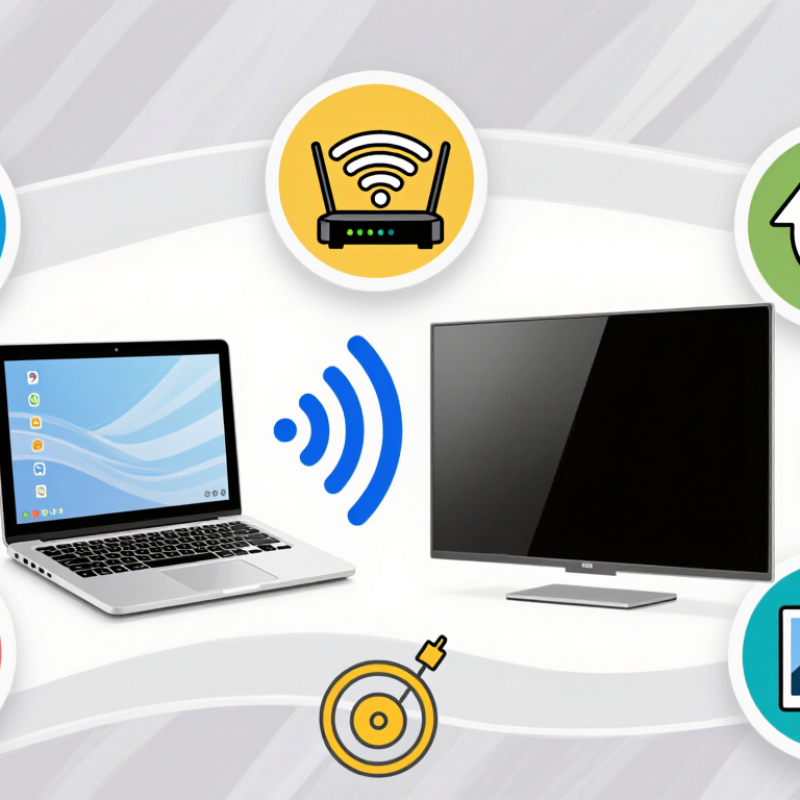
Screen Mirroring Chromebook to a TV can turn a small laptop display into a practical viewing space. It helps with classroom demonstrations, video calls, family photos, and streaming. Yet the process is not always effortless. A TV may support Chromecast, Miracast, or neither. The Chromebook may also use a different Wi-Fi network, causing frustrating delays.
ChromeOS journalist Gabriel Brangers offers a useful principle: “A stable connection matters more than a clever setup.” That idea shapes this guide. The seven tips focus on real problems, including choosing the correct casting method, checking network settings, updating ChromeOS, and reducing lag during playback. You will also see how to adjust TV input sources, test audio output, and protect picture quality from unnecessary compression.
Small details matter. Place the router away from thick walls. Keep the Chromebook reasonably close. Close unused browser tabs before mirroring. Simple steps.
Some advice may not work equally well for every home. Older TVs behave differently. Budget streaming devices can also introduce delay. That is worth admitting. Screen Mirroring Chromebook is convenient, but it is not magic. A wired HDMI connection may still win when timing, reliability, or sharp text matters most.
This introduction prepares you to compare each option carefully. The goal is not merely to make the screen appear. It is to create a smoother, clearer, and more dependable viewing experience. Expect practical checks, honest limitations, and a few fixes that may save you from restarting everything twice.
Screen mirroring from a Chromebook to a TV depends on compatibility, not just wireless strength. Check whether the TV or receiver supports the Cast protocol. Both devices should use the same Wi-Fi network. A 5 GHz connection usually reduces interference, but walls still matter. Deloitte’s 18th Digital Media Trends survey found that about 90% of U.S. households use at least one streaming service. That makes stable home networking increasingly important for screen sharing.
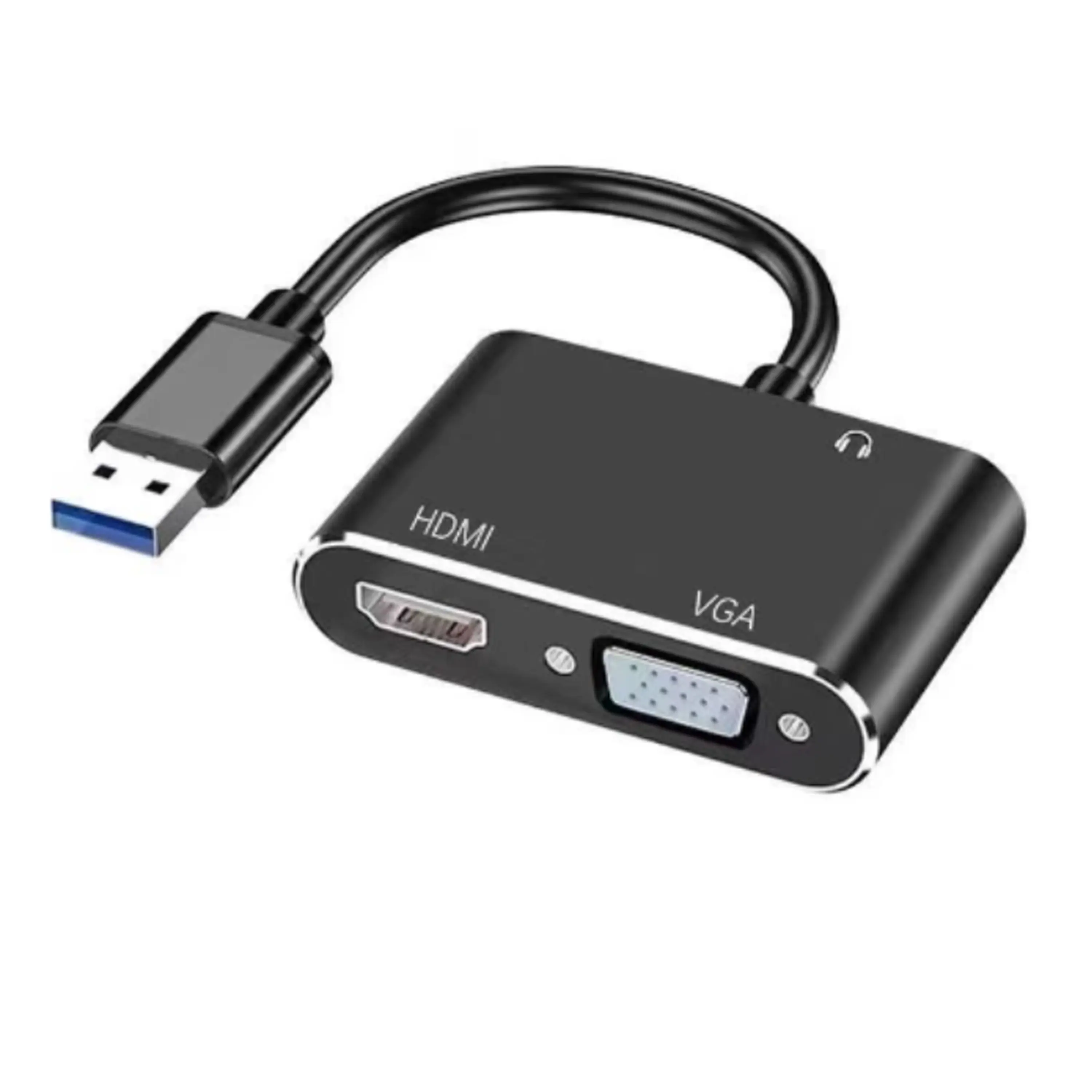
Tip: Confirm the video path before buying an adapter. HDMI 2.0 provides up to 18 Gbps bandwidth, according to the HDMI Licensing Administrator. It can support 4K at 60 Hz under suitable color and compression settings. The display must also accept 4K 60 Hz on the selected HDMI input. Some ports only support lower refresh rates. Look closely.
Tip: Test the complete chain. The Chromebook, adapter, cable, receiver, and TV must cooperate. The ITU-R BT.2020 recommendation defines 3840×2160 television formats, including 60 Hz operation. However, a 4K screen does not guarantee 4K mirroring. I once blamed Wi-Fi for blurry output, but the adapter was limited to 30 Hz. That mistake was avoidable. Use a certified HDMI 2.0 cable, update system software, and select the correct input manually. If the image stutters, reduce distance first, then test wired HDMI.
Before mirroring a Chromebook to a television, check the wireless network. The IEEE 802.11ac specification reports theoretical speeds of up to 6.9 Gbps. That figure assumes eight spatial streams, a 160 MHz channel, and ideal signal conditions. Most homes use fewer streams and narrower channels.
Real performance can be far lower.
Place the router in the same room when possible. A wall, microwave, or crowded apartment channel can create visible delays. The Wireless Broadband Alliance’s industry research highlights congestion and network quality as major factors in reliable wireless experiences. Use the 5 GHz band for higher throughput, but remember that its signal weakens faster through walls.
A quick speed test beside the television can reveal trouble before mirroring begins.
Keep the Chromebook and television on the same network. Pause large downloads and move the router away from the floor. For smooth high-definition mirroring, stable latency matters more than an impressive speed-test number. I once blamed the display, but the real problem was a weak signal behind a cabinet. The 6.9 Gbps claim is useful context, not a promise. Even a fast connection may stutter when interference rises. Check the channel, reduce distance, and test again.
Screen mirroring a Chromebook to a TV becomes easier when you choose the right viewing area.
Open the quick settings panel, select Cast, and check the available display. For a video, choose a single browser tab. It keeps notifications and unrelated work hidden. For a presentation, select one application window instead. The picture stays focused, even when several windows remain open. Choose the full ChromeOS desktop only when you need to demonstrate a complete workflow.
The choice affects privacy and performance. In practice, close unused tabs, keep both devices on the same Wi-Fi network, and place the laptop near the router. A weak signal can create delayed audio or a frozen frame. That is frustrating.
A 2024 Digital Media Trends survey found that streaming remains a major part of daily media use, but viewers still expect quick, reliable playback.
Test before presenting.
I once mirrored the wrong window and exposed an unfinished document. It was harmless, but avoidable. Turn on Do Not Disturb, reduce screen clutter, and play a ten-second clip. If the image stutters, lower video quality or move closer to the access point.
The 2024 Global Digital Overview reported that people spend more than six hours online daily, making stable shared-screen connections increasingly practical.
Still, wireless casting is not perfect. For fast demonstrations, a wired display connection may feel more dependable.
7 Tips for Screen Mirroring a Chromebook to TV
A clear picture begins with matching resolution. Check the laptop’s display settings and select the television’s native resolution, such as 1920 × 1080 or 3840 × 2160. A lower source can look soft, while forced upscaling may create artificial edges. I noticed this most during text-heavy presentations.
Keep the aspect ratio at 16:9. ITU-R BT.709 defines 16:9 as the standard HDTV format, so it usually fills modern television screens correctly. If black bars appear, inspect the television’s picture-size setting before changing the laptop output. Overscan can crop subtitles and menu buttons. It is an old setting, but it still causes confusion. The Consumer Technology Association’s 2024 market data shows continued growth in connected-home entertainment, making reliable display setup increasingly practical for everyday viewing. Turn off unnecessary zoom modes.
Set the refresh rate to 60 Hz when both devices support it. This rate provides smoother cursor movement and video playback than 30 Hz. The difference is easy to see in sports or scrolling webpages. However, wireless mirroring can still stutter when Wi-Fi congestion is high. A 2024 report from the Wi-Fi Alliance emphasizes the importance of network capacity for high-quality video experiences. Keep the laptop near the router, pause large downloads, and reconnect if motion becomes uneven. My mistake was blaming resolution first; network delay was the real problem. Use a short test video before starting a meeting.
Screen mirroring a Chromebook to a TV can feel simple, but small settings often interrupt the connection. Check that both devices use the same Wi-Fi network. A guest network may block communication. Open the Chromebook’s casting or display settings, then allow nearby-device access when requested. Also select the correct HDMI input on the TV. It happens. A blank screen may indicate an HDCP 2.2 mismatch between the Chromebook, cable, adapter, or TV. Use compatible equipment and avoid trying to bypass content protection. Some protected videos intentionally display a black screen during mirroring.
Audio needs its own check. Open the Chromebook’s sound controls and choose the TV or connected display as the output device. Raise both volume levels, then test a short local video. If sound stays on the Chromebook, disconnect wireless headphones and reconnect the display. This small detail is easy to miss. Lowering the mirrored resolution can help when the picture flickers or freezes. A direct cable connection is often steadier than wireless casting, especially across thick walls. Restarting both devices can clear a temporary handshake error. I once blamed the adapter, but the TV input was wrong. That mistake was useful. Check for system updates, inspect loose connectors, and test another cable when possible. Reliable troubleshooting means changing one setting at a time, not guessing at everything together.
| No. | Tip / Check | What to Verify | Recommended Action | Typical Result |
|---|---|---|---|---|
| 1 | Use the same Wi-Fi network | The Chromebook and TV receiver should be connected to the same local network and network band when possible. | Reconnect both devices to the same Wi-Fi name. Avoid guest networks, client isolation, and captive-portal networks that block device discovery. | The TV or receiver becomes visible in the Cast or screen-sharing list, with fewer connection timeouts. |
| 2 | Check casting permissions | Local-network discovery, pop-up permissions, and any managed-device restrictions may prevent screen sharing. | Allow network discovery and pop-ups when prompted. If the Chromebook is managed by a school or organization, ask the administrator whether casting is permitted. | The casting control opens normally and the available display list loads without a permission error. |
| 3 | Confirm receiver compatibility | Not every TV supports direct Chromebook mirroring. Some models support only selected casting protocols or app-based playback. | Check the TV manual for support for Chromebook screen casting or the relevant wireless display protocol. If unsupported, use a compatible external receiver or a wired HDMI connection. | The connection method matches the receiver’s supported protocol instead of repeatedly failing during discovery. |
| 4 | Verify HDCP 2.2 support | Protected 4K content may require HDCP 2.2 support across the Chromebook output, adapter, receiver, HDMI cable, and TV input. | Use an HDCP-compliant HDMI path and connect to an HDMI input documented as supporting the required protection level. Remove unsupported splitters, converters, or capture devices. | Black screens or “content unavailable” messages are reduced when protected video is played. Availability can still depend on the content service. |
| 5 | Select the correct audio output | Video may appear while sound remains on the Chromebook, headphones, Bluetooth device, or another HDMI output. | Open the system audio controls, choose the active HDMI or TV output, raise the TV volume, and temporarily disconnect Bluetooth headphones or speakers. | Sound is routed through the TV or connected audio system instead of the Chromebook’s internal speakers. |
| 6 | Update and restart both devices | Outdated system software, receiver firmware, or a temporary wireless-service error can interrupt mirroring. | Install available Chromebook and TV updates, then restart the Chromebook, TV, receiver, and network equipment. Reopen the casting menu afterward. | Stale sessions, missing receiver listings, audio dropouts, and intermittent disconnections may be corrected. |
| 7 | Reduce interference and test the display path | Weak Wi-Fi, crowded radio channels, long or damaged cables, and incorrect TV inputs can cause lag, flicker, or no signal. | Move the receiver closer to the access point, reduce heavy network traffic, select the correct HDMI input, and test with a short certified cable or a direct connection. | Lower latency, fewer freezes, and a stable picture help identify whether the problem is wireless, cable-related, or input-related. |