+86 152 8002 3723
QVoteProfessional Audience Response System software offers the most convenient functions for your interactions.
QClickThe most convenient educational software for working with Microsoft PowerPoint to quickly set up various question types and generate intelligent feedback reports.
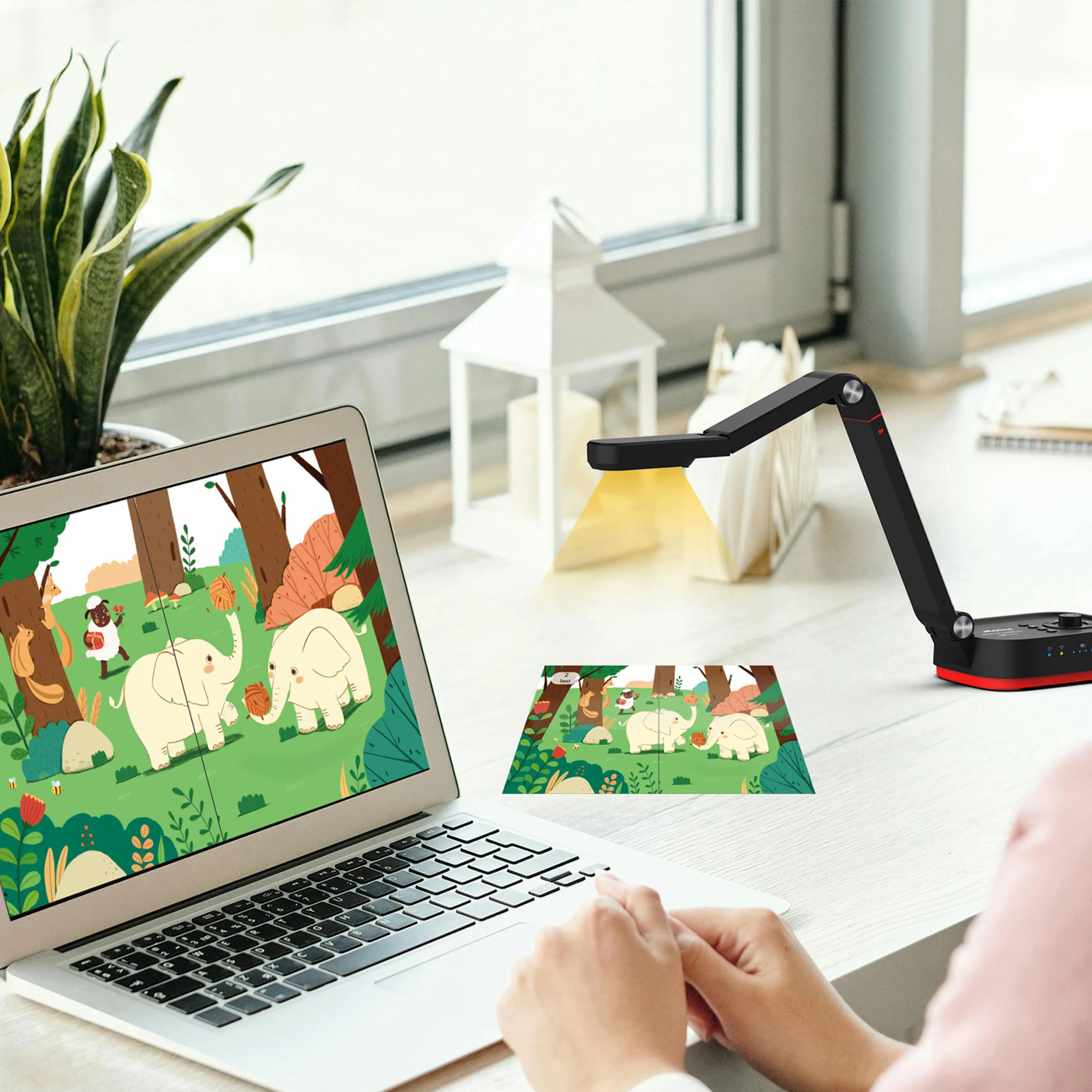
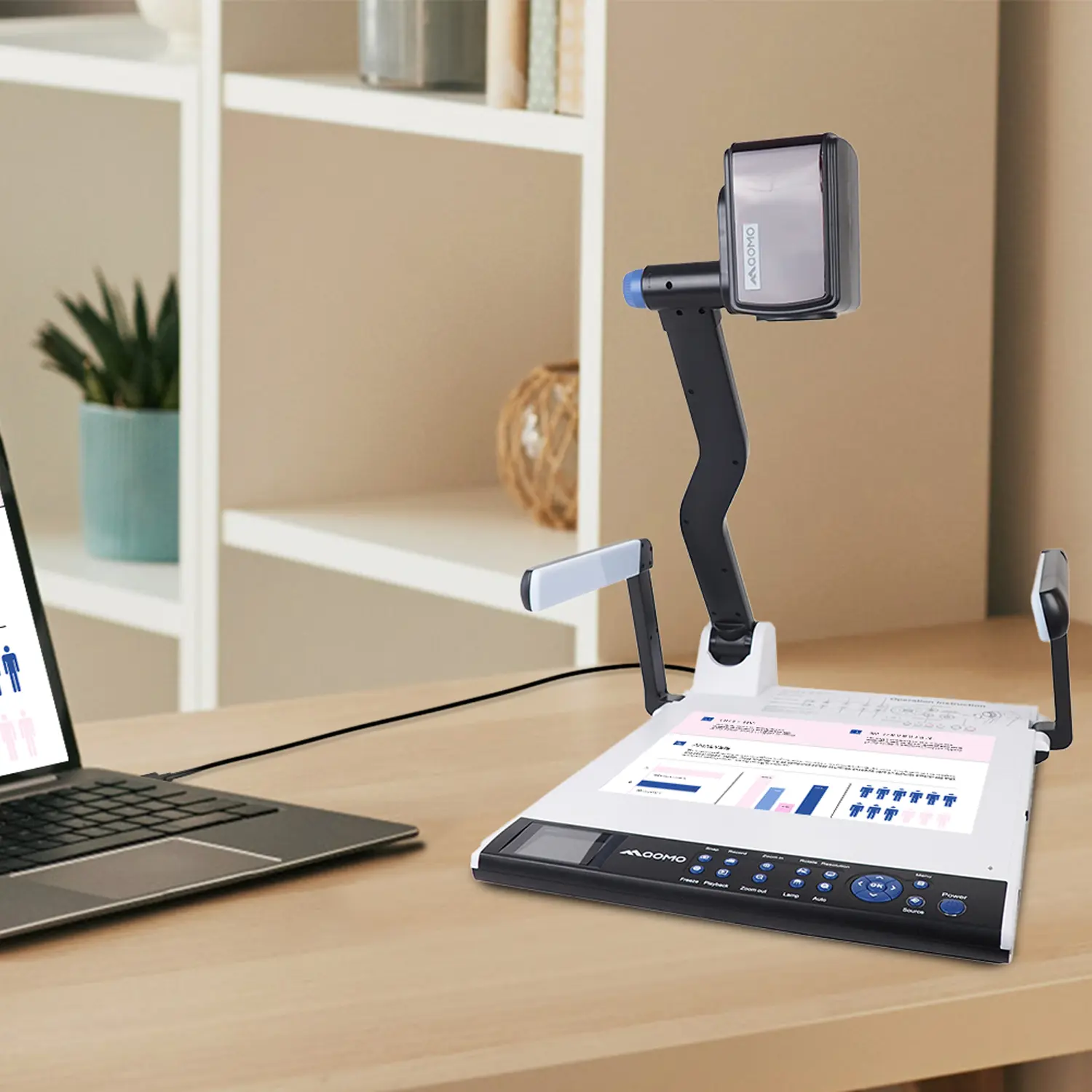
QCameraQCamera by QOMO allows for real-time streaming from cameras and document cameras. Annotate, save snapshots, record, and manipulate camera images instantly.
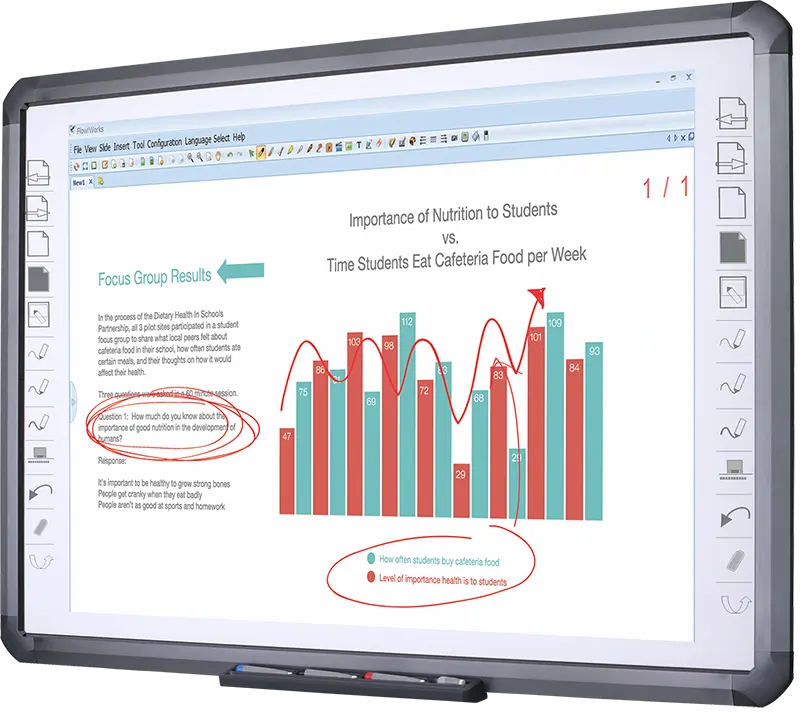
Flow!Works ProUser - friendly whiteboard software, it encompasses a wide range of presentation tools and powerful functions, delivering the most professional presentation experience to you.
Flow!WorksFlow!Works incorporates more educational tools, further enhancing the interactivity and fun - factor of your teaching.
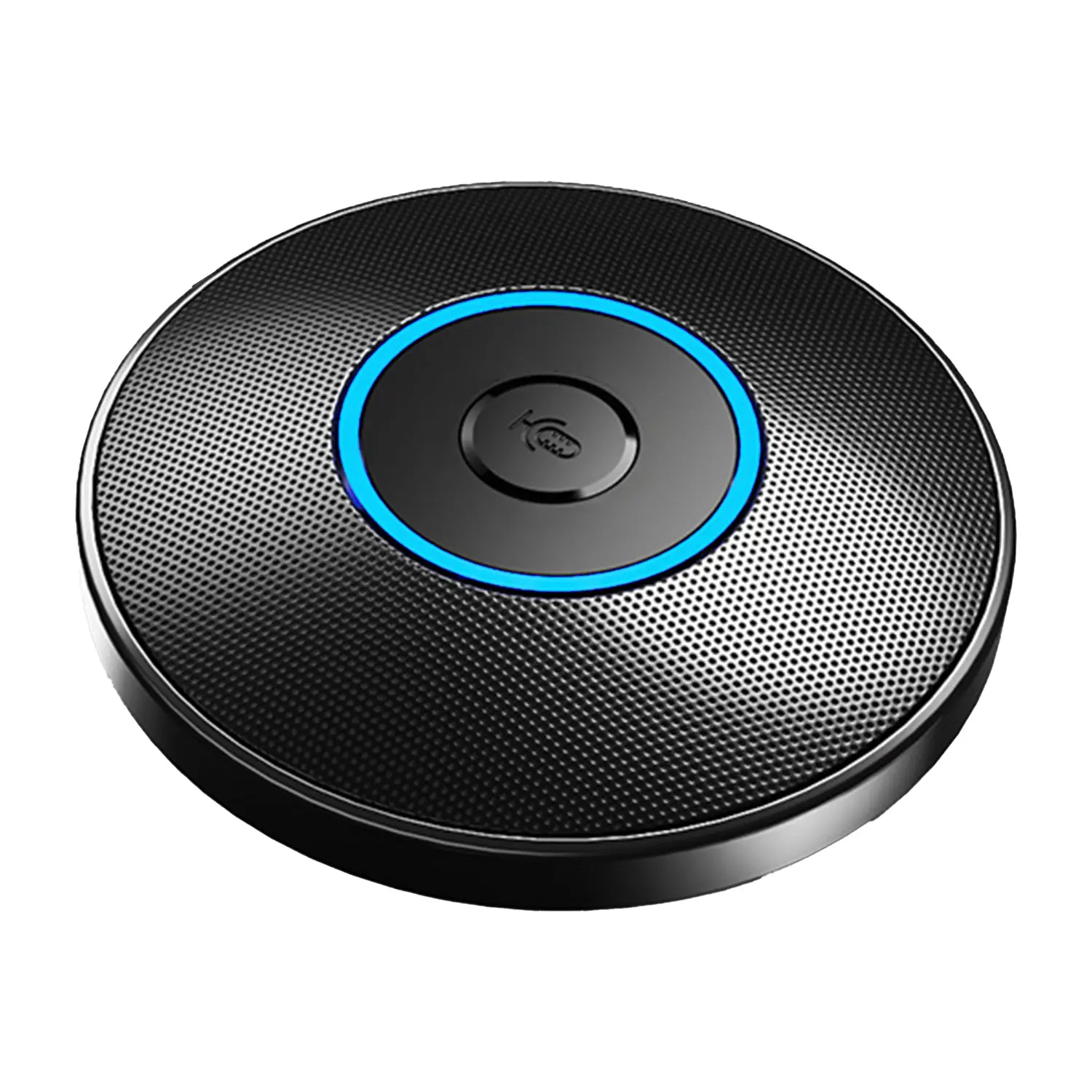
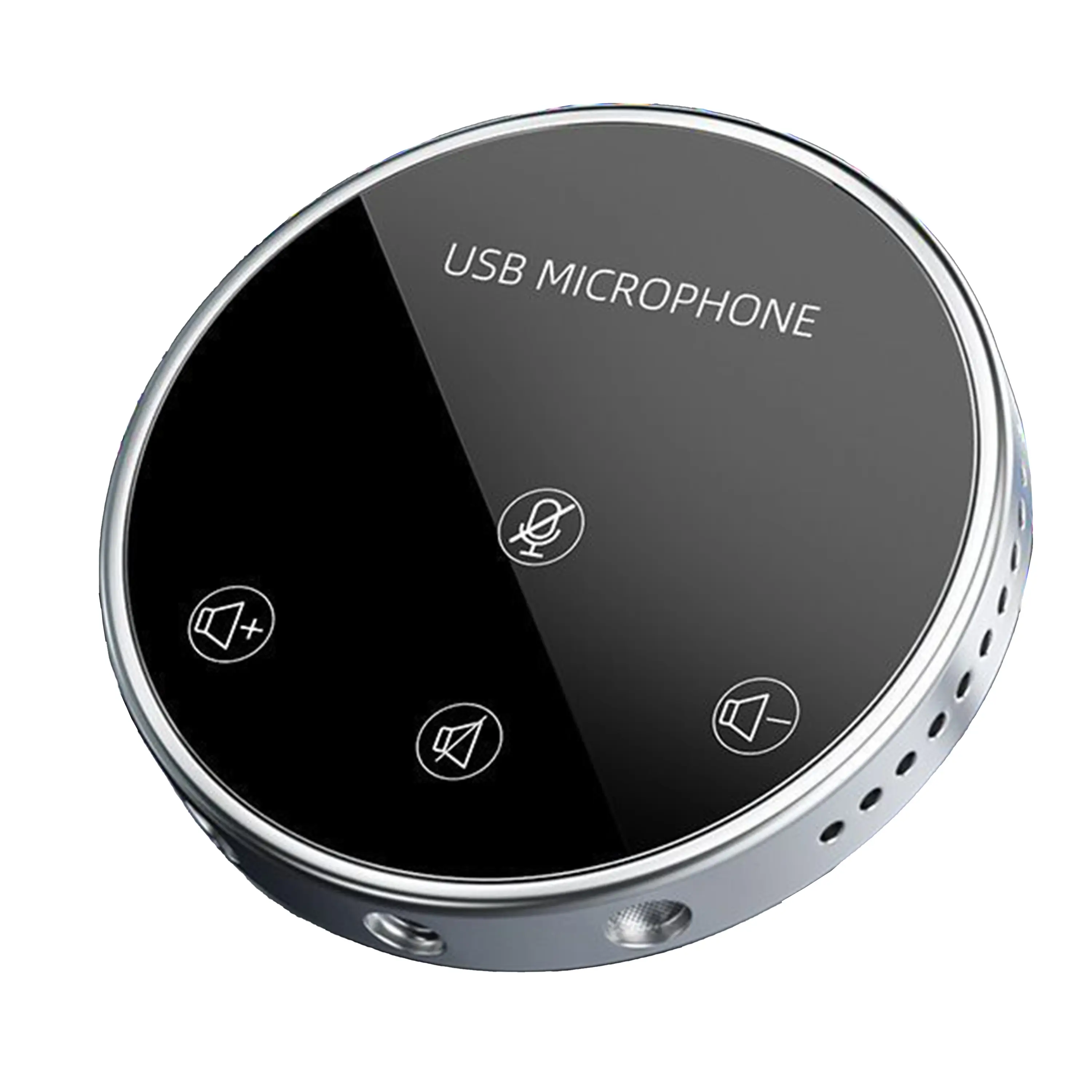
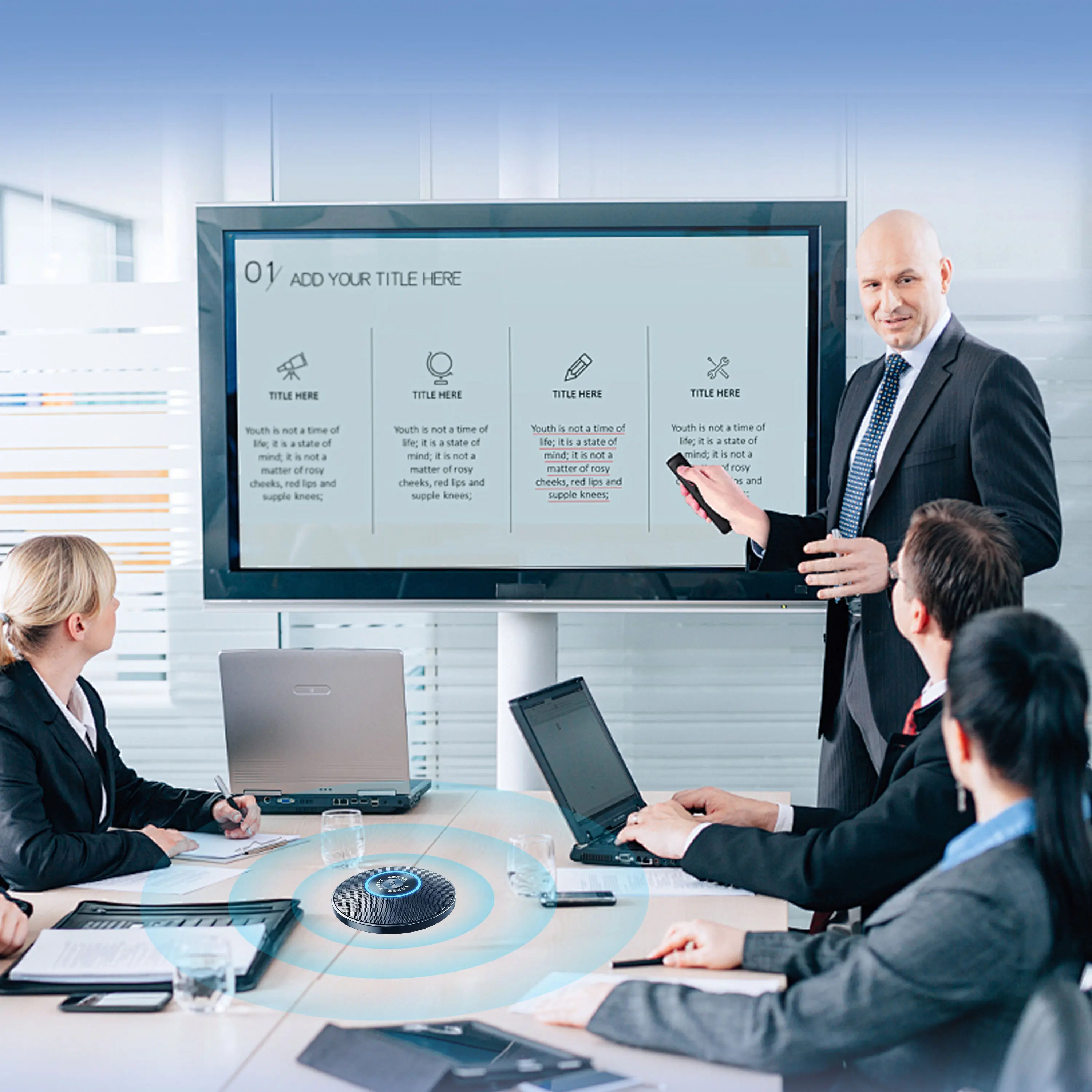
Conference Microphone● USB
● Plug and Play
● Intelligent Noise-Canceling
● 10ft/3m Extended Pickup Range
● 360° Omnidirectional Pickup
Conference Speakerphone● USB-C
● Plug and Play
● Intelligent Noise-Canceling
● 10ft/3m Extended Pickup Range
● 360° Omnidirectional Pickup
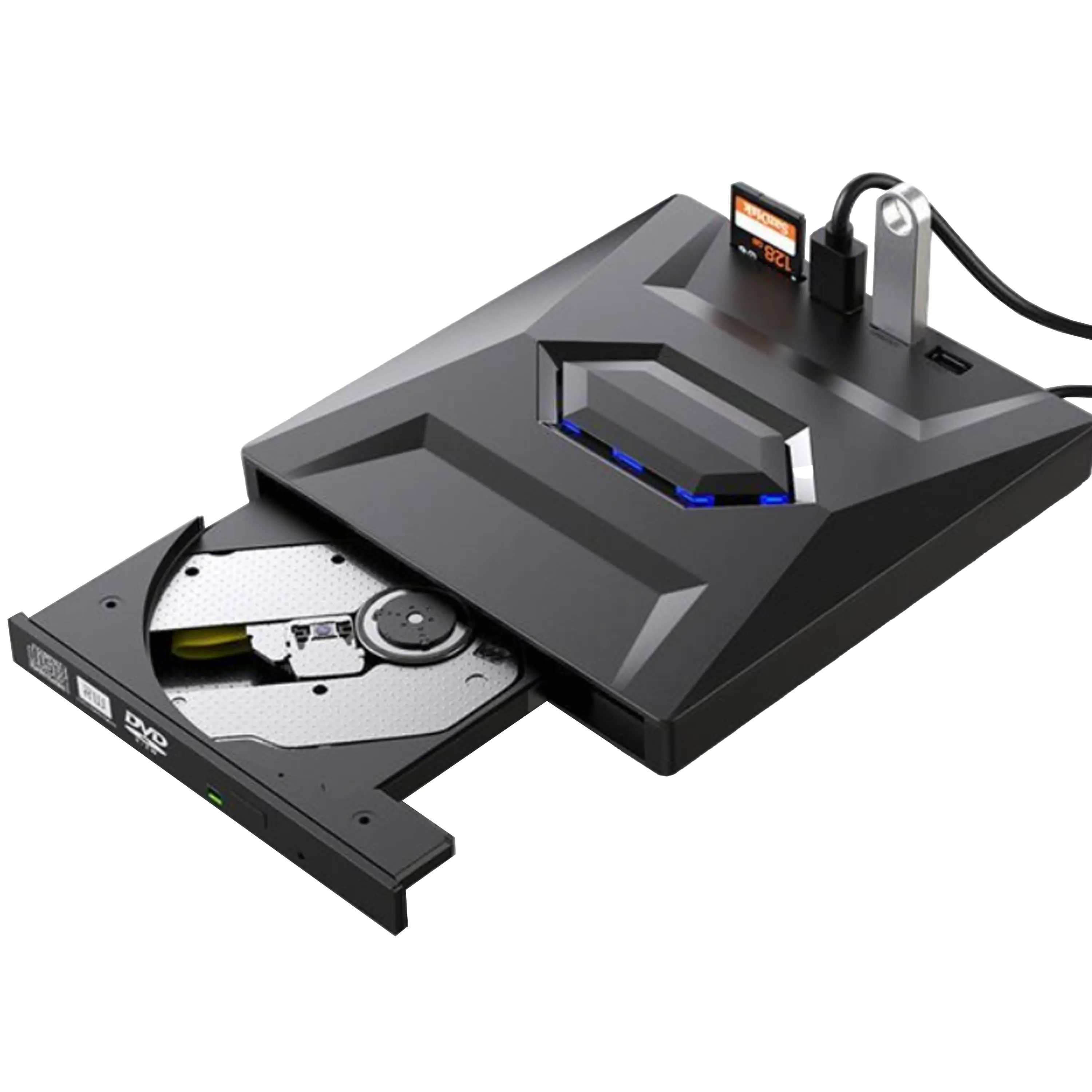
USB External CD/DVD Drive• USB and USB-C
• USB 3.0
• 8x DVD and 24x CD write/read speeds
• Portable
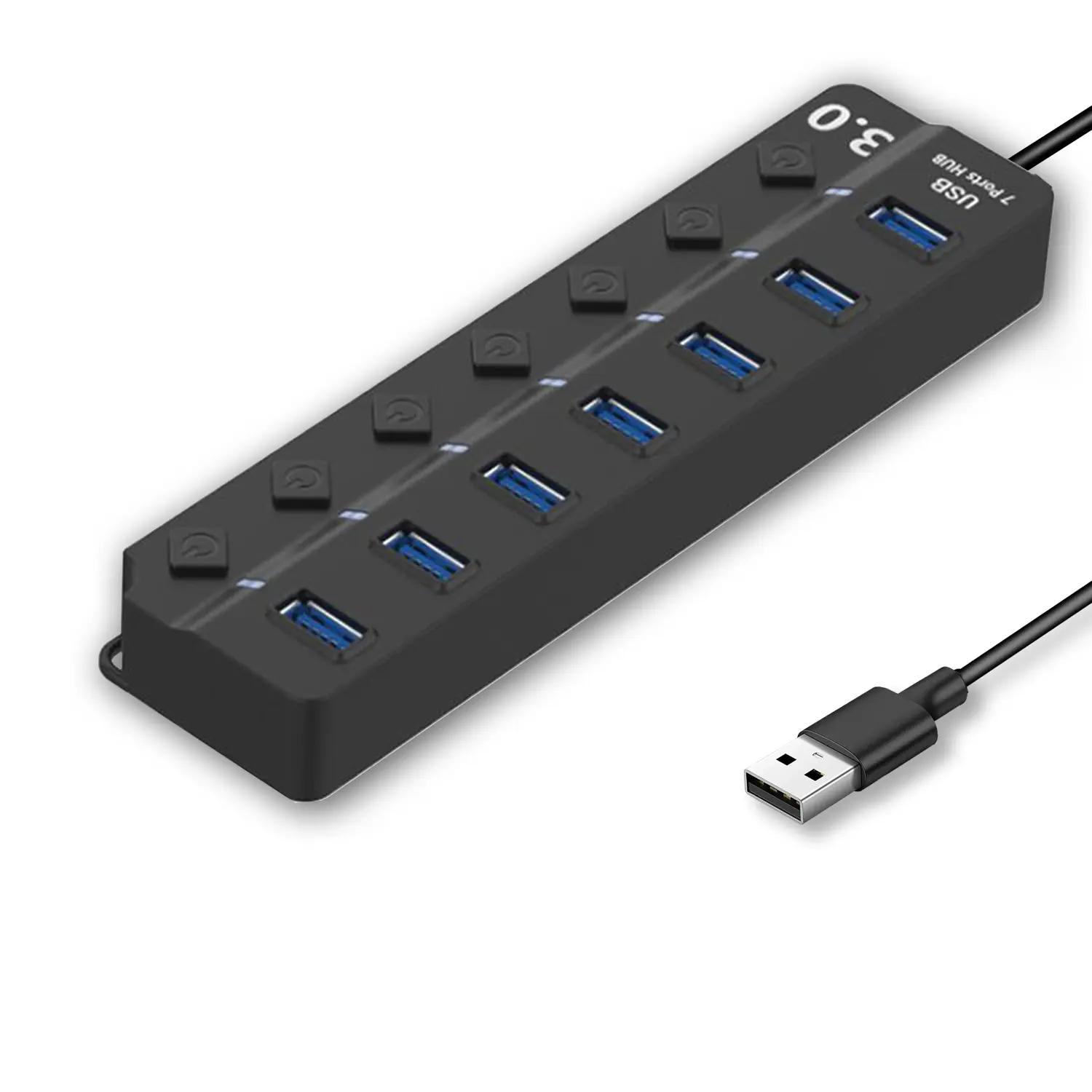
7-Port USB 3.0 Hub● USB 3.0
● Plug and Play
● 7-in-1 USB Hub
● Individual On/Off Switches
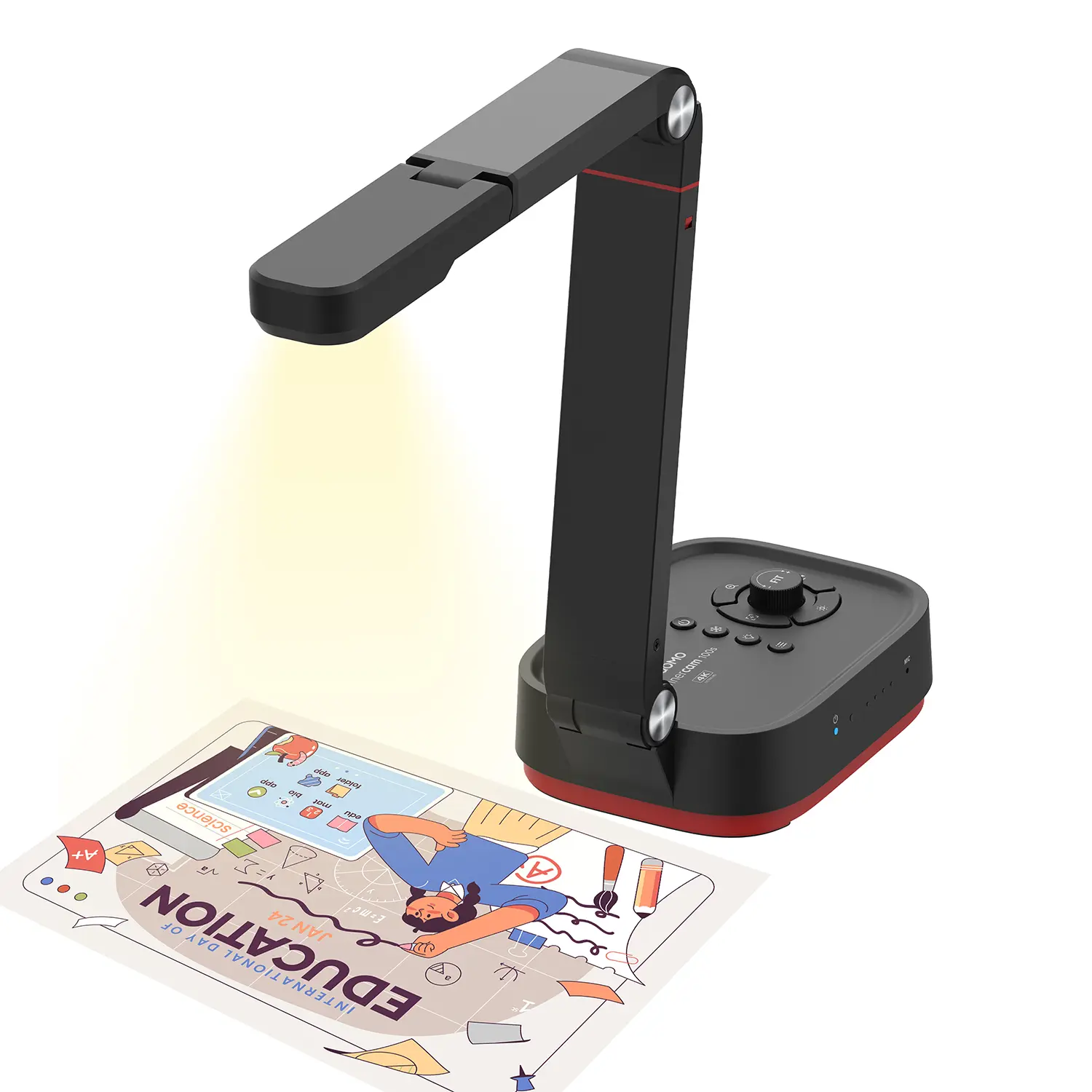
Revolutionize Your Presentations and Document Display with QWC 100S Document Camera
Enhance Call Experience: New Conference Microphone Now Available
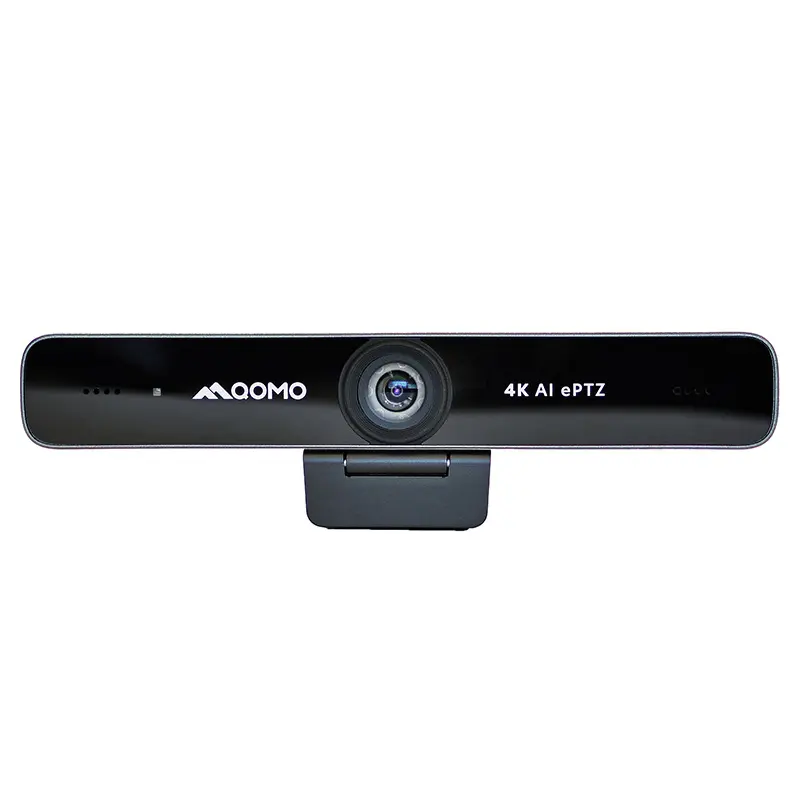
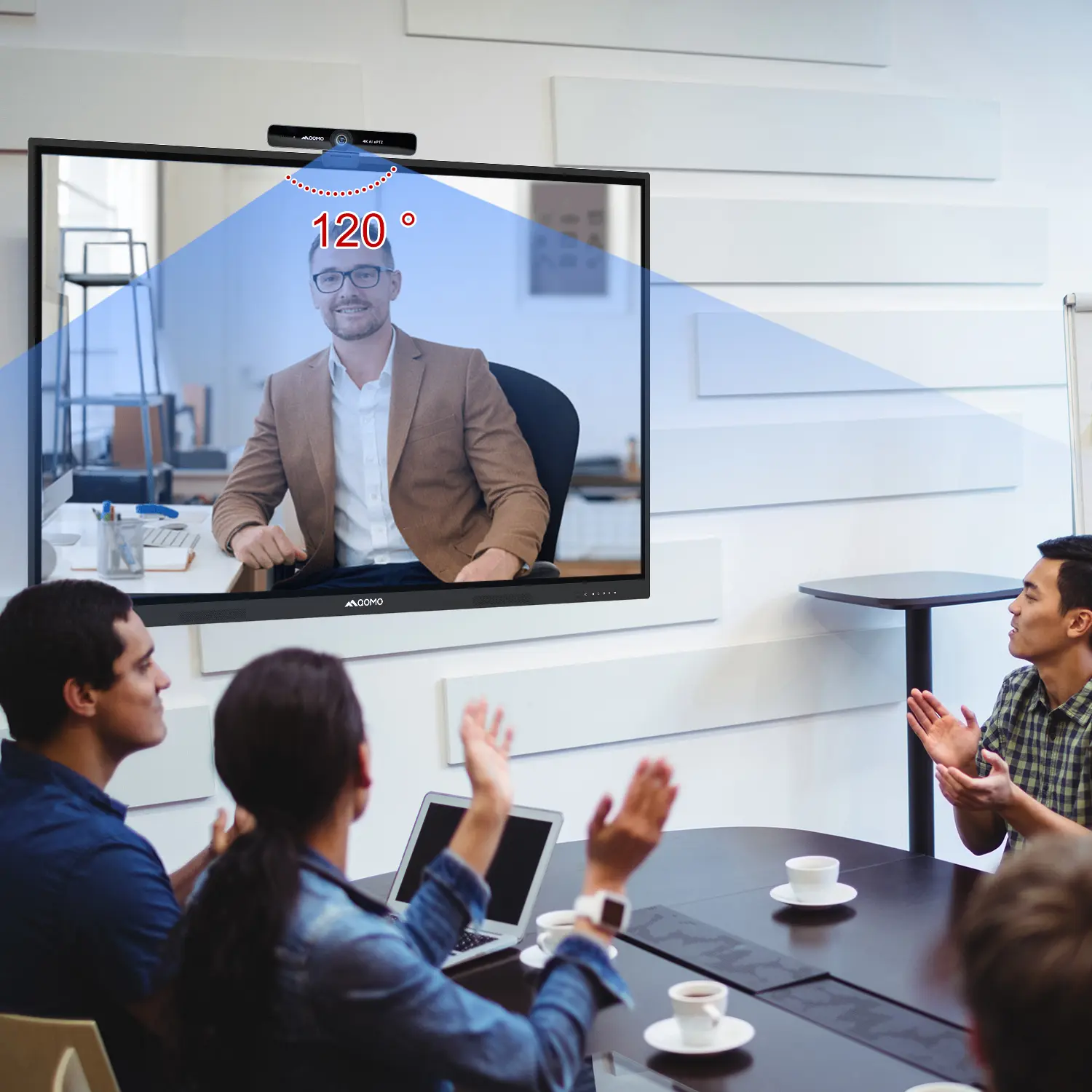
AI-Powered Face-Tracking Webcam
Portable Document Camera Recommendations
Classic Design, Exceptional Functionality: QPC 22 Document Camera
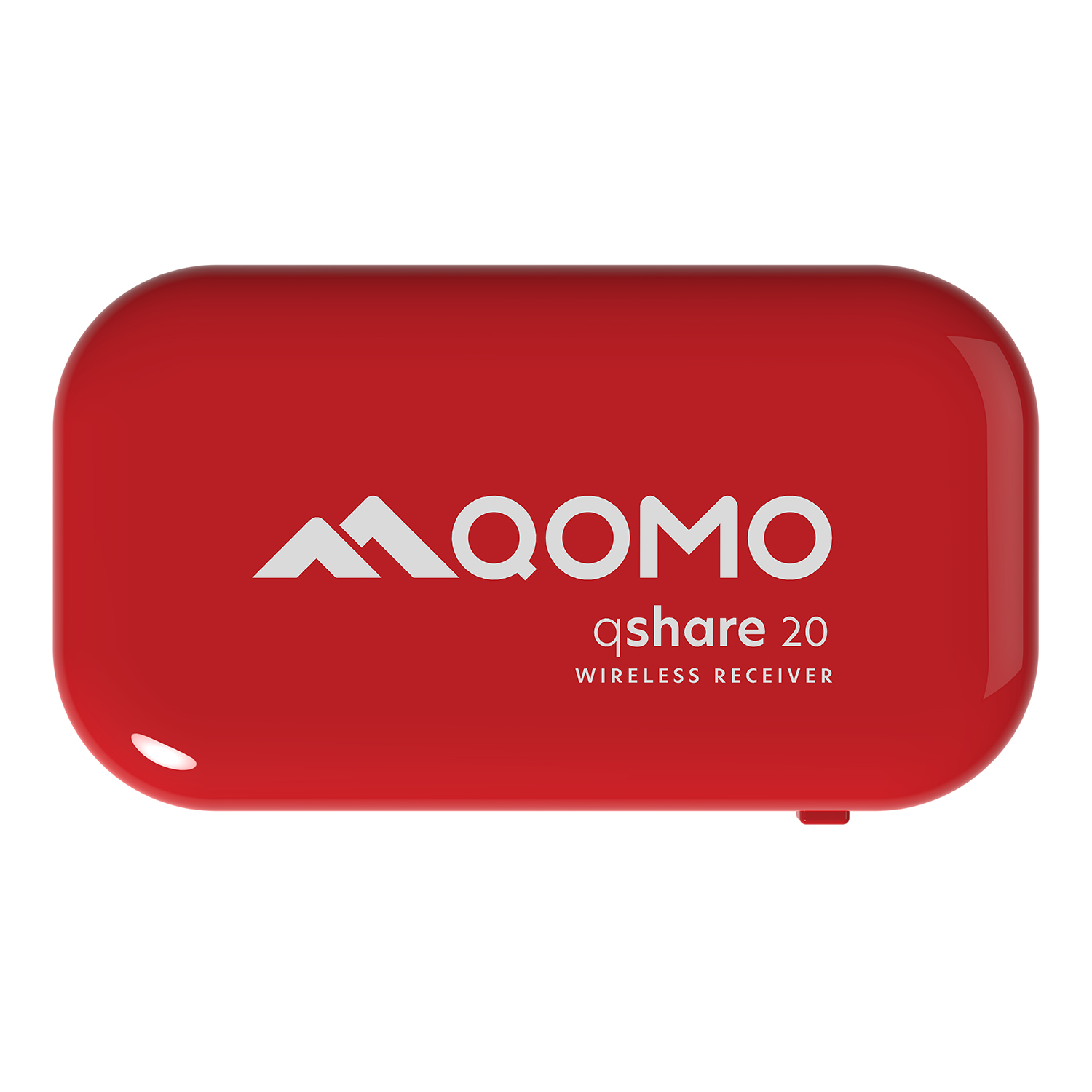
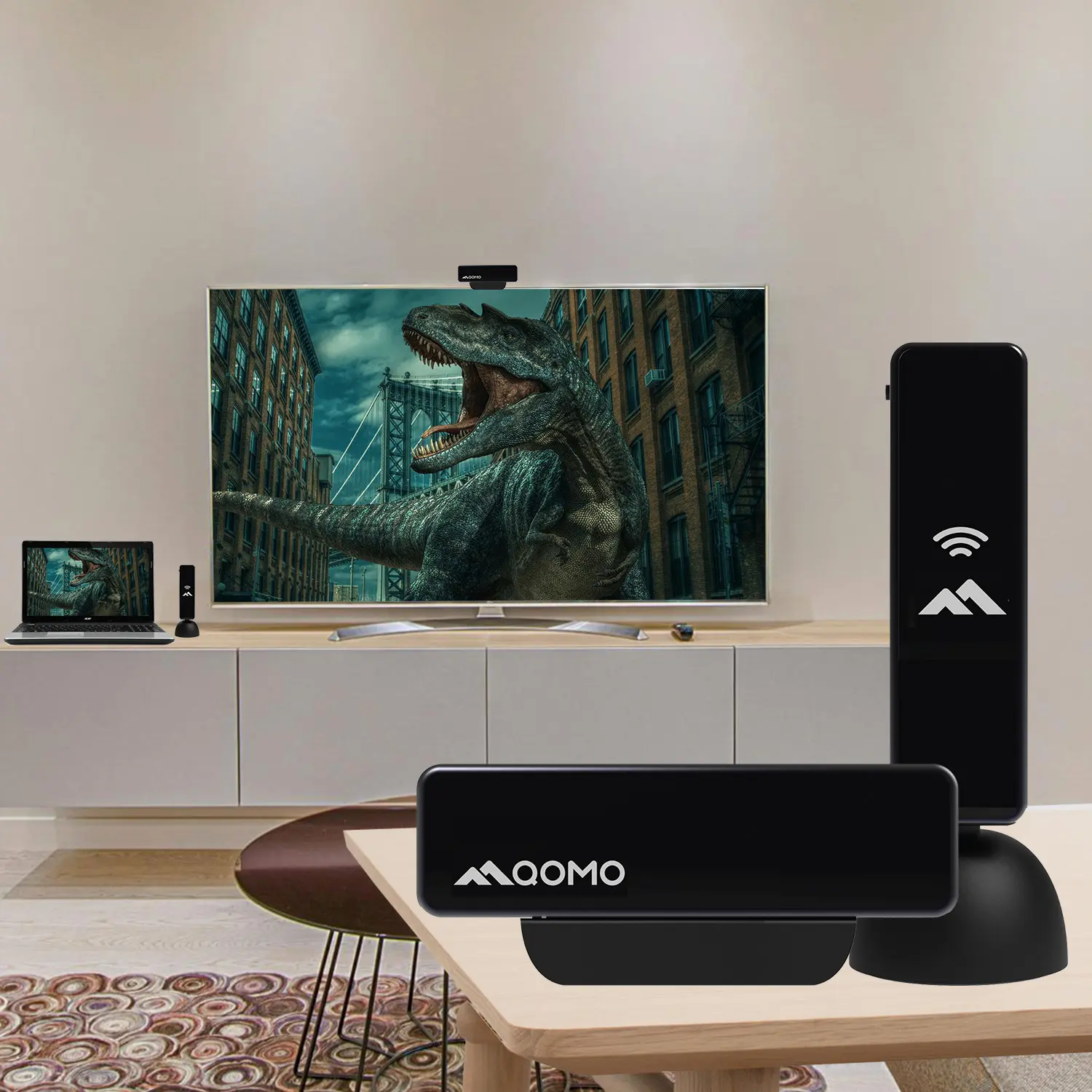
Wireless Screen Mirroring Solution for All Devices
Latest Audience Response System: QRF 999
Introducing the QPC 80H3 Gooseneck Document Camera
Creating a Smart Integrated Classroom: What Do You Need?
Wireless Connectivity Upgraded: WiFi-Free Wireless Document Receiver
Flow!Works Pro: Interactive Whiteboard Software for Engaging Classrooms
How to Choose the Perfect Document Camera and Elevate Productivity
QWC 004 Conference Webcam: The Top Choice for Remote Education
QCamera: Dedicated Software for Document Cameras to Elevate Your Presentations
QRF999 Voice Response System: Enhancing Teacher-Student Interaction
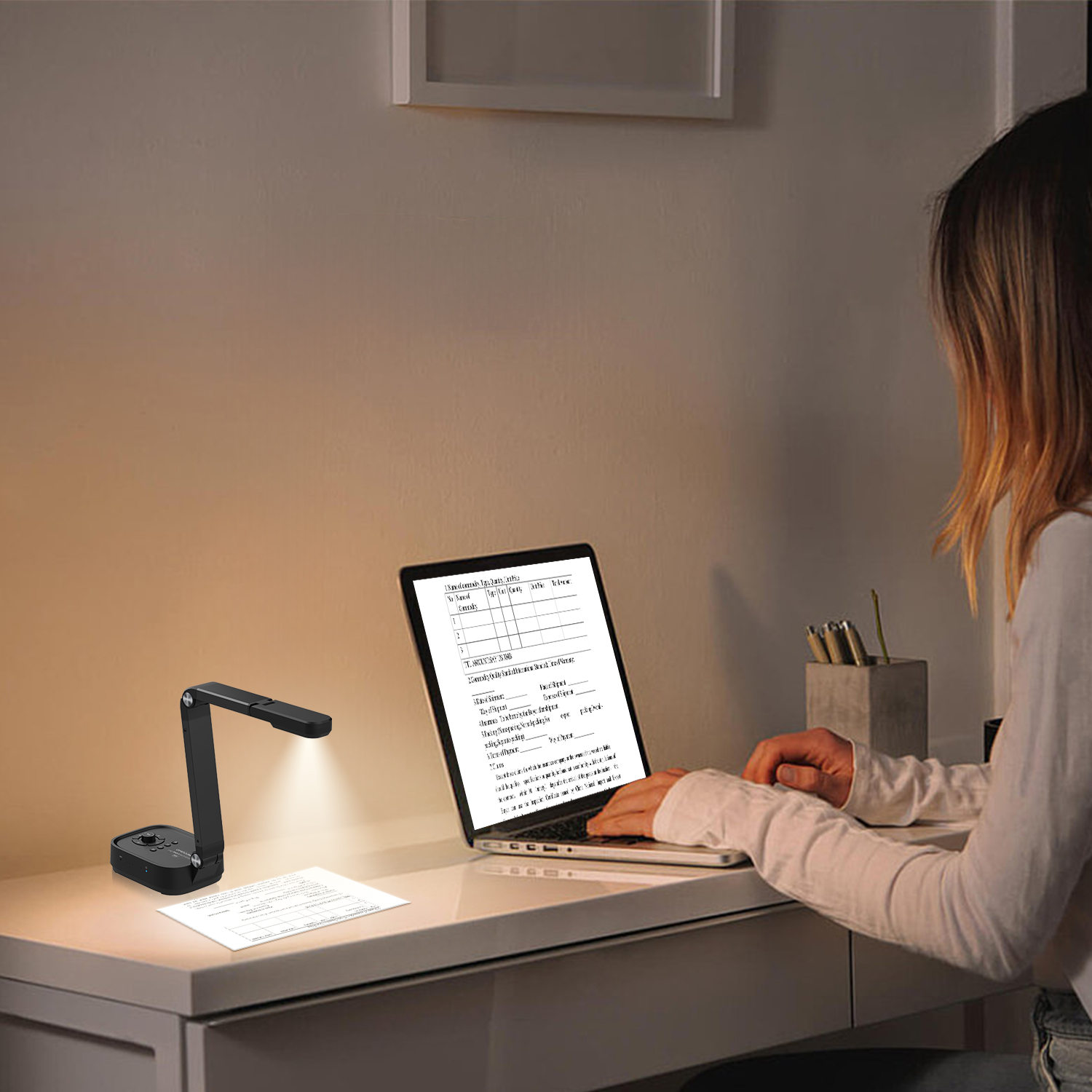
Work From Home? Maybe You Should Try This Document Camera
The Ultimate Educational Tool: Gooseneck Document Camera
60GHz Millimeter-Wave Wireless Screen Sharing: QShare 100
What Does a Modern Conference Room Need?
QD5000 Document Camera: Unimaginable Versatility!
QWC 004: The Most Cost-Effective Webcam
QVote Interactive Classroom Response System Software
Functionality, Aesthetics, Portability! Meet the QWC 100S Document Camera!
Why Choose the BundleBoard H/H2 Interactive Flat Panel?
Save Your Budget—Introducing the All-New QPC 70 Document Camera!
QIT 600F3: Revolutionize Your Presentations
QCamera: Professional Document Camera Software
QPC 5: The Ultimate 4K Portable Document Camera
Elevate Your Meetings in Seconds: QWC 006 Webcam
Meet QOMO at ISE 2025
Wireless Document Camera Solution, Revolutionizing Wireless Technology
QRF Series, Transform Your Classroom!
QOMO, Building Intelligent Classrooms
QOMO QShare100 New Release
Outstanding Office Equipment Recommendations
In a world where visual communication is vital, "Computer Screen Mirroring" serves an essential role. Dr. Emily Foster, a leading expert in digital display technologies, once stated, "Effective screen mirroring enhances collaboration and creativity." This highlights the significant impact of screen mirroring in various environments.
Computer screen mirroring solutions allow seamless sharing of content across devices. Many users require reliable options for presentations, gaming, and remote learning. Familiarity with the top solutions can transform work dynamics or enhance leisure activities. However, selecting the right tool is not always straightforward. Each option has its strengths and weaknesses.
Understanding the nuances in functionality, security, and compatibility is critical. For instance, a solution may excel in speed yet lack robust security features. Users often navigate between choices, weighing convenience against reliability. By exploring different applications, you can optimize your screen mirroring experience and determine what truly meets your needs.
Screen mirroring is a technology that allows users to display their device's screen onto another display. This process can be done wirelessly or with cables, facilitating presentations, gaming, and entertainment. According to a recent report by Allied Market Research, the global screen mirroring market is expected to grow significantly, reaching over $4 billion by 2025. This growth highlights the increasing reliance on screen sharing for personal and professional use.
The applications of screen mirroring extend to various fields. In business, it enhances collaboration by allowing team members to share their screens during meetings. A study by TechJury indicates that 70% of professionals believe screen sharing improves communication. In education, teachers use mirroring to display lessons on larger screens. This approach engages students and helps in visual learning. As technology evolves, the methods of screen mirroring may change, yet its practical importance remains steadfast.
Despite its advantages, screen mirroring can present challenges. Connectivity issues may arise, leading to interruptions. Additionally, compatibility is a concern for users with different operating systems. These limitations prompt reflection on improving user experiences. Recognizing these drawbacks fosters innovation in screen mirroring solutions, ultimately enhancing their functionality.
| Solution | Supported Devices | Key Features | Platform | Cost |
|---|---|---|---|---|
| Solution A | Windows, Mac, Android, iOS | High-quality streaming, Multi-device support | Cross-platform | Free |
| Solution B | Windows, Mac | Screen recording, Wireless connection | Software | $19.99 |
| Solution C | Android, iOS | Easy setup, Share screen with friends | Mobile App | Free with ads |
| Solution D | Windows, Mac, Smart TVs | Supports 4K streaming, Wide compatibility | Software | $29.99 |
| Solution E | Windows, Mac | Screen casting, Presentation mode | Desktop Software | $15.99 |
| Solution F | iOS, Smart TVs | User-friendly interface, Multi-screen | Mobile App | Free with limited features |
| Solution G | Windows, Linux | Open-source, Customizable | Software | Free |
| Solution H | Smart TVs, Android, iOS | Premium quality, No latency | Mobile & TV | $39.99 |
| Solution I | Windows, Mac, Android | Integration with other apps, Screen sharing | Software | $24.99 |
| Solution J | Windows, Mac, Smart TVs | User-friendly, Fast connection | Cross-platform | $34.99 |
Choosing the right screen mirroring solution is essential for effective device connectivity. Consider compatibility first. Different devices have varying support for connectivity protocols. Check whether your devices, such as smartphones and smart TVs, can communicate seamlessly. Some solutions may offer extensive device support, while others might be limited. This factor can greatly affect your user experience.
Next, prioritize ease of use. Some solutions boast a simple interface, enabling quick setup. Others might require technical know-how, which can be frustrating. If a solution requires extensive searching for instructions, it may not be the right fit. Additionally, consider performance attributes. Lagging during a presentation or video playback can ruin the experience. Look for solutions that guarantee smooth streaming with minimal delay.
Lastly, think about security. With increasing connectivity, your data can be vulnerable. Choose solutions that offer encryption and secure connections. This aspect becomes vital, especially in professional settings. Evaluation of the privacy features should not be overlooked. Each of these elements requires careful consideration to find a solution that truly meets your needs.
Selecting the right computer screen mirroring solution can feel overwhelming. A solid choice should cater to numerous devices and operating systems while maintaining ease of use. With various options available, it’s essential to identify the key features that suit your specific needs.
One effective approach is to assess your connectivity requirements. Many solutions support wireless connections, making it convenient for presentations or media sharing. However, some may require a stable Wi-Fi network to function correctly. Testing these solutions in real-world scenarios can help validate their performance and reliability.
When exploring different options, observe user reviews. Frequent mentions of lag or connectivity issues often signal potential problems. Moreover, some users find certain software too complex, making it difficult to use effectively. Reflecting on these factors can significantly enhance your user experience, leading to a more seamless mirroring functionality.
Exploring compatibility with various devices is wise. Certain products may only support a limited range of operating systems. This can lead to unexpected challenges when attempting to connect devices. Always verify compatibility prior to making a decision; it can save you time and frustration.
Setting up screen mirroring can enhance your viewing experience. This process allows you to share your computer screen with another device, such as a smart TV or projector. It's handy for presentations, movie watching, or gaming.
Begin by ensuring both devices are connected to the same Wi-Fi network. Check that your computer's screen sharing feature is enabled. This might involve navigating through your system settings. Look for display or network options, which may vary somewhat by device. If you encounter difficulty at this stage, consider restarting both devices. Sometimes, a simple reboot can resolve connection issues.
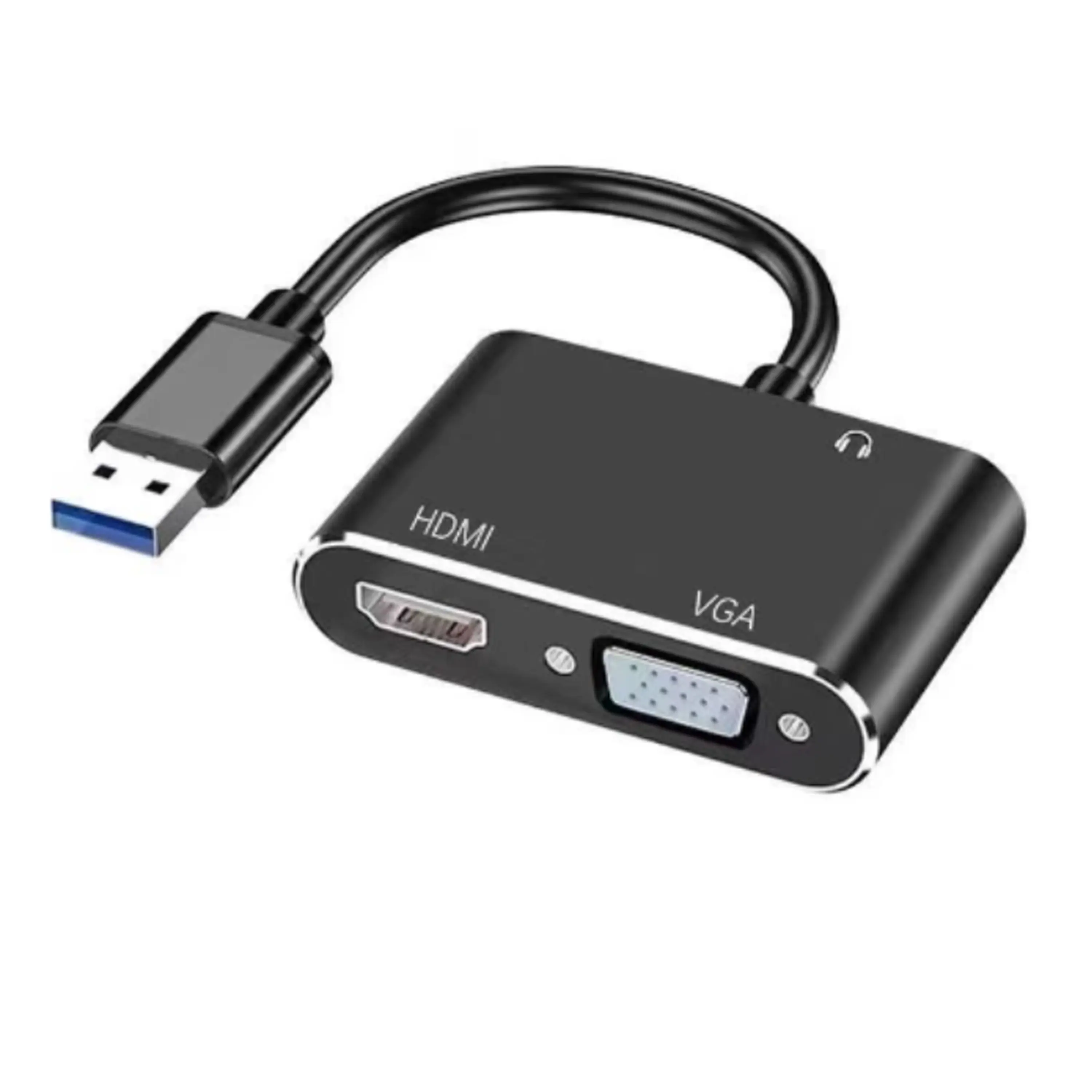
Next, initiate the mirroring process on your display device. You'll usually find this option in the settings or input menu. If the connection remains unstable, reassess the Wi-Fi signal strength. A weak signal can lead to lag or disconnect. Connecting devices directly via HDMI may solve these problems, providing a reliable alternative. Remember to keep both devices updated to improve compatibility. This can be a continuous learning process, so don’t hesitate to try different methods or solutions until you find what works best for you.
Screen mirroring can be a fantastic way to share content across devices. However, users often encounter common issues that can disrupt this seamless experience. One of the most frequent problems is connection instability. Ensure both devices are on the same Wi-Fi network. Sometimes, simply restarting your devices can fix minor glitches. If you see lag, consider reducing your device's distance from the router.
Another issue is screen resolution mismatch. When mirroring, the display quality might drop, making it hard to read text or view images. Adjusting the display settings on the source device can help. For example, lowering resolution can improve performance. It's also essential to check if your device supports the required mirroring standards. Some devices may not be compatible, leading to frustration.
Occasionally, the mirroring process may not initiate at all. This problem can stem from outdated software. Updating your device's operating system can resolve compatibility issues. Additionally, checking app permissions is crucial, as some apps require access to network settings. If all else fails, consulting user forums can provide insights based on similar experiences.