+86 152 8002 3723
QVoteProfessional Audience Response System software offers the most convenient functions for your interactions.
QClickThe most convenient educational software for working with Microsoft PowerPoint to quickly set up various question types and generate intelligent feedback reports.
QCameraQCamera by QOMO allows for real-time streaming from cameras and document cameras. Annotate, save snapshots, record, and manipulate camera images instantly.
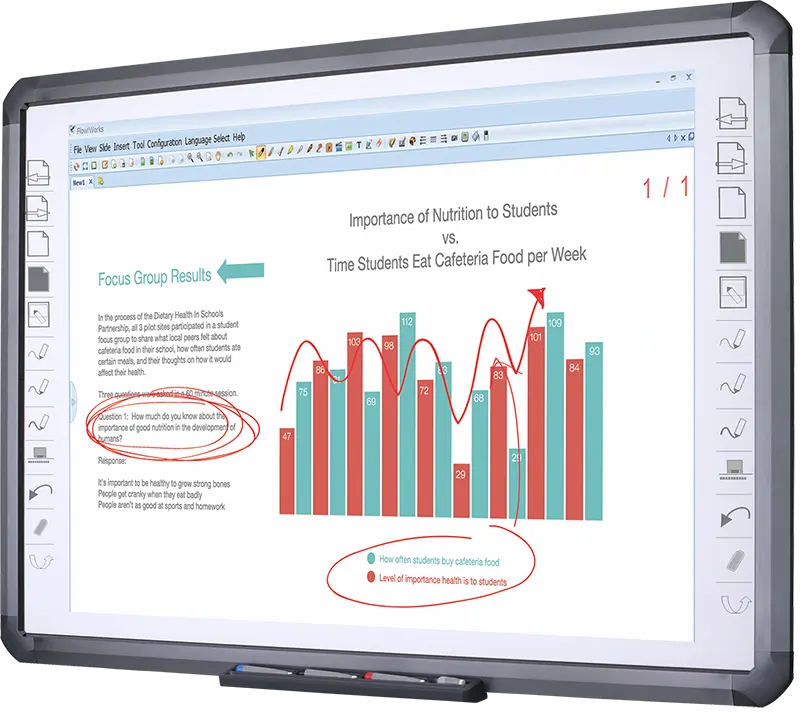
Flow!Works ProUser - friendly whiteboard software, it encompasses a wide range of presentation tools and powerful functions, delivering the most professional presentation experience to you.
Flow!WorksFlow!Works incorporates more educational tools, further enhancing the interactivity and fun - factor of your teaching.
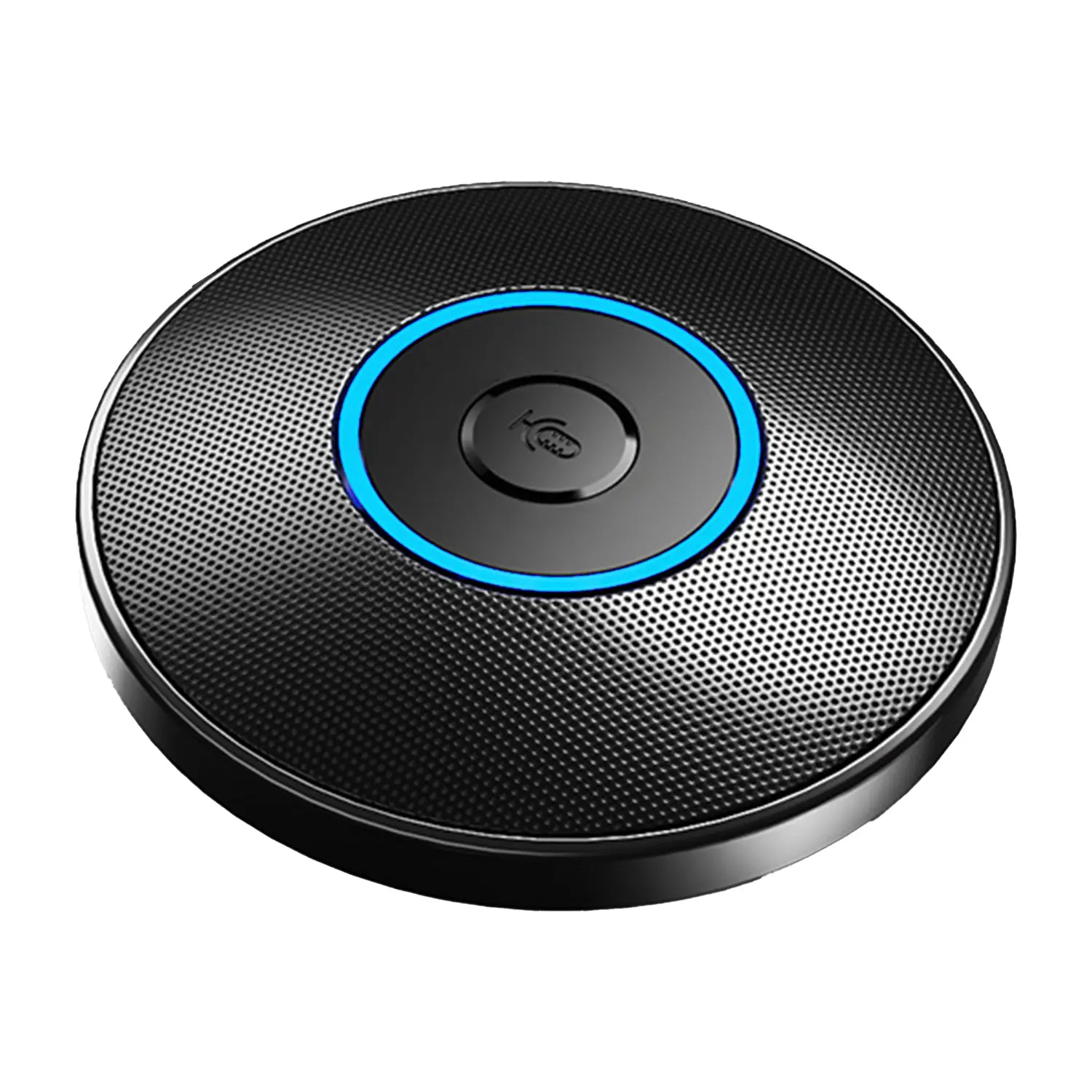
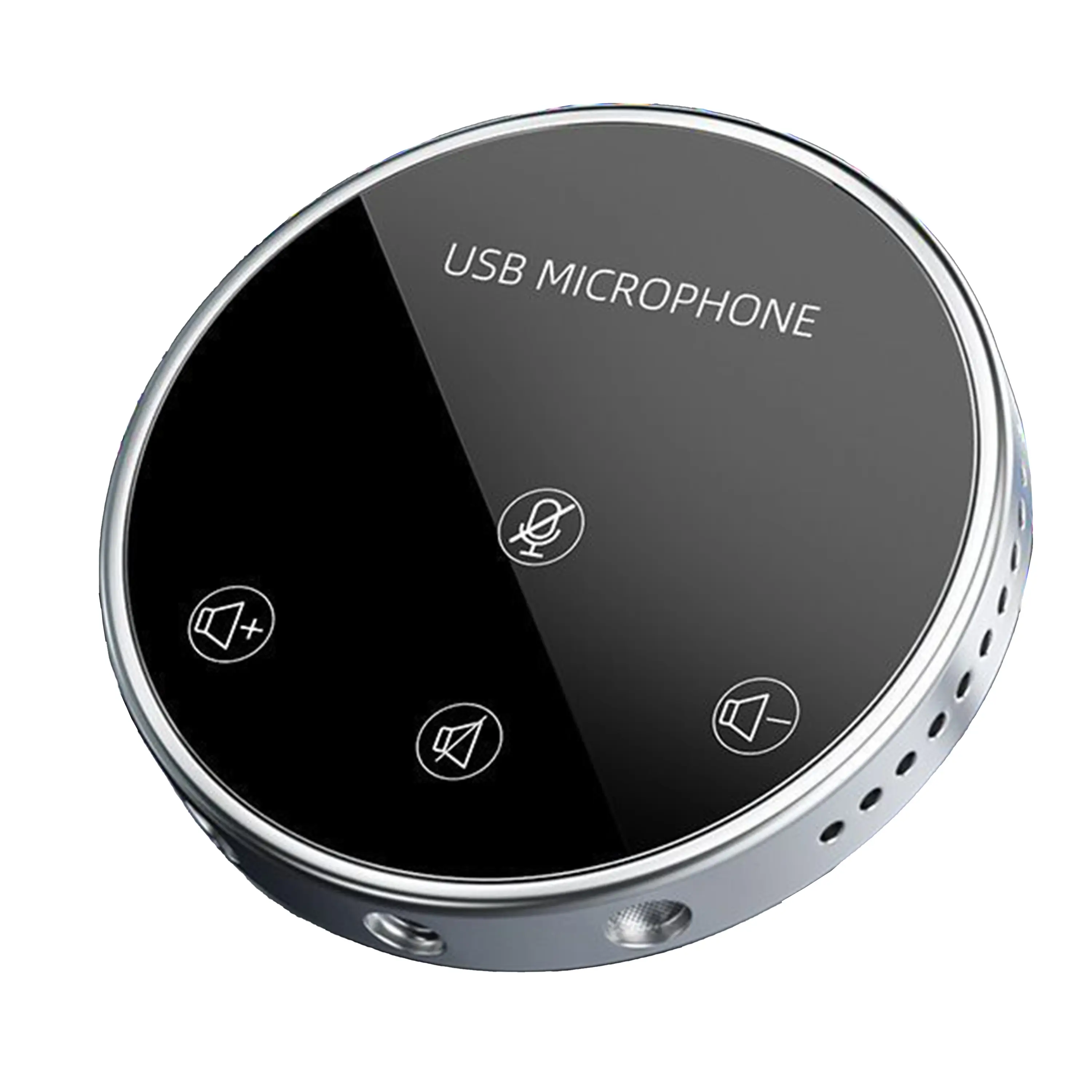
Conference Microphone● USB
● Plug and Play
● Intelligent Noise-Canceling
● 10ft/3m Extended Pickup Range
● 360° Omnidirectional Pickup
Conference Speakerphone● USB-C
● Plug and Play
● Intelligent Noise-Canceling
● 10ft/3m Extended Pickup Range
● 360° Omnidirectional Pickup
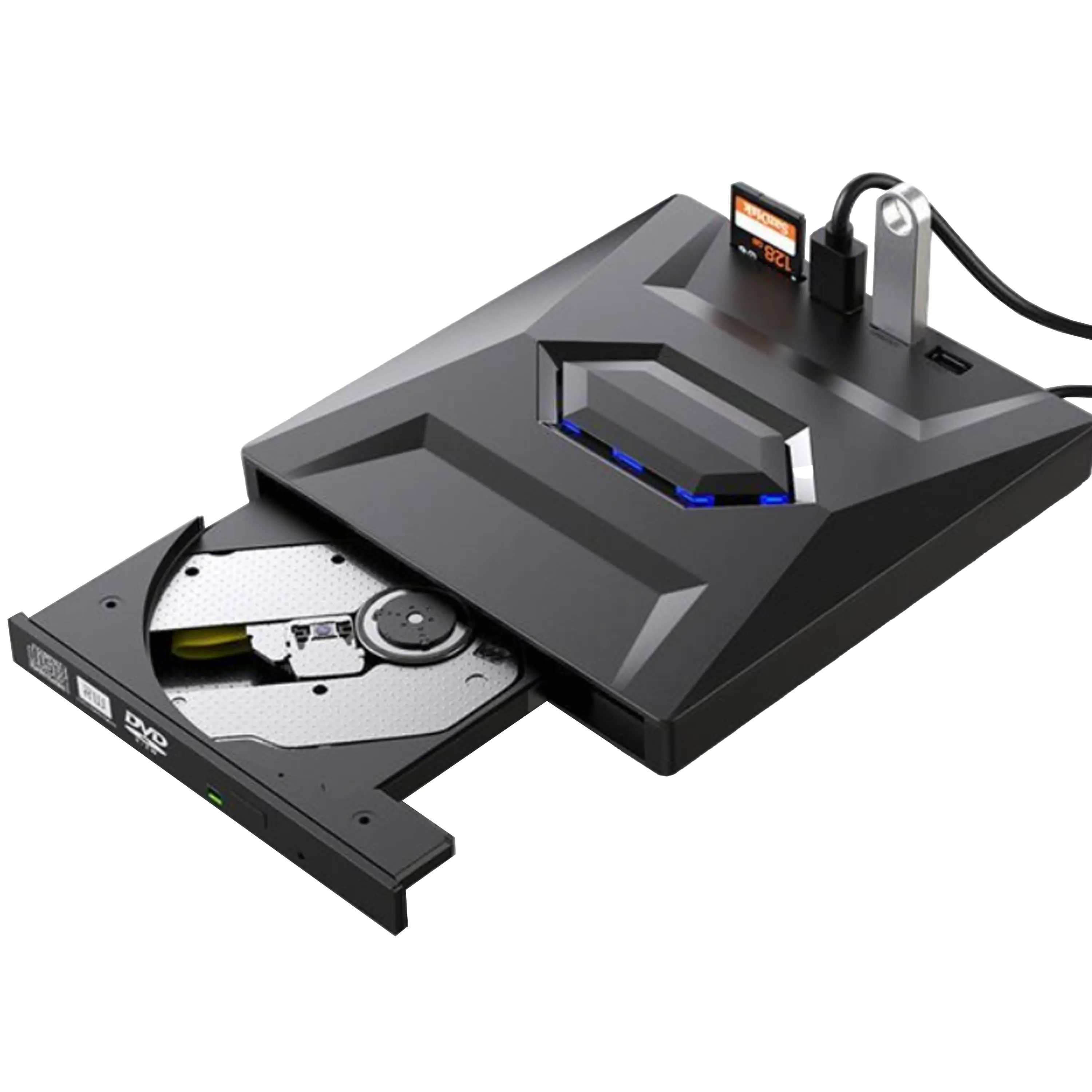
USB External CD/DVD Drive• USB and USB-C
• USB 3.0
• 8x DVD and 24x CD write/read speeds
• Portable
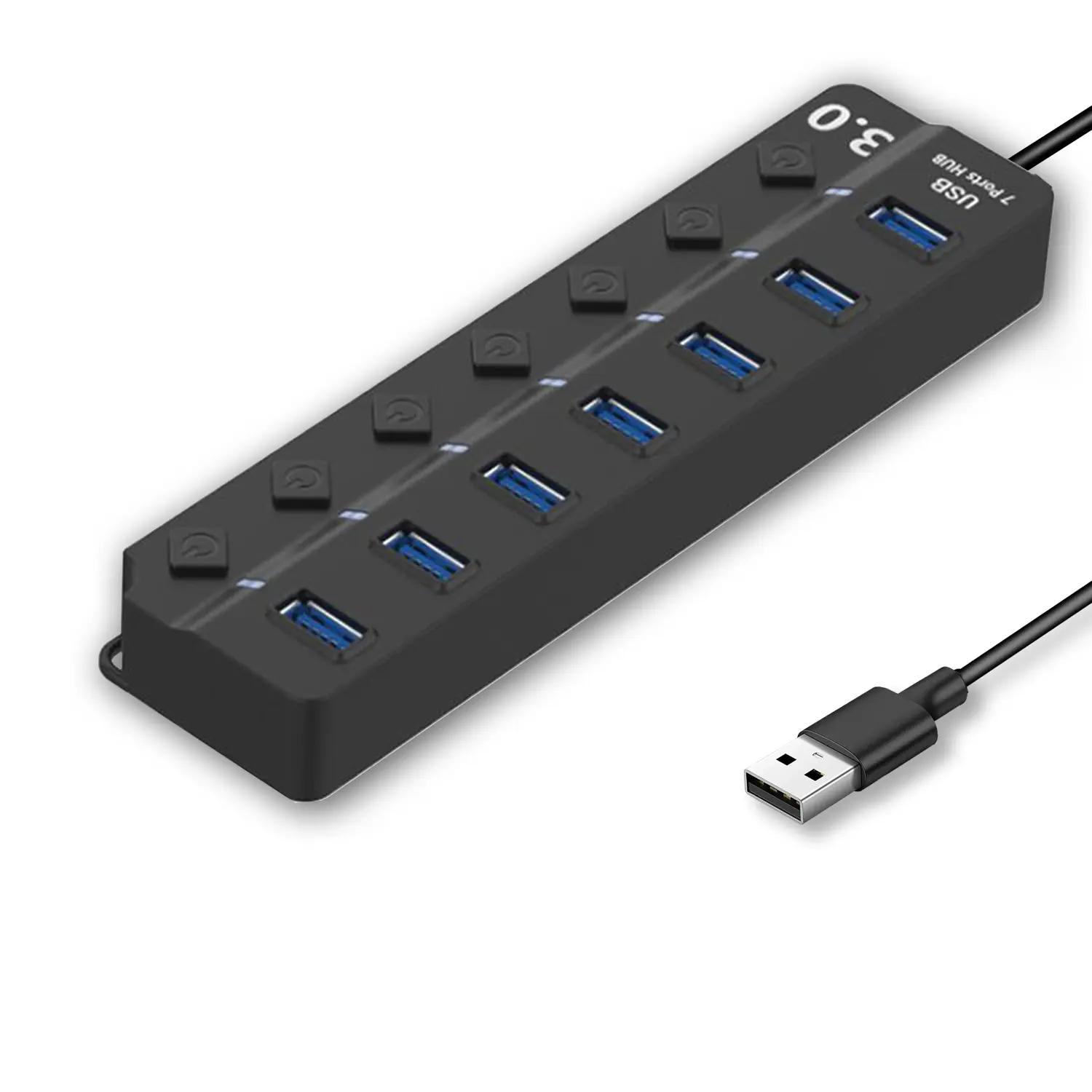
7-Port USB 3.0 Hub● USB 3.0
● Plug and Play
● 7-in-1 USB Hub
● Individual On/Off Switches
Revolutionize Your Presentations and Document Display with QWC 100S Document Camera
Enhance Call Experience: New Conference Microphone Now Available
AI-Powered Face-Tracking Webcam
Portable Document Camera Recommendations
Classic Design, Exceptional Functionality: QPC 22 Document Camera
Wireless Screen Mirroring Solution for All Devices
Latest Audience Response System: QRF 999
Introducing the QPC 80H3 Gooseneck Document Camera
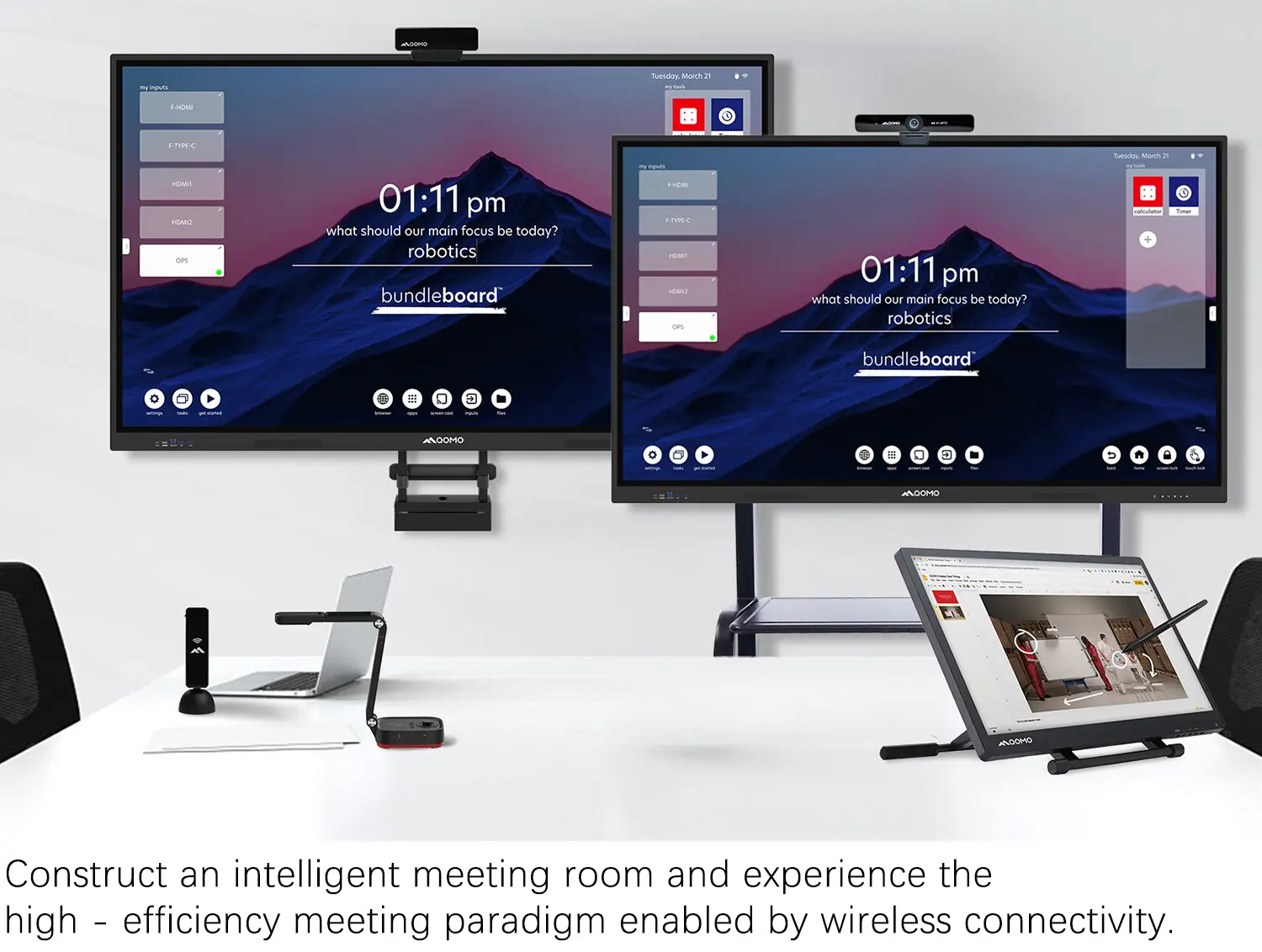
Creating a Smart Integrated Classroom: What Do You Need?
Wireless Connectivity Upgraded: WiFi-Free Wireless Document Receiver
Flow!Works Pro: Interactive Whiteboard Software for Engaging Classrooms
How to Choose the Perfect Document Camera and Elevate Productivity
QWC 004 Conference Webcam: The Top Choice for Remote Education
QCamera: Dedicated Software for Document Cameras to Elevate Your Presentations
QRF999 Voice Response System: Enhancing Teacher-Student Interaction
Work From Home? Maybe You Should Try This Document Camera
The Ultimate Educational Tool: Gooseneck Document Camera
60GHz Millimeter-Wave Wireless Screen Sharing: QShare 100
What Does a Modern Conference Room Need?
QD5000 Document Camera: Unimaginable Versatility!
QWC 004: The Most Cost-Effective Webcam
QVote Interactive Classroom Response System Software
Functionality, Aesthetics, Portability! Meet the QWC 100S Document Camera!
Why Choose the BundleBoard H/H2 Interactive Flat Panel?
Save Your Budget—Introducing the All-New QPC 70 Document Camera!
QIT 600F3: Revolutionize Your Presentations
QCamera: Professional Document Camera Software
QPC 5: The Ultimate 4K Portable Document Camera
Elevate Your Meetings in Seconds: QWC 006 Webcam
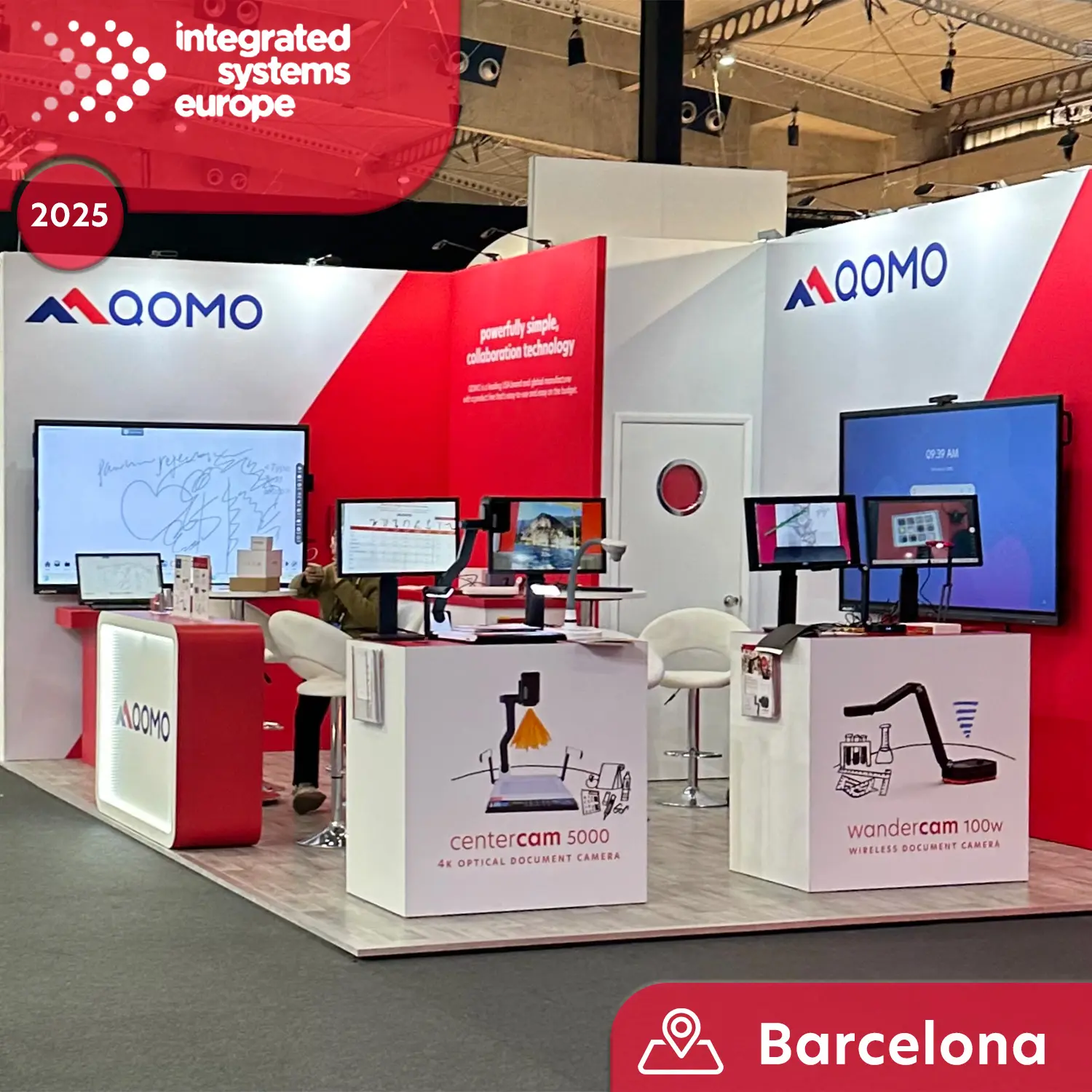
Meet QOMO at ISE 2025
Wireless Document Camera Solution, Revolutionizing Wireless Technology
QRF Series, Transform Your Classroom!
QOMO, Building Intelligent Classrooms
QOMO QShare100 New Release
Outstanding Office Equipment Recommendations
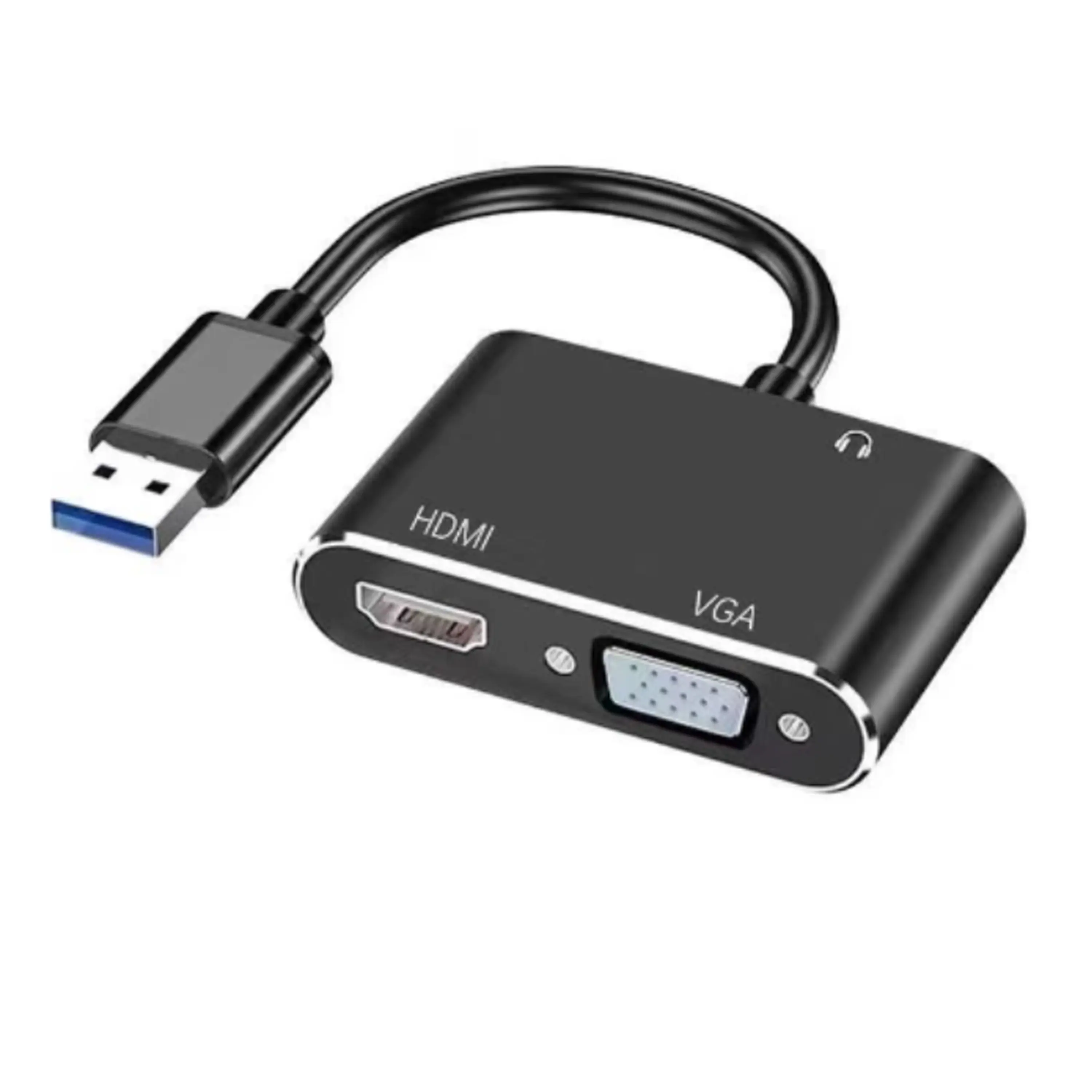
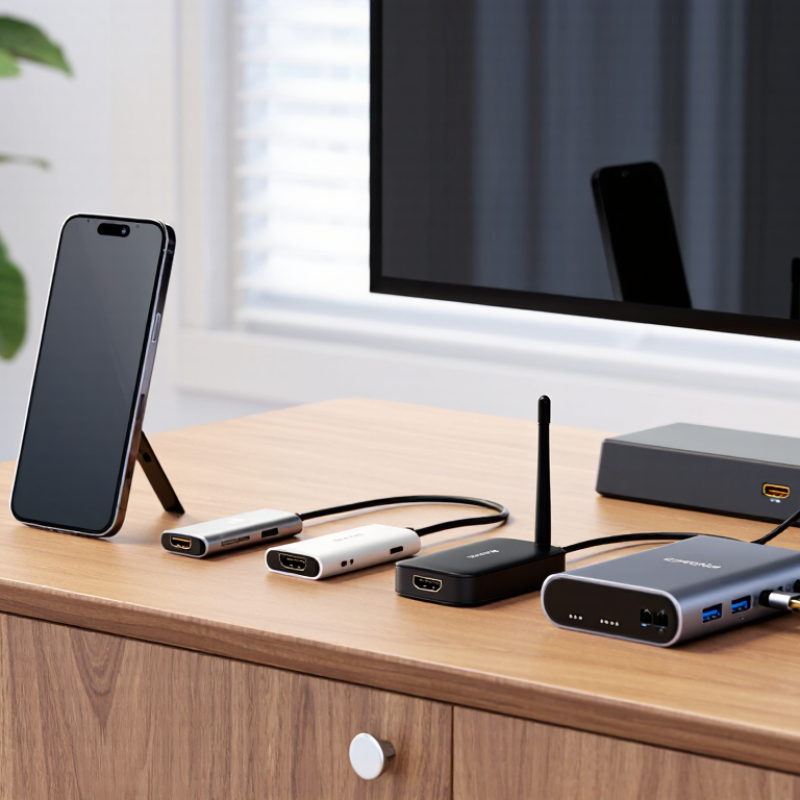
In 2026, connecting a phone to a television looks simple, yet small compatibility details still cause black screens and silent speakers. The phrase “Hdmi From Phone To Tv” covers several solutions, including USB-C-to-HDMI adapters, Lightning-to-HDMI adapters, wireless receivers, and multiport hubs. Each option depends on the phone’s port, video-output support, HDMI version, power needs, and digital-rights restrictions.
Industry evidence supports this growing need. The Consumer Technology Association’s 2024 U.S. Consumer Technology Ownership and Market Potential Study identifies televisions and mobile devices as widely owned consumer technologies. Grand View Research also reports continued expansion in the global HDMI cable market, driven by higher-resolution entertainment and connected devices. Meanwhile, the HDMI Forum’s HDMI 2.1 specification supports features such as 4K at 120Hz, 8K video, and enhanced audio return. These capabilities do not automatically appear on every phone. That assumption can fail.
Rob Tobias, president of HDMI Licensing Administrator, has described HDMI as “the digital connection standard for consumer electronics.” His point remains practical: standards matter more than attractive packaging. A reliable adapter should match the phone’s output capability, not merely advertise 4K on its box. This guide compares the top HDMI adapters for 2026, explains setup steps, and highlights common failures, including charging limits, overheating, cropped images, and unsupported streaming content. Real-world testing matters here. A short cable may work perfectly on a desk, but a loose connector can ruin an entire movie night.
Connecting a phone to a TV starts with one basic question: which video output does the phone support? Most newer phones use USB-C, but the port alone does not guarantee HDMI output. The phone must support DisplayPort Alt Mode or a compatible video protocol. Older devices may use a dedicated mobile high-definition interface, although support is now less common. Compatibility is still messy.
An HDMI adapter converts the phone’s digital signal for the TV’s HDMI input. Select the correct input source, then unlock the phone. Some phones mirror the entire screen, while others offer a desktop-style display. HDMI Forum specifications show that newer HDMI standards can support up to 48 Gbps, 4K at 120Hz, and 8K at 60Hz. However, the phone, adapter, cable, and TV must all support those features. The weakest link usually decides the result.
Deloitte’s 2024 Digital Media Trends report indicates that roughly nine in ten U.S. consumers own a smartphone. That explains the growing demand for simple phone-to-TV connections. For reliable use, choose an adapter with clear support for the phone’s operating system and required resolution. Check power needs, too. Some adapters need charging while streaming. Without power, the screen may flicker or disconnect. I have found that short cables reduce desk clutter, but they can create tension near wall-mounted TVs. A little extra length is often better. Even then, wireless casting may feel easier, though it can introduce delay during games or presentations.
| Adapter Type | Phone Connection | TV Connection | Typical Maximum Output | Power Requirement | Audio Support | Best Use | Important Compatibility Check |
|---|---|---|---|---|---|---|---|
| USB-C to HDMI Adapter | USB-C port with DisplayPort Alt Mode | HDMI input | Up to 4K at 60 Hz on compatible phones and adapters | Usually bus-powered; some phones need separate charging | Digital audio through HDMI | Modern Android phones, tablets, and USB-C devices | The USB-C port must support video output; charging-only USB-C ports will not work |
| USB-C to HDMI Multiport Hub | USB-C with video output support | HDMI input | Commonly 4K at 30 or 60 Hz, depending on the hub | Often supports USB-C Power Delivery for charging | Digital stereo and multichannel audio, depending on the device | Streaming, presentations, charging, and connecting USB accessories | Check HDMI version, power-delivery limit, and the phone's supported display modes |
| USB-C to HDMI Cable | USB-C video-output port | HDMI input | Typically 4K at 60 Hz when supported at both ends | Usually no external power; phone battery is used | Digital audio through the HDMI connection | The simplest setup with fewer connection points | A USB-C charging cable is not automatically a video cable; confirm video compatibility |
| Lightning to HDMI Digital Adapter | Lightning connector | HDMI input | Commonly up to 1080p for phone mirroring | External power is generally required through a separate charging port | Digital audio through HDMI | Phones and tablets that use Lightning and support wired display output | Use a certified digital adapter; some protected content may be restricted by the app or service |
| Micro-USB MHL Adapter | Micro-USB port with MHL support | HDMI input | Usually 1080p; some MHL versions support higher resolutions | External USB power is normally required | Digital audio through HDMI | Older Android phones with documented MHL support | Most micro-USB phones do not support MHL; verify the exact phone model before buying |
| SlimPort to HDMI Adapter | Micro-USB port with SlimPort support | HDMI input | Typically up to 1080p, depending on the phone and adapter | Power needs vary; external power is recommended for longer use | Digital audio through HDMI when supported | Selected older mobile devices with SlimPort video output | SlimPort and MHL are different technologies and are not interchangeable |
| USB-C to HDMI Adapter with Charging | USB-C with DisplayPort Alt Mode | HDMI input | Up to 4K at 60 Hz on compatible equipment | Supports charging through a USB-C Power Delivery port | Digital audio through HDMI | Long viewing sessions, gaming, and high-resolution mirroring | The phone, charger, and adapter must support the required Power Delivery level |
| USB-C to HDMI Adapter with Ethernet | USB-C with video output support | HDMI input | Usually 4K at 30 or 60 Hz, depending on the adapter design | May include USB-C charging; Ethernet itself does not power the phone | Digital audio through HDMI | Stable wired networking for presentations or media playback | The phone must support USB host functions and video output simultaneously |
Note: Actual resolution, refresh rate, audio format, charging performance, and protected-content playback depend on the phone, adapter, HDMI cable, TV, operating system, and streaming application.
Choosing the right HDMI adapter starts with your phone’s charging port. Check the port first. USB-C does not always support video output, so confirm that your phone allows DisplayPort or wired screen mirroring. Some phones only charge through USB-C.
Older phones with other connectors may require a digital video adapter designed for that port. Avoid relying on appearance alone. Two adapters can look identical but use different signal standards. Your phone’s technical manual and the adapter’s specifications are safer references.
Match the adapter with your television and viewing needs. For basic videos, 1080p support is often enough. A newer television may benefit from 4K support, but the phone must produce that resolution too. Check refresh rate, HDR compatibility, and content protection support before buying. Otherwise, the screen may remain black or show reduced quality.
Power matters as well. Some adapters need a separate charging cable, especially during long video sessions. Without external power, the phone battery may fall quickly. Choose an adapter with a stable HDMI connection and enough space around the phone port. Tight plugs can loosen when the phone rests on a table.
I once chose a compact adapter that overheated after an hour. It worked, but not reliably. That experience changed my buying habit. I now test video, sound, charging, and cable movement before regular use. Wireless casting may still be easier for casual viewing, while HDMI usually offers steadier playback and less delay.
Compare common video-interface bandwidth ceilings when choosing an HDMI adapter. A phone must support video output through its USB-C port; charging-only USB-C ports cannot send an HDMI signal.
USB-C bandwidth describes the interface mode, not guaranteed phone video output. For reliable 4K at 60 Hz, verify that the phone supports DisplayPort Alternate Mode or USB4 video output, and confirm that the adapter and TV support the required resolution and refresh rate.
2026 Top HDMI Adapters: How to Connect Your Phone to a TV?
Preparing Your Phone, TV, and HDMI Connection
A reliable connection begins with checking every port, not opening the adapter box. Deloitte’s 2024 Digital Media Trends report found that 92% of U.S. consumers own a smartphone. That makes phone-to-TV viewing common, but compatibility still varies. Confirm that your phone supports wired video output through its charging port. Some phones transfer power and data only. That detail causes many failed connections.
Inspect the television’s HDMI input for dust or looseness. Use a short, certified HDMI cable with clear labeling. HDMI Specification 2.1 documentation lists bandwidth up to 48 Gbps, supporting demanding formats such as 8K at 60 frames per second. Your phone may not need that capacity. Still, poor cables can create flickering, black screens, or unstable audio. Set the TV to the exact HDMI input before connecting the phone. Small steps matter.
I once blamed the adapter first. The real problem was a phone setting that blocked external display output. Check display permissions, screen rotation, and battery level. If the image appears but sound stays silent, review the phone’s audio output and television volume. Remove bulky cases when the connector feels tight. Do not force it. A careful test with another cable can reveal the fault faster than repeated unplugging. Compatibility tables help, but they are not perfect. Device software changes can make yesterday’s setup behave differently today.
Connecting a phone to a TV with an HDMI adapter is simple when the ports match. Check your phone’s connector first. Many newer phones use USB-C, while older models may use a different port. The adapter must support video output, not charging alone. Confirm this in the phone’s technical specifications or user manual.
I once bought a charging adapter that looked correct but produced no picture.
Turn off unnecessary notifications, then plug the adapter into the phone. Connect an HDMI cable between the adapter and an open HDMI port on the TV. If the adapter has a power socket, connect its recommended charger. Some phones need extra power for stable video. Use the TV remote to select the matching HDMI input. Unlock the phone and wait several seconds. The phone screen should appear automatically, although some devices require a display or screen-mirroring setting.
No image? Check every connection. Try another HDMI input or cable, and restart both devices. A black screen can result from an unsupported adapter, low power, or protected video content. Audio may still use the phone, so adjust the TV’s sound output if necessary. Keep the phone nearby, but avoid bending the adapter at the port. The setup is not always perfect. Testing the adapter before an important presentation can prevent an awkward delay. A short cable also reduces desk clutter and accidental disconnection.
A phone can connect to a television through an HDMI adapter, but compatibility is often misunderstood. The phone must support wired video output, usually through USB-C DisplayPort Alt Mode. Charging support alone does not guarantee image transmission. Check the phone’s technical manual before buying an adapter.
HDMI Licensing Administrator reports that HDMI 2.0 supports bandwidth up to 18 Gbps, while HDMI 2.1 reaches 48 Gbps. An older cable may therefore limit resolution or refresh rate. For a stable setup, connect the adapter to the phone, attach a certified HDMI cable, then select the correct television input. Keep the phone unlocked during testing. Small details matter.
No picture? Try another input and restart both devices. A black screen may indicate unsupported video output, insufficient power, or a damaged cable. Some adapters need external power, especially during high-resolution playback. Flickering often points to a loose connector or weak power source. I have seen users replace three cables when the real problem was the phone itself.
Audio problems require separate checking. Open the phone’s display or sound settings and select HDMI output when available. If the image appears but sound does not, lower the output resolution temporarily. This is not elegant, but it helps isolate the fault. Avoid assuming every USB-C port performs the same function. Manufacturers sometimes provide identical-looking ports with very different capabilities.