+86 152 8002 3723
QVoteProfessional Audience Response System software offers the most convenient functions for your interactions.
QClickThe most convenient educational software for working with Microsoft PowerPoint to quickly set up various question types and generate intelligent feedback reports.
QCameraQCamera by QOMO allows for real-time streaming from cameras and document cameras. Annotate, save snapshots, record, and manipulate camera images instantly.
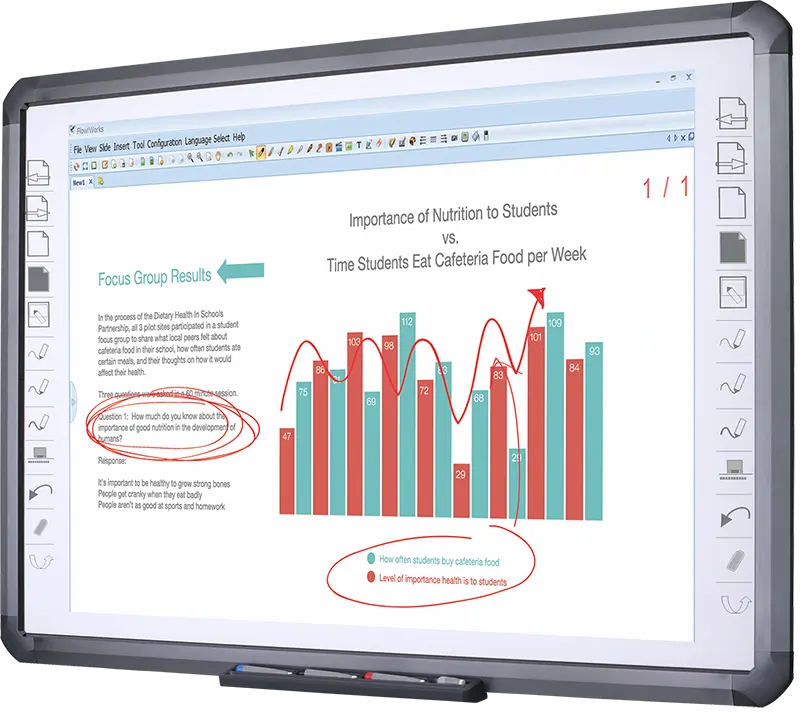
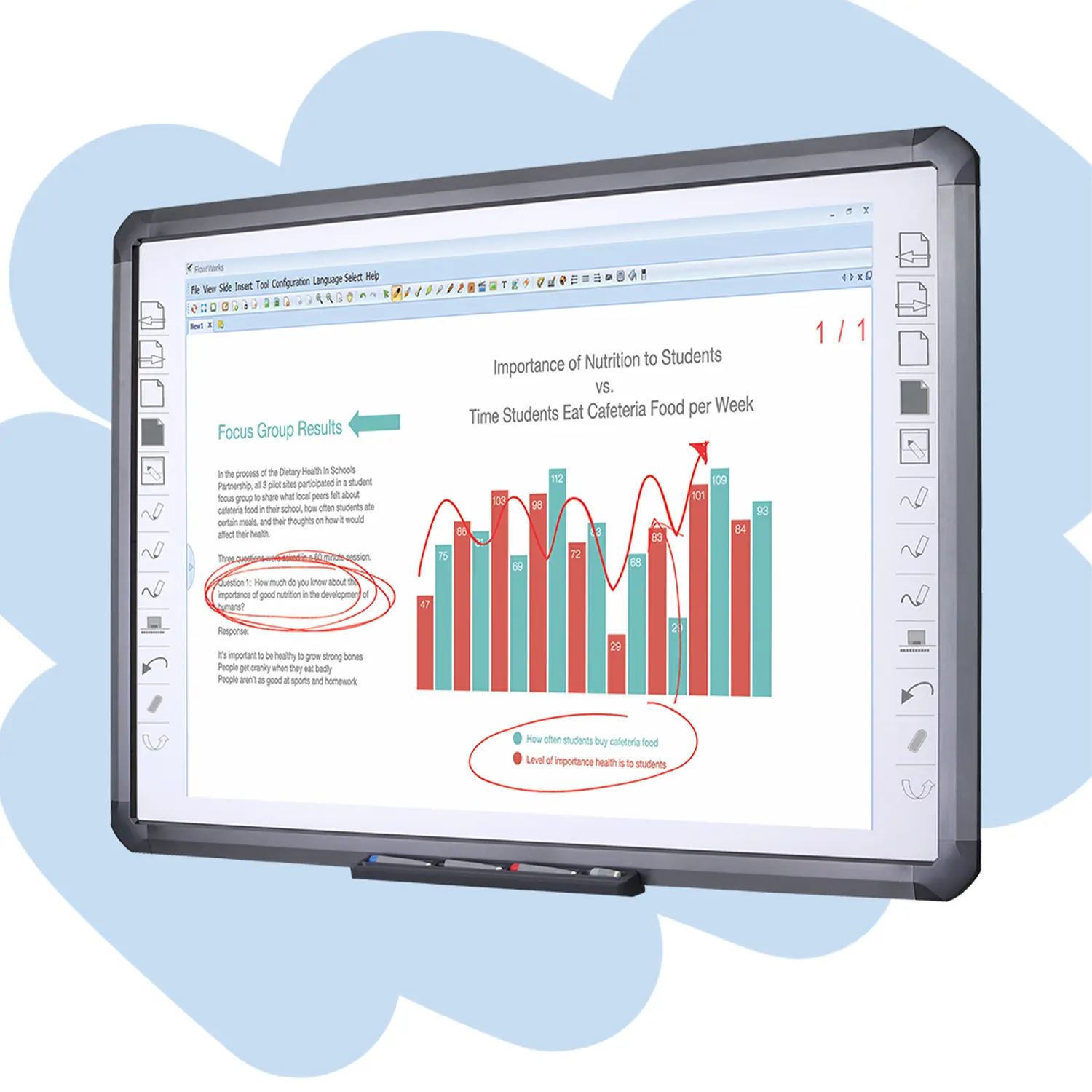
Flow!Works ProUser - friendly whiteboard software, it encompasses a wide range of presentation tools and powerful functions, delivering the most professional presentation experience to you.
Flow!WorksFlow!Works incorporates more educational tools, further enhancing the interactivity and fun - factor of your teaching.
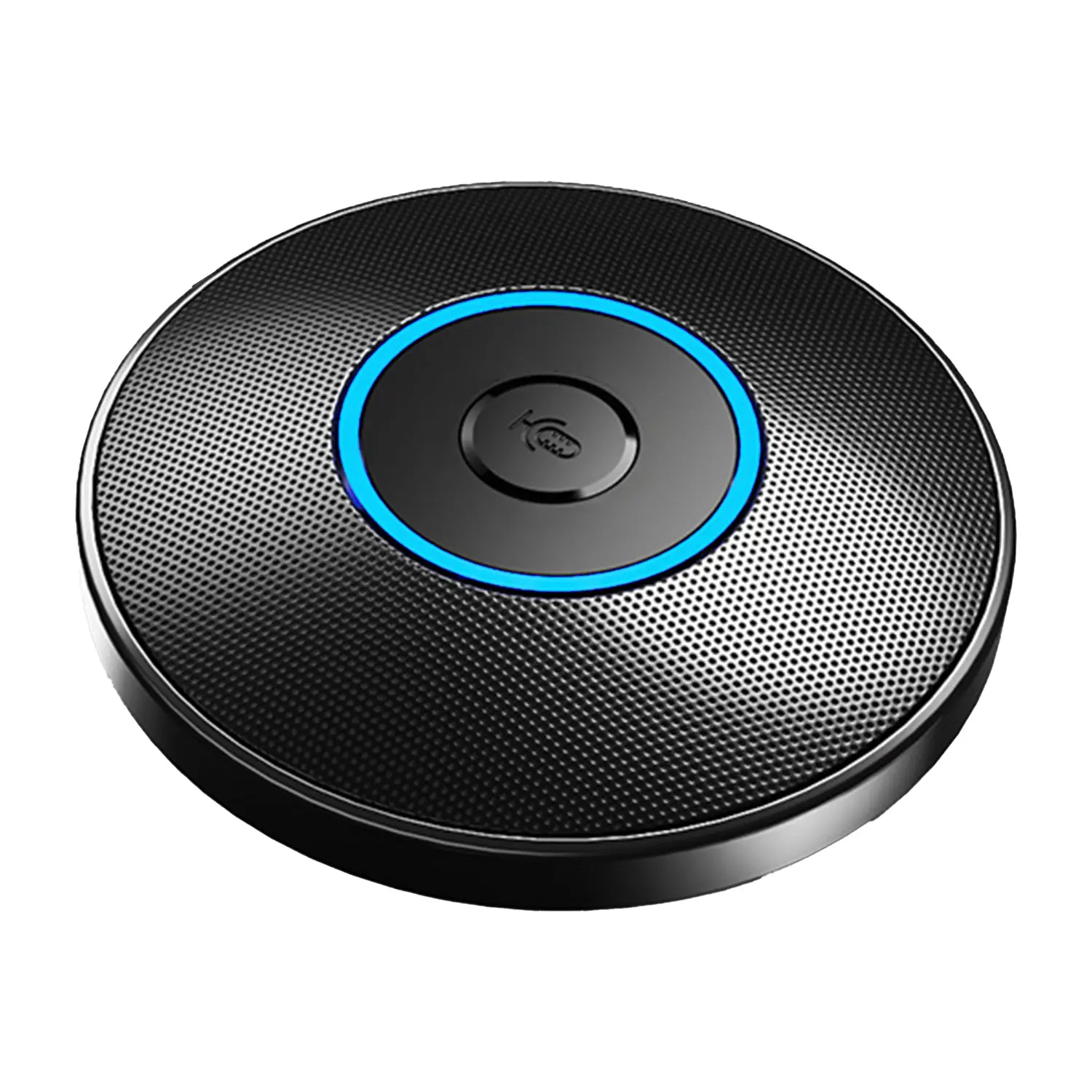
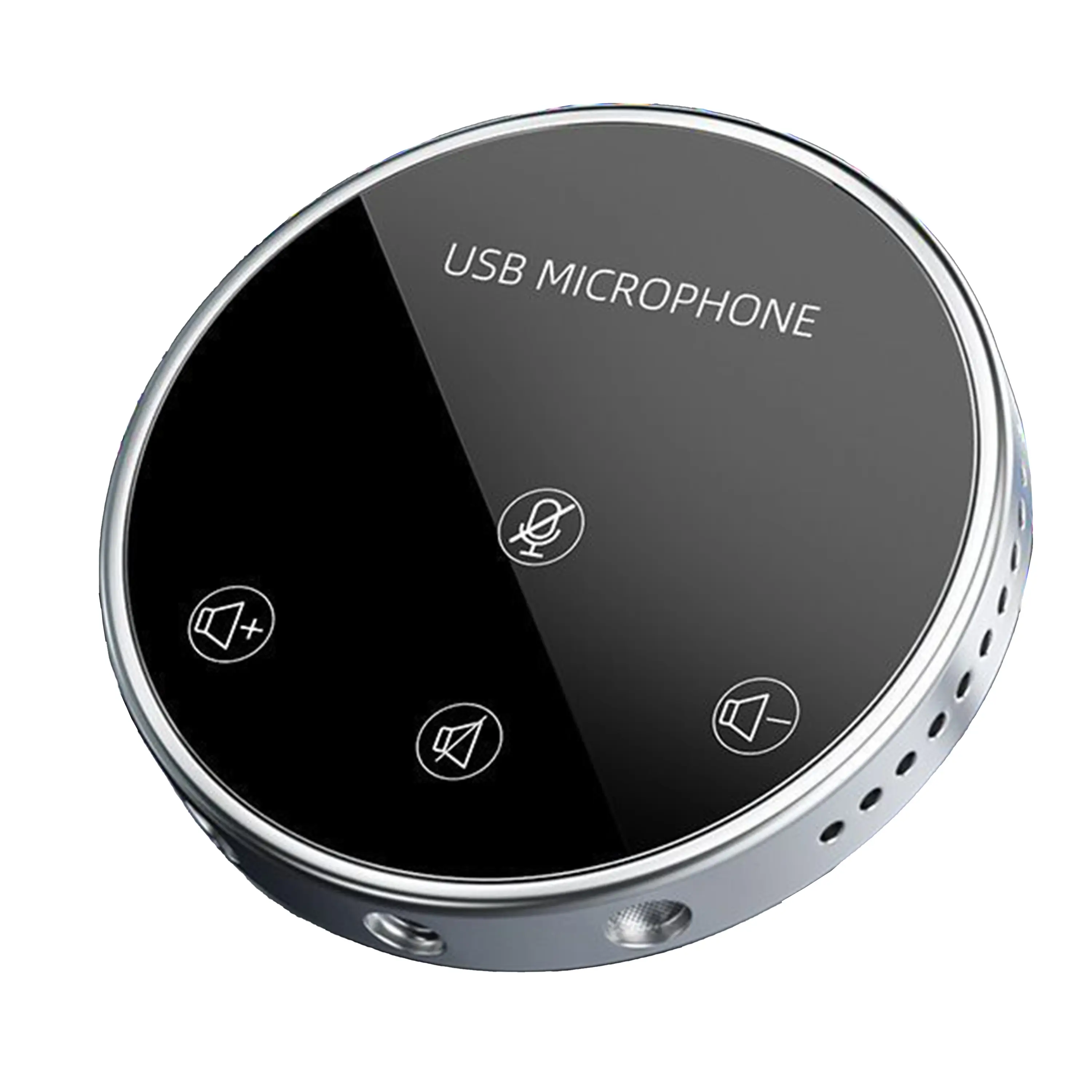
Conference Microphone● USB
● Plug and Play
● Intelligent Noise-Canceling
● 10ft/3m Extended Pickup Range
● 360° Omnidirectional Pickup
Conference Speakerphone● USB-C
● Plug and Play
● Intelligent Noise-Canceling
● 10ft/3m Extended Pickup Range
● 360° Omnidirectional Pickup
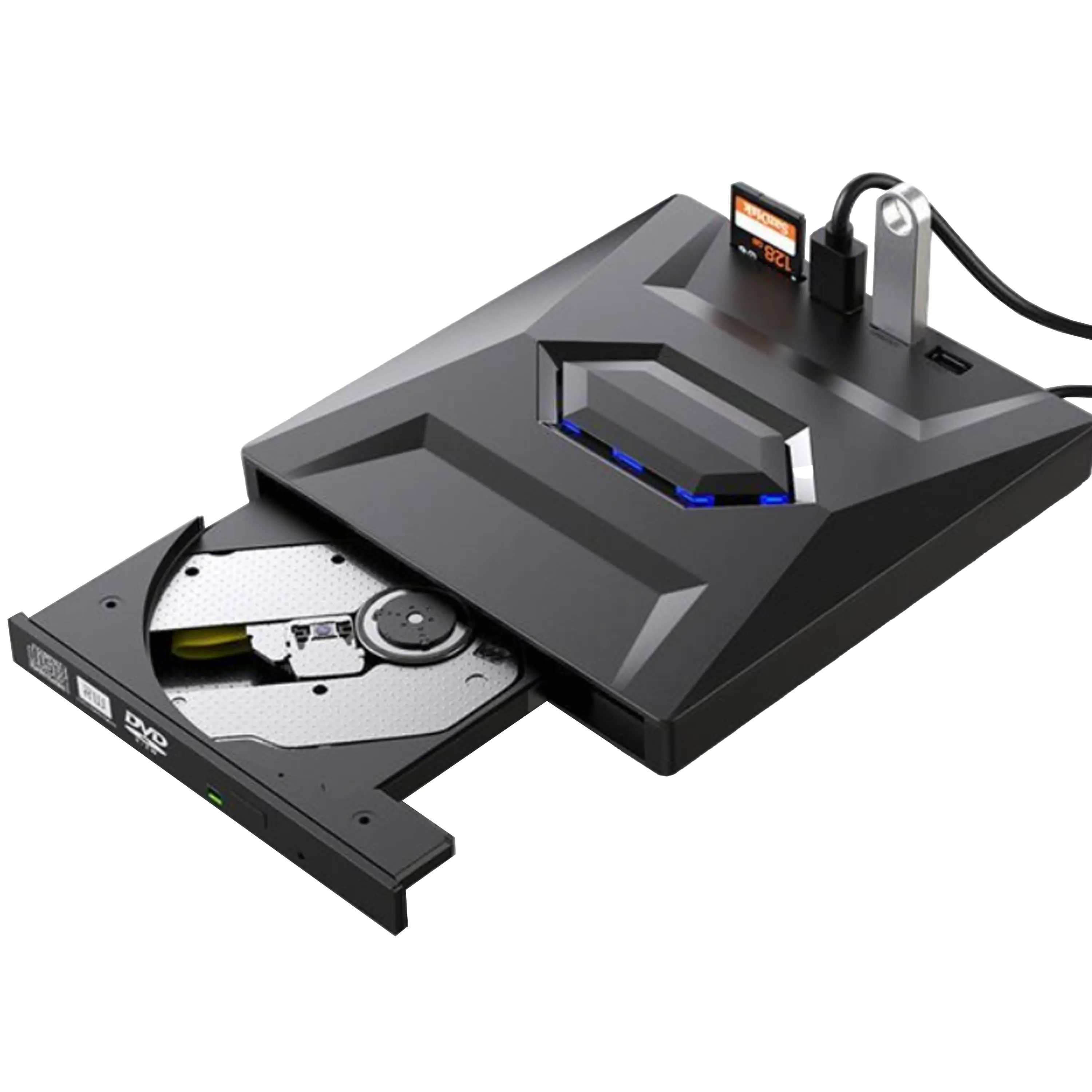
USB External CD/DVD Drive• USB and USB-C
• USB 3.0
• 8x DVD and 24x CD write/read speeds
• Portable
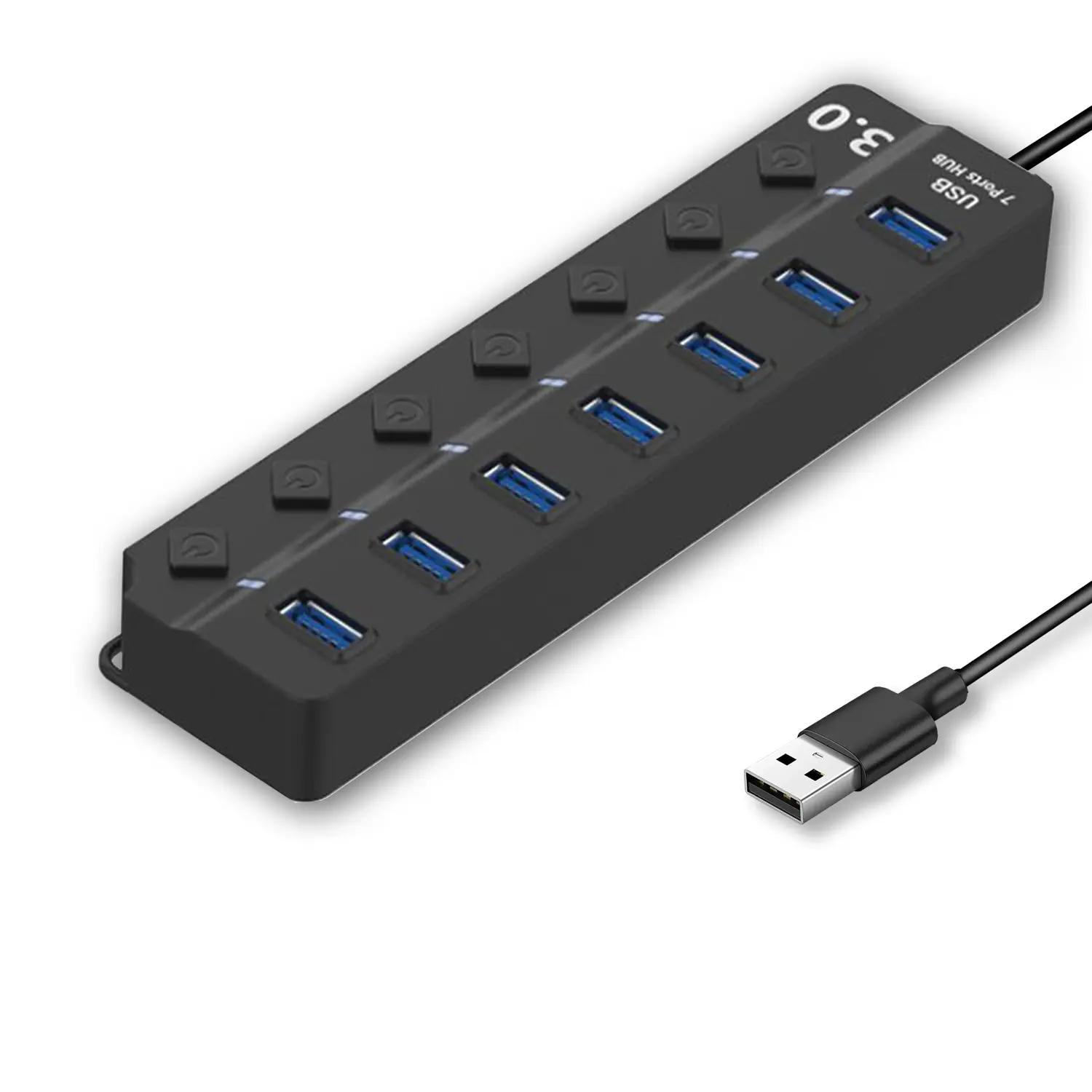
7-Port USB 3.0 Hub● USB 3.0
● Plug and Play
● 7-in-1 USB Hub
● Individual On/Off Switches
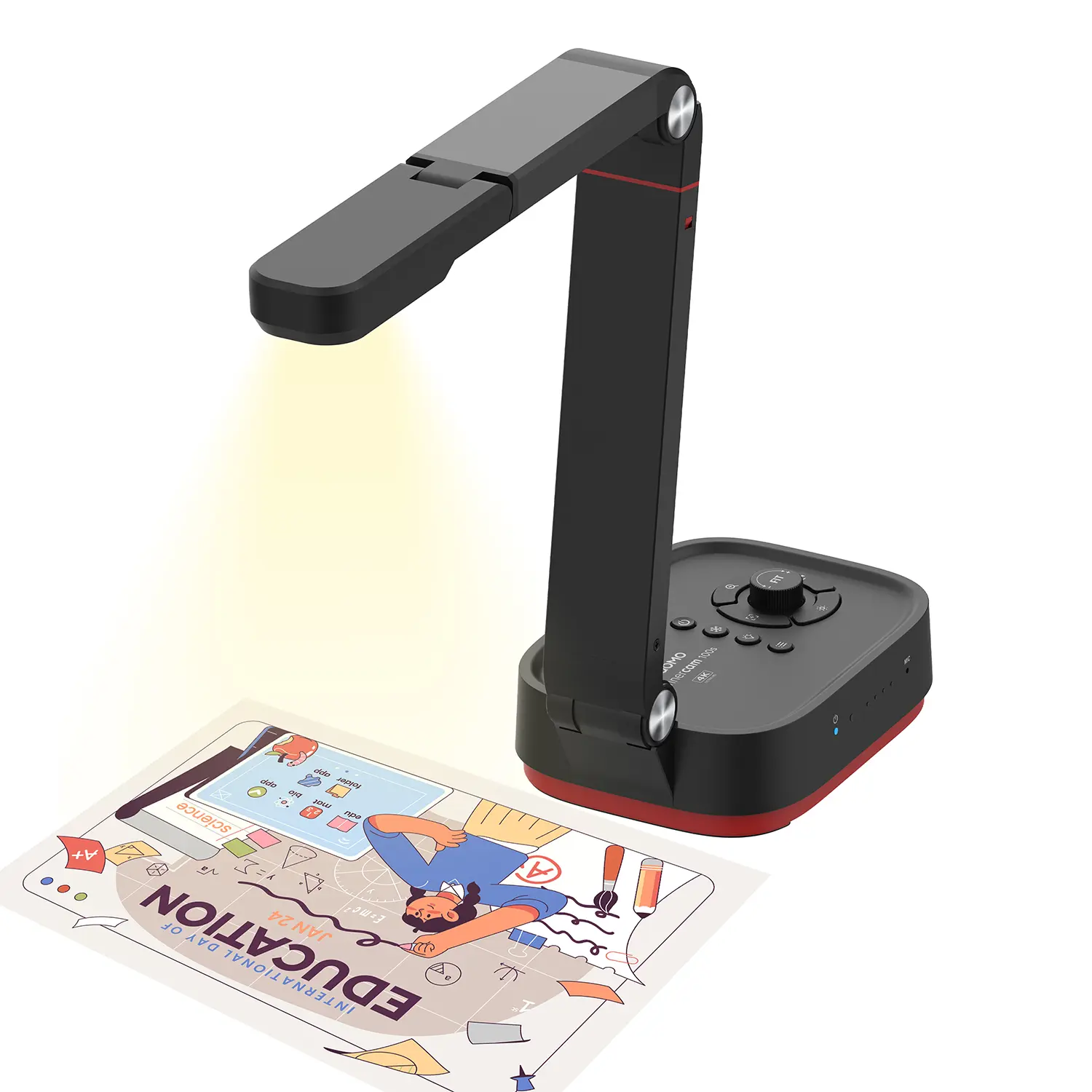
Revolutionize Your Presentations and Document Display with QWC 100S Document Camera
Enhance Call Experience: New Conference Microphone Now Available
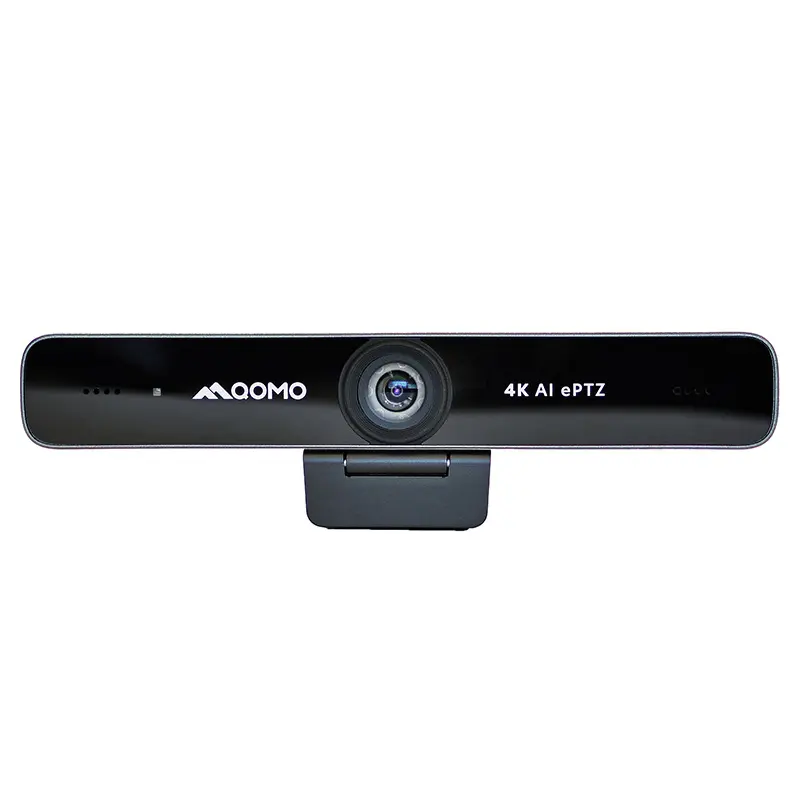
AI-Powered Face-Tracking Webcam
Portable Document Camera Recommendations
Classic Design, Exceptional Functionality: QPC 22 Document Camera
Wireless Screen Mirroring Solution for All Devices
Latest Audience Response System: QRF 999
Introducing the QPC 80H3 Gooseneck Document Camera
Creating a Smart Integrated Classroom: What Do You Need?
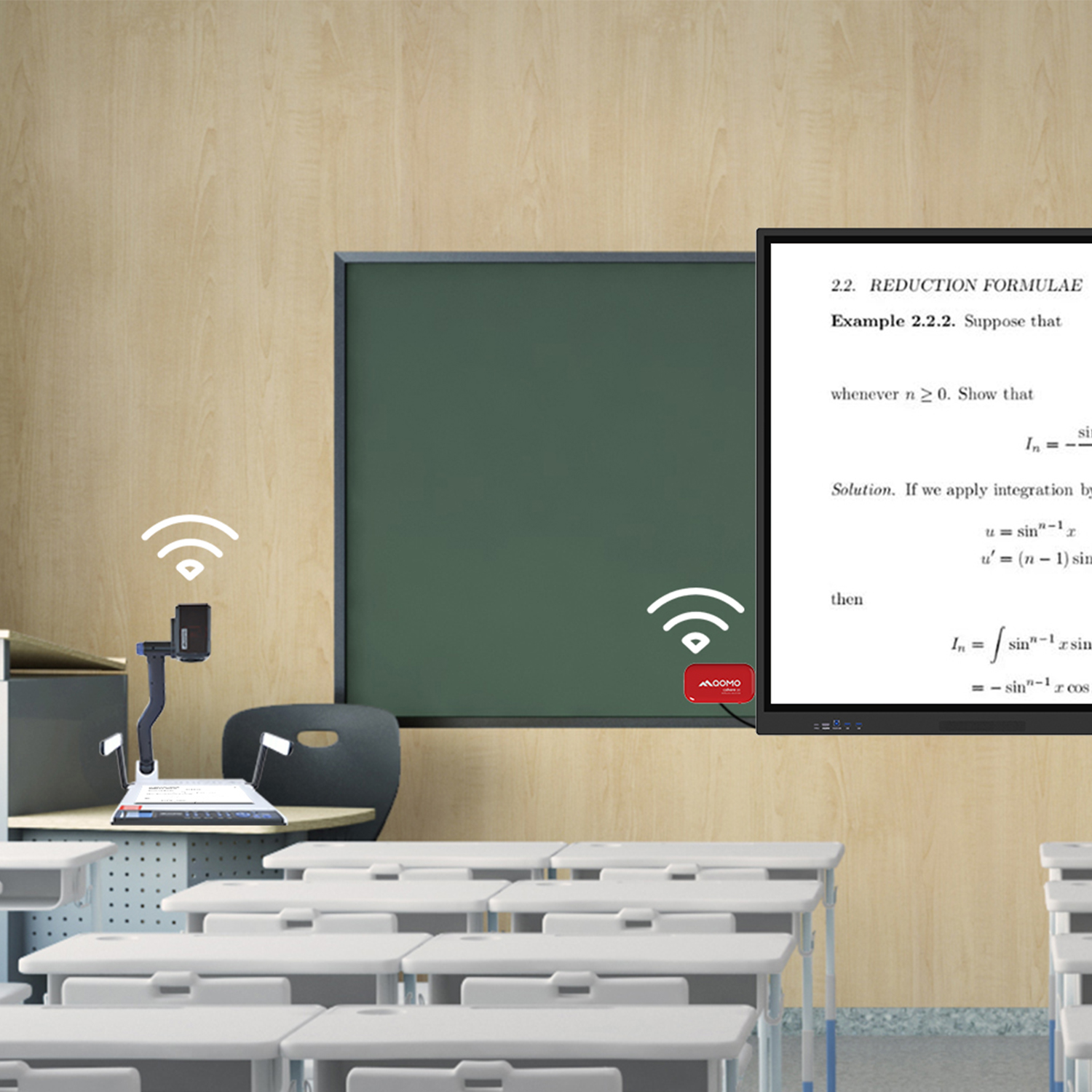
Wireless Connectivity Upgraded: WiFi-Free Wireless Document Receiver
Flow!Works Pro: Interactive Whiteboard Software for Engaging Classrooms
How to Choose the Perfect Document Camera and Elevate Productivity
QWC 004 Conference Webcam: The Top Choice for Remote Education
QCamera: Dedicated Software for Document Cameras to Elevate Your Presentations
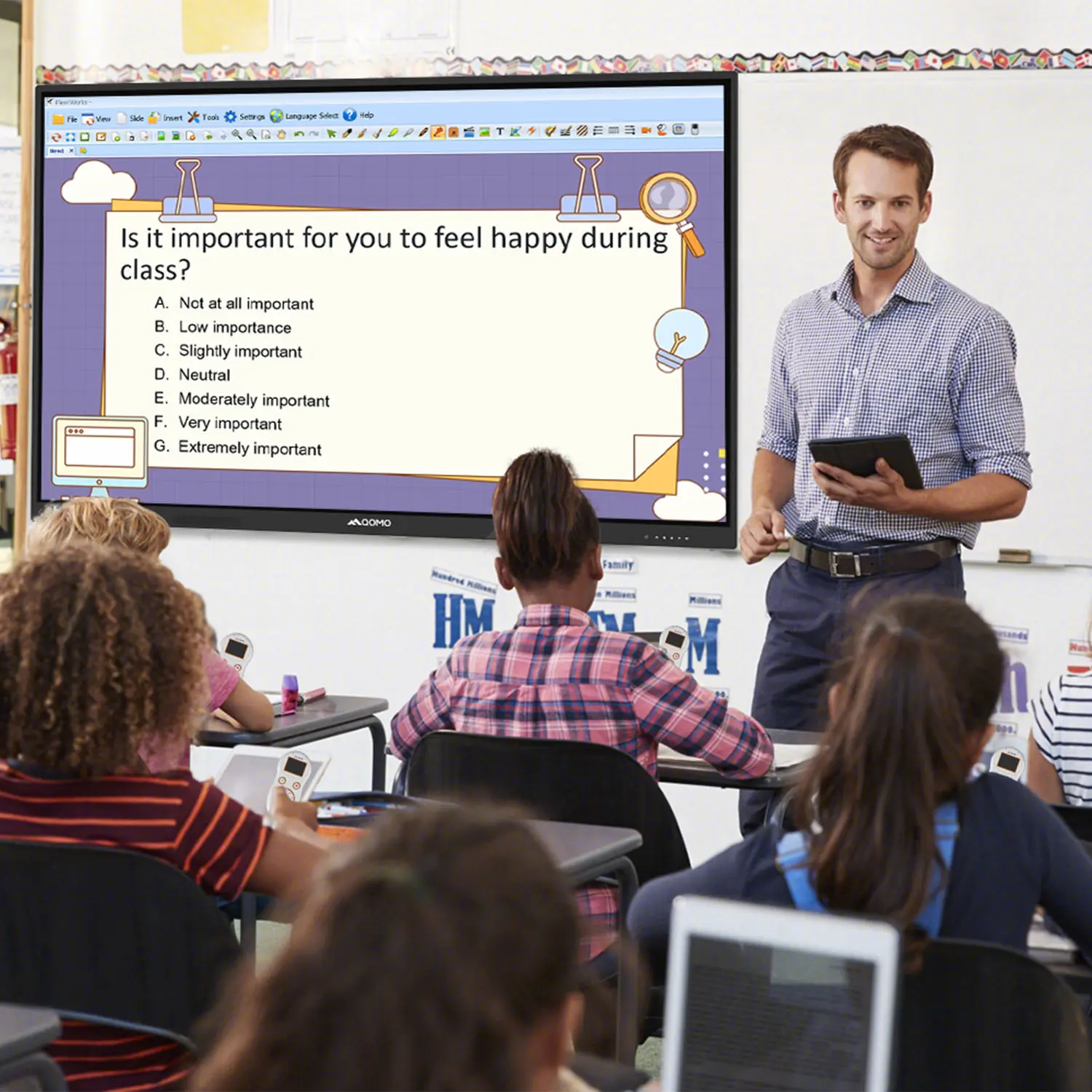
QRF999 Voice Response System: Enhancing Teacher-Student Interaction
Work From Home? Maybe You Should Try This Document Camera
The Ultimate Educational Tool: Gooseneck Document Camera
60GHz Millimeter-Wave Wireless Screen Sharing: QShare 100
What Does a Modern Conference Room Need?
QD5000 Document Camera: Unimaginable Versatility!
QWC 004: The Most Cost-Effective Webcam
QVote Interactive Classroom Response System Software
Functionality, Aesthetics, Portability! Meet the QWC 100S Document Camera!
Why Choose the BundleBoard H/H2 Interactive Flat Panel?
Save Your Budget—Introducing the All-New QPC 70 Document Camera!
QIT 600F3: Revolutionize Your Presentations
QCamera: Professional Document Camera Software
QPC 5: The Ultimate 4K Portable Document Camera
Elevate Your Meetings in Seconds: QWC 006 Webcam
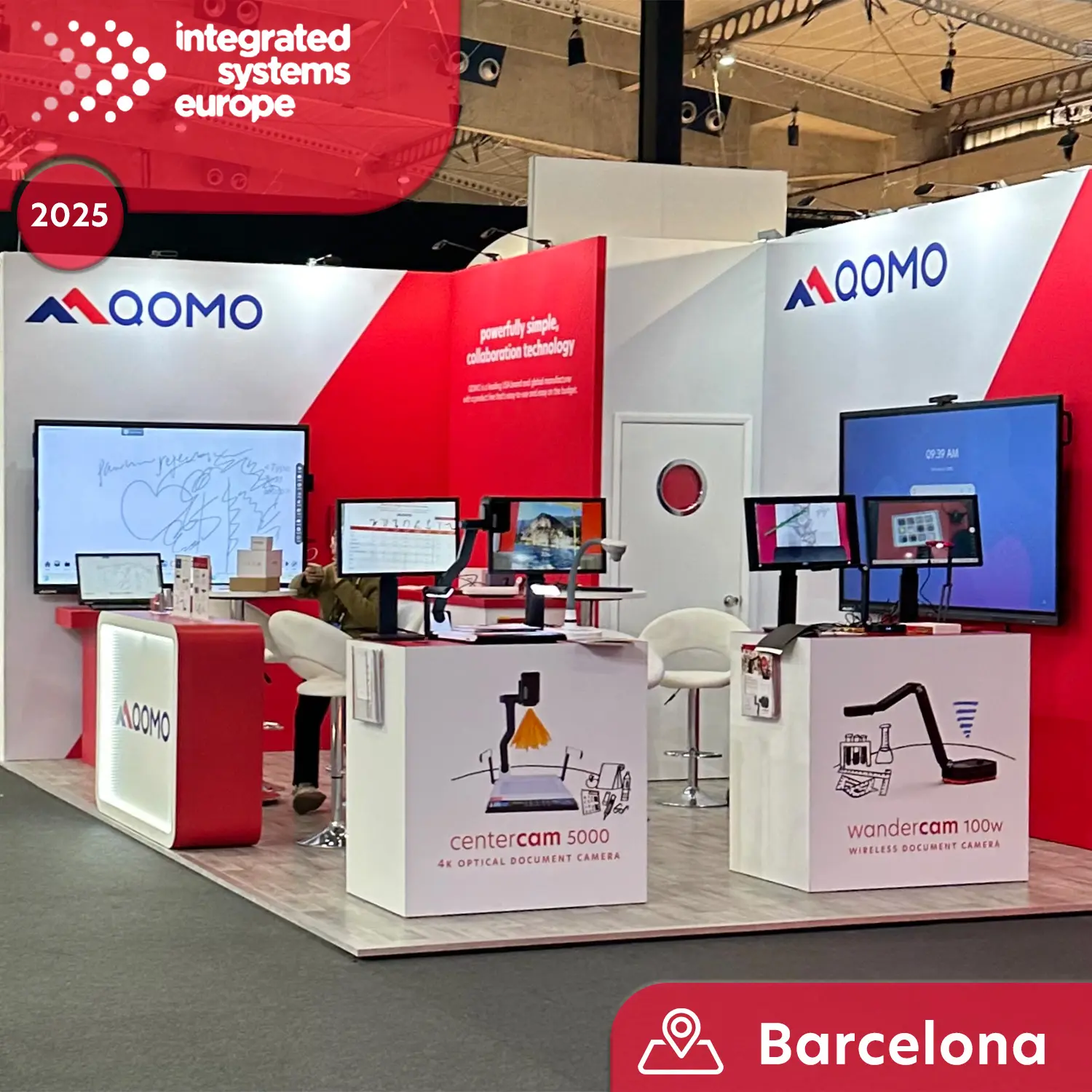
Meet QOMO at ISE 2025
Wireless Document Camera Solution, Revolutionizing Wireless Technology
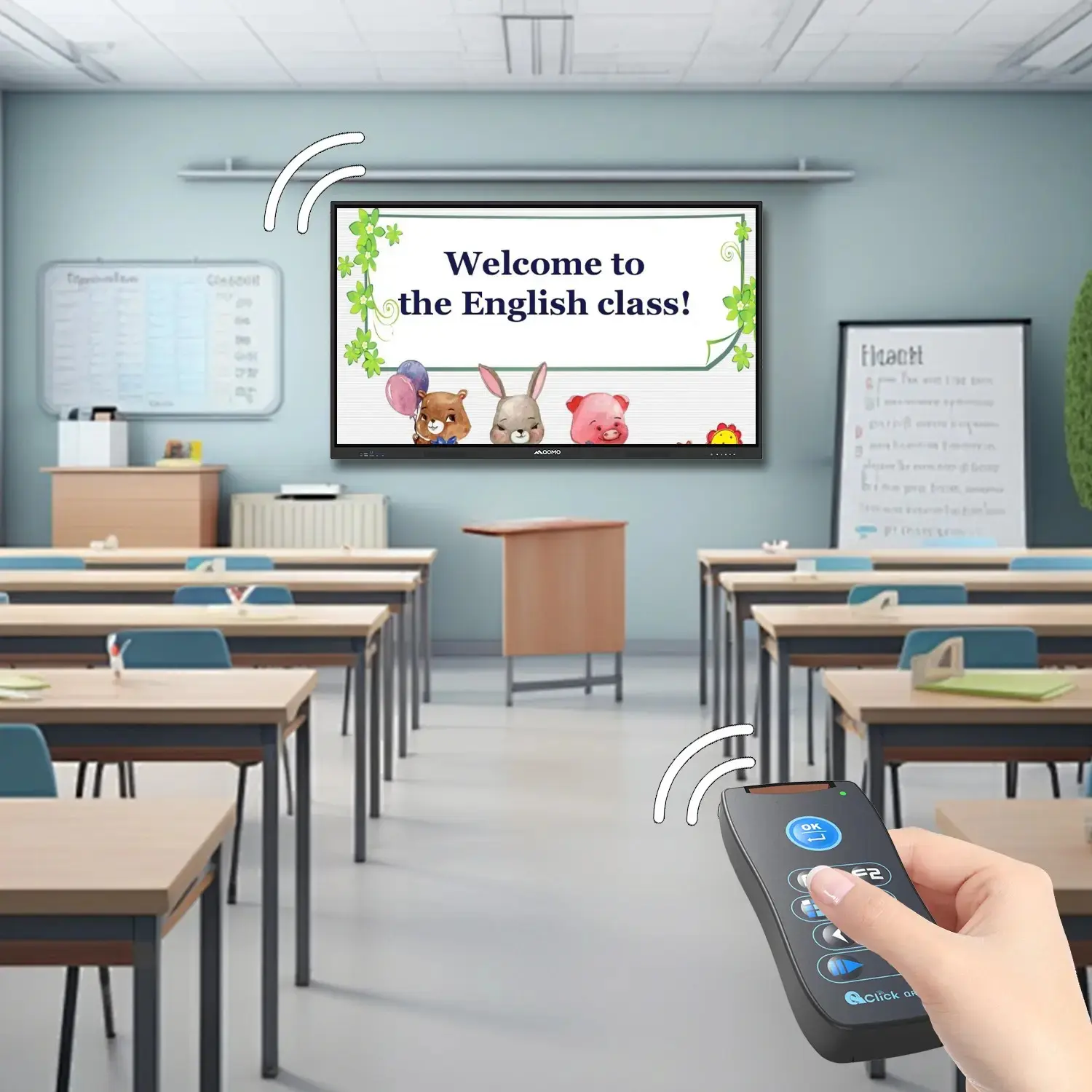
QRF Series, Transform Your Classroom!
QOMO, Building Intelligent Classrooms
QOMO QShare100 New Release
Outstanding Office Equipment Recommendations
Connecting HDMI from phone to TV can enhance your viewing experience. You can enjoy your favorite videos, games, and photos on a larger screen. This method is growing in popularity as it offers a convenient way to share content.
There are multiple ways to establish this connection. Each option has its advantages and limitations. Knowing the best methods can save time and frustration. Sometimes, people encounter issues like compatibility or cable lengths. It’s essential to choose the right devices to avoid such problems.
Understanding the technical aspects is crucial. Certain phones may require specific adapters to connect seamlessly. Users should also check their TV’s HDMI ports for compatibility. The journey of connecting HDMI from phone to TV can be straightforward or challenging based on your setup. With the right guidance, it will be a rewarding experience.
Connecting your phone to a TV via HDMI can enhance your viewing experience. Different methods exist to achieve this connection. An HDMI cable is the most straightforward choice for high-quality video and audio. According to the Consumer Electronics Association, 25% of households report using HDMI connections as their primary mode for linking devices. This emphasizes the widespread acceptance of HDMI as a reliable option.
For users without a compatible HDMI output, alternatives like adapters can bridge the gap. Digital Media Adapters facilitate wireless streaming. A study from the International Data Corporation highlighted that wireless connections gained traction, with a 30% increase in usage among smartphone users last year. However, these methods may introduce lag or reduced quality compared to direct HDMI cables.
It is essential to evaluate your options based on the desired outcome. Poor-quality cables or adapters can diminish the experience. Some users report issues with picture clarity or audio sync when using inferior products. Ensuring compatibility between devices is crucial to avoid frustration. Different TVs and phones have specific requirements that must be addressed for optimal performance.
| Connection Method | Description | Compatibility | Pros | Cons |
|---|---|---|---|---|
| HDMI Adapter | Use a cable that connects your phone to a TV's HDMI port. | Android, iPhone | Easy setup and direct connection. | Might require additional power. |
| MHL Adapter | An adapter that allows MHL-enabled devices to connect via HDMI. | Android | Supports HD video and audio. | Limited device compatibility. |
| Chromecast | Stream content wirelessly from your phone to TV. | Android, iPhone | No cables needed, multiple streaming options. | Dependent on Wi-Fi quality. |
| Apple AirPlay | Stream content wirelessly from iOS devices to Apple TV. | iPhone | Seamless integration with Apple devices. | Works best with Apple ecosystem. |
| HDMI over Ethernet | Transmit HDMI signals over long distances using Ethernet cables. | All HDMI devices | Long-distance transmission capabilities. | Requires additional hardware. |
| USB-C to HDMI | Use USB-C for direct HDMI connection. | Android, newer iPhones | High quality video output. | Requires compatible cable. |
| Screen Mirroring | Mirror your phone's screen on your TV wirelessly. | Android, iPhone | No additional hardware needed. | Can experience delay or lag. |
| Smart TV Apps | Use TV applications designed for streaming from mobile devices. | Smart TVs | Direct content access from phone. | Dependent on app support. |
| Media Servers | Set up a media server to access content remotely on your TV. | TVs with DLNA or similar | Access to various media files. | May need setup expertise. |
| Roku or similar devices | Use streaming devices that connect to the HDMI port. | Android, iPhone | Wide range of apps available. | Additional device required. |
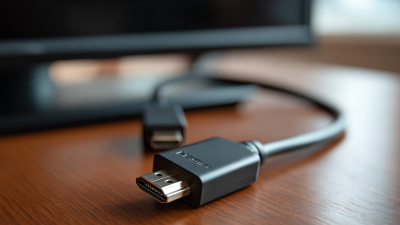
To connect your phone to your TV using HDMI, understanding cable types is essential. There are several HDMI cable variations available. The Standard HDMI cable is common for regular use, while the High-Speed HDMI cable supports higher resolutions. For mobile devices, a Micro HDMI or Mini HDMI adapter might be necessary. Ensure your phone's connector matches the cable you choose.
When selecting an HDMI cable, compatibility is key. Check your TV's HDMI ports to confirm which type suits your device. A mismatch may lead to frustration when trying to connect. Remember, not all cables support the latest features. Some may not transfer audio or support 4K resolution. Testing the cable before concluding is crucial.
Tip: If the connection fails, try a different HDMI port on the TV. Sometimes, specific ports work better than others. Also, ensure your phone’s display settings are adjusted to mirror the screen. You may find even small mistakes can disrupt the display. Checking the settings can save time and effort.
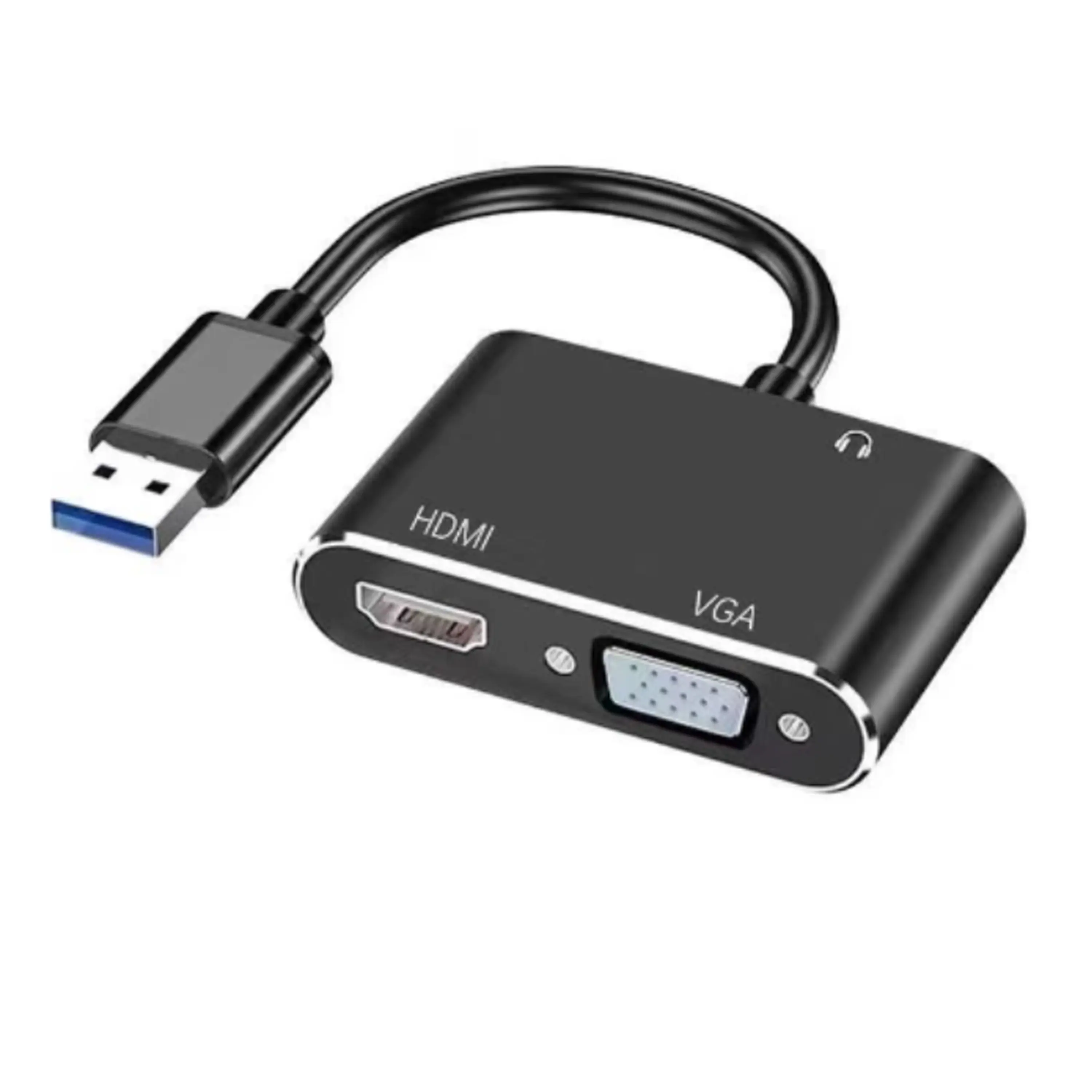
Connecting your phone to a TV using an HDMI adapter can enhance your viewing experience. This method is straightforward but requires a few steps. Start by choosing the right HDMI adapter compatible with your phone. Some adapters come with additional features, such as charging ports. Plug the adapter into the phone's charging port.
Next, connect an HDMI cable to the adapter. The other end goes into an available HDMI port on your TV. Turn on your TV and select the correct HDMI input. Your phone screen should appear on the TV. If not, double-check the connections and ensure both devices are powered.
**Tip:** Ensure the TV and phone are updated to the latest software versions. This might prevent compatibility issues. Another helpful hint involves using a high-quality HDMI cable to ensure the best picture and sound quality. If you encounter issues, try restarting both devices.
Remember, not all phones support HDMI connections. Some might require alternate methods. Experiment with your settings if you face a black screen. It can be frustrating, but patience often leads to solutions. Connectivity can be quirky, and some phones may need repeated attempts to connect successfully.
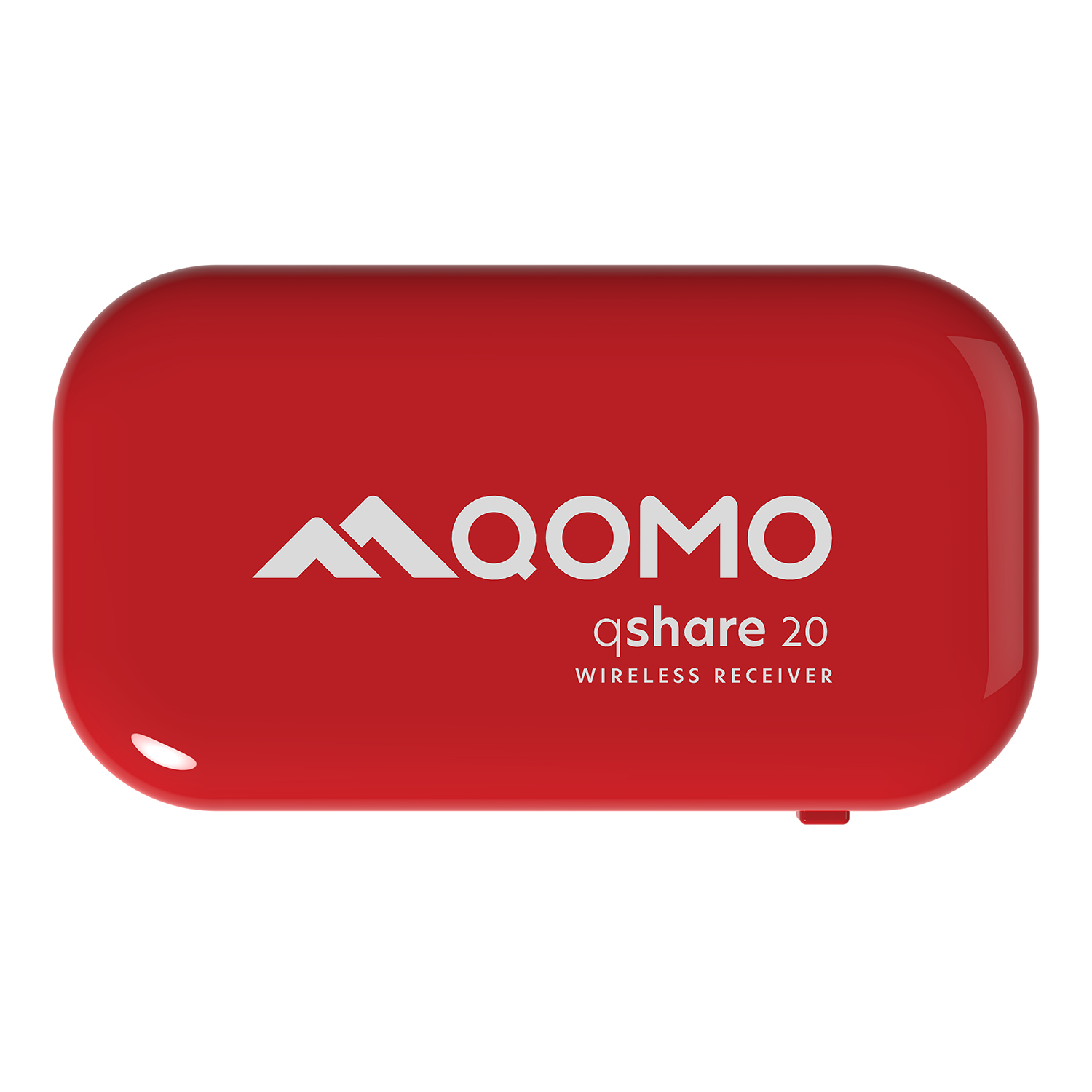
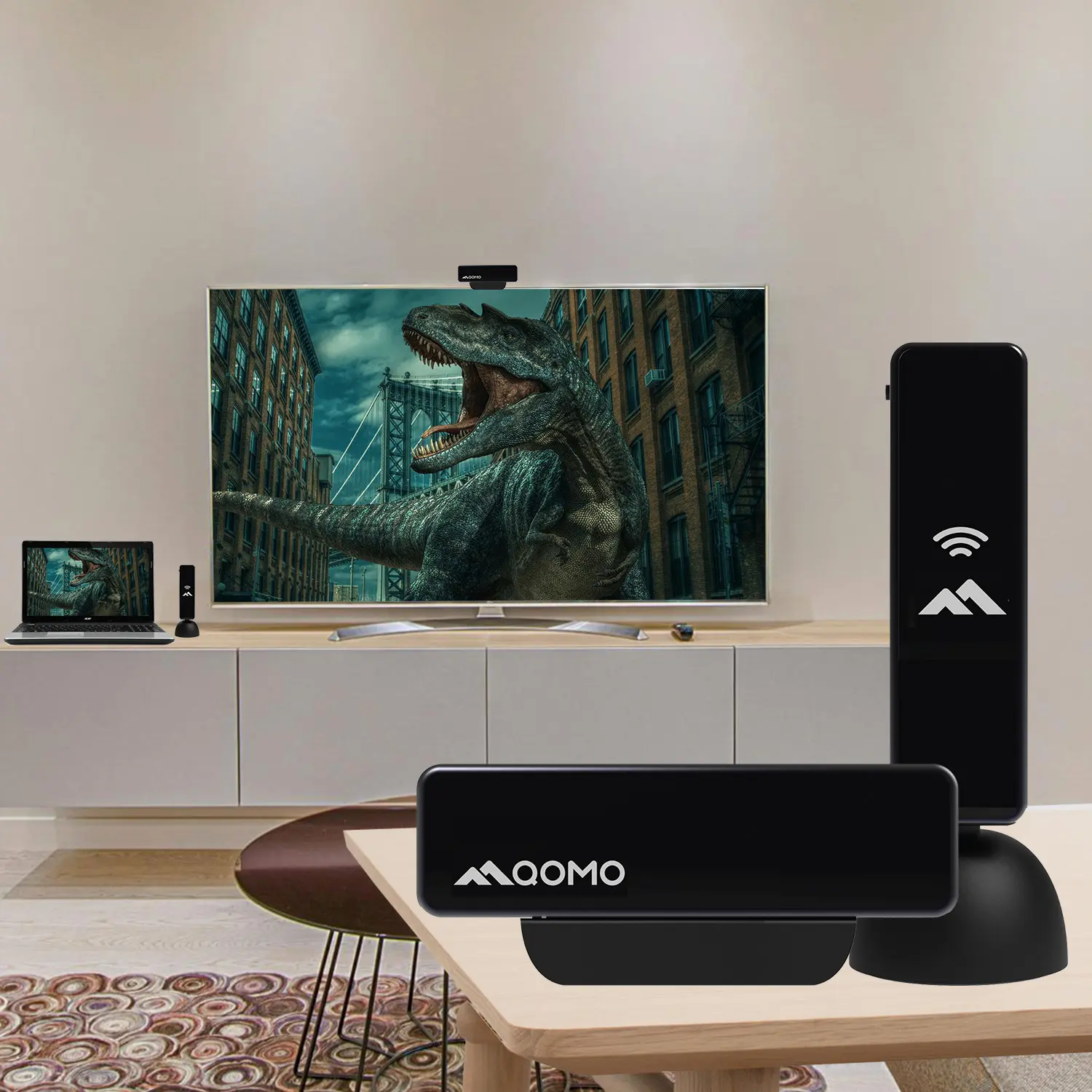
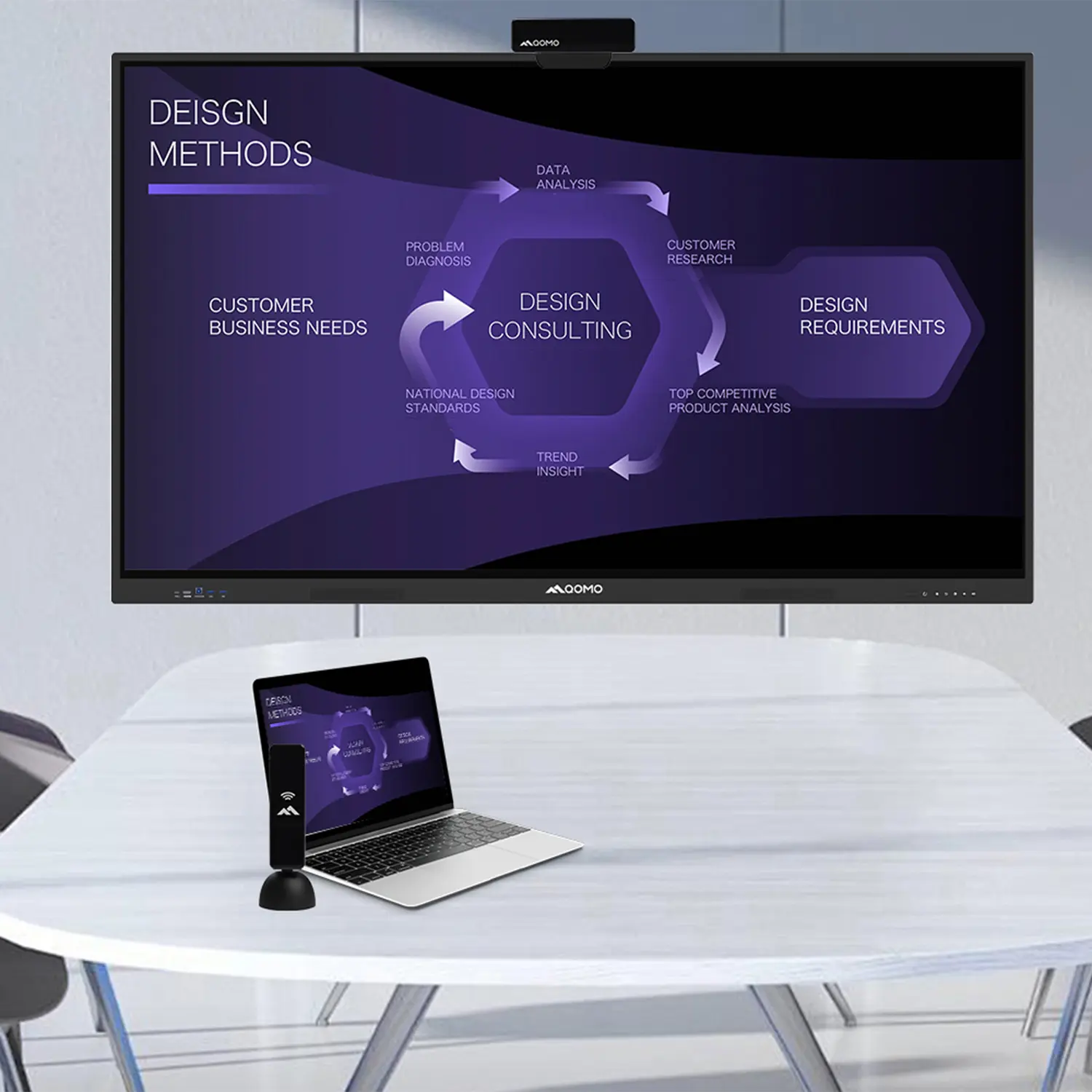
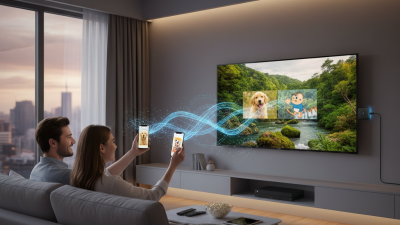
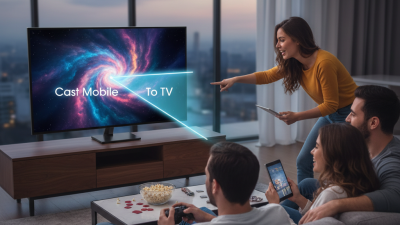
In today’s tech-savvy world, connecting your phone to a TV wirelessly has become simpler than ever. Wireless HDMI solutions offer a convenient way to stream your favorite content from your mobile device to a larger screen. These tools allow for seamless video and audio transmission without the hassle of messy cables. Users can enjoy full HD quality while moving freely around the room. The ease of setup makes them appealing to many.
One popular option is using a wireless HDMI dongle. This small device plugs into your TV's HDMI port and connects to your phone via Wi-Fi. You can stream anything, from movies to presentations, with just a few taps. However, connection stability can sometimes be an issue. Interference from walls or other electronic devices may disrupt performance. It is essential to consider distance and obstructions when setting up your wireless connection.
Miracast technology is another solution. It allows you to mirror your phone’s display directly to the TV. This feature is included in many modern smartphones and TVs. It’s a straightforward process, but not every device supports it equally. Users often find inconsistent performance, especially with older hardware. Testing different methods and finding what works best for your devices can lead to a smoother experience.
HDMI connections can sometimes be tricky. One common issue is that your phone may not recognize the TV. Ensure you are using a compatible HDMI adapter. Sometimes, using the wrong adapter will result in incompatibility. Double-check that both devices are powered on. If your phone isn't detecting the TV, restart both devices. This simple step can often resolve connection issues.
Another frequent problem is a blank screen. If you see a black screen, it could be due to incorrect input settings on your TV. Make sure you’ve selected the right HDMI input. Additionally, check your HDMI cable for any physical damage. A frayed or broken cable can lead to a poor connection. If the cable looks fine, consider testing it with another device. Sometimes, the cable may seem okay but doesn't perform well.
Audio problems can also arise. If you have video but no sound, the output settings on your phone may need adjustment. Go to the sound settings and ensure HDMI output is selected. If you can’t fix the problem, try a different TV to rule out device-specific issues. Remember, troubleshooting is a process, and not every solution is immediate. Reflect on the steps you've taken to find the correct resolution.