+86 152 8002 3723
QVoteProfessional Audience Response System software offers the most convenient functions for your interactions.
QClickThe most convenient educational software for working with Microsoft PowerPoint to quickly set up various question types and generate intelligent feedback reports.
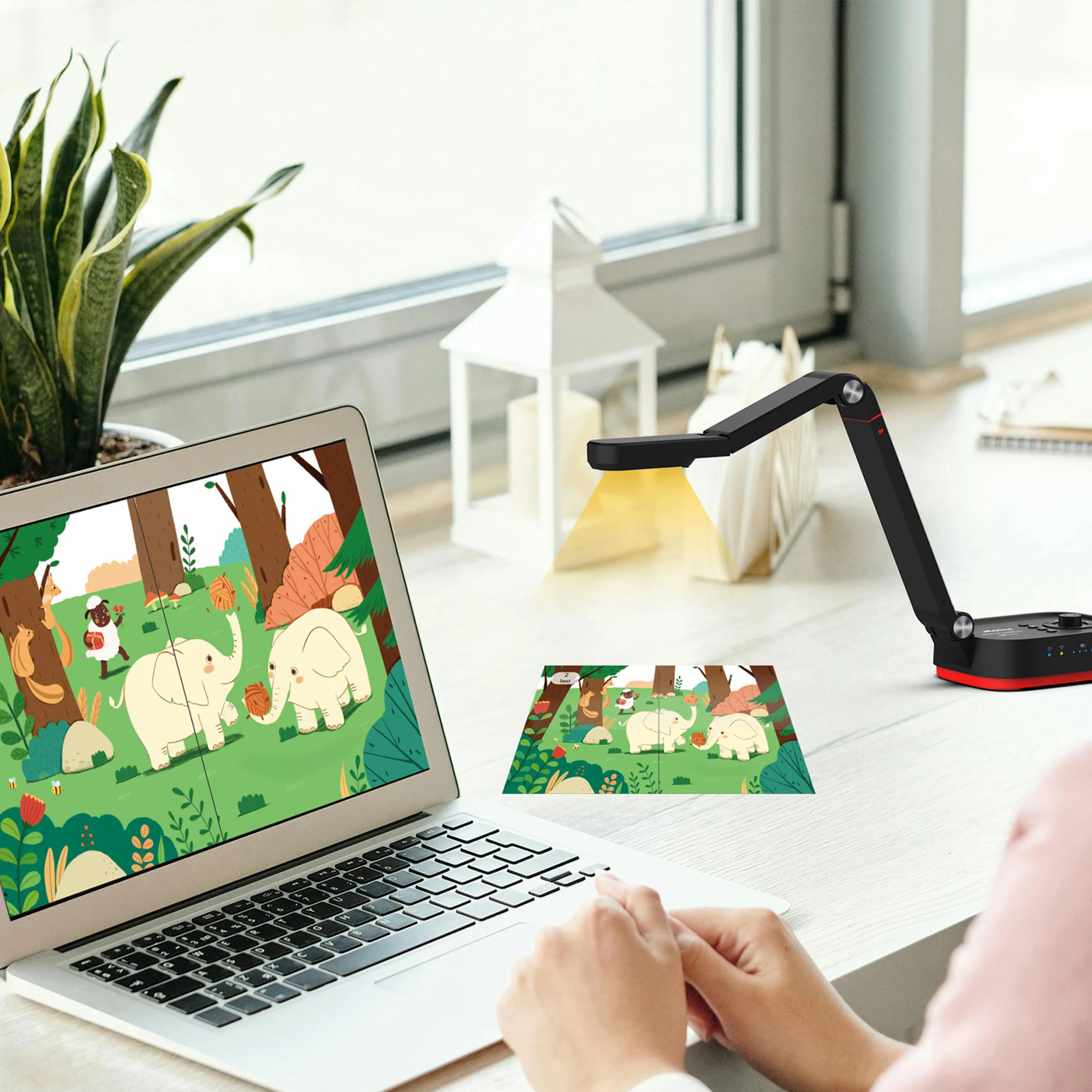
QCameraQCamera by QOMO allows for real-time streaming from cameras and document cameras. Annotate, save snapshots, record, and manipulate camera images instantly.
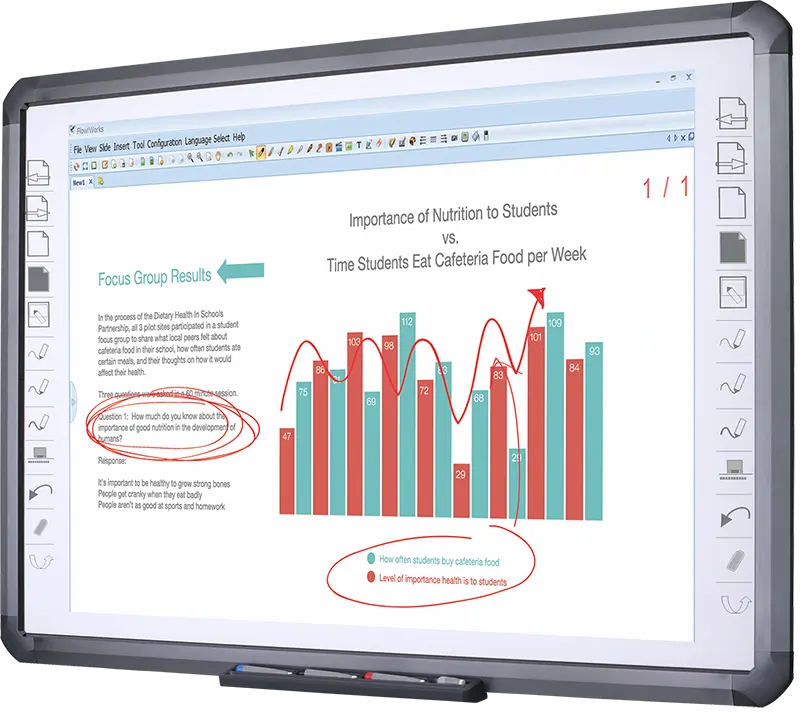
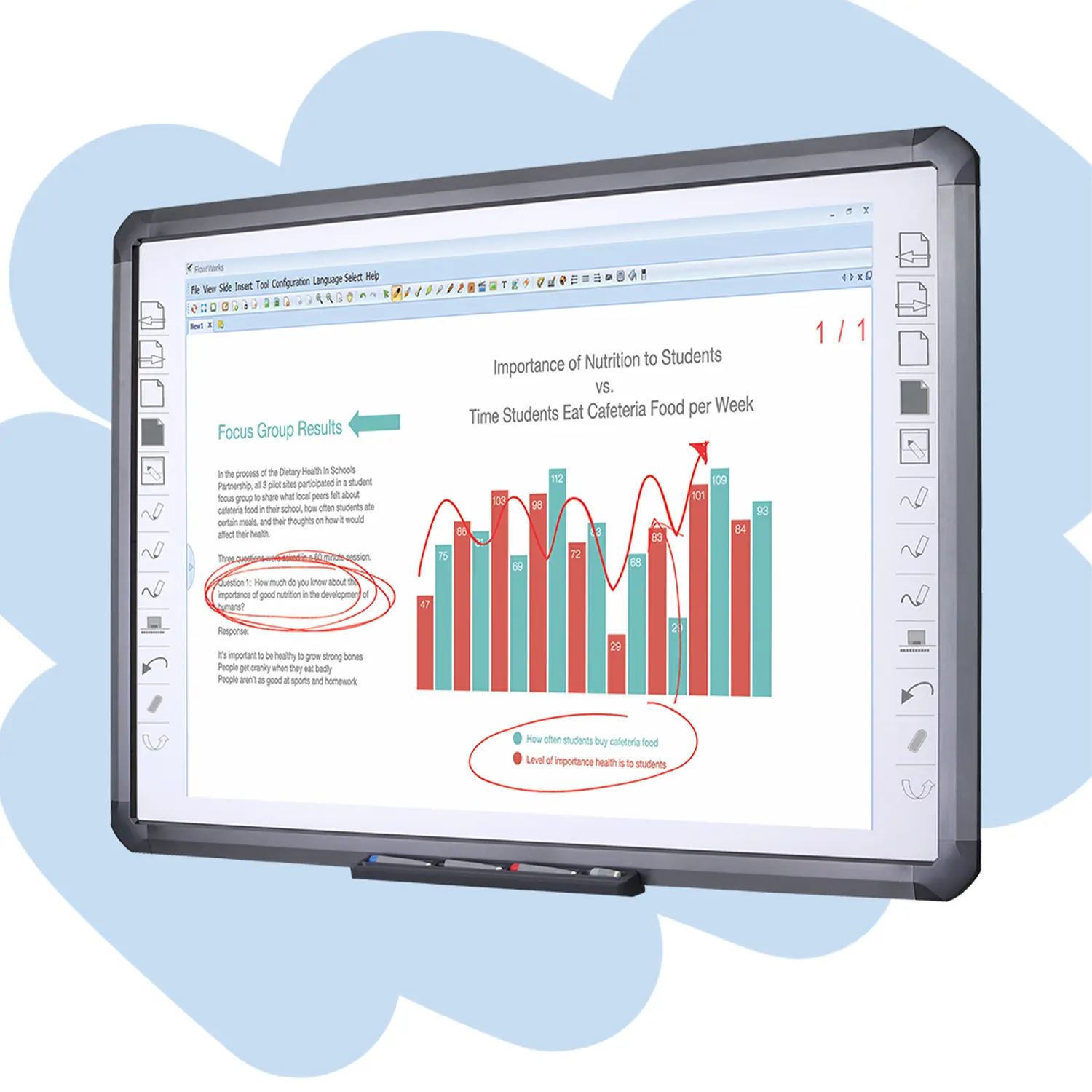
Flow!Works ProUser - friendly whiteboard software, it encompasses a wide range of presentation tools and powerful functions, delivering the most professional presentation experience to you.
Flow!WorksFlow!Works incorporates more educational tools, further enhancing the interactivity and fun - factor of your teaching.
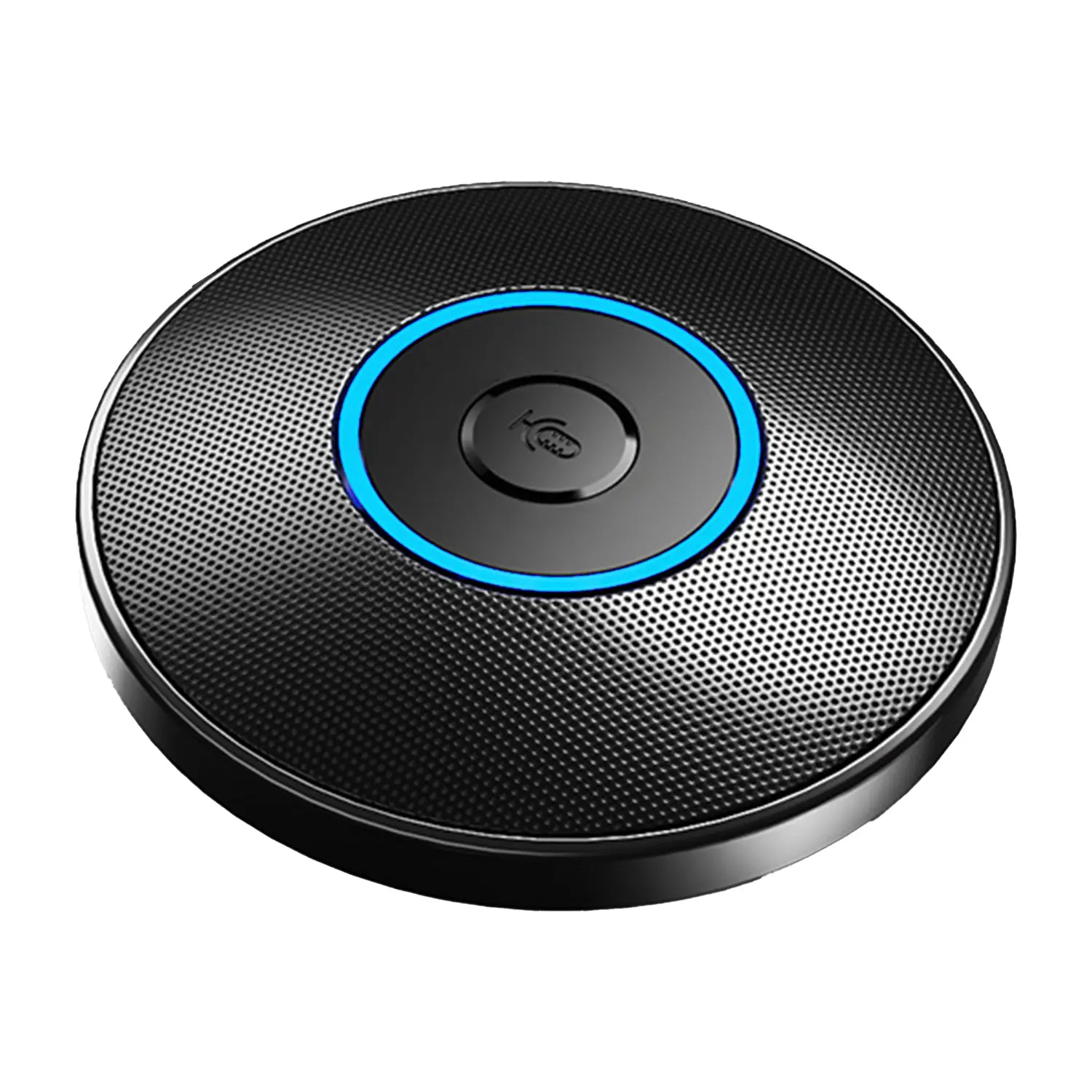
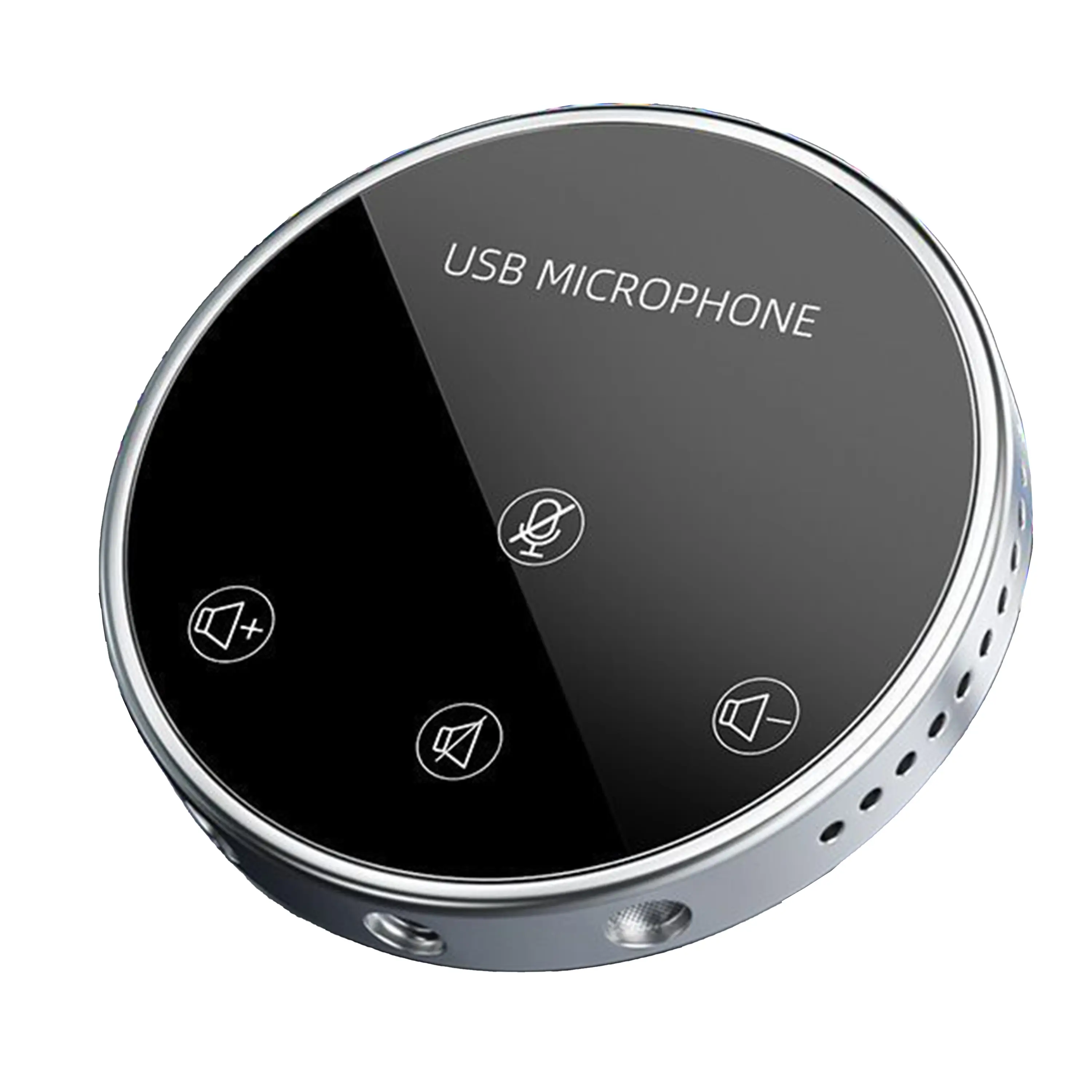
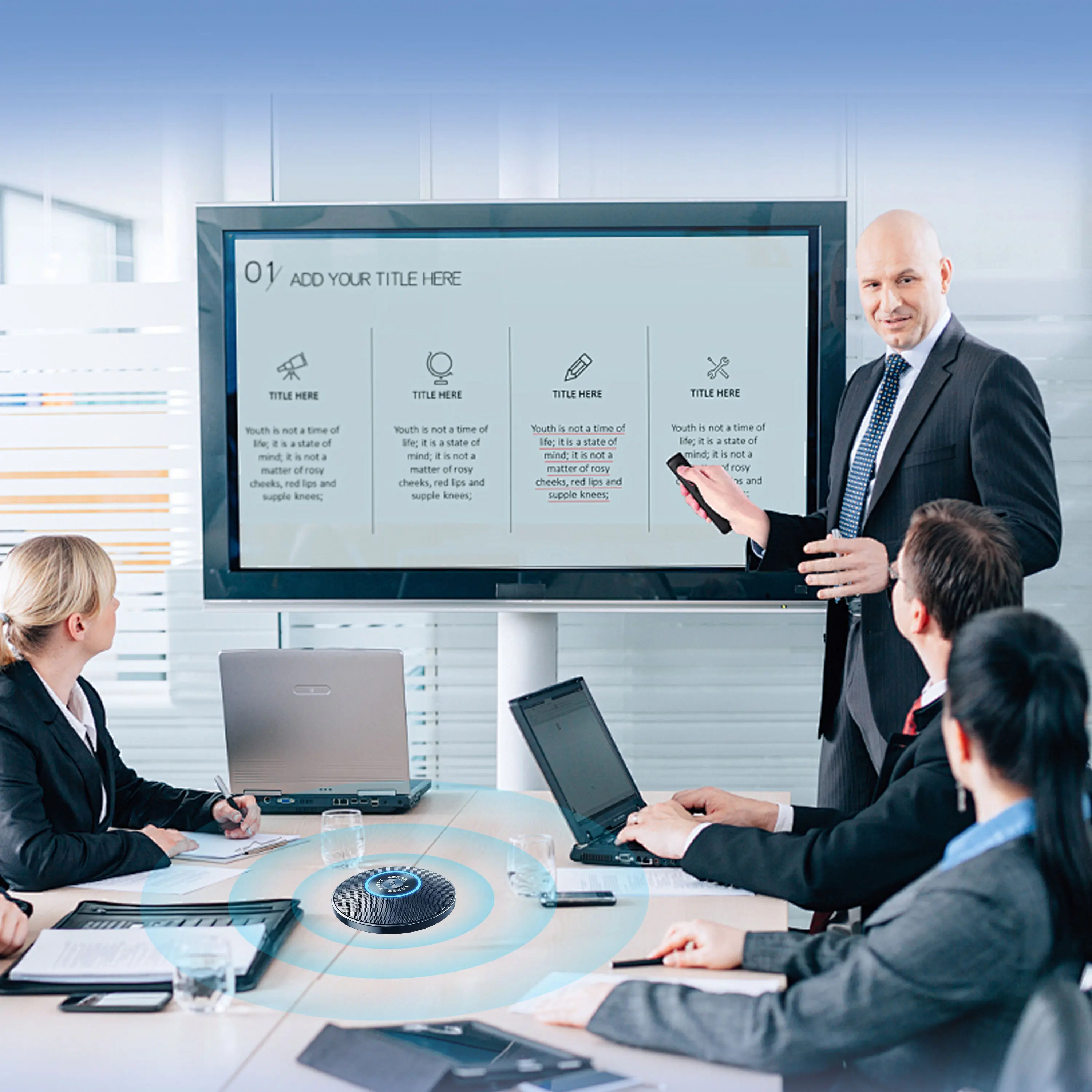
Conference Microphone● USB
● Plug and Play
● Intelligent Noise-Canceling
● 10ft/3m Extended Pickup Range
● 360° Omnidirectional Pickup
Conference Speakerphone● USB-C
● Plug and Play
● Intelligent Noise-Canceling
● 10ft/3m Extended Pickup Range
● 360° Omnidirectional Pickup
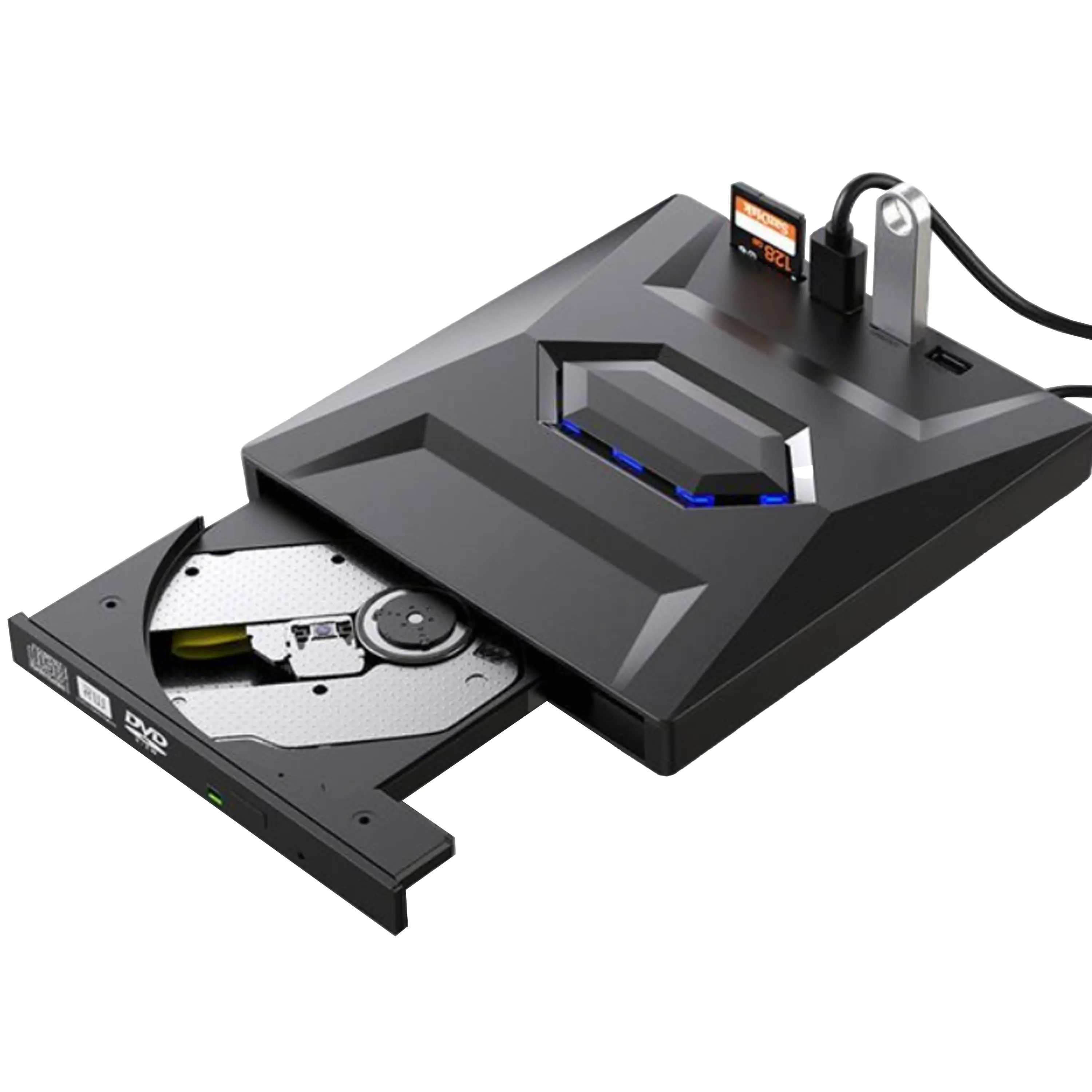
USB External CD/DVD Drive• USB and USB-C
• USB 3.0
• 8x DVD and 24x CD write/read speeds
• Portable
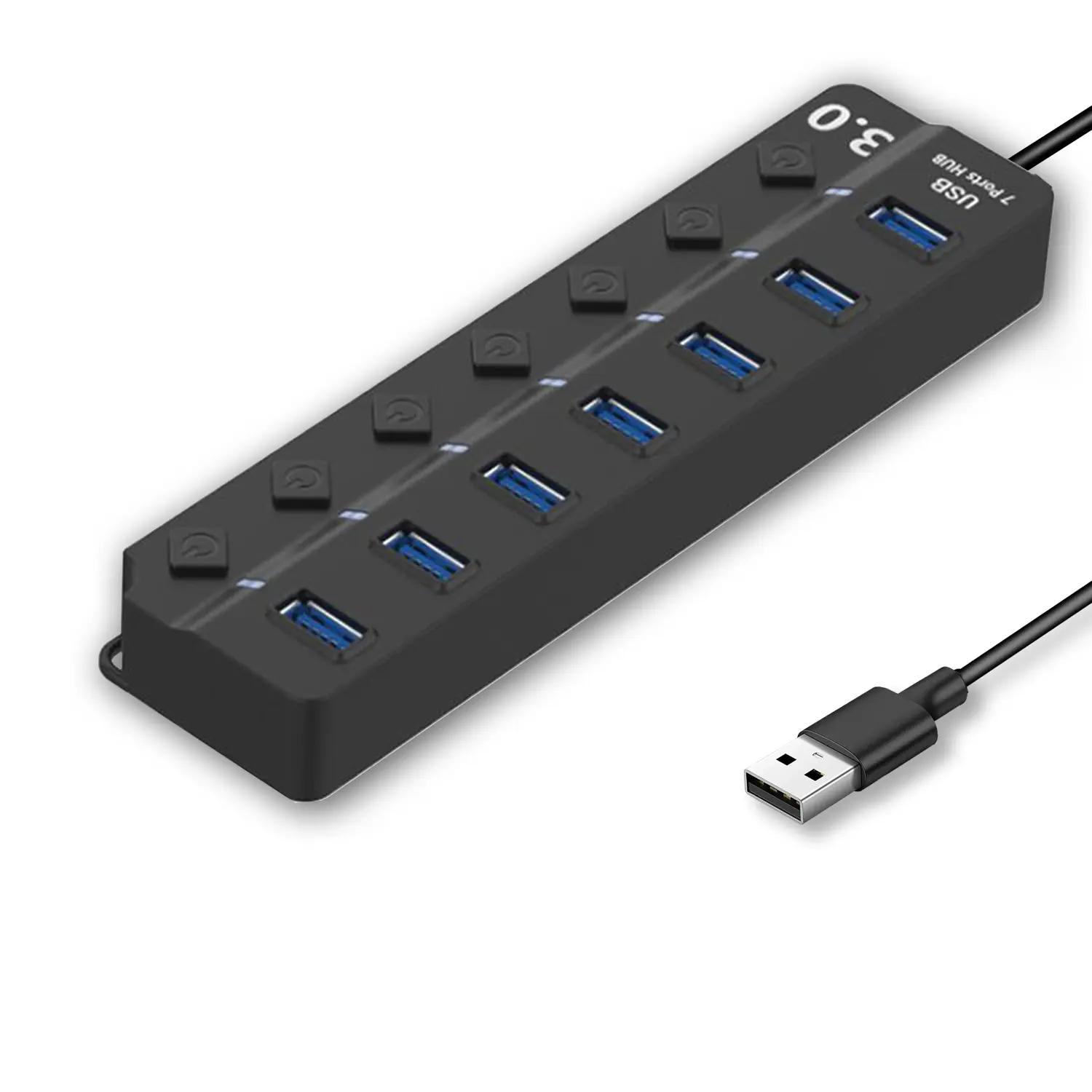
7-Port USB 3.0 Hub● USB 3.0
● Plug and Play
● 7-in-1 USB Hub
● Individual On/Off Switches
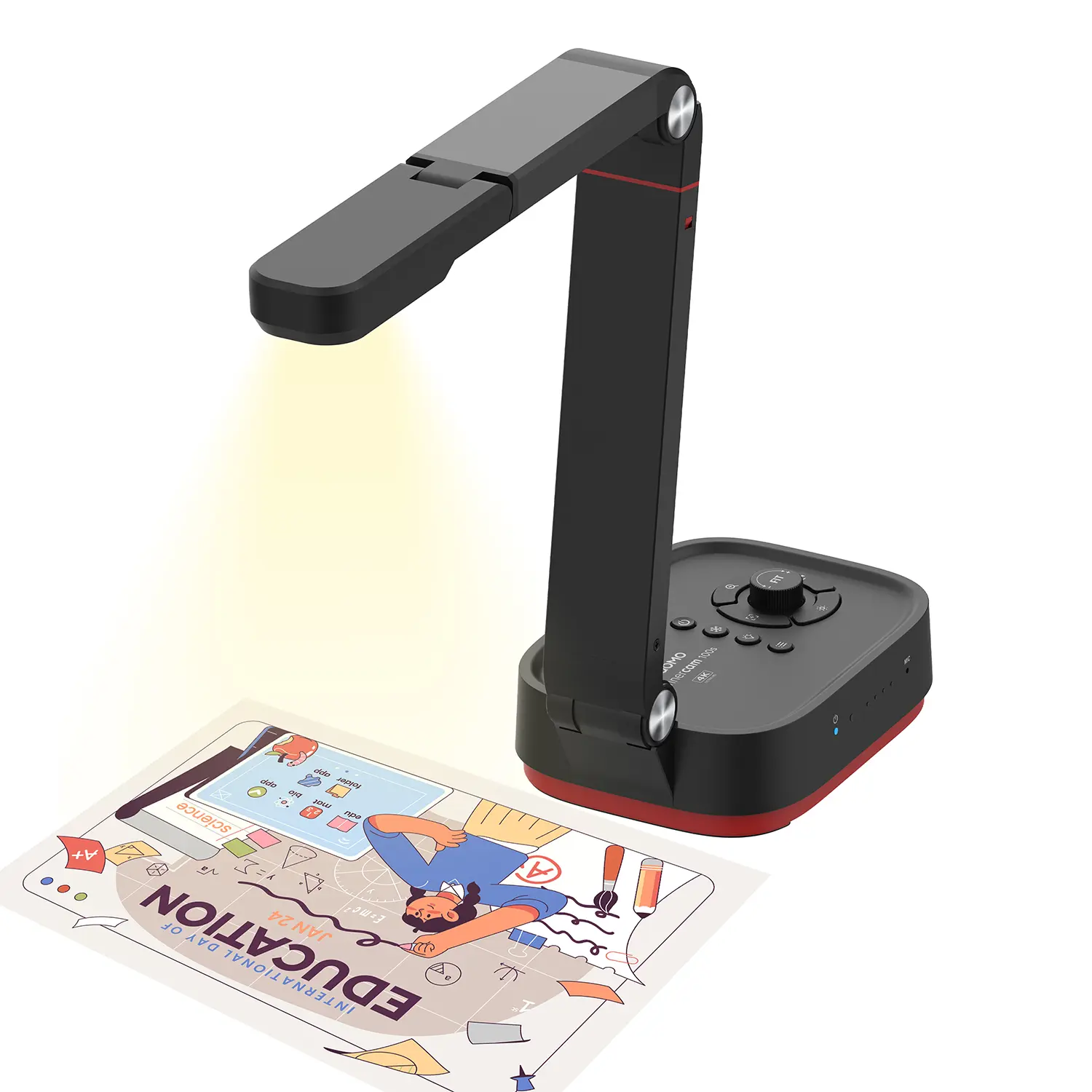
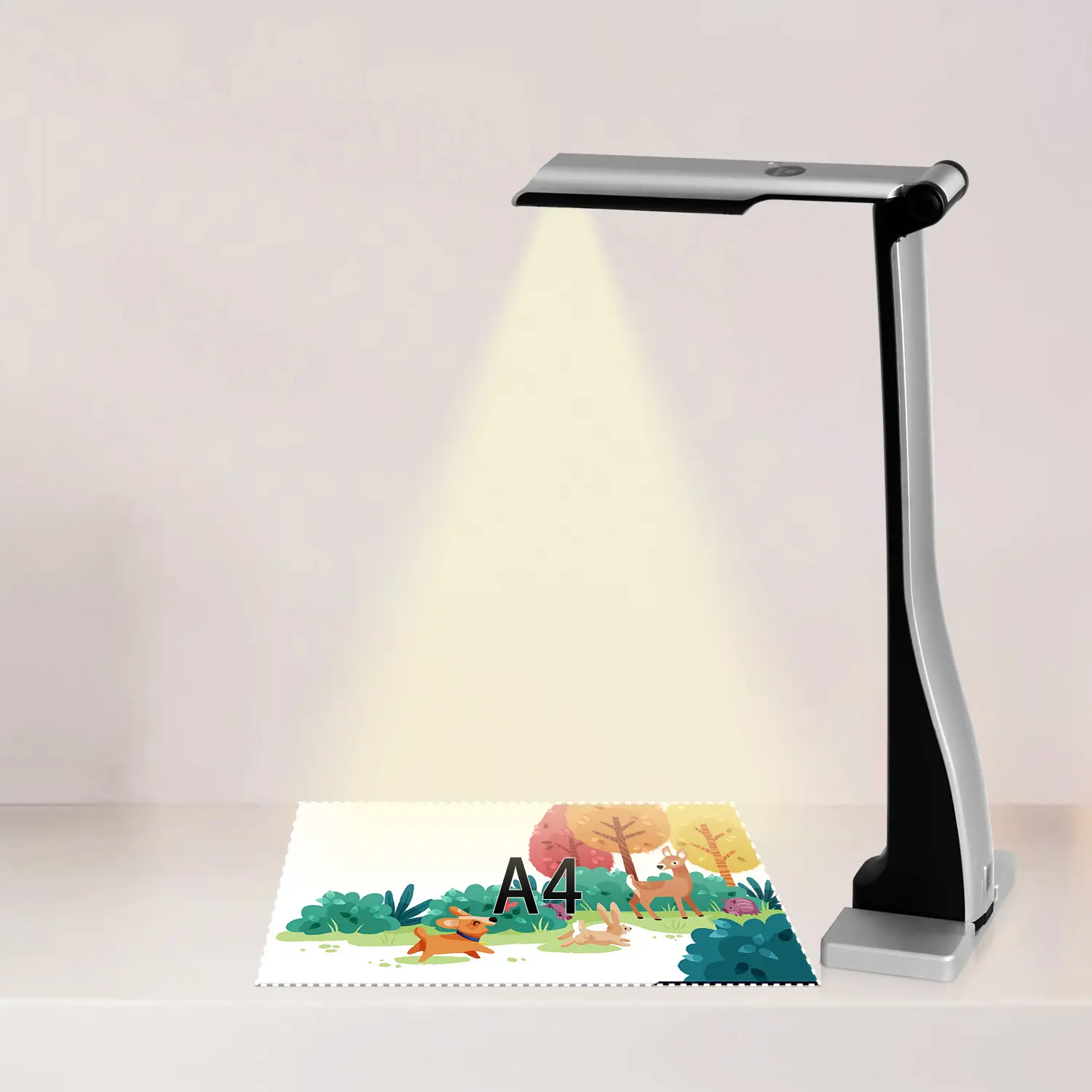
Revolutionize Your Presentations and Document Display with QWC 100S Document Camera
Enhance Call Experience: New Conference Microphone Now Available
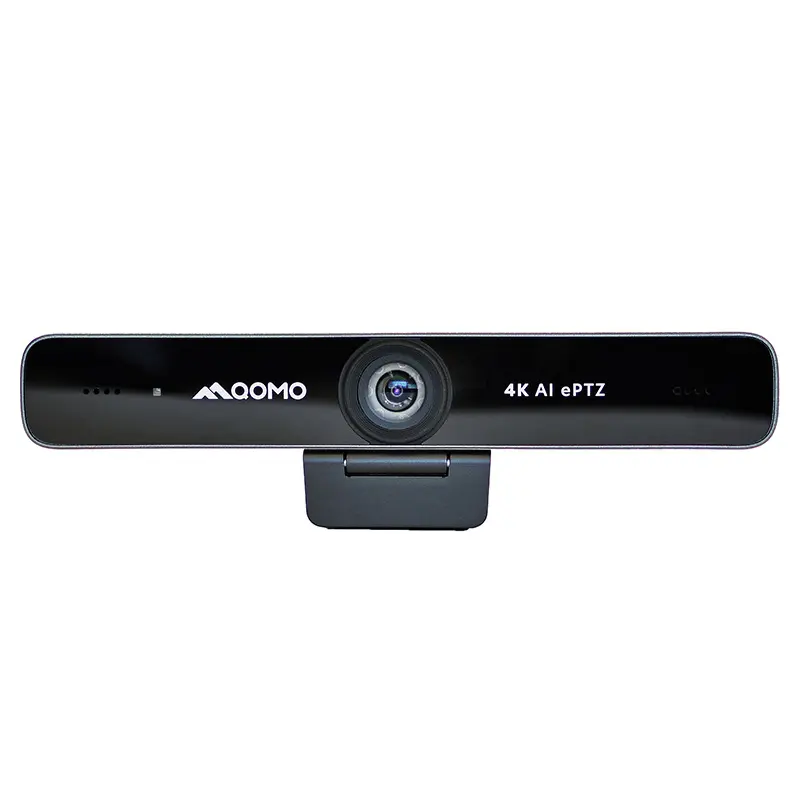
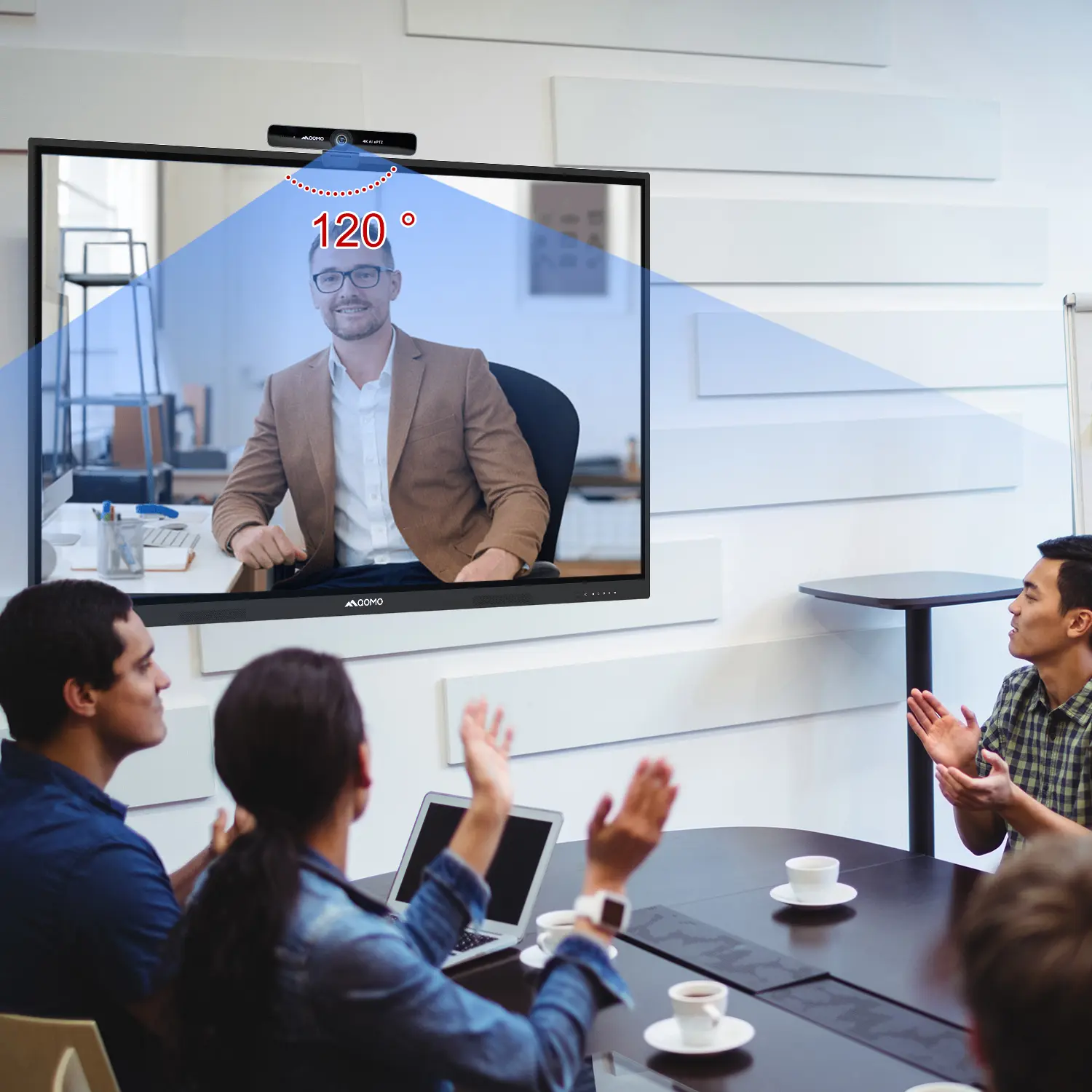
AI-Powered Face-Tracking Webcam
Portable Document Camera Recommendations
Classic Design, Exceptional Functionality: QPC 22 Document Camera
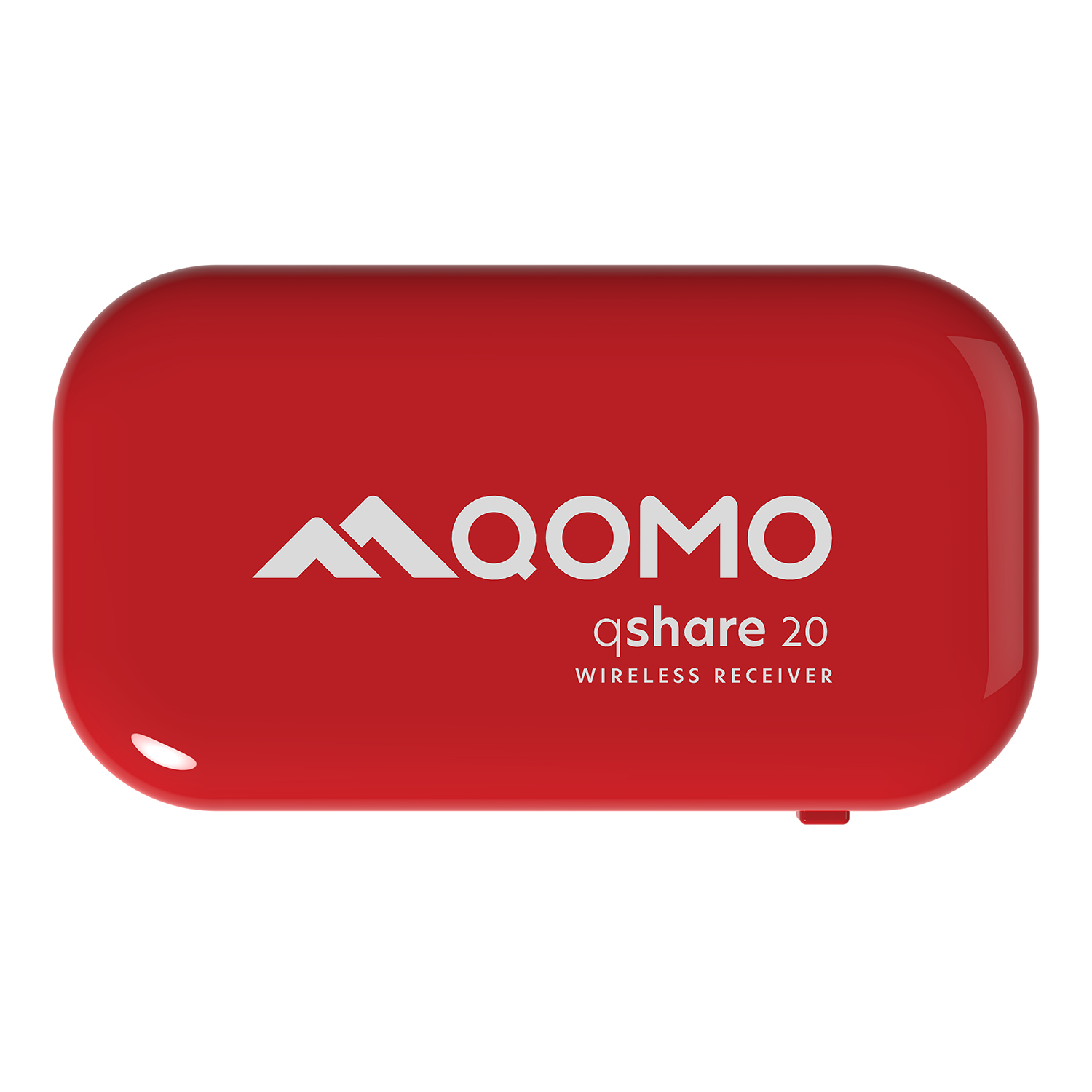
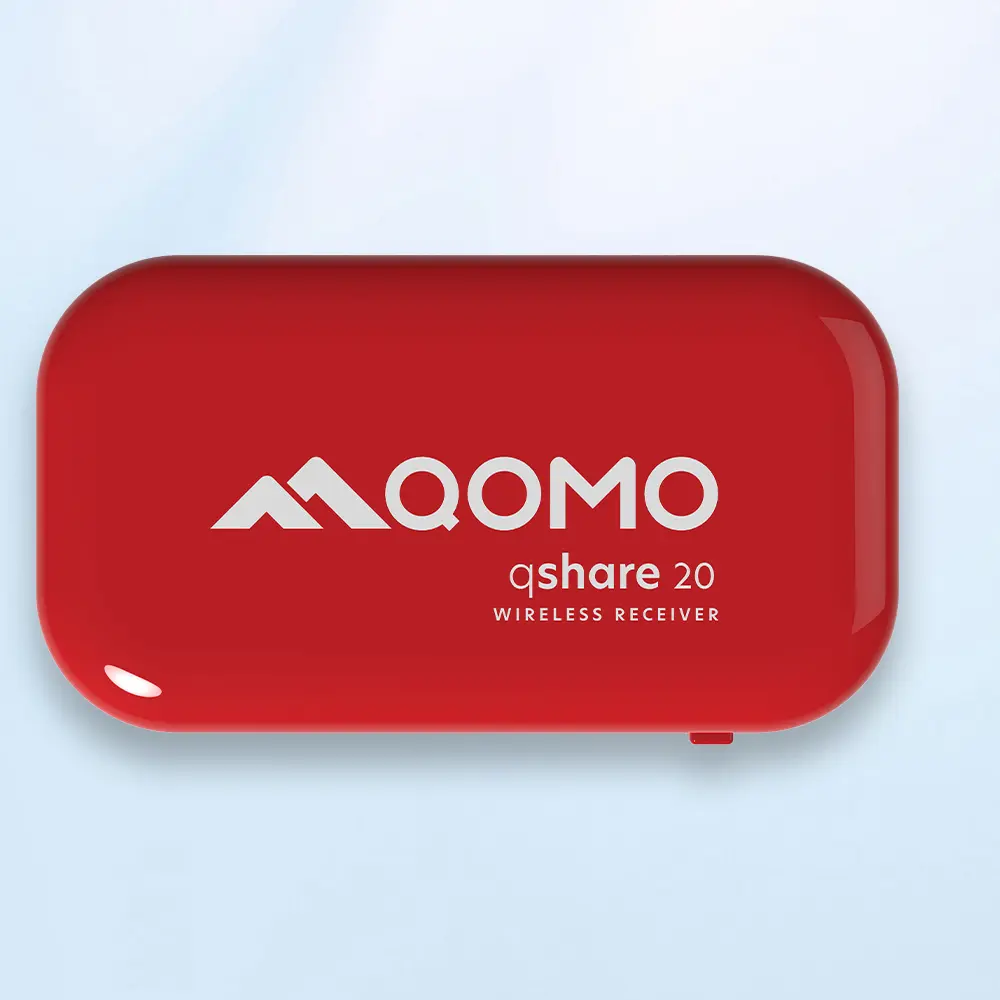
Wireless Screen Mirroring Solution for All Devices
Latest Audience Response System: QRF 999
Introducing the QPC 80H3 Gooseneck Document Camera
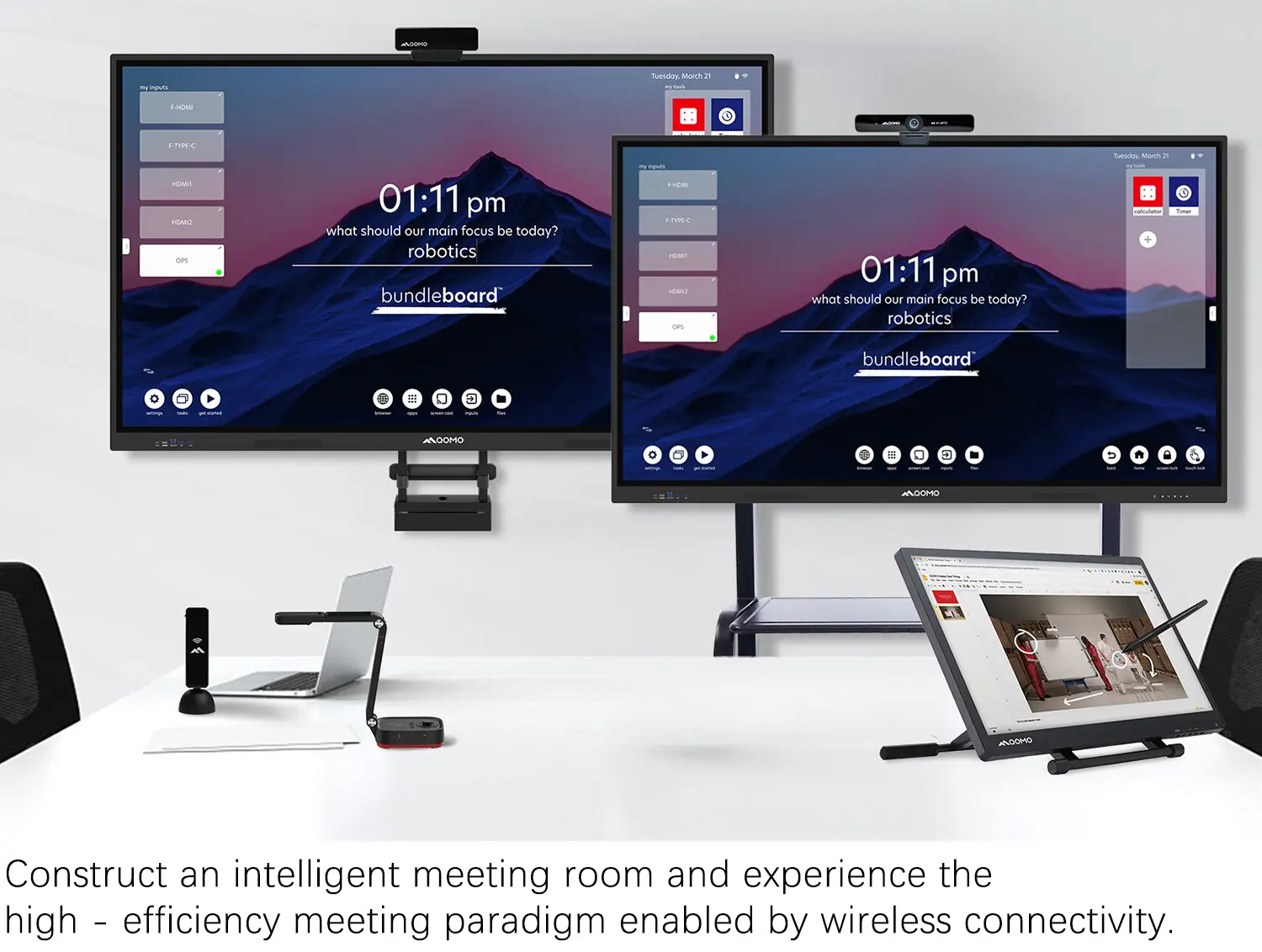
Creating a Smart Integrated Classroom: What Do You Need?
Wireless Connectivity Upgraded: WiFi-Free Wireless Document Receiver
Flow!Works Pro: Interactive Whiteboard Software for Engaging Classrooms
How to Choose the Perfect Document Camera and Elevate Productivity
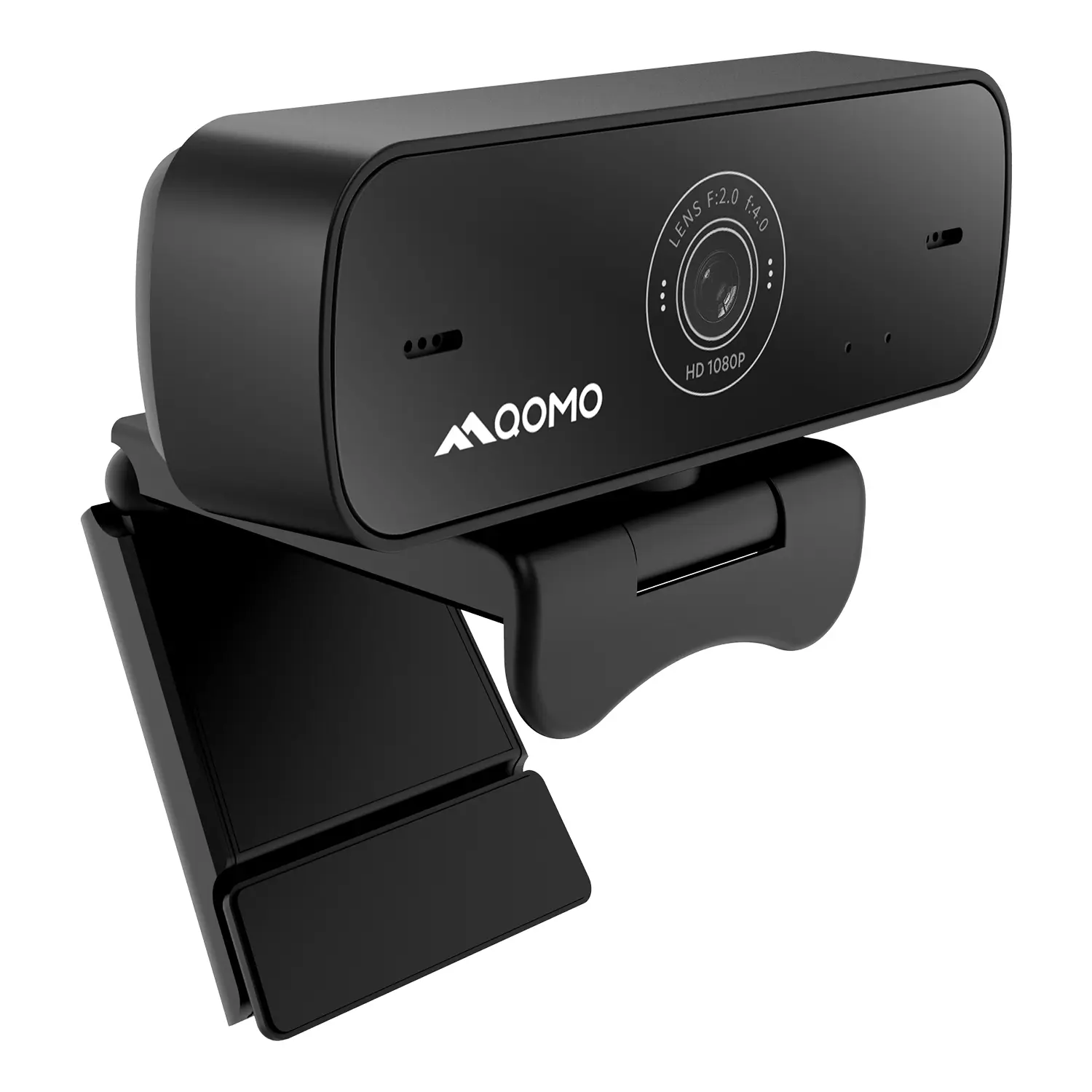
QWC 004 Conference Webcam: The Top Choice for Remote Education
QCamera: Dedicated Software for Document Cameras to Elevate Your Presentations
QRF999 Voice Response System: Enhancing Teacher-Student Interaction
Work From Home? Maybe You Should Try This Document Camera
The Ultimate Educational Tool: Gooseneck Document Camera
60GHz Millimeter-Wave Wireless Screen Sharing: QShare 100
What Does a Modern Conference Room Need?
QD5000 Document Camera: Unimaginable Versatility!
QWC 004: The Most Cost-Effective Webcam
QVote Interactive Classroom Response System Software
Functionality, Aesthetics, Portability! Meet the QWC 100S Document Camera!
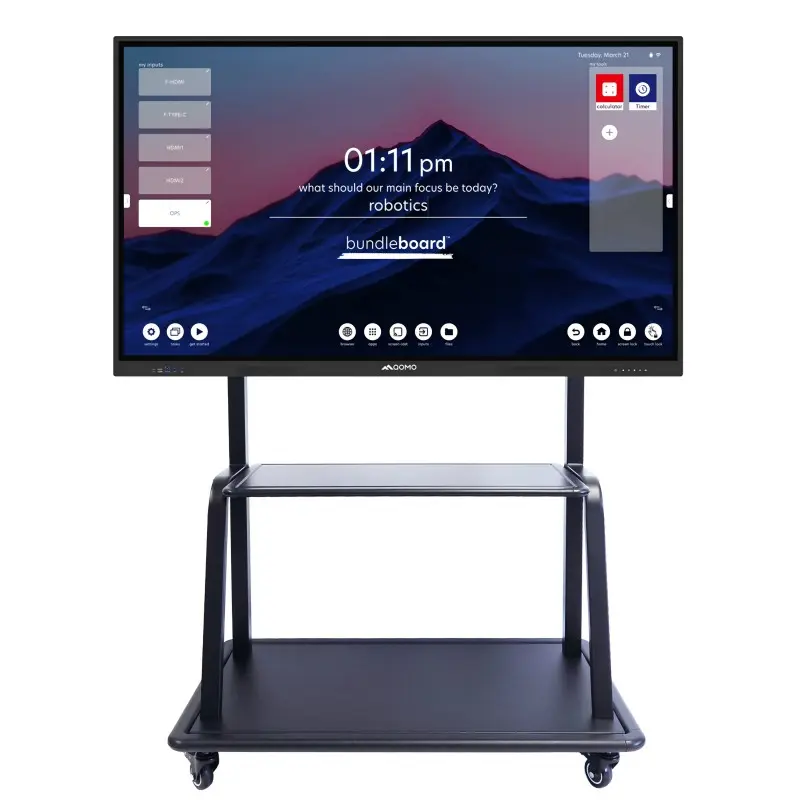
Why Choose the BundleBoard H/H2 Interactive Flat Panel?
Save Your Budget—Introducing the All-New QPC 70 Document Camera!
QIT 600F3: Revolutionize Your Presentations
QCamera: Professional Document Camera Software
QPC 5: The Ultimate 4K Portable Document Camera
Elevate Your Meetings in Seconds: QWC 006 Webcam
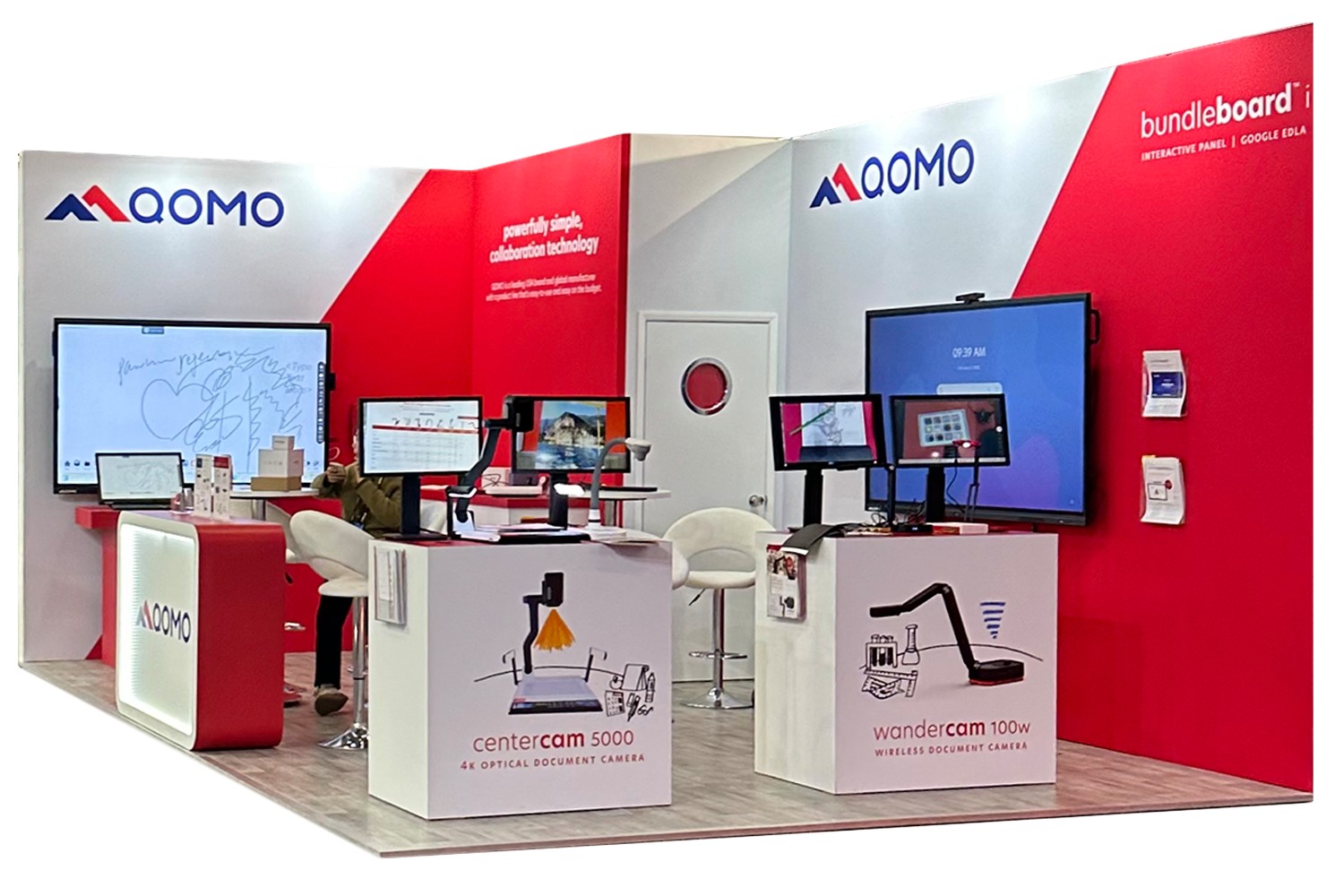
Meet QOMO at ISE 2025
Wireless Document Camera Solution, Revolutionizing Wireless Technology
QRF Series, Transform Your Classroom!
QOMO, Building Intelligent Classrooms
QOMO QShare100 New Release
Outstanding Office Equipment Recommendations
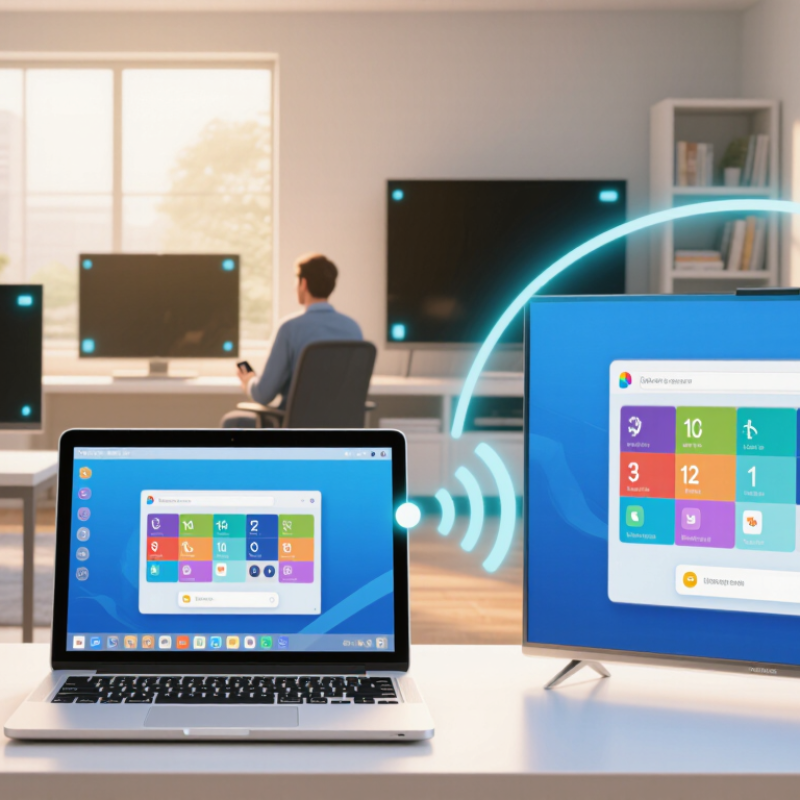
Screen mirroring on a Chromebook lets you display your laptop screen on a larger television, monitor, or wireless receiver. The feature can make lessons, presentations, video calls, and family photo sharing easier to follow. Instead of gathering around a small screen, everyone can see the same window across the room. This is the practical appeal of Screen Mirroring Chromebook use.
ChromeOS commonly supports wireless casting through the Cast option, Google Cast devices, and compatible smart televisions. Usually, the Chromebook and receiving display need to share the same Wi-Fi network. Open the system tray, select the Cast tool, and choose the available screen or device. The exact labels may differ between ChromeOS versions and television brands. Small details matter.
A reliable setup also requires realistic expectations. Some devices mirror the entire desktop, while others cast only a browser tab. Audio may follow the image, but delays can appear during games or live meetings. I have found that a strong router and a nearby receiver usually improve stability. Still, no wireless method is perfect. Privacy deserves attention too. Close private tabs before sharing, and confirm the correct display name. This guide explains how Chromebook mirroring works, which devices support it, common connection problems, and when a wired adapter may be the better choice. The process is simple, but compatibility can be surprisingly inconsistent.
Screen mirroring on a Chromebook means showing your Chromebook’s screen on a larger compatible display. The second screen copies your open tabs, documents, photos, or video window. Your Chromebook remains the control center. You can type, scroll, and switch between apps while others watch.
The connection usually works through a shared wireless network or a supported cable and display adapter. Wireless mirroring feels convenient, but it can respond slowly in crowded networks. I have noticed small delays during video playback and online presentations. It is not always seamless. A wired connection often provides steadier performance, especially in classrooms or meeting rooms. Before mirroring, check the display settings and confirm that both devices support the same connection method. Avoid showing private messages, saved passwords, or confidential files.
Tips: Close unrelated tabs first. Keep the Chromebook near the display when using wireless mirroring. Test the connection with a simple webpage before presenting. Lower screen brightness if the Chromebook becomes warm. If the image looks stretched, adjust the display resolution rather than changing random settings. That quick fix is easy to overlook. Also, disconnect mirroring when finished, because the shared screen may remain active longer than expected.
What Is Screen Mirroring on a Chromebook?
Screen mirroring on a Chromebook shows your computer’s display on a larger compatible screen. ChromeOS sends the visible desktop wirelessly through the local Wi-Fi network. A compatible receiver must accept the same casting method. Without that support, the screen may not appear in the device list.
How Screen Mirroring Works on ChromeOS
In practice, open the Quick Settings area and choose the Cast option. ChromeOS then searches for available displays on the same network. Select a device, confirm the connection, and your desktop should appear almost immediately. The connection usually mirrors everything, including browser tabs, presentations, and open windows. It does not create a separate workspace.
Network quality matters. A weak signal can cause delayed video, choppy movement, or missing audio. I have found that moving closer to the wireless router often helps, although this is not a guaranteed fix. Some displays also require permission before accepting the connection. That small prompt is easy to overlook.
Screen mirroring is useful for teaching, meetings, photo reviews, and demonstrations. However, it can expose private notifications or unrelated tabs. Closing sensitive windows is a sensible habit. The pointer may also feel slightly behind your hand. This delay is normal. I once blamed the computer, but the receiver was the slower part. For smoother results, keep the Chromebook charged, reduce network traffic, and avoid mirroring high-resolution video when the connection feels unstable.
What Is Screen Mirroring on a Chromebook?
Screen mirroring displays your Chromebook’s screen on a larger monitor, television, or projector. It can help during lessons, presentations, video calls, and collaborative work. Chromebooks support wired and wireless display methods, but available options depend on the model and operating system version.
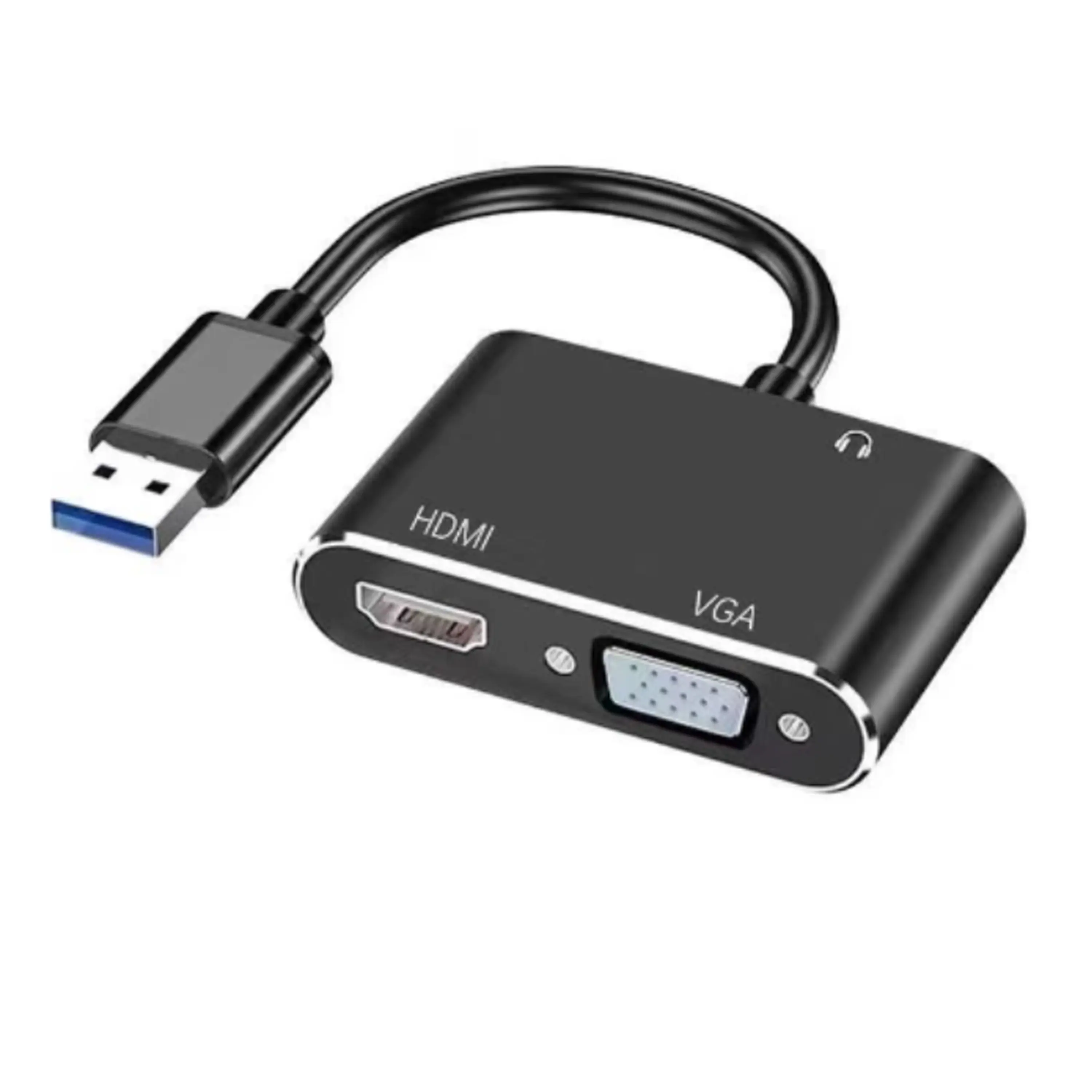
A wired connection usually uses HDMI or USB-C. HDMI is simple and reliable, while USB-C may carry video, sound, and charging through one cable. Some USB-C ports support charging only, so check the port symbol before connecting. Wireless mirroring uses a compatible receiver or smart display on the same Wi-Fi network. You can often share a browser tab, application window, or the entire desktop. Wireless performance may change with distance, network traffic, or older hardware. I once expected instant mirroring in a crowded classroom, but the image lagged noticeably.
Tips: Keep both devices on the same network. Choose the correct input source. Lower the display resolution if text looks blurry. Test sound before presenting. Do not assume every display supports wireless casting. A short cable can prevent trouble. Also, close private tabs first. This small step matters.
Chromebooks can also connect with docks, projectors, and multi-monitor setups. The exact number of supported displays varies by device capabilities. For dependable results, update the system, use certified cables, and test the setup with real content. A static desktop may look perfect, while a video reveals delays or missing audio.
Devices and display methods supported by Chromebooks
Chromebooks can mirror or extend their screen through wireless casting to a compatible receiver, USB-C DisplayPort output, HDMI output on supported models, or a USB-C dock and adapter. Wireless casting requires a compatible receiver, while wired methods require the Chromebook and display to support the relevant port or video standard.
Screen mirroring on a Chromebook displays your laptop screen on another compatible display. It can help during lessons, presentations, or video playback. The mirrored image usually follows your Chromebook in real time. Some delay may appear.
To begin, connect both devices to the same wireless network. Open the quick settings panel near the clock. Select the screen sharing or cast option, then choose the available display. If a pairing code appears, enter it on your Chromebook. Accept the connection request on the receiving screen. Your desktop should appear within a few seconds. It may not work immediately.
Before presenting, close private tabs and silence unnecessary notifications. Open the file or webpage you plan to show. For smoother playback, keep the Chromebook near the wireless router. Reduce other network activity when possible. If the display does not appear, restart both devices and check their wireless settings. A wired adapter can provide a steadier connection when wireless mirroring becomes unreliable. In my experience, audio may remain on the Chromebook unless the sharing settings transfer it separately. I once assumed video and sound would switch together, but that was not guaranteed. Check the volume source before your audience arrives. Small test. Big difference.
| Connection Method | What You Need | Steps | Available Display Modes | Important Notes |
|---|---|---|---|---|
| Wireless casting | A display or receiver that supports Chromebook-compatible wireless casting, with both devices connected to the same Wi-Fi network. |
1. Turn on the receiving display. 2. On the Chromebook, select the status area near the clock. 3. Select Cast or open the browser menu and choose the cast option. 4. Select the available display. 5. Choose whether to share a tab, a window, or the entire screen when prompted. |
Usually supports screen mirroring; some receivers also support tab or window sharing. | Wireless performance depends on network strength, distance, interference, and receiver compatibility. Protected video content may not mirror normally. |
| HDMI cable | A Chromebook with an HDMI output, an HDMI cable, and a display with an available HDMI input. |
1. Connect the HDMI cable to the Chromebook and the display. 2. Select the matching HDMI input on the display. 3. Open Settings on the Chromebook. 4. Select Device, then Displays. 5. Choose mirroring or extended desktop mode if the option is available. |
Mirror display or extend the desktop, depending on the Chromebook and operating system settings. | Some Chromebooks do not include a full-size HDMI port. Video output may require a compatible adapter. |
| USB-C video connection | A USB-C port that supports video output, a compatible USB-C cable or adapter, and a display with USB-C, HDMI, or another matching input. |
1. Check that the Chromebook's USB-C port supports display output. 2. Connect the cable or adapter to the Chromebook. 3. Connect the other end to the display. 4. Select the correct input source. 5. Adjust mirroring, resolution, orientation, or display arrangement in Settings > Device > Displays. |
Mirror or extend the display when supported by the hardware and adapter. | Not every USB-C port carries video. A charging-only or data-only port will not provide an external image. |
| Display settings | An active wired or wireless connection to a second display. |
1. Open Settings. 2. Select Device, then Displays. 3. Select the connected display. 4. Enable Mirror built-in display to show the same content on both screens, or arrange the displays for an extended desktop. |
Mirrored display duplicates the Chromebook screen; extended display provides additional workspace. | Mirroring may use the resolution and aspect ratio supported by both displays. Black bars or scaling can occur. |
| Troubleshooting | A connected display that is not showing the Chromebook screen correctly. |
1. Confirm the display is set to the correct input. 2. Reconnect the cable or restart the wireless receiver. 3. Verify that wireless devices use the same Wi-Fi network. 4. Restart the Chromebook if the display remains undetected. 5. Check for system updates and confirm adapter compatibility. |
Restored mirroring or extended-display operation after the connection issue is resolved. | The exact menu names and supported features can vary by Chromebook model and operating system version. |
Screen mirroring on a Chromebook lets you display your laptop screen on a larger compatible display. It can help during lessons, presentations, or casual viewing. In practice, the process is usually simple, but small network problems can interrupt it.
The most common issue is that the display does not appear in the casting list. Check that both devices use the same Wi-Fi network. Guest networks often block device discovery. Restarting Wi-Fi on the Chromebook can also refresh the connection. If the display still remains missing, confirm that screen mirroring is enabled in its settings. This step is easy to overlook.
Laggy video is another frequent problem. Move closer to the router, pause large downloads, and close unnecessary browser tabs. Lowering the display resolution may improve movement, although the picture can look less sharp. Audio may continue playing through the Chromebook instead of the display. Open the sound settings and select the connected display as the output device. For confidential work, avoid mirroring on an open network.
Updates can solve compatibility errors, but they are not a perfect answer. I have seen a connection fail after an update, then work after both devices were restarted. That experience suggests patience matters. If wireless mirroring remains unstable, a compatible cable can provide a steadier connection. Check the cable carefully; a charging-only cable may not carry video.