Why Can’t I Cast My PC to My TV?
A TV that works perfectly for streaming can still refuse a Windows PC. The picture may stay on the desktop, the TV may not appear in the connection list, or playback may stutter after a few minutes. These symptoms often point to different causes: unsupported Miracast hardware, mismatched Wi-Fi networks, outdated drivers, or a display setting that Windows has overlooked.
The stakes are practical. Cisco’s Annual Internet Report (2018–2023) forecast that video would account for 82% of global IP traffic by 2022. That figure describes internet traffic, not PC-to-TV casting, but it shows why reliable video display matters. A wireless connection has several parts. The PC, TV, network, and display protocol must all cooperate. One incompatible link can stop the whole process.
This guide investigates Why Can’t I Cast My PC to My TV? It explains how to check wireless-display support, confirm network settings, update drivers, and test a cable when wireless casting fails. Small checks matter. A TV connected to a guest network, for example, may be invisible to a PC on the home network. Even a correct setup can behave inconsistently; troubleshooting is not always tidy.
The requested expert quotation cannot be responsibly attributed without a verifiable source. Rather than invent one, this introduction relies on Cisco’s published report and keeps its claim within scope.
How PC-to-TV Casting Works and Which Methods Are Available
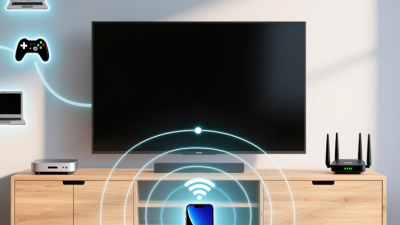
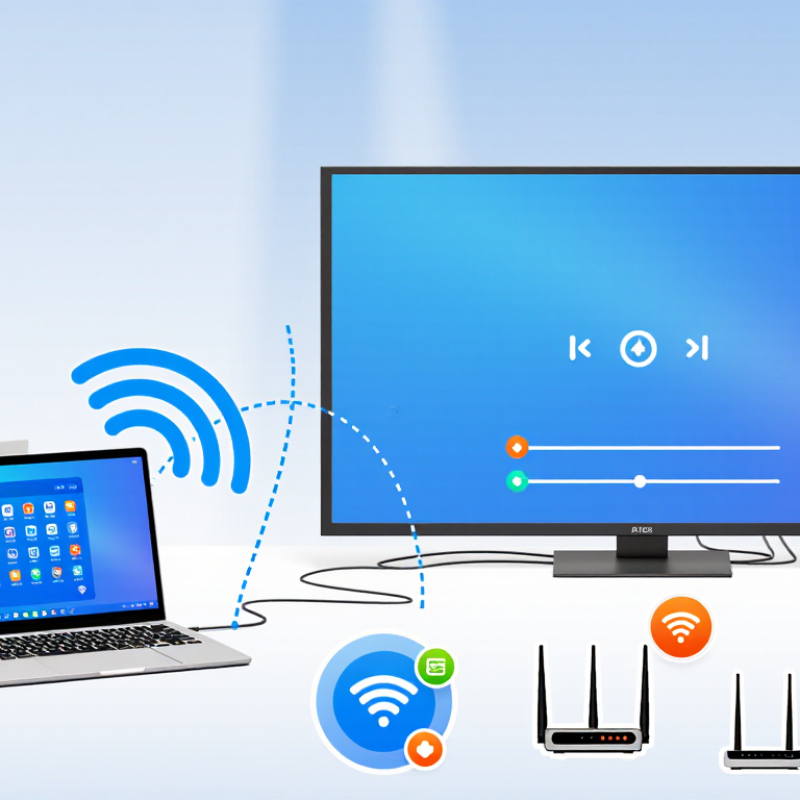
PC-to-TV casting sends picture and sound from a computer to a television, either wirelessly or through a cable. With screen mirroring, the computer captures the desktop, compresses the image, and transmits it to a compatible receiver. The TV then rebuilds the picture. Both devices often need the same Wi-Fi network, though setup requirements vary. That is the basic path.
Wireless mirroring is useful for showing a presentation or browsing photos from the couch. Some systems can send a video directly instead of duplicating the whole desktop, which may leave the computer free for other tasks. A wired HDMI connection is another option; it usually offers steadier playback and less delay, but the cable limits where you can sit. Shorter is sometimes better.
The choice depends on what you are doing. A few milliseconds of delay may not matter for a slideshow, but fast games can feel sluggish over a busy wireless network. Thick walls, an older receiver, or mismatched display settings can also cause stuttering or a blank screen. I would check compatibility and resolution before changing several settings at once; it is easy to lose track of what fixed the problem. A quick test near the router can help separate a weak signal from a display issue.
Check Whether Your PC and TV Support the Same Casting Technology
A PC and TV can both support wireless display features and still fail to connect. They may use different casting technologies. One common option is Miracast, which sends a mirrored image directly between devices, often over Wi-Fi Direct. Other systems rely on a receiver app or a particular network-based protocol. “Cast” does not describe one universal method.
Check the specifications for both devices, not just their Wi-Fi settings. A TV might stream videos over the home network but lack a receiver for mirroring the PC screen. Likewise, a PC may offer wireless display output that the TV cannot accept. Look for matching terms in the TV’s settings and the PC’s display options. A shared network is not enough. That detail is easy to miss.
If the technologies match, confirm that wireless display is enabled on the TV and that the PC’s wireless adapter and drivers support it. Restarting both devices can help, but it cannot bridge an actual protocol mismatch. I have seen this mistaken for a weak signal; checking compatibility first is less frustrating. If the manuals are unclear, test with a compatible receiver or use a cable to separate connection problems from casting support.
Verify Network, Device Visibility, and Wireless Display Settings
Before troubleshooting the display, confirm how the connection works. Some casting methods use the local Wi-Fi network, while wireless display connections may use Wi-Fi Direct. Check that the PC and TV are awake, nearby, and connected in a way their chosen method supports. A guest network or isolation setting can prevent devices from seeing one another. Small details matter.
Next, check visibility on both screens. On the TV, enable screen mirroring or wireless display, then leave its discovery screen open. On the PC, open the wireless display or connect-device menu and scan again. If the TV never appears, restart both devices and check whether the PC supports wireless display. The feature may also need to be installed or enabled in system settings.
It is tempting to blame the TV right away, but the PC’s settings are often the missing piece. Check that wireless networking is on, and allow nearby-device discovery if your system offers that control. If the TV appears but connection fails, remove any saved pairing and try again. This can feel like guesswork; note which step changes the result, rather than repeating every step at once. A crowded room or a weak signal can still interrupt discovery, even when the settings look correct.
Diagnose Common Connection, Driver, and Firewall Problems
A failed cast often starts with a mismatch, not a broken television. Check that both devices support the same casting method. Network-based casting usually requires both devices on the same Wi-Fi network. Wireless display connections may work differently, so check your PC and TV settings. Also confirm the TV is awake and set to receive a connection. A stale connection can look like a hardware fault.
Drivers and firewall rules can interrupt discovery. Update the PC’s wireless and graphics drivers through its operating system or computer support tools, then restart both devices. If the TV appears but the connection fails, check whether the firewall blocks wireless display traffic on your private network. Allow the relevant feature only on trusted networks; do not turn the firewall off. I still find this step easy to overlook. Driver updates can also introduce new issues, so note the previous version before changing anything.
Tips: Move the PC closer to the router or TV, then try again. Disconnect any VPN temporarily if it affects local discovery. Test another display method, if available. If nothing changes, record the exact error message; it can point to a driver, network, or compatibility problem.
Why Can’t I Cast My PC to My TV?
U.S. Wi-Fi frequency ranges that can affect wireless display connections
These bars show the outer frequency bounds of common U.S. Wi-Fi bands, not a continuous list of available channels. Actual channel availability varies by region and device. For casting problems, check that both devices are on the same local network; also update wireless and graphics drivers and allow wireless display traffic through the firewall.
Use HDMI or a Streaming Device When Wireless Casting Fails
Why Can’t I Cast My PC to My TV?
Wireless casting can fail even when both screens are switched on. A weak Wi-Fi signal, a guest network, or an incompatible display mode may interrupt discovery. Check that both devices use the same network, then restart them and try again. Small fixes help. But they do not solve every compatibility problem.
A direct HDMI connection is often the steadier option. Connect the cable to the TV and PC, select the matching TV input, then choose a supported resolution in your PC’s display settings. The HDMI 2.1 specification allows bandwidth up to 48 gigabits per second, though the cable, ports, and devices must all support the desired format. If the screen stays blank, lower the refresh rate before replacing equipment. I still find this step easy to overlook.
A streaming device is another practical workaround when the TV accepts HDMI but wireless mirroring remains unreliable. Leichtman Research Group’s 2024 survey of 2,500 U.S. households found that 87% had at least one connected-TV device. That makes HDMI-connected options familiar, but setup can still vary. Plug the device into an available port, connect it to Wi-Fi, and use a compatible casting feature or streaming app. Check the TV’s input and the device’s network before troubleshooting the PC again.

 Government
 Business
 K12
 Higher Education
 QOMO Introduction
 Exhibition Information
 ConferenceCam 006
 QWC-004
 WanderCam Pro
 ScannerCam 5
 ScannerCam 100S
 QD3900 H2
 CenterCam 5000
 QPC80 H3
 QPC 22
 QPC20 F1
 QPC 70
 BundleBoard H&H2
 Mobile Stand G
 Mobile Stand 2
 Balance Box
 e-Box®
 QWB300
 QRF999
 QRF 997
 QRF888
 QRF500
 QRF 300C
 QIT 600F3
 QIT 30 Prodigy
 QVote
 QClick
 QCamera
 Flow!Works Pro
 QShare 100
 QShare20
 QWC-T1
 Conference Microphone
 Conference Speakerphone
 USB External CD/DVD Drive
 7-Port USB 3.0 Hub
 USB to HDMI and VGA Adapter
 Revolutionize Your Presentations and Document Display with QWC 100S Document Camera
 Enhance Call Experience: New Conference Microphone Now Available
 AI-Powered Face-Tracking Webcam
 Portable Document Camera Recommendations
 Classic Design, Exceptional Functionality: QPC 22 Document Camera
 Wireless Screen Mirroring Solution for All Devices
 Latest Audience Response System: QRF 999
 Introducing the QPC 80H3 Gooseneck Document Camera
 Creating a Smart Integrated Classroom: What Do You Need?
 Wireless Connectivity Upgraded: WiFi-Free Wireless Document Receiver
 Flow!Works Pro: Interactive Whiteboard Software for Engaging Classrooms
 How to Choose the Perfect Document Camera and Elevate Productivity
 QWC 004 Conference Webcam: The Top Choice for Remote Education
 QCamera: Dedicated Software for Document Cameras to Elevate Your Presentations
 QRF999 Voice Response System: Enhancing Teacher-Student Interaction
 Work From Home? Maybe You Should Try This Document Camera
 The Ultimate Educational Tool: Gooseneck Document Camera
 60GHz Millimeter-Wave Wireless Screen Sharing: QShare 100
 What Does a Modern Conference Room Need?
 QD5000 Document Camera: Unimaginable Versatility!
 QWC 004: The Most Cost-Effective Webcam
 QVote Interactive Classroom Response System Software
 Functionality, Aesthetics, Portability! Meet the QWC 100S Document Camera!
 Why Choose the BundleBoard H/H2 Interactive Flat Panel?
 Save Your Budget—Introducing the All-New QPC 70 Document Camera!
 QIT 600F3: Revolutionize Your Presentations
 QCamera: Professional Document Camera Software
 QPC 5: The Ultimate 4K Portable Document Camera
 Elevate Your Meetings in Seconds: QWC 006 Webcam
 Meet QOMO at ISE 2025
 Wireless Document Camera Solution, Revolutionizing Wireless Technology
 QRF Series, Transform Your Classroom!
 QOMO, Building Intelligent Classrooms
 Outstanding Office Equipment Recommendations
 +86 152 8002 3723