+86 152 8002 3723
QVoteProfessional Audience Response System software offers the most convenient functions for your interactions.
QClickThe most convenient educational software for working with Microsoft PowerPoint to quickly set up various question types and generate intelligent feedback reports.
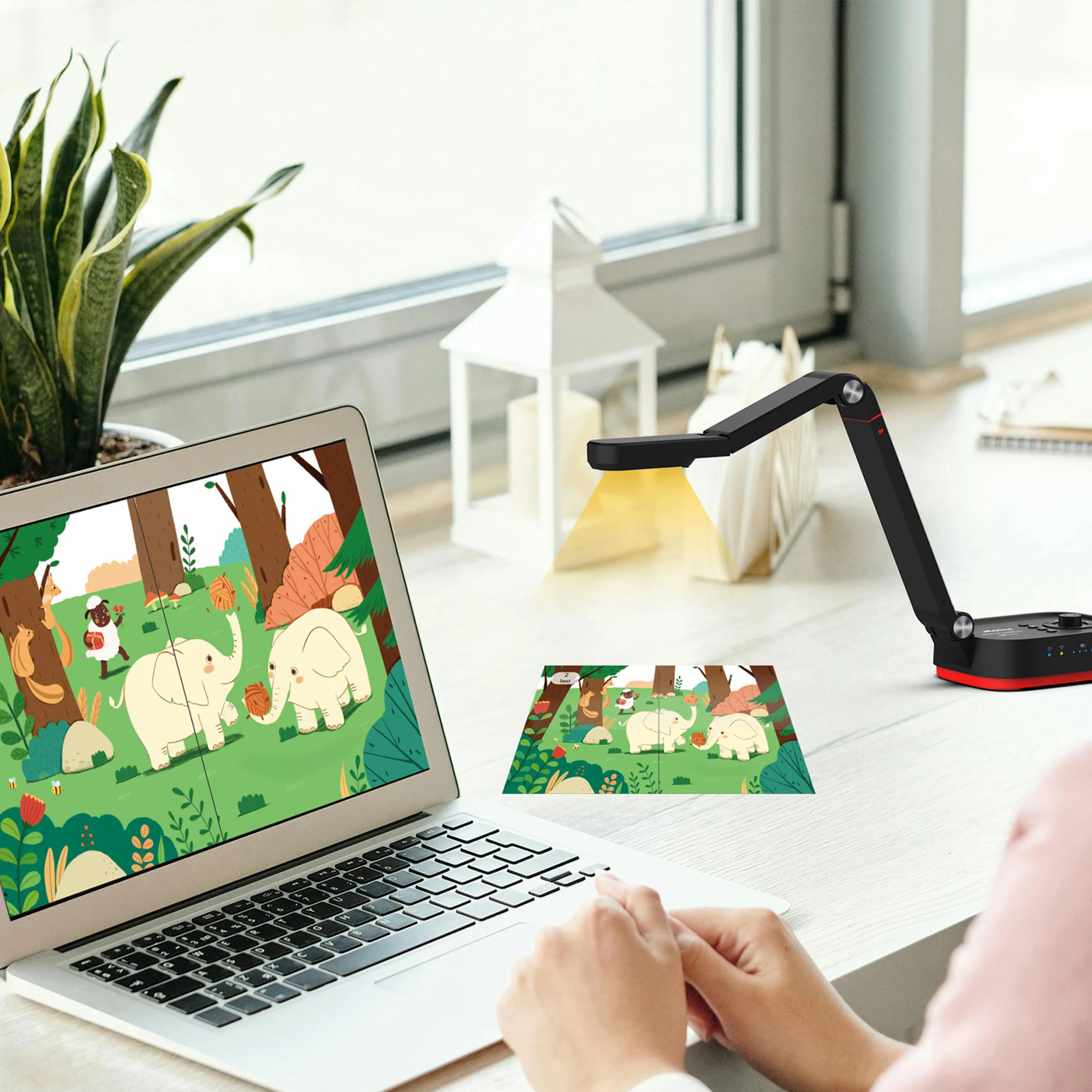
QCameraQCamera by QOMO allows for real-time streaming from cameras and document cameras. Annotate, save snapshots, record, and manipulate camera images instantly.
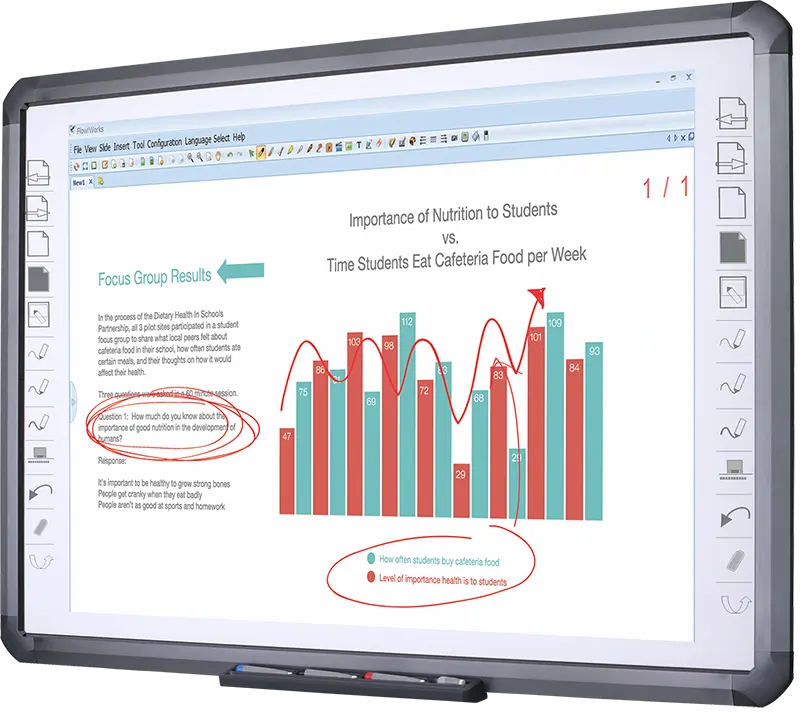
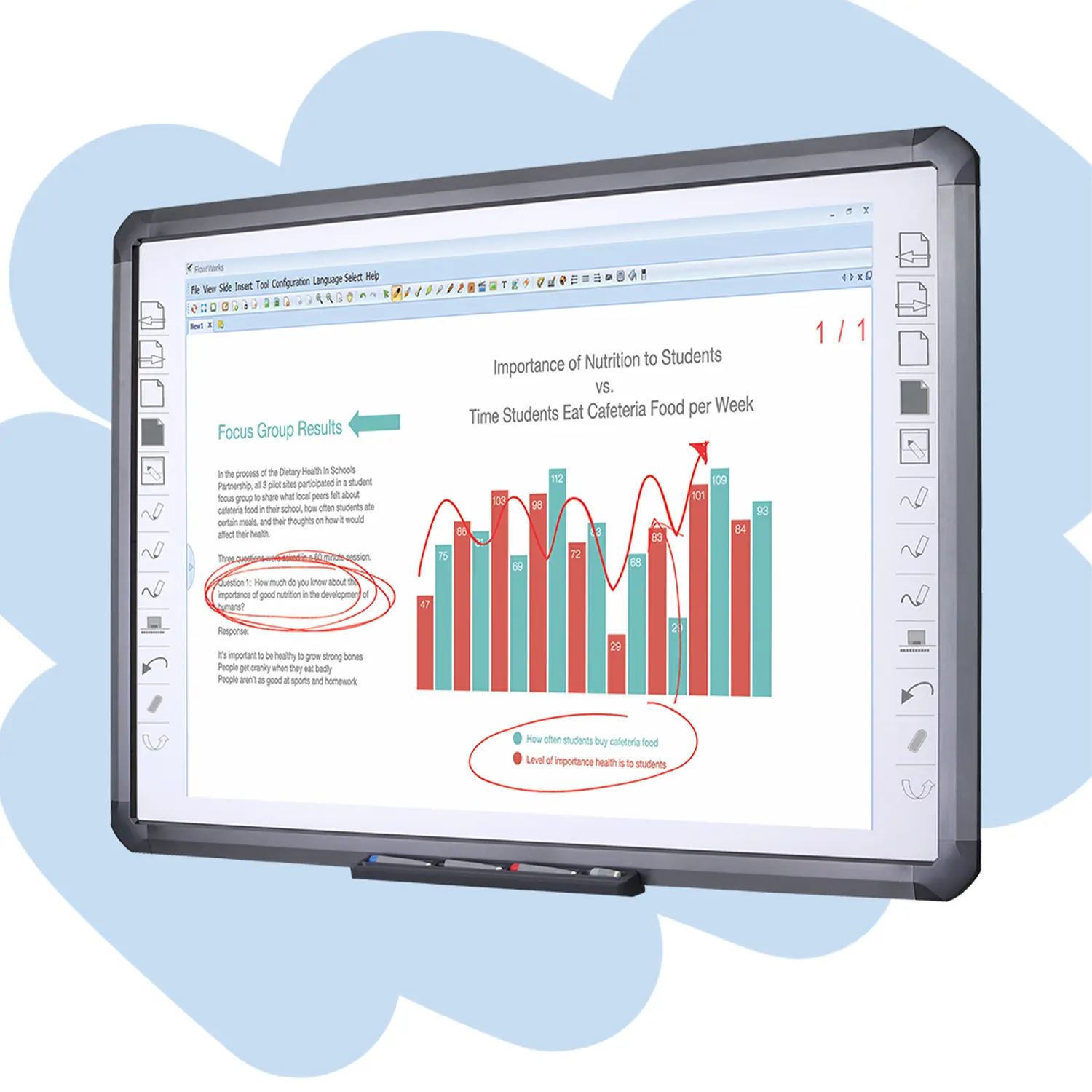
Flow!Works ProUser - friendly whiteboard software, it encompasses a wide range of presentation tools and powerful functions, delivering the most professional presentation experience to you.
Flow!WorksFlow!Works incorporates more educational tools, further enhancing the interactivity and fun - factor of your teaching.
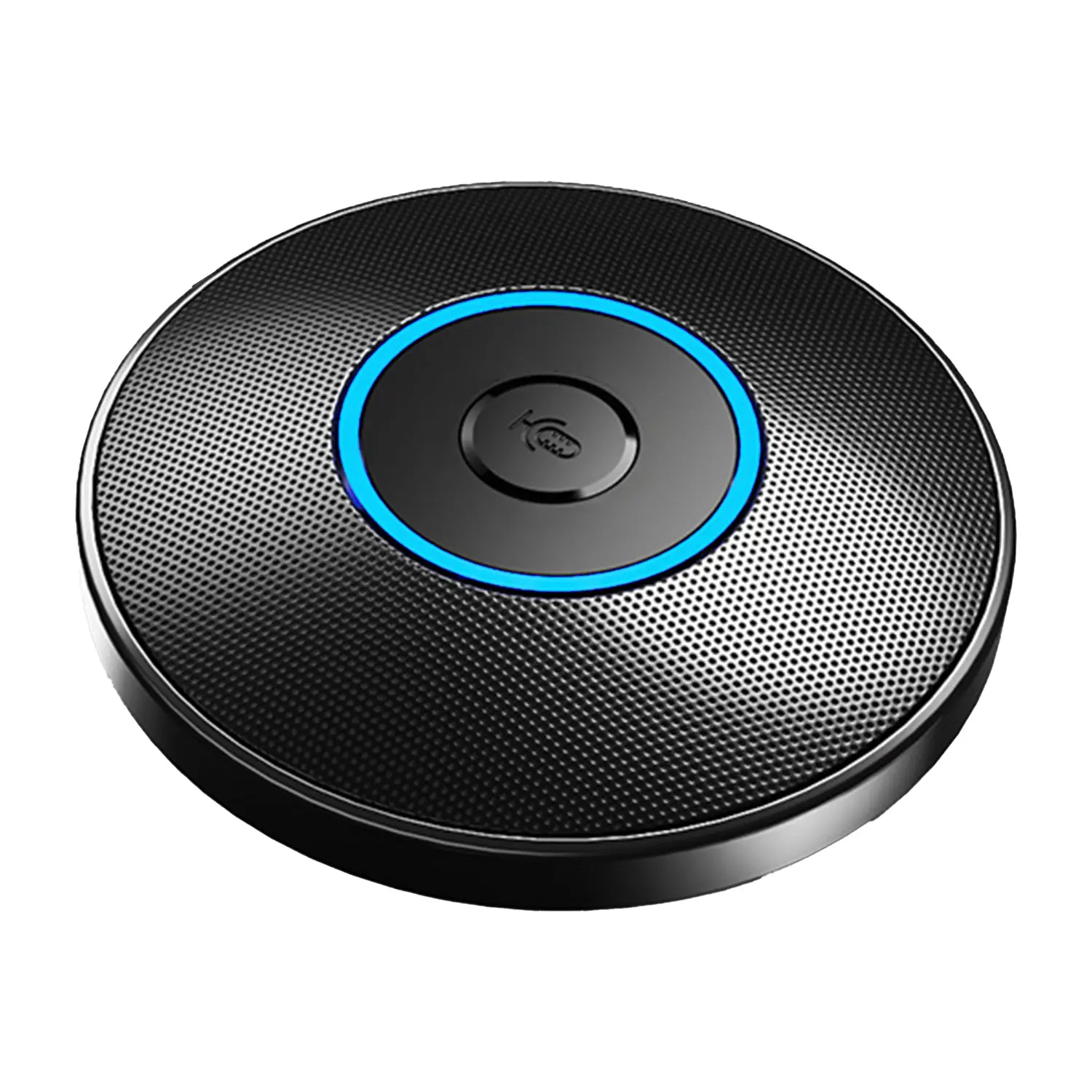
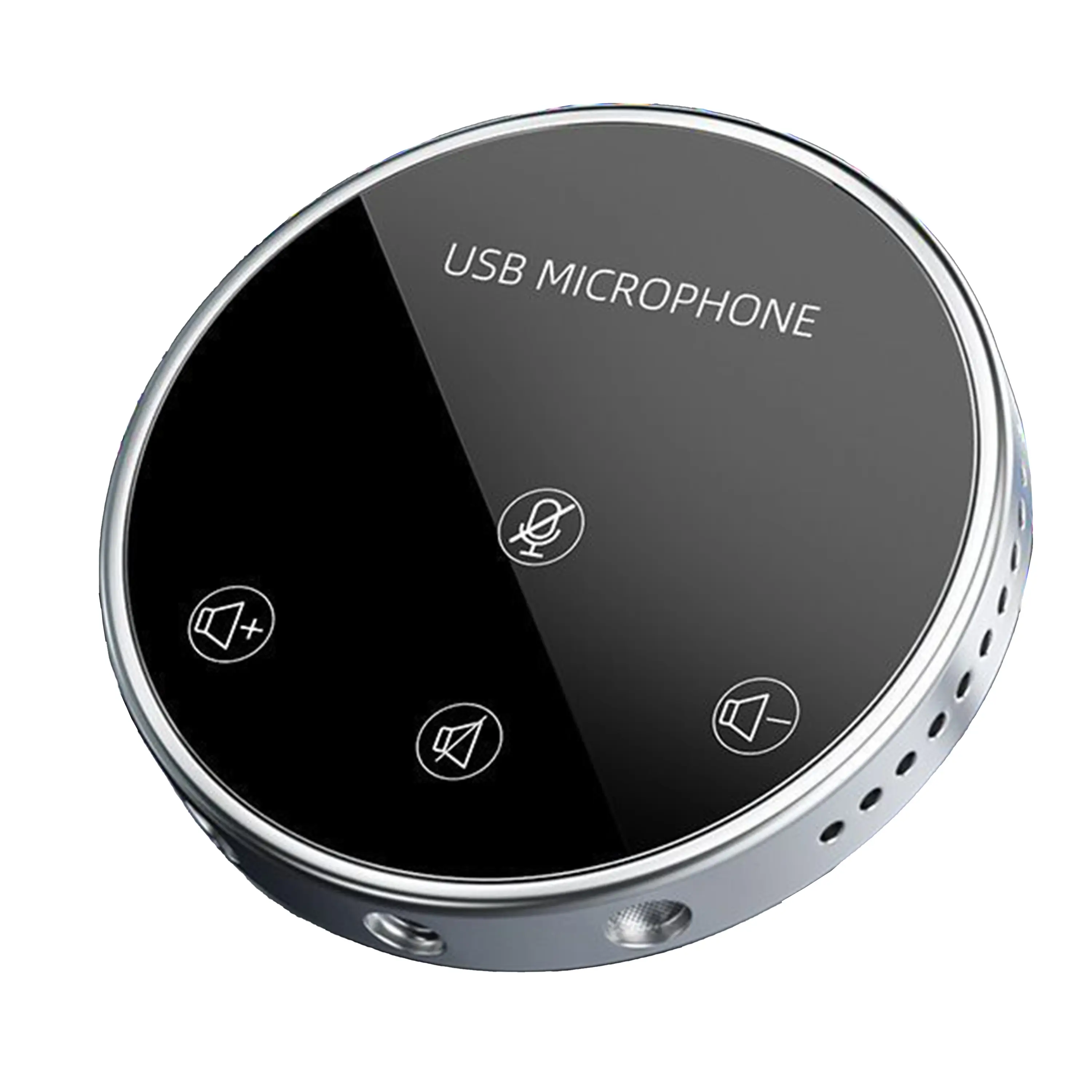
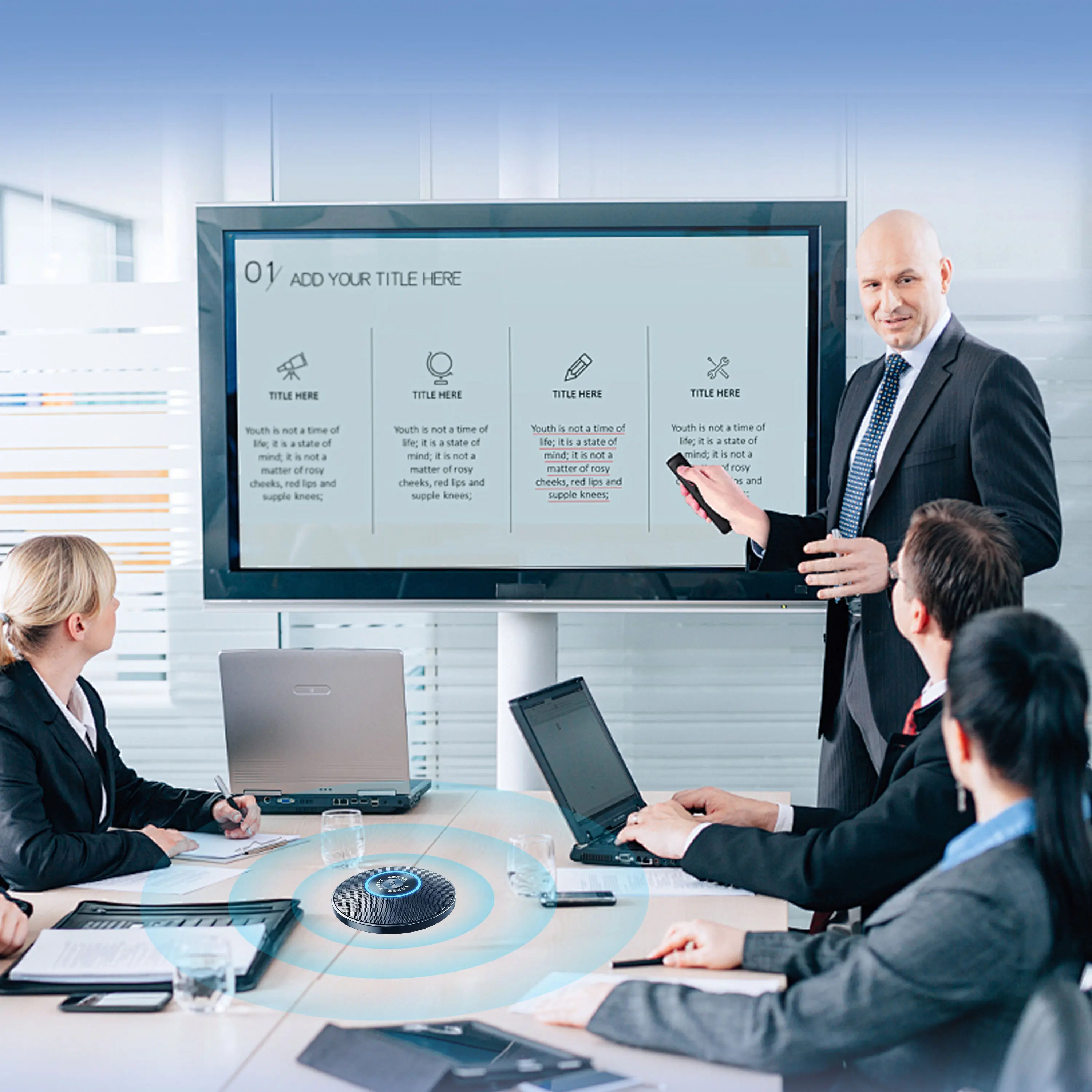
Conference Microphone● USB
● Plug and Play
● Intelligent Noise-Canceling
● 10ft/3m Extended Pickup Range
● 360° Omnidirectional Pickup
Conference Speakerphone● USB-C
● Plug and Play
● Intelligent Noise-Canceling
● 10ft/3m Extended Pickup Range
● 360° Omnidirectional Pickup
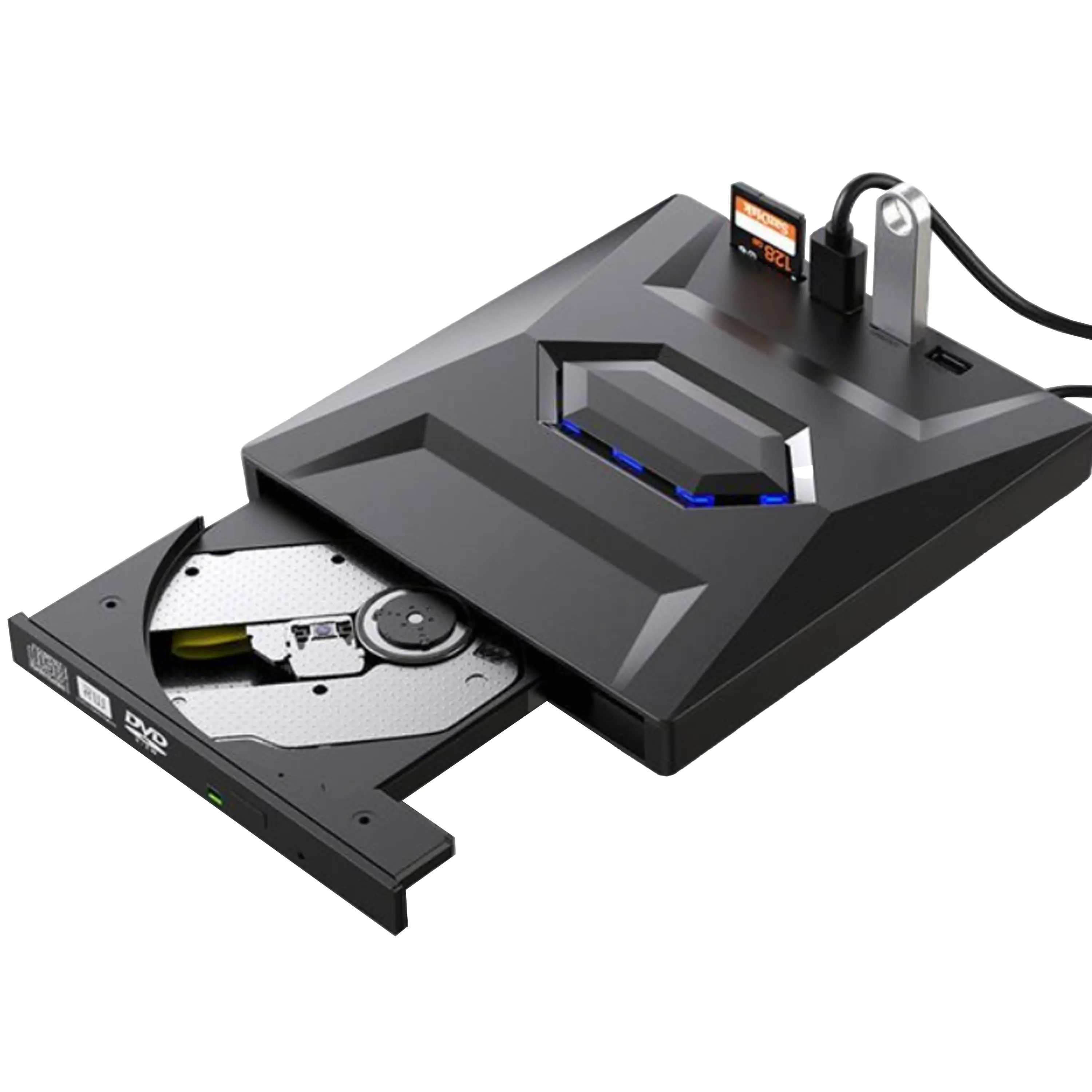
USB External CD/DVD Drive• USB and USB-C
• USB 3.0
• 8x DVD and 24x CD write/read speeds
• Portable
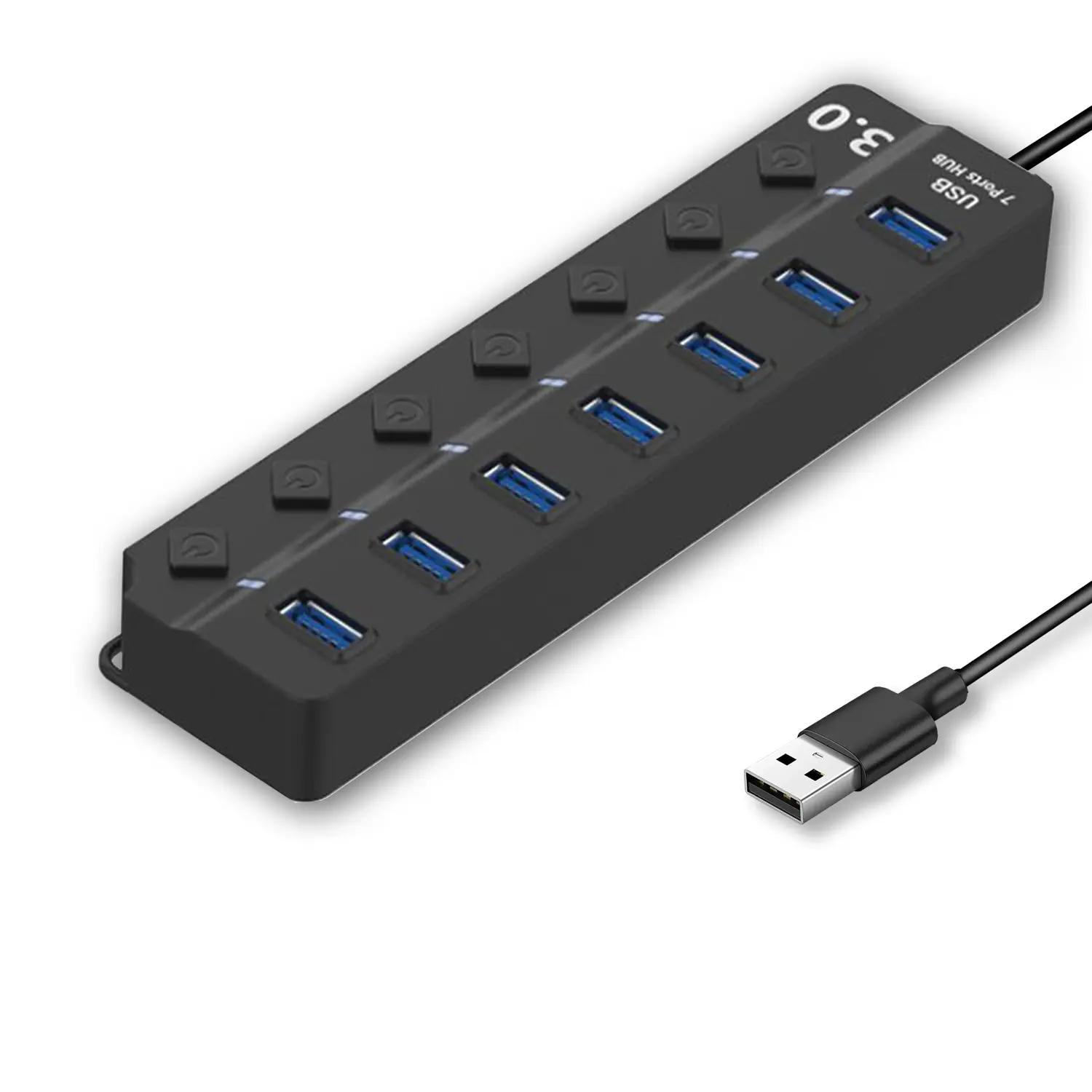
7-Port USB 3.0 Hub● USB 3.0
● Plug and Play
● 7-in-1 USB Hub
● Individual On/Off Switches
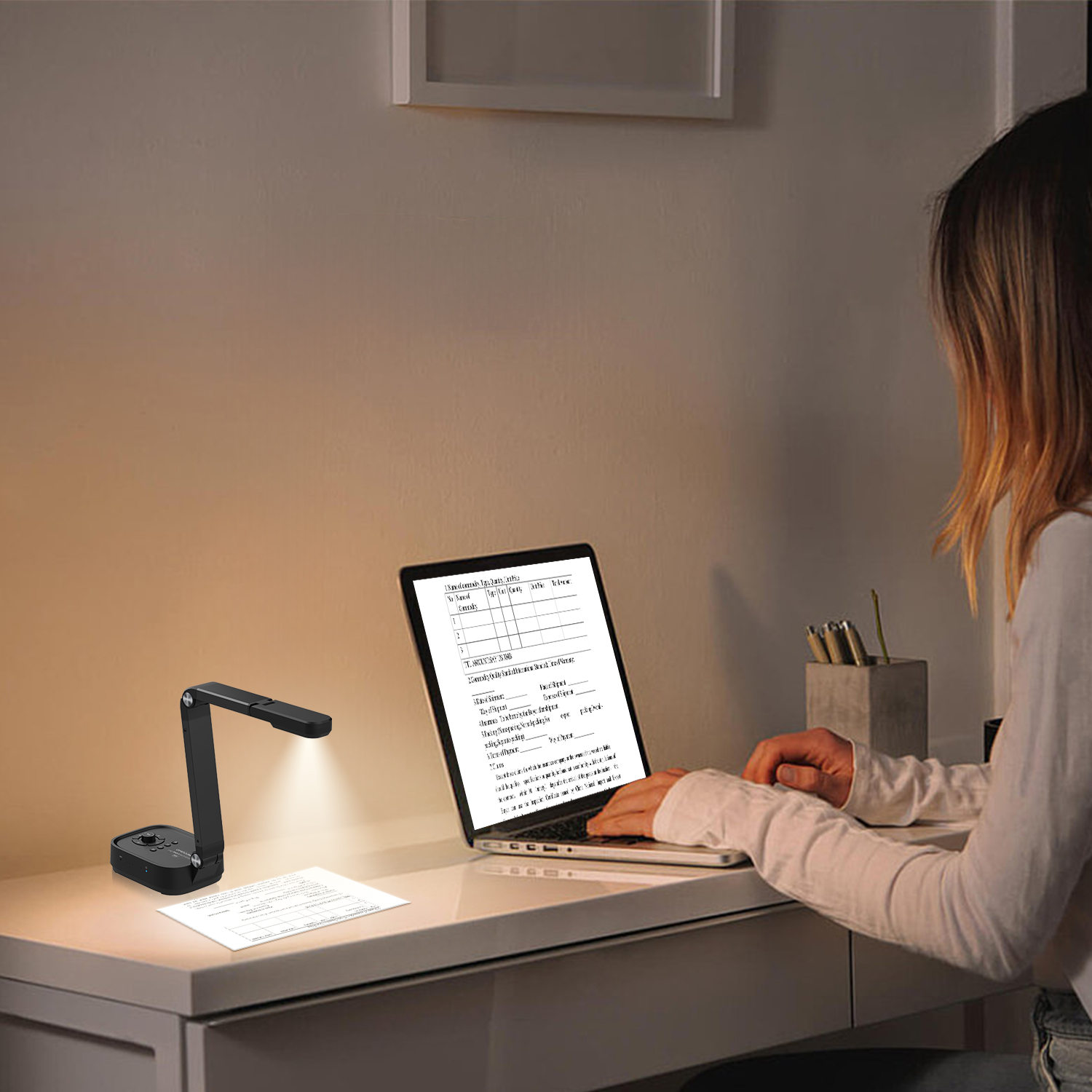
Revolutionize Your Presentations and Document Display with QWC 100S Document Camera
Enhance Call Experience: New Conference Microphone Now Available
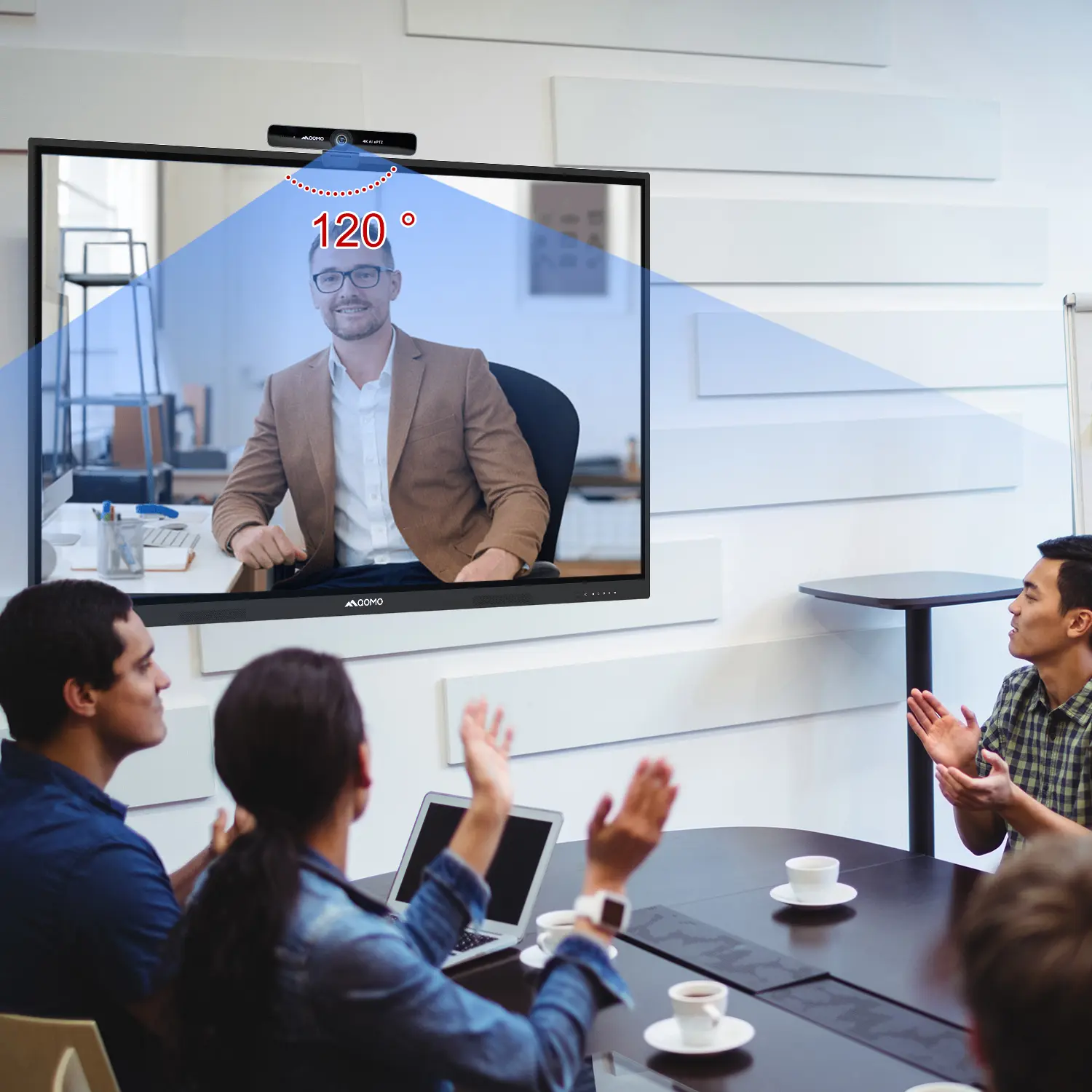
AI-Powered Face-Tracking Webcam
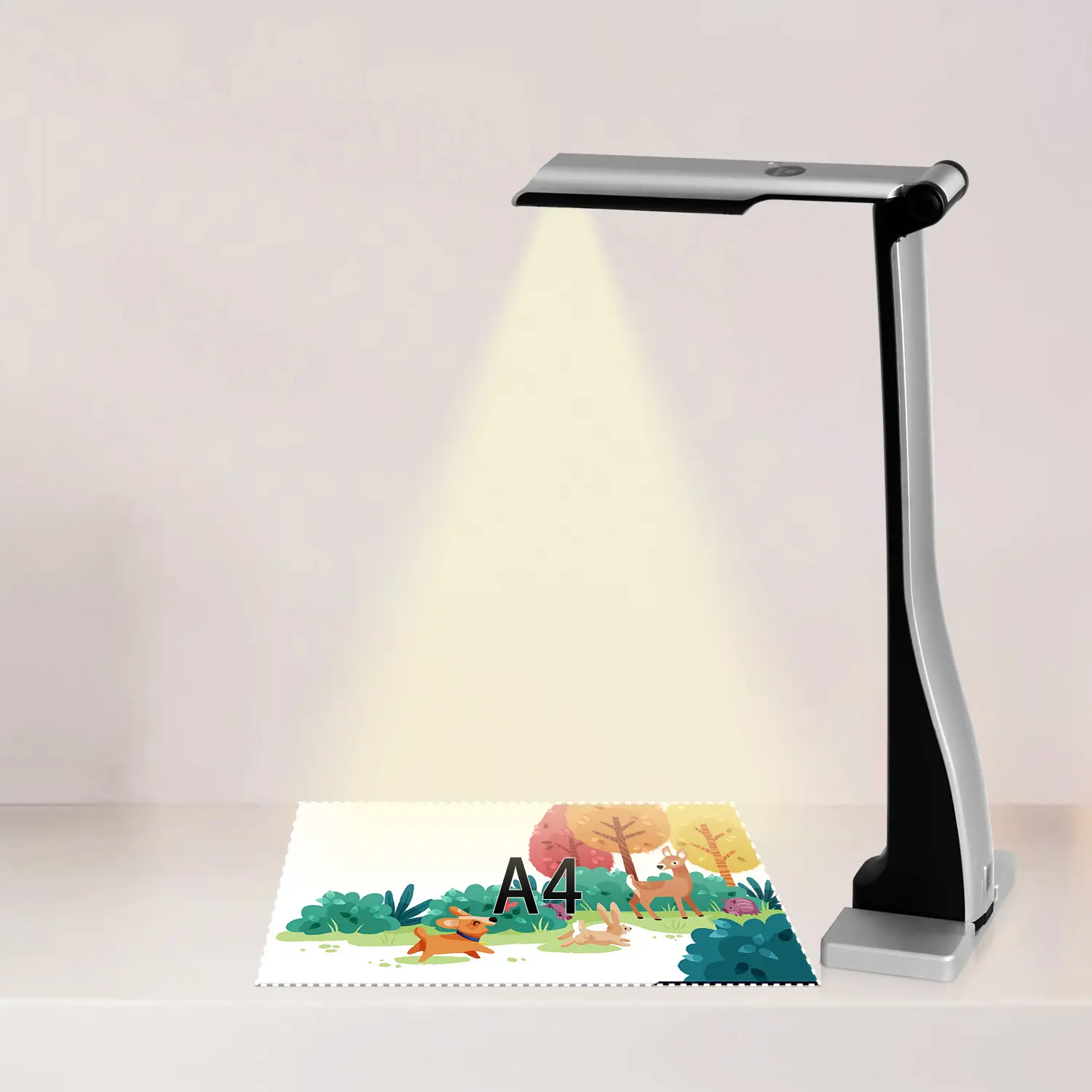
Portable Document Camera Recommendations
Classic Design, Exceptional Functionality: QPC 22 Document Camera
Wireless Screen Mirroring Solution for All Devices
Latest Audience Response System: QRF 999
Introducing the QPC 80H3 Gooseneck Document Camera
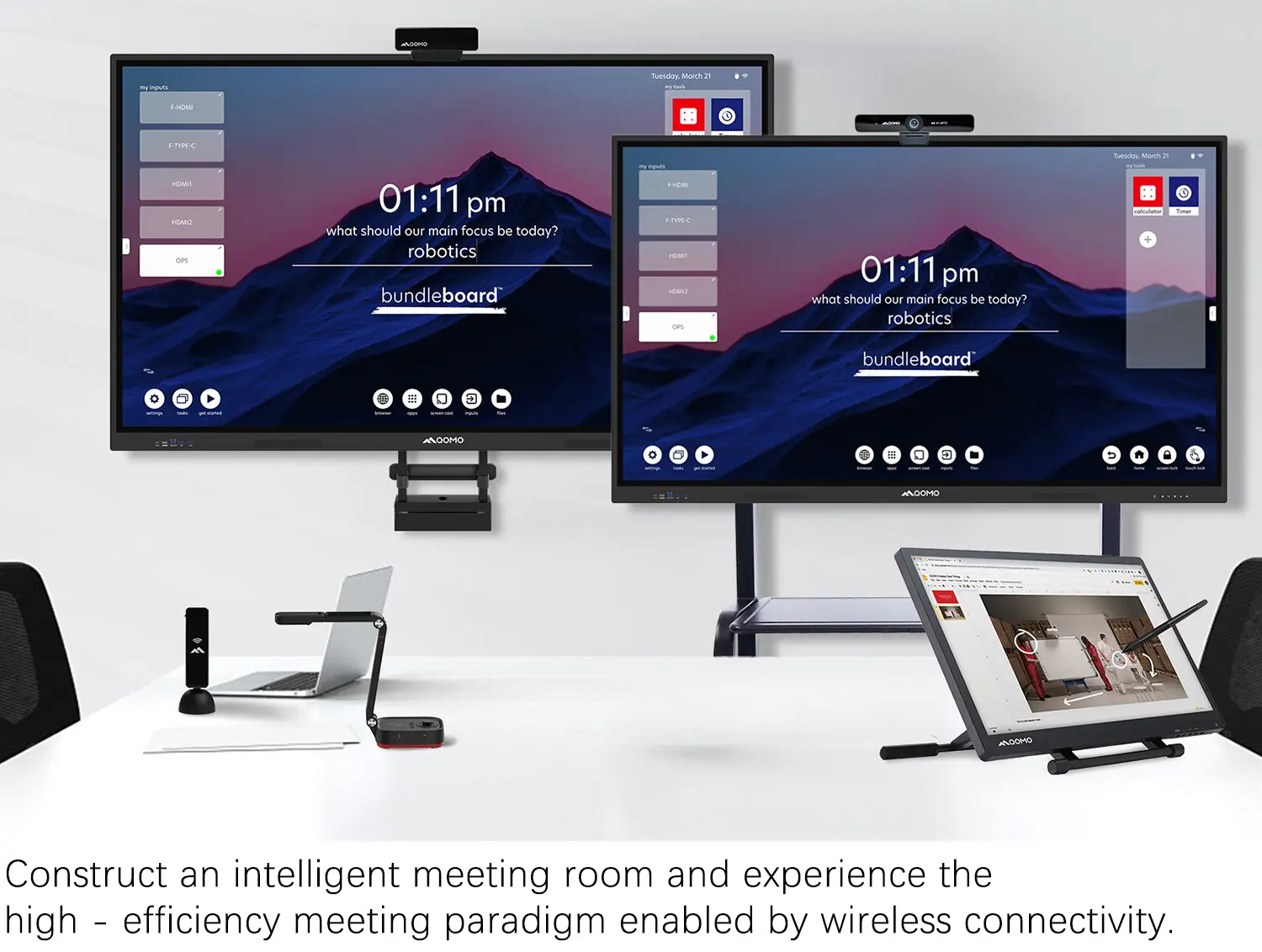
Creating a Smart Integrated Classroom: What Do You Need?
Wireless Connectivity Upgraded: WiFi-Free Wireless Document Receiver
Flow!Works Pro: Interactive Whiteboard Software for Engaging Classrooms
How to Choose the Perfect Document Camera and Elevate Productivity
QWC 004 Conference Webcam: The Top Choice for Remote Education
QCamera: Dedicated Software for Document Cameras to Elevate Your Presentations
QRF999 Voice Response System: Enhancing Teacher-Student Interaction
Work From Home? Maybe You Should Try This Document Camera
The Ultimate Educational Tool: Gooseneck Document Camera
60GHz Millimeter-Wave Wireless Screen Sharing: QShare 100
What Does a Modern Conference Room Need?
QD5000 Document Camera: Unimaginable Versatility!
QWC 004: The Most Cost-Effective Webcam
QVote Interactive Classroom Response System Software
Functionality, Aesthetics, Portability! Meet the QWC 100S Document Camera!
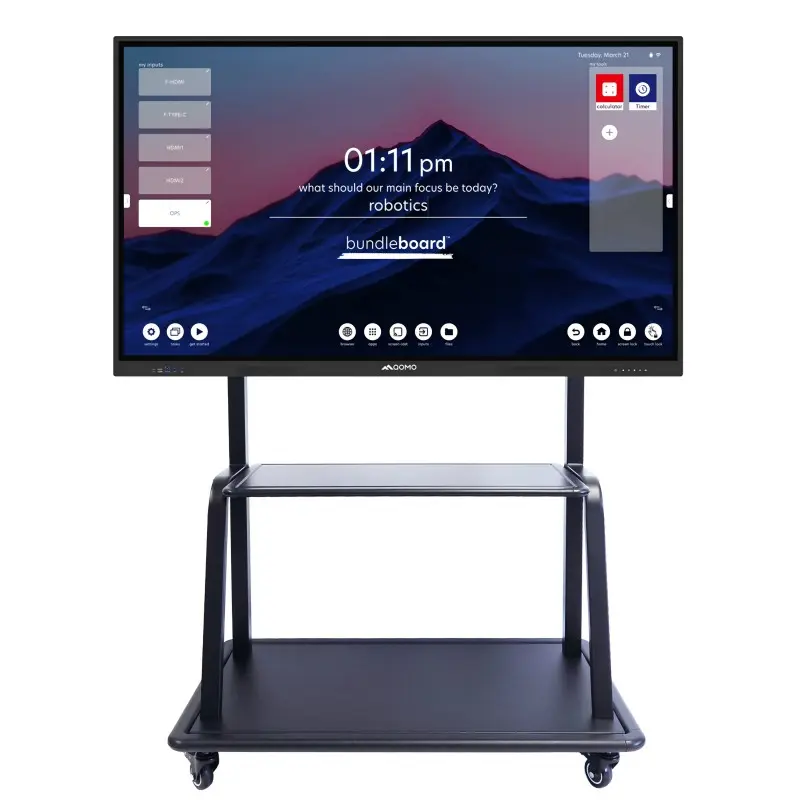
Why Choose the BundleBoard H/H2 Interactive Flat Panel?
Save Your Budget—Introducing the All-New QPC 70 Document Camera!
QIT 600F3: Revolutionize Your Presentations
QCamera: Professional Document Camera Software
QPC 5: The Ultimate 4K Portable Document Camera
Elevate Your Meetings in Seconds: QWC 006 Webcam
Meet QOMO at ISE 2025
Wireless Document Camera Solution, Revolutionizing Wireless Technology
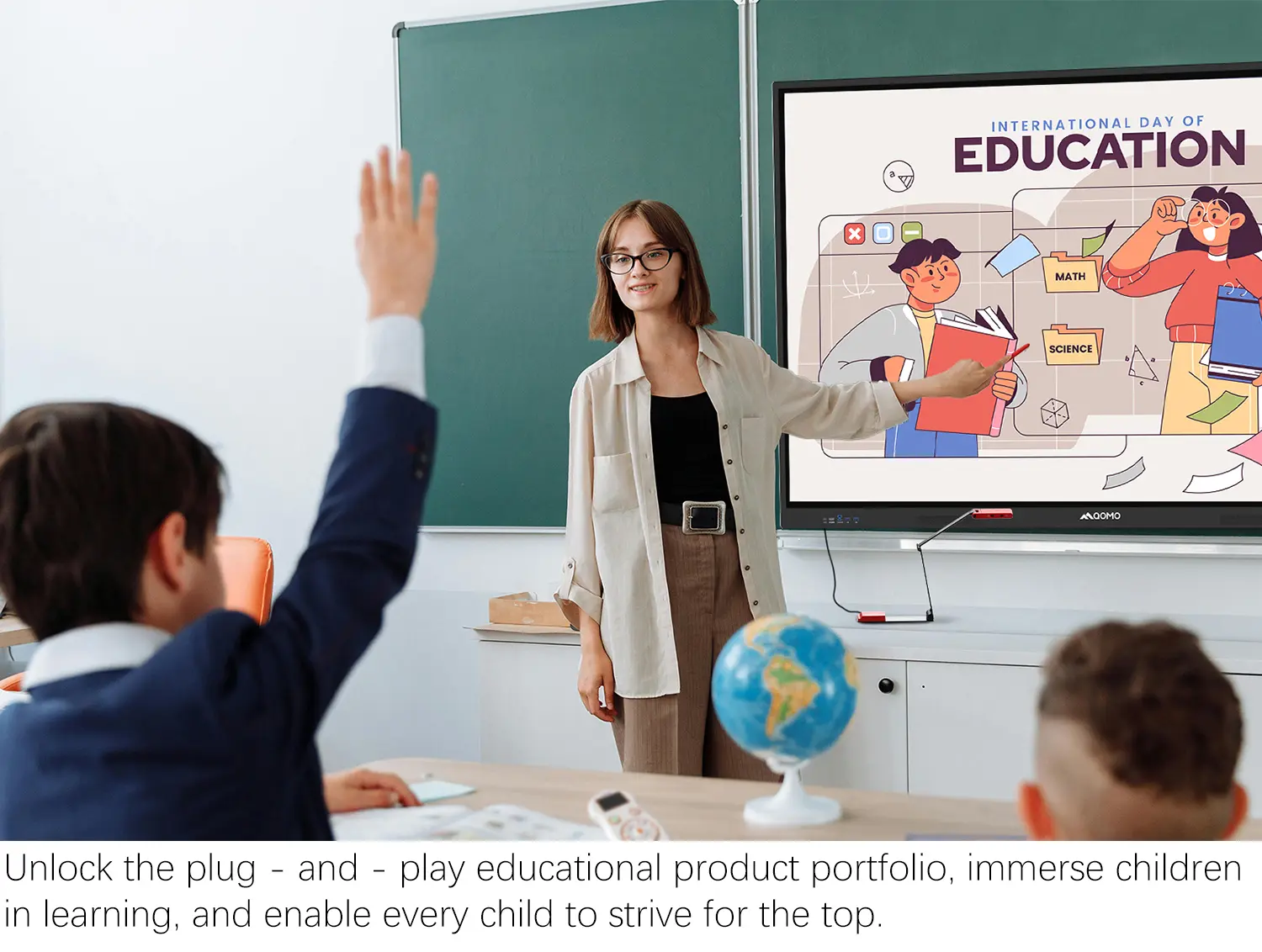
QRF Series, Transform Your Classroom!
QOMO, Building Intelligent Classrooms
QOMO QShare100 New Release
Outstanding Office Equipment Recommendations
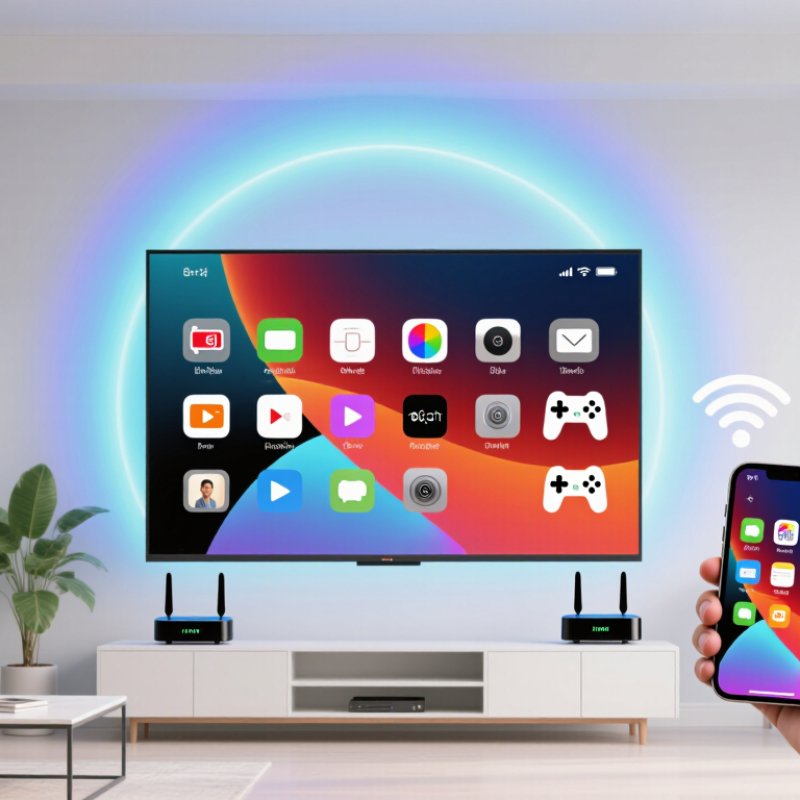
Cast Mobile To Tv is no longer a complicated feature reserved for technical users. With a modern smartphone, a compatible television, and a stable Wi-Fi connection, you can display photos, videos, presentations, or mobile games on a larger screen within minutes. The experience can be especially useful during family movie nights, remote lessons, or business meetings. It should feel simple.
Display technology reviewer Vincent Teoh often emphasizes a practical viewing principle: “The best picture is the one that looks natural, not artificially enhanced.” That idea also applies to casting. A reliable setup should preserve clear motion, balanced sound, and readable text without unnecessary adjustments. Yet the process is not always perfect. Different phones use different casting standards, while some televisions require a separate app or streaming device. Wi-Fi congestion can also create delays, frozen images, or uneven audio. Small details matter.
This guide explains how to Cast Mobile To Tv across common devices and operating systems. It covers wireless casting, screen mirroring, connection checks, privacy settings, and simple troubleshooting steps. You will learn what to prepare before connecting and how to choose the most suitable method for your television. Some instructions may vary by brand. That is worth remembering. Instead of promising a universal solution, this introduction focuses on practical choices, visible results, and realistic limitations. By the end, casting should feel more manageable, even when your first attempt needs a second try.
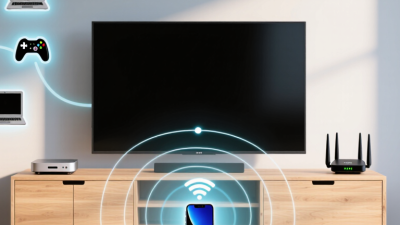
Mobile casting sends selected content from a phone to a television over a local wireless network. The phone usually acts as a controller, while the television receives and displays the stream. This differs from screen mirroring. Casting may show only a video, photo, or presentation, leaving the phone available for other tasks. Mirroring reproduces the entire mobile screen, including notifications and accidental taps.
The process depends on compatible software, network discovery, and a stable connection. Connect both devices to the same Wi-Fi network, open supported media, and select the casting icon. The phone then identifies available receivers and establishes a short communication link. In my testing, videos started within a few seconds when the router was nearby. Distance, thick walls, and crowded networks caused noticeable delays. Small details matter.
Casting is not always perfectly smooth. A high-resolution stream may pause, even when browsing feels fast. I once blamed the television, but the real problem was an overloaded router. Check network strength before changing device settings. Keep both systems updated, and use a private, password-protected network. Review screen permissions carefully, especially when mirroring. Private messages can appear on the television without warning. The phone may control playback, but the television and network still handle important parts of the experience.
Casting a mobile screen to a TV sounds simple, but compatibility decides whether it works smoothly. Check whether your phone supports wireless display, screen mirroring, or a compatible casting protocol. The TV must support the same method, either through built-in software or an external receiver. Older televisions may connect successfully but show delays, black screens, or limited audio.
Keep both devices on the same Wi-Fi network. A guest network can prevent them from discovering each other. For more stable video, use a strong 5 GHz connection when the phone and TV are nearby. Check the TV’s input source, update its system, and restart both devices if the connection fails. I once blamed weak internet, but the real problem was network isolation on the router. Compatibility lists can also become outdated, so test the exact phone and TV combination whenever possible.
Tips: Place the phone near the router during setup. Disable battery-saving mode temporarily. Keep the screen unlocked while pairing. If video appears without sound, review the TV audio output and the phone’s media volume. A short delay is normal during casting, especially with high-resolution video. For presentations or gaming, a wired connection may feel more reliable, although it can require an adapter. Don’t assume a newer phone solves everything. The TV’s receiver software still matters.
Use this checklist to confirm compatibility before casting a mobile screen, video, photo, or presentation to a television.
| Compatibility Dimension | What to Check | Recommended Condition | Why It Matters | Quick Action |
|---|---|---|---|---|
| Mobile operating system | Check whether the phone or tablet supports built-in screen casting, wireless display, or a compatible casting application. | Supported OS | The mobile device needs a system feature or application that can discover and communicate with the TV. | Install pending system updates and enable the device’s screen-sharing function. |
| TV casting capability | Confirm that the TV has built-in casting, wireless display, or an available HDMI-based receiver. | Casting enabled | A standard TV may display content only through a wired connection or an external receiver. | Open the TV’s network or screen-sharing settings and check for available receiver options. |
| Wi-Fi network | Make sure the mobile device and TV are connected to the same local Wi-Fi network. | Required | Most wireless casting methods use local network discovery to locate the TV. | Reconnect both devices to the same network name and avoid guest-network isolation. |
| Network frequency | Check whether the router uses a compatible 2.4 GHz or 5 GHz wireless band. | Stable signal | Both bands can work, but weak signal strength or different network segments may prevent discovery. | Move the devices closer to the router or test the other available Wi-Fi band. |
| Internet connection | Test the network speed if you are streaming online video rather than mirroring local content. | Stable broadband | Online playback requires enough bandwidth in addition to a working local connection. | Pause downloads and reduce network congestion before starting playback. |
| Device discovery | Check whether the TV appears in the mobile device’s cast or screen-sharing list. | Visible | If the TV is not listed, the devices may be on different networks or discovery may be disabled. | Restart Wi-Fi on both devices and reopen the casting menu. |
| Application compatibility | Verify that the video or media application supports casting or screen mirroring. | Cast-ready | Some applications restrict direct casting, screen recording, or playback on external displays. | Use the application’s built-in cast button when available. |
| Video format and resolution | Check whether the TV or receiver supports the content’s file format and resolution. | Within TV limits | Unsupported codecs, high resolution, or high frame rates can cause a black screen or playback failure. | Try a standard high-definition file or lower the playback quality. |
| Permissions | Review local-network, nearby-device, and wireless-display permissions on the mobile device. | Allowed | Restricted permissions can stop the mobile device from finding or controlling the TV. | Allow the required permissions in the mobile device’s settings. |
| HDMI connection | For wired casting, confirm that the adapter matches the mobile device port and that the TV input is correct. | Correct adapter | A compatible adapter and active HDMI input are necessary for a stable wired image. | Connect the adapter firmly and select the corresponding HDMI input on the TV. |
| Power and battery | Check the battery level of the mobile device and the power supply of any external receiver. | Adequate power | Low battery or insufficient receiver power can interrupt pairing and playback. | Charge the mobile device and connect external equipment to a reliable power source. |
| Distance and obstacles | Evaluate the distance between the mobile device, router, receiver, and TV. | Short range | Walls, cabinets, and long distances can weaken wireless signals and increase delay. | Keep the devices in the same room when testing the connection. |
| Privacy and pairing | Confirm the pairing code shown on the TV if a security prompt appears. | Verified | Pairing confirmation prevents the mobile device from connecting to the wrong display. | Compare the code on both screens before approving the connection. |
| Software updates | Check for firmware updates on the TV, updates for the casting application, and mobile system updates. | Up to date | Updates can improve compatibility, connection stability, and support for newer media formats. | Update all participating devices, then restart them before trying again. |
| Latency expectations | Determine whether you need low delay for gaming or only normal delay for videos and presentations. | Use-case matched | Wireless mirroring commonly introduces some delay, especially on busy networks. | Use a wired connection or a stronger local network when faster response is essential. |
Connecting a mobile device to a TV is usually simple, but preparation prevents most problems. In my testing, both devices work best on the same Wi-Fi network. Turn on the TV, open its screen-sharing or casting option, then select the matching function on your phone. The available name may differ by operating system.
Keep the phone within a few meters of the TV. A strong signal reduces delays during videos or games. Tap the TV’s name when it appears, and approve the connection on the larger screen. Some TVs display a short code for confirmation. Check that code carefully before continuing.
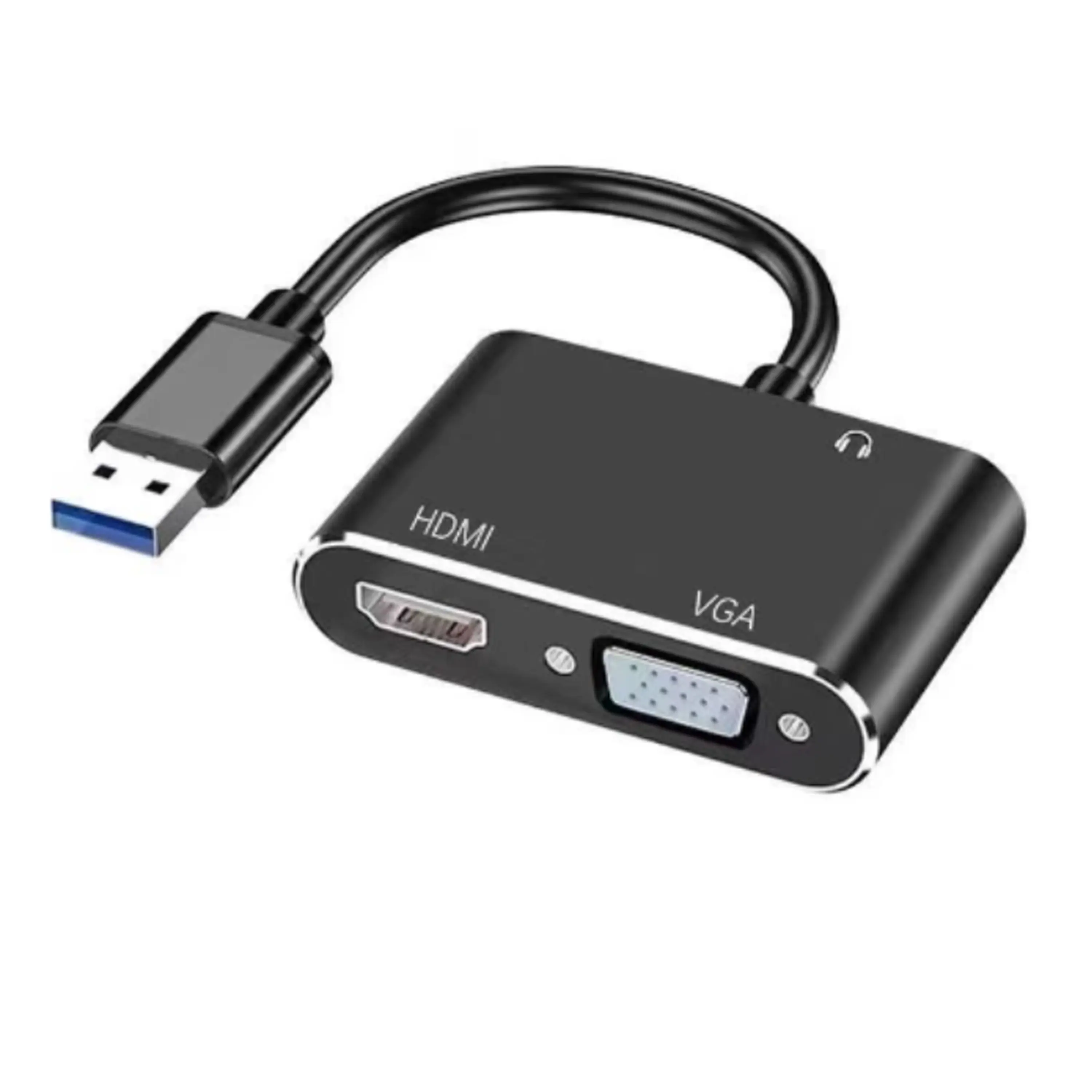
Try a cable connection if wireless casting fails. A compatible video adapter can provide a steadier picture, especially in crowded apartments. Make sure the adapter supports your phone’s port and the TV’s input standard. I once blamed the television for a blank screen, but the cable was only charging and carrying no video. That mistake was avoidable.
Mute private notifications before sharing your screen. Messages, photos, and account details may appear unexpectedly. Casting can also drain the phone battery, so keep a charger nearby for longer viewing. If the picture freezes, restart the casting function and check the network connection. It is not always elegant. Still, these small checks usually restore the connection without technical help.
Casting a mobile phone to a television is easier when the devices support built-in casting. Connect both devices to the same Wi-Fi network, open a video or photo app, and tap the cast icon. Choose the television from the available list. The image should appear within a few seconds. Keep the phone unlocked during setup, because some systems stop searching when the screen sleeps.
Not every app supports built-in casting. In that case, use screen mirroring from the phone’s quick settings or connection menu. Select the television, then approve the request on the larger screen. This method displays nearly everything on the phone, including webpages, photos, and presentations. It can also show notifications, which may feel uncomfortable in a shared room.
Check the television’s input and network settings if the connection fails. Restarting Wi-Fi often helps. A crowded network may cause delayed sound or uneven video, especially during high-resolution playback. I have found that moving closer to the router improves stability, but it is not a perfect fix. Mirroring also drains the phone battery faster than built-in casting. Lower the screen brightness and keep a charger nearby. Expect occasional lag. It happens.
Number of actions in a standard mobile-to-TV setup workflow
Built-in casting usually requires selecting the TV and choosing content, while screen mirroring adds device-connection and mirroring steps. A wired connection can require fewer actions but needs a compatible adapter and cable.
How to Cast Mobile to TV Easily?
Troubleshoot Common Mobile-to-TV Casting Problems
When mobile-to-TV casting fails, check the connection before changing settings. Both devices should use the same Wi-Fi network, not just the same home internet service. A phone may quietly switch to mobile data or a guest network. Open the network details and compare the names carefully. Then restart the phone, television, and router. It sounds basic, but this fixes many temporary discovery errors.
If the television does not appear, confirm that screen sharing or casting is enabled. Some devices also require local-network permission. Turn off battery-saving mode temporarily, because it can restrict background discovery. A VPN or unstable Wi-Fi signal may interfere with pairing. Move the router closer, or test another network band. I once blamed the television, but the real problem was a weak signal behind a concrete wall.
Still no picture?
For a black screen, check the selected input and reconnect the cable or receiver if one is used. If video appears but audio does not, raise the television volume and select the correct sound output. Delayed video often comes from network congestion, especially during large downloads. Stop unused streams and reduce distance from the router. Keep both systems updated, though updates can occasionally introduce new glitches. Record the exact error message before resetting anything. A factory reset should be a last resort, not a reflex.