request to quote
Leave Your Message

What Is the Best Camera for Desktop Use?

Choosing the best Camera For Desktop is less about chasing the highest resolution and more about how you actually appear on screen. A camera may promise sharp 4K video, yet still render your face dimly beneath a ceiling light. Autofocus, microphone quality, field of view, and reliable mounting matter just as much. Small details show up: glasses catching glare, a bright window washing out your face, or a webcam wobbling when you type.

The need is practical, not theoretical. Pew Research Center’s 2023 report on remote work found that 35% of U.S. workers whose jobs could be done remotely worked from home all the time; another 41% worked from home some of the time. Those figures do not measure webcam purchases, but they show why clear video remains part of everyday work. Photographer Ansel Adams offered a useful reminder: “The single most important component of a camera is the twelve inches behind it.” His point was about the person using the camera, not desktop webcams. Still, framing, lighting, and placement can change a call more than an impressive spec sheet.

No single model suits every desk. A built-in laptop camera may be enough for occasional calls. Frequent presenters may benefit from better low-light handling and adjustable framing. This guide compares the choices that matter, while noting where claims rely on manufacturer specifications rather than independent testing. The trade-off is real. A polished image can come at the cost of privacy, desk space, or ease of setup.

What Is the Best Camera for Desktop Use?

What a Desktop Camera Is and How It Differs from Other Cameras

What Is the Best Camera for Desktop Use?

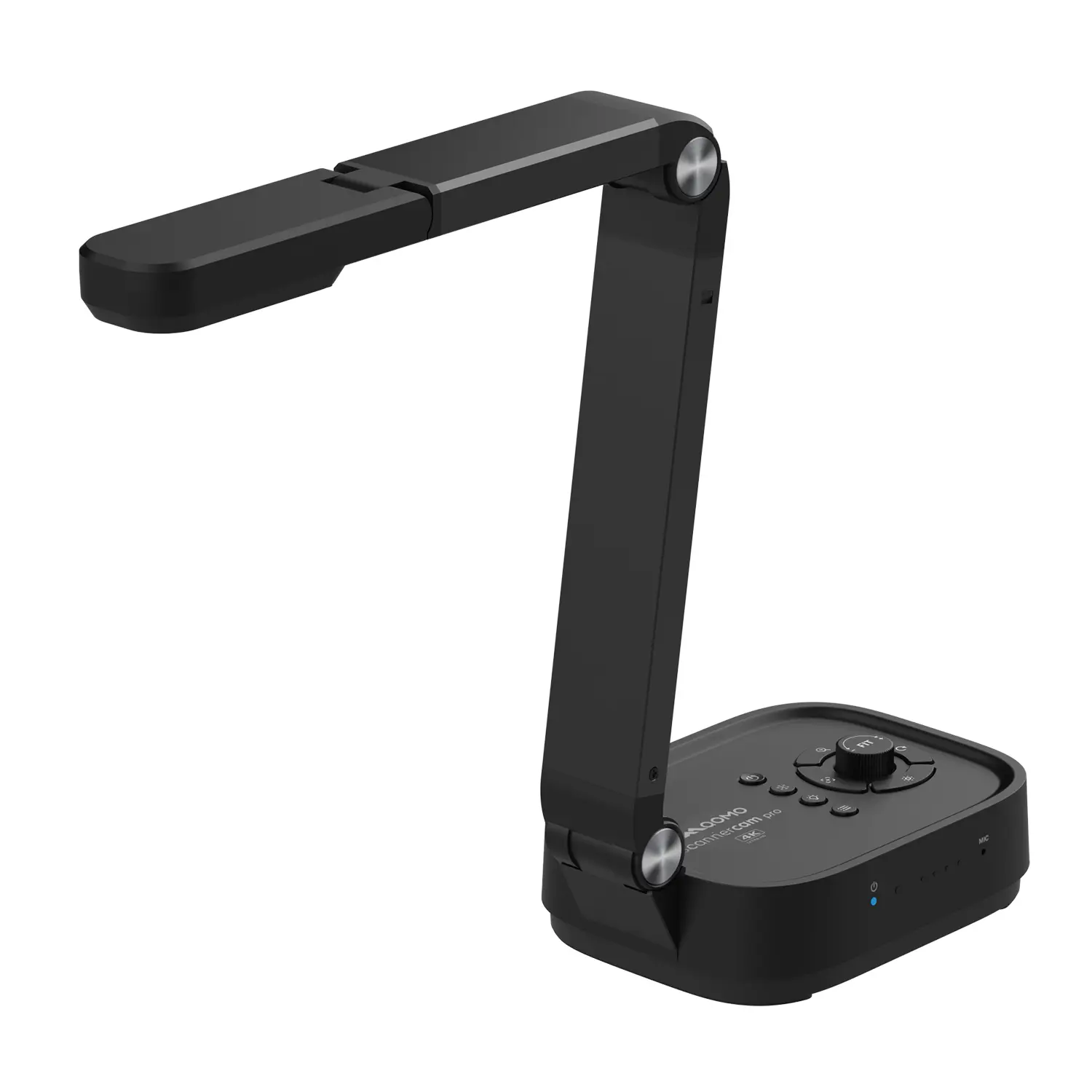
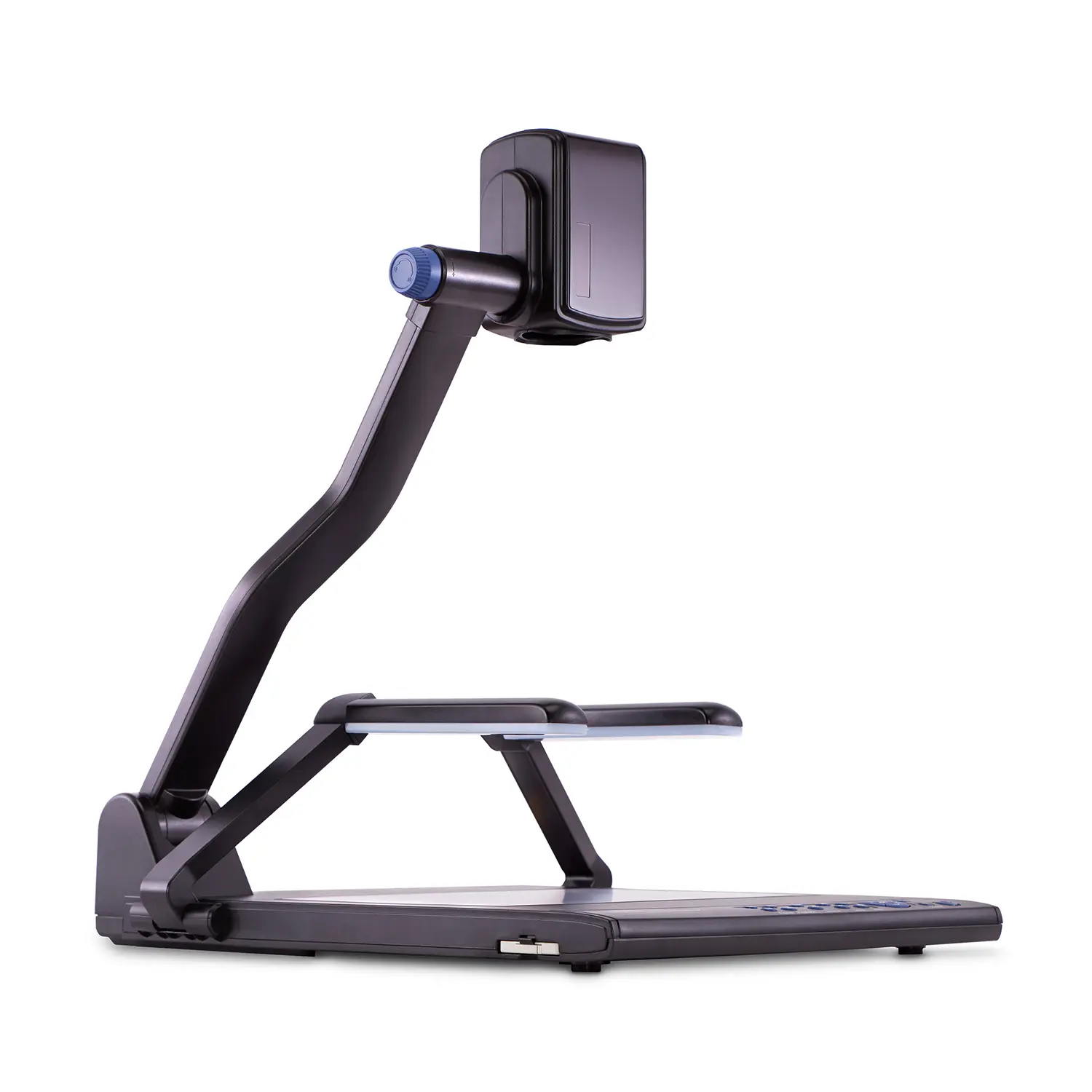
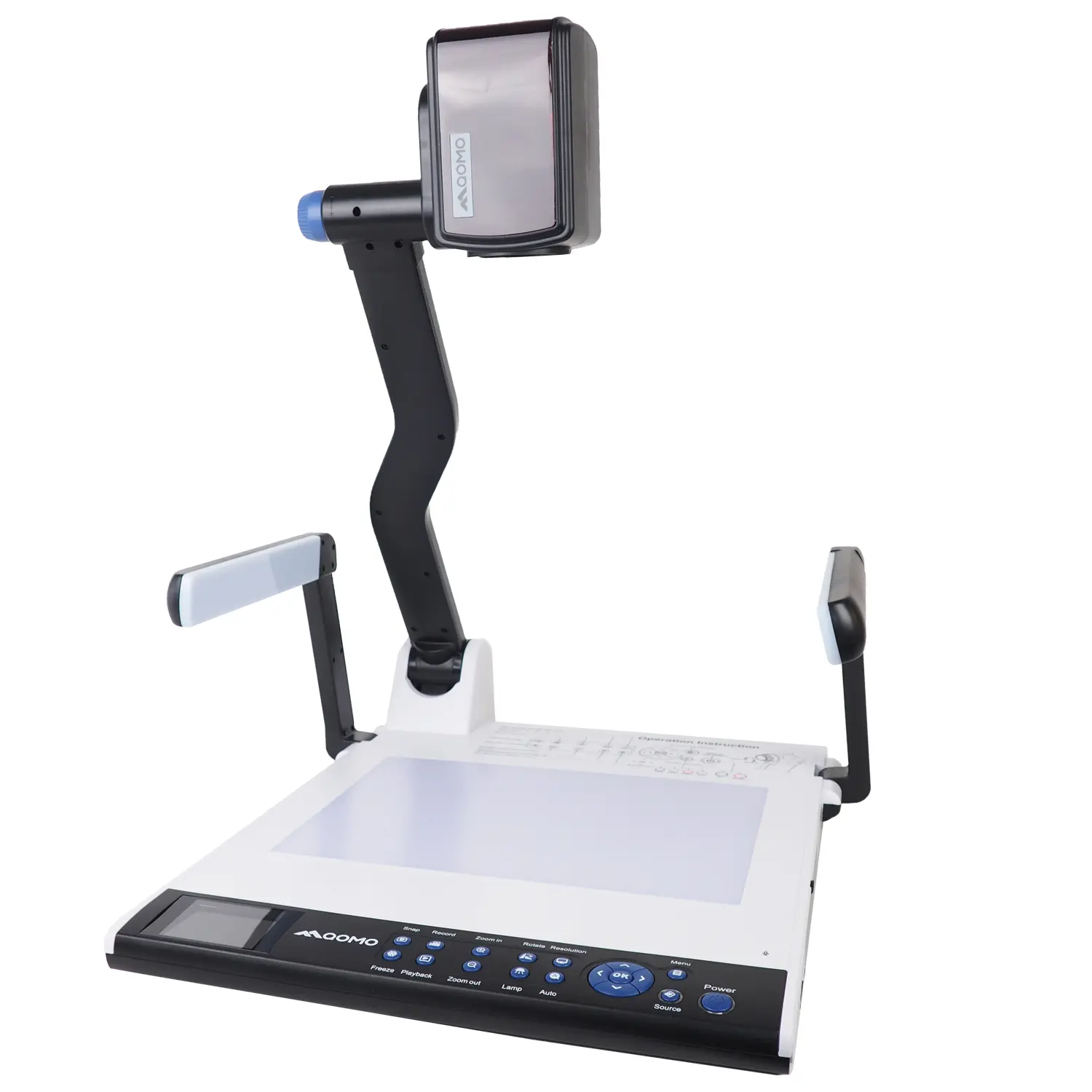
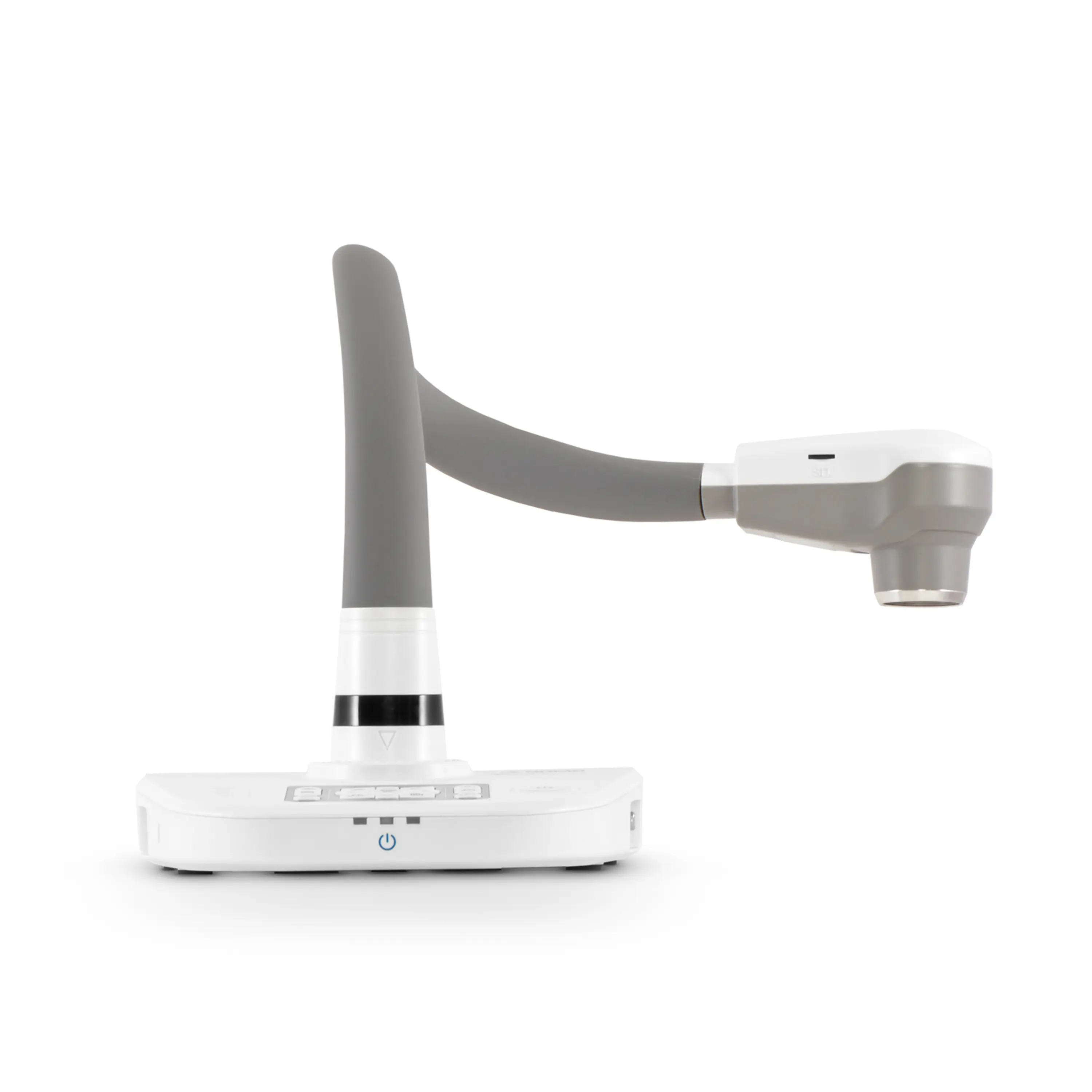
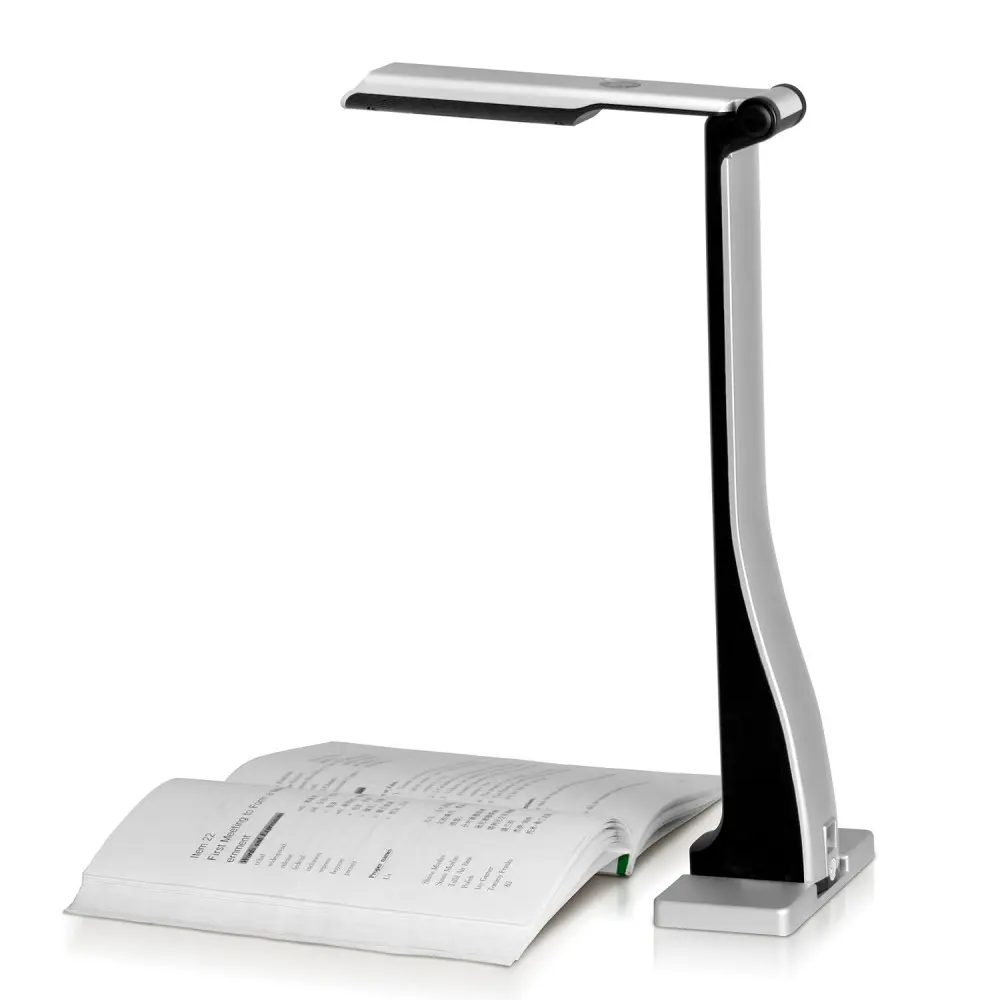
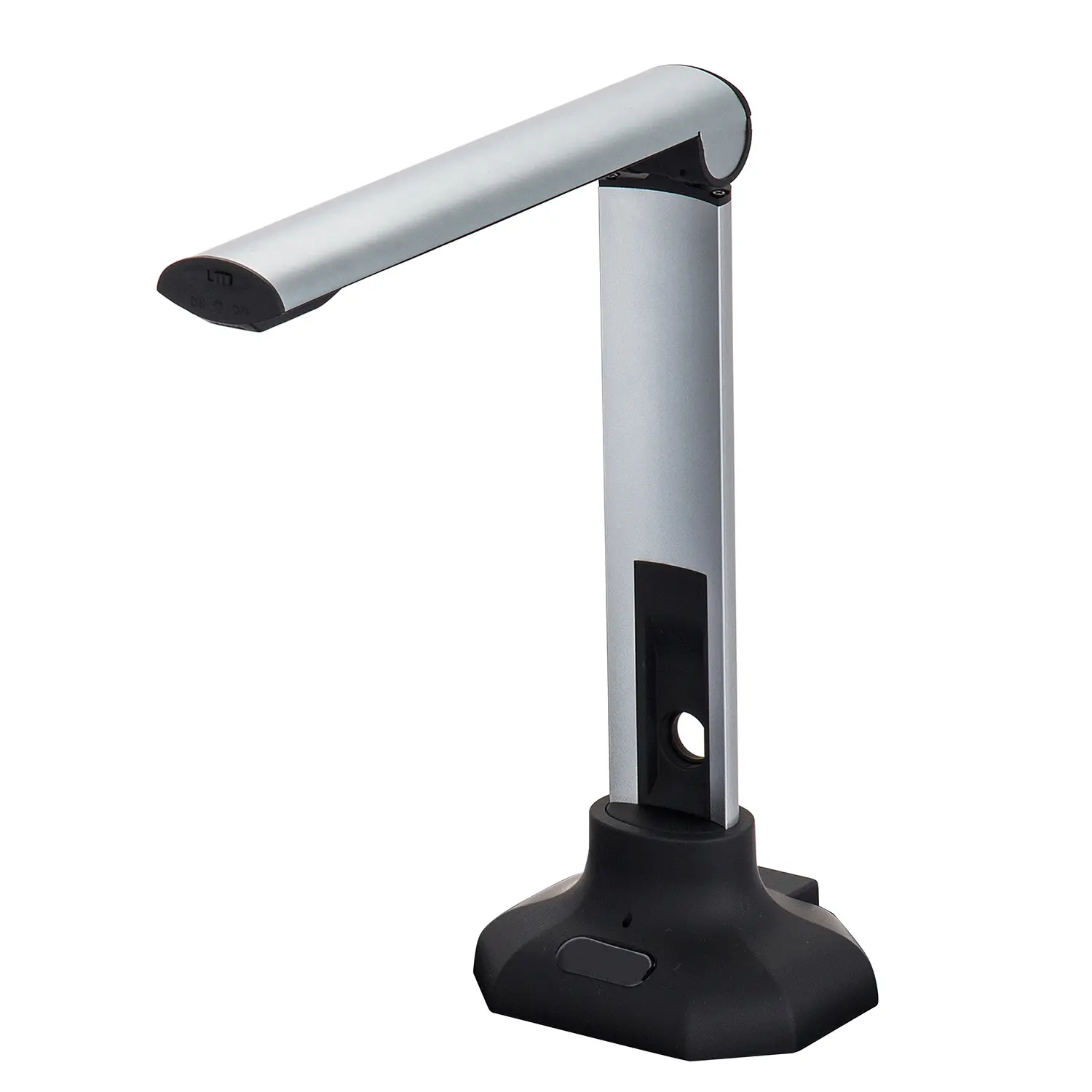
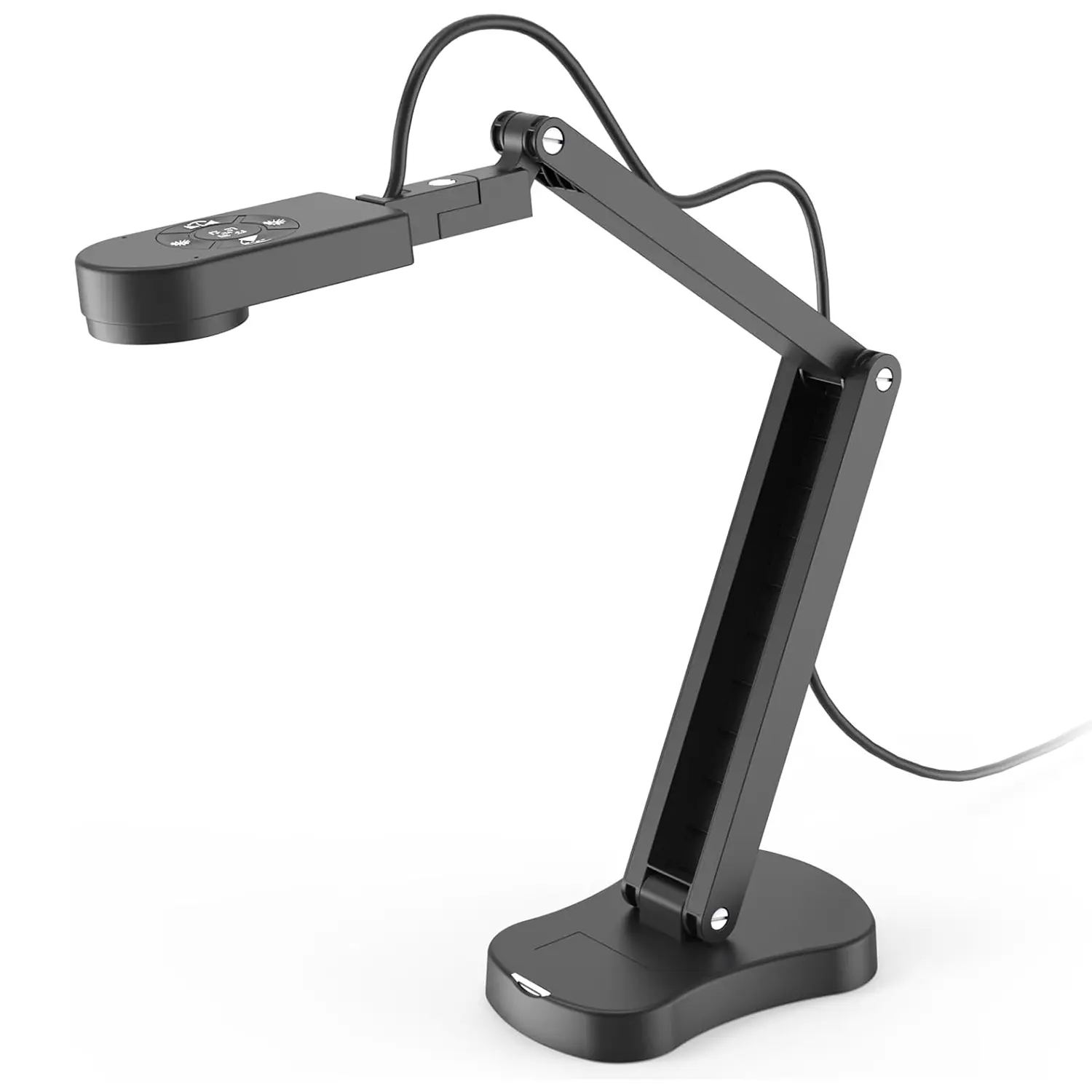
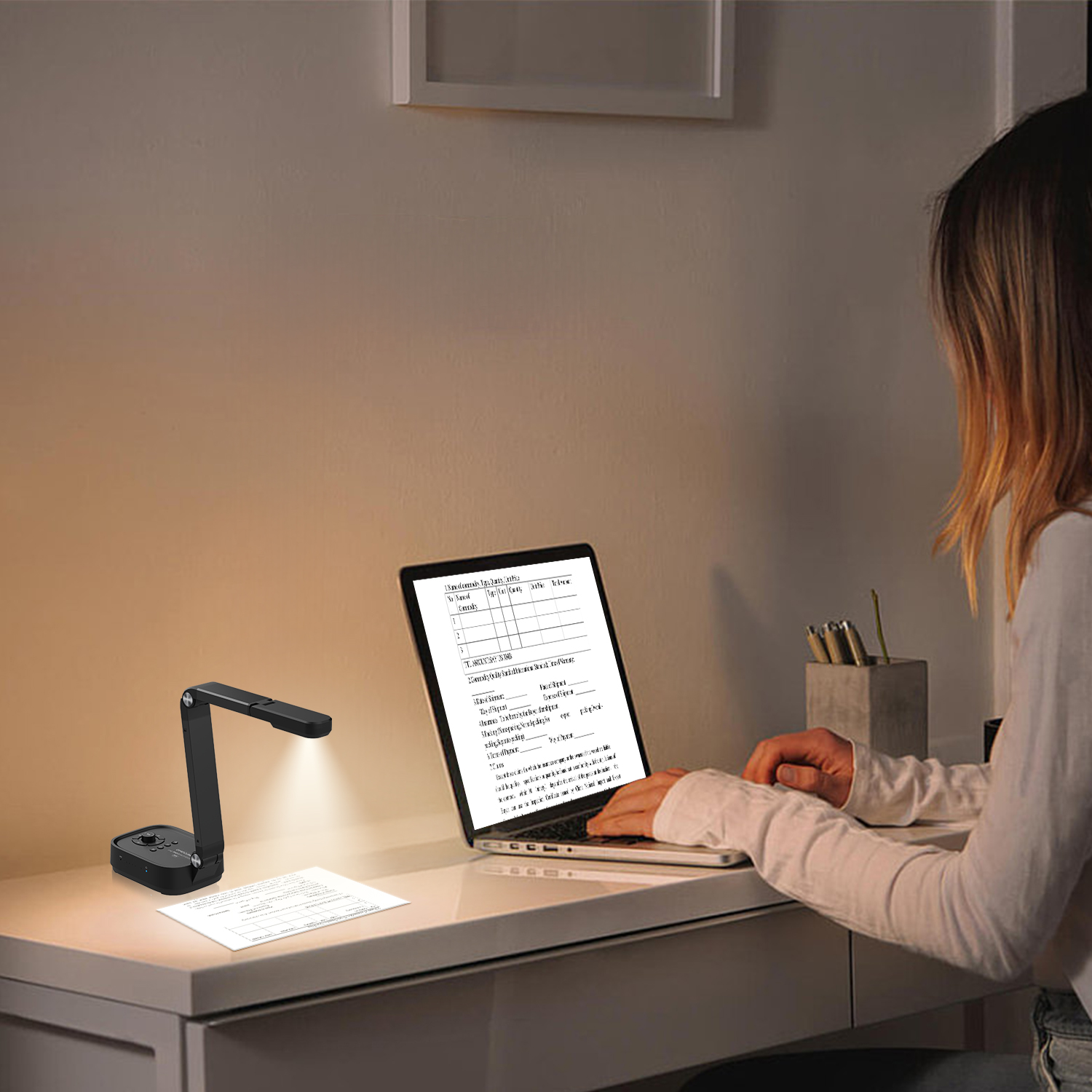
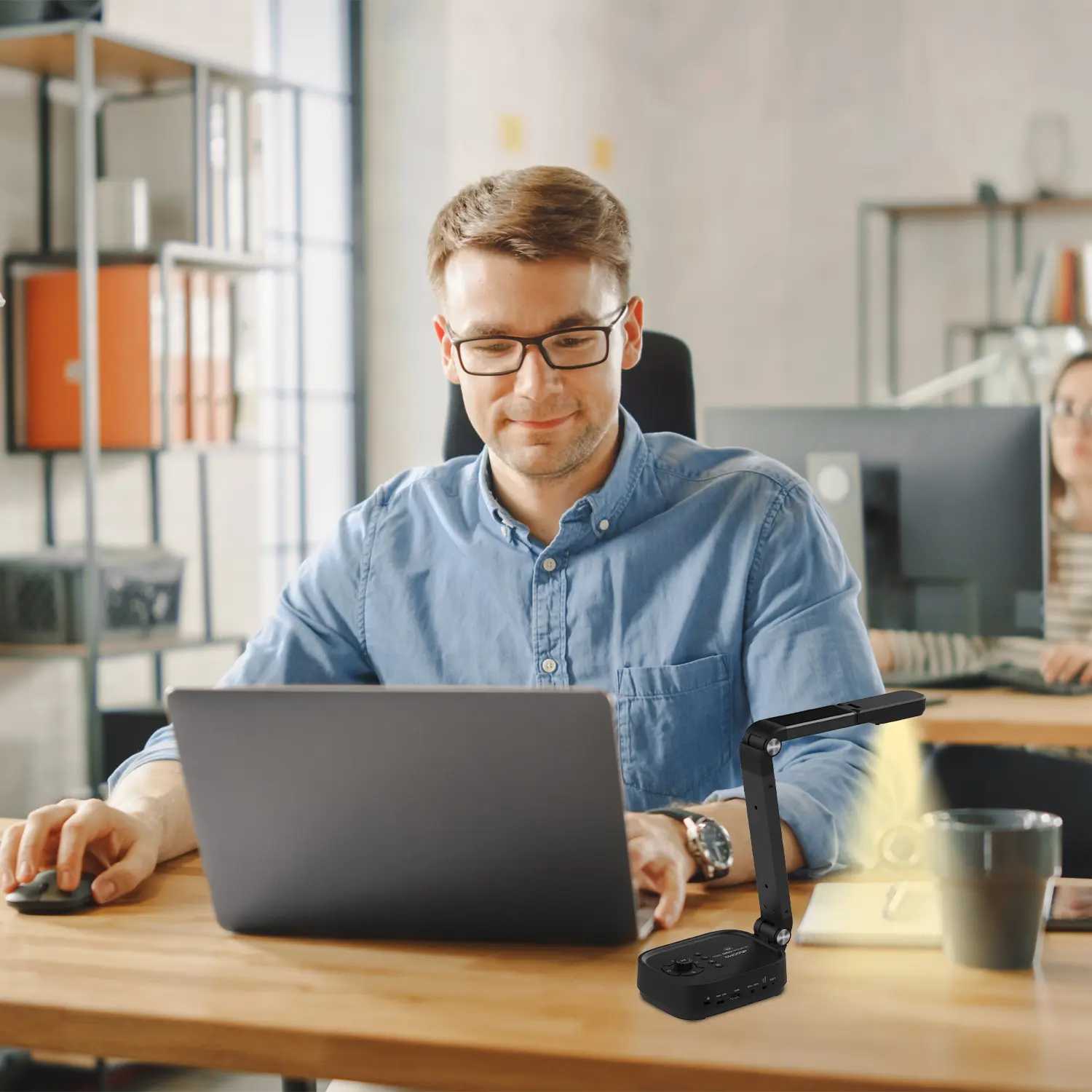
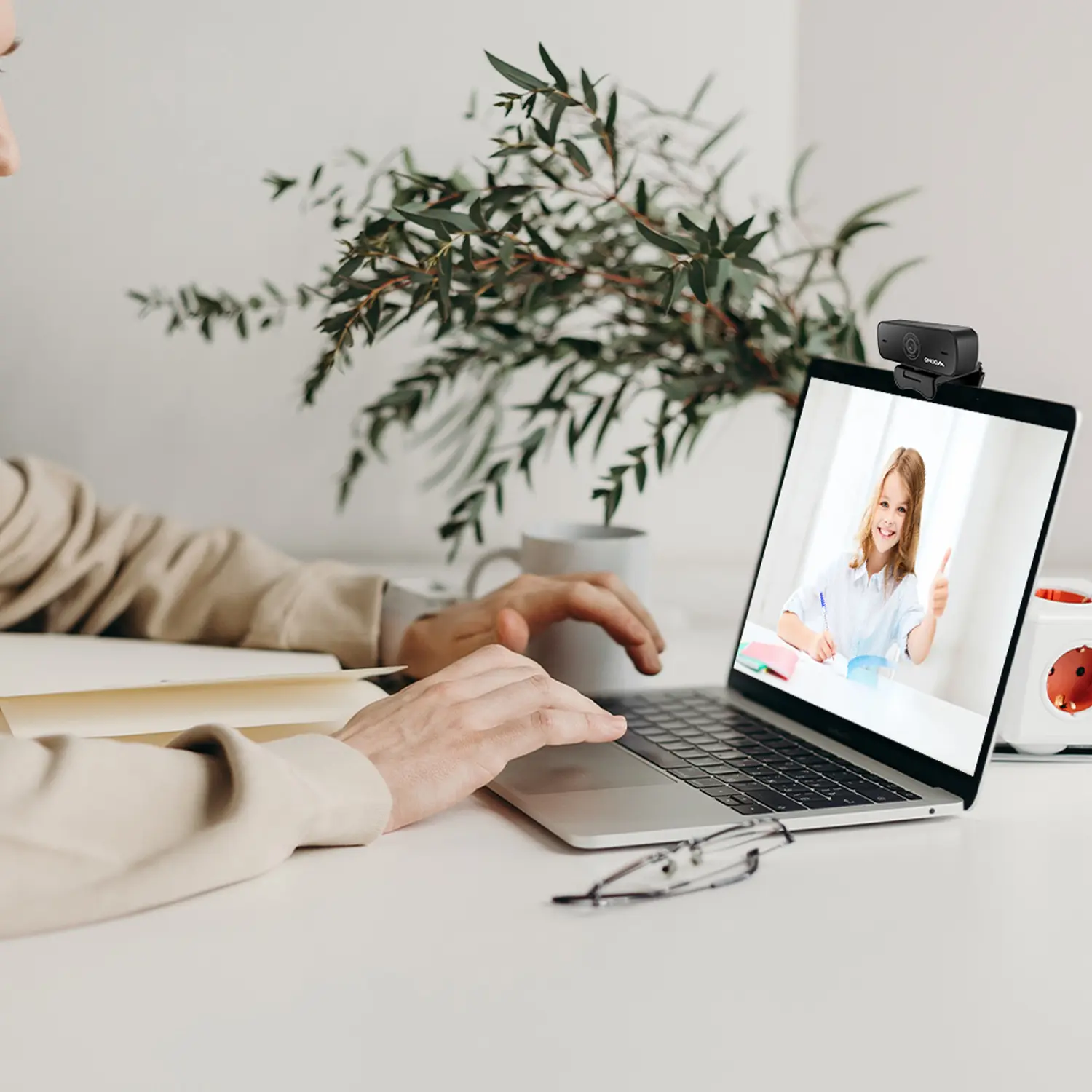
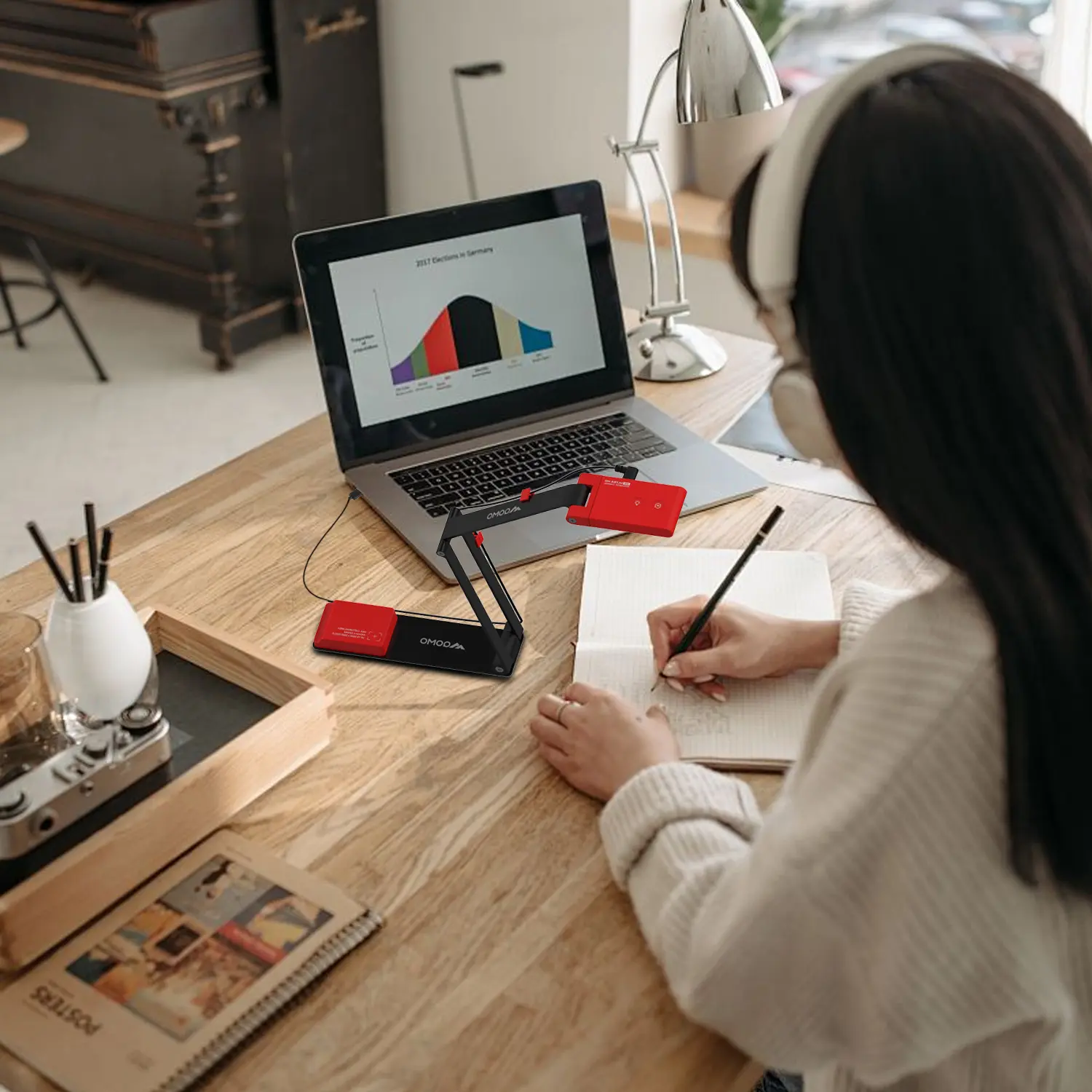
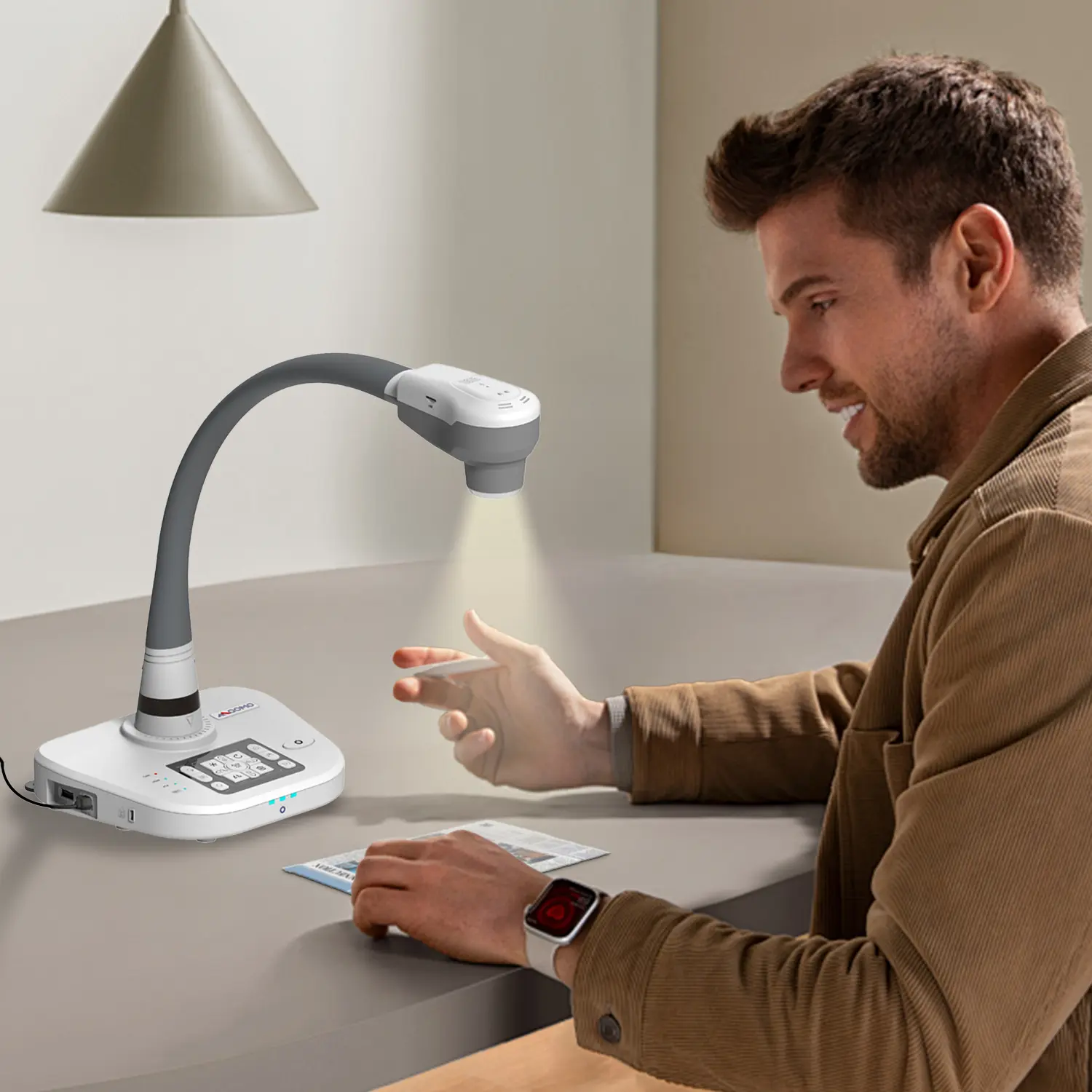
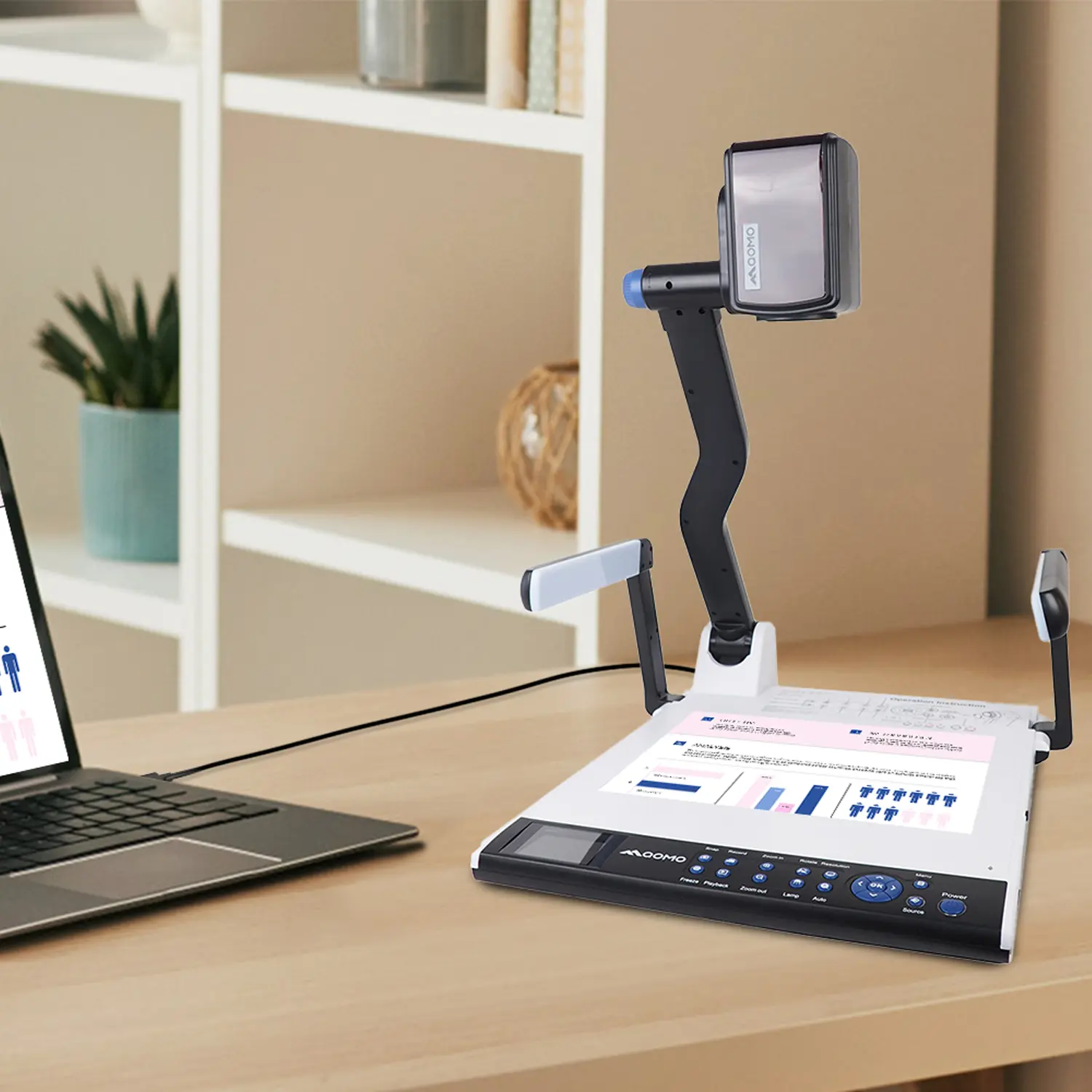
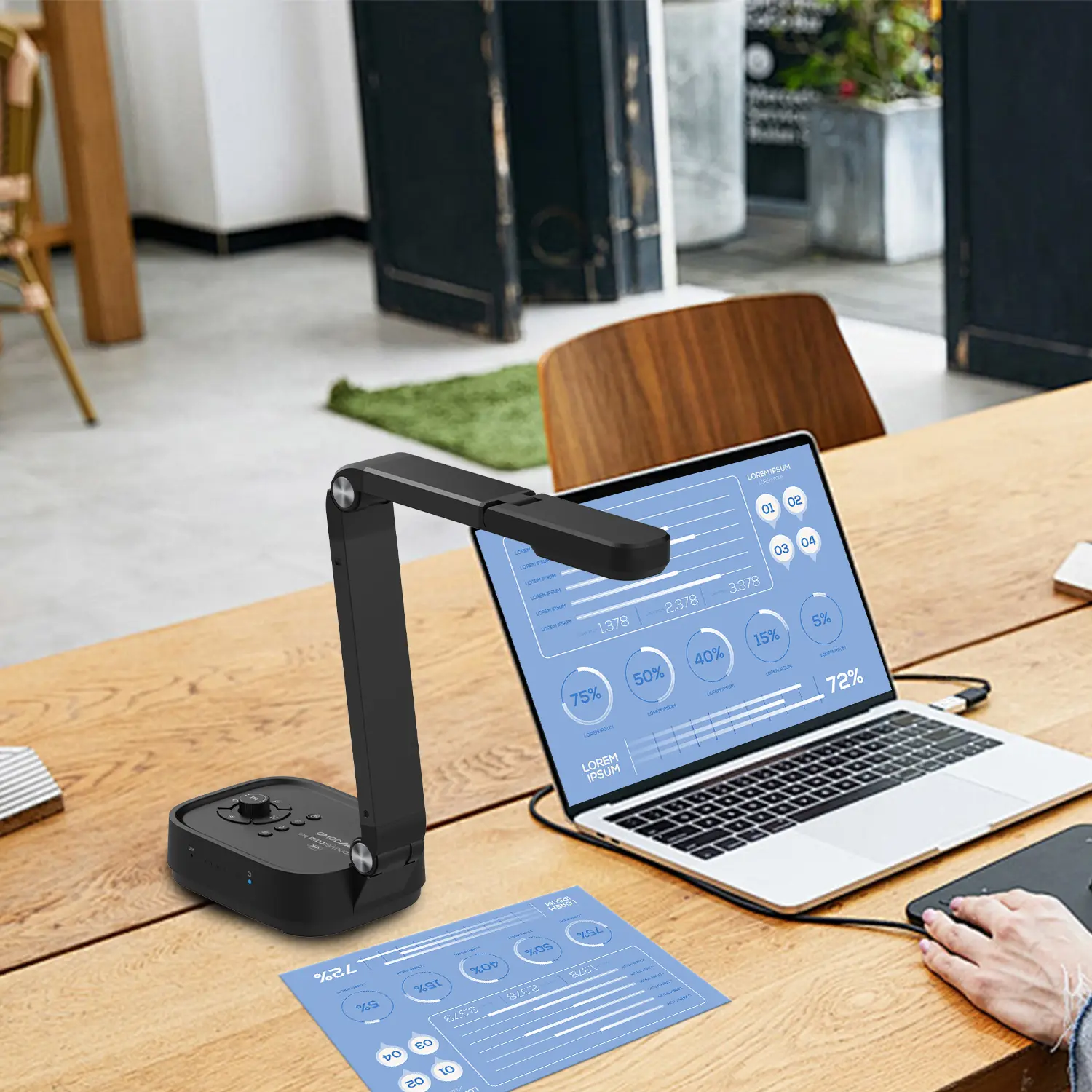
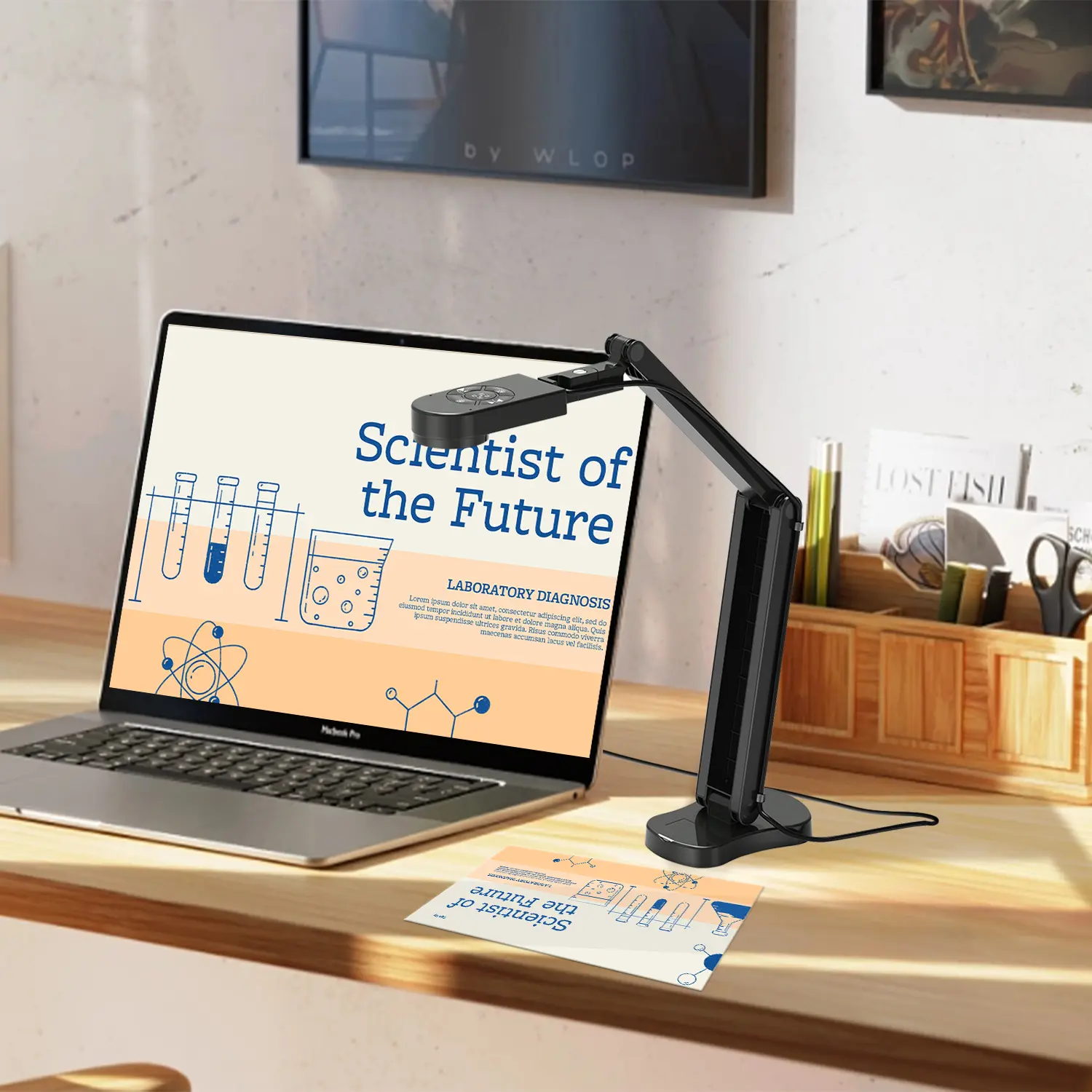
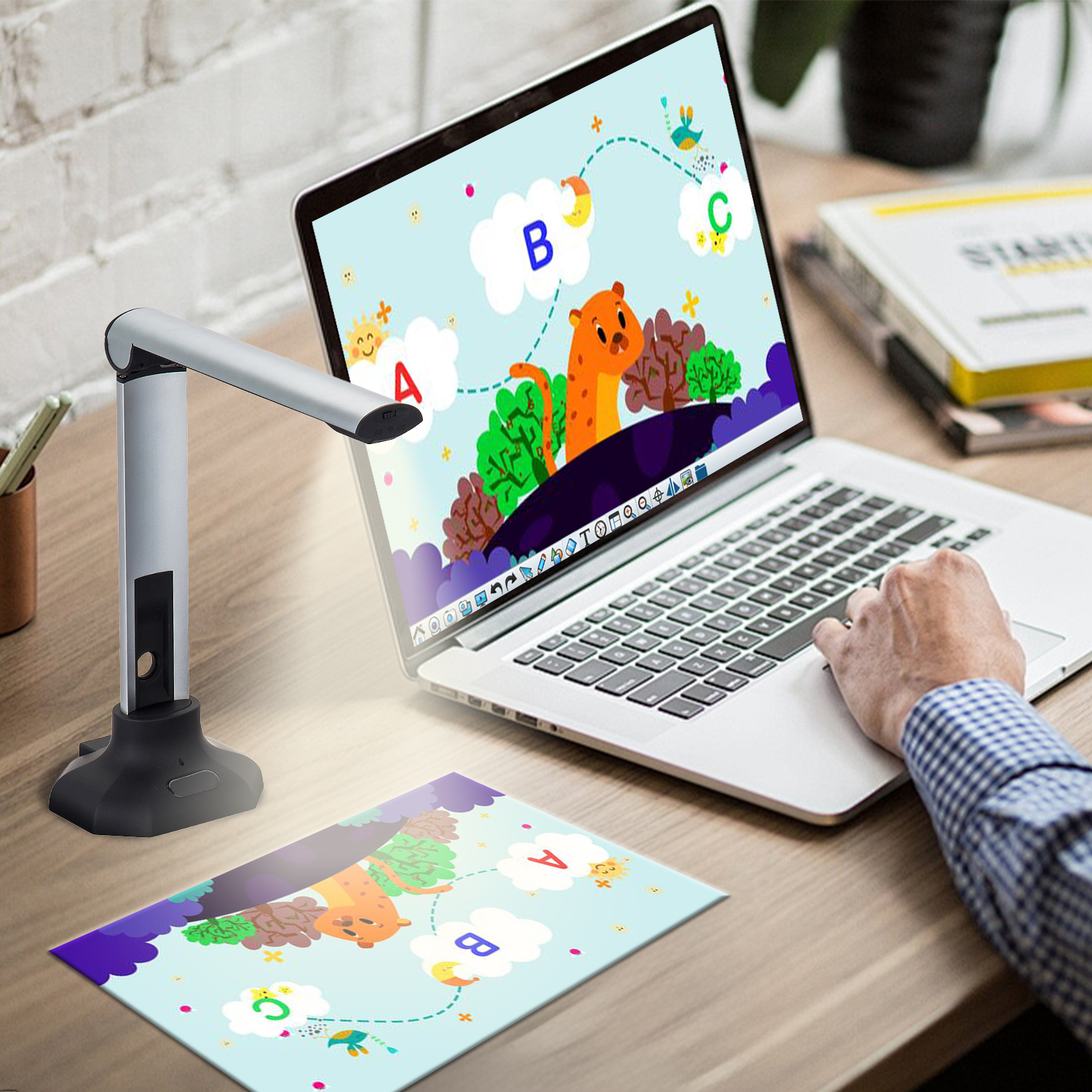
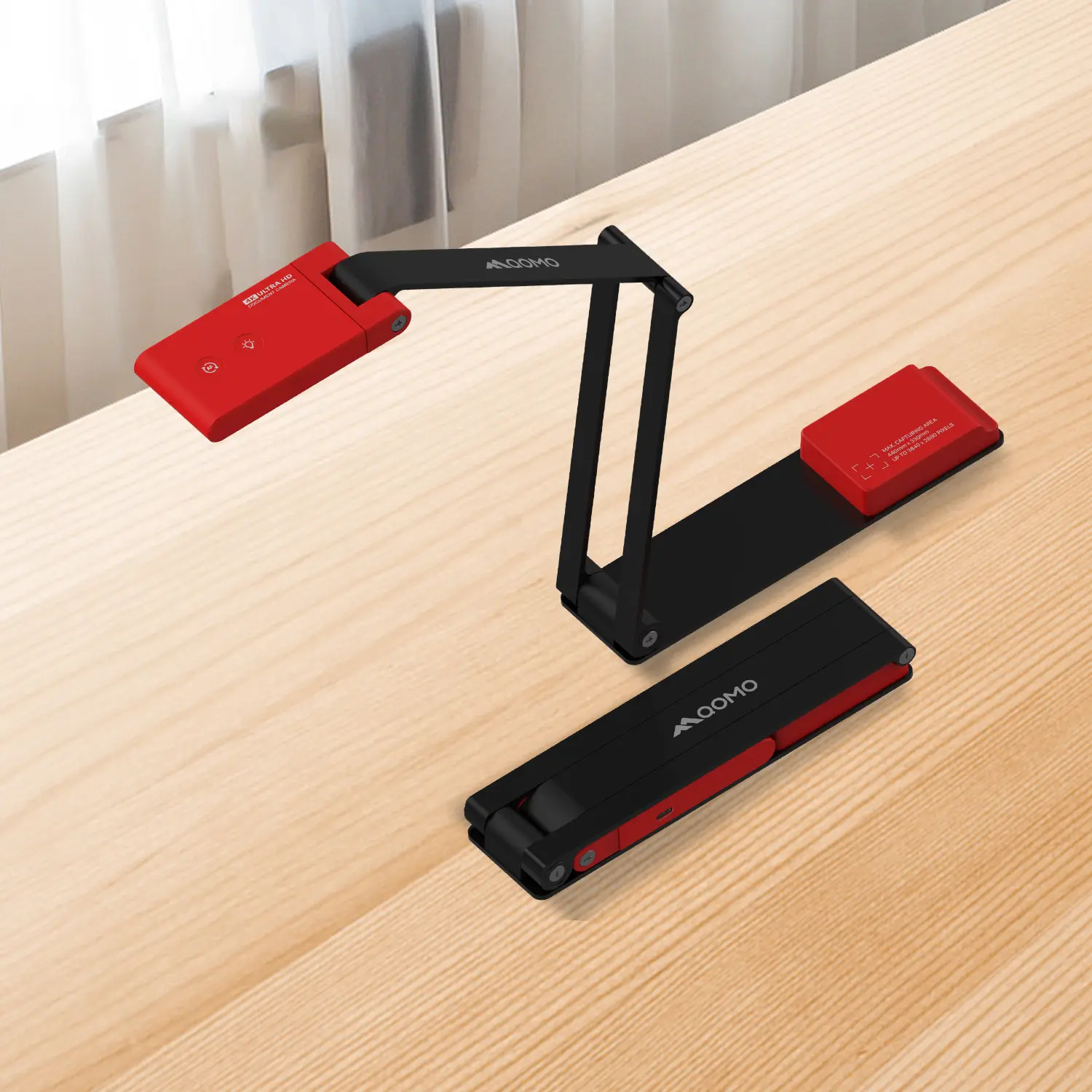
A desktop camera is designed to stay near a computer and capture a person or workspace from a short distance. It may sit on a monitor, rest on a small stand, or connect by cable. The goal is practical framing, not carrying it around.

Small, but useful. Many models offer a built-in microphone, automatic exposure, and a wide view that includes your face and a little of the room. Those features can make calls easier, though room lighting and background noise still matter. A bright window behind you can leave your face looking dim.

A desktop camera differs from a phone or a general-purpose photo camera in how it fits into daily work. It is usually ready for live video and computer apps, with fewer settings to adjust. Phones are portable and versatile, while dedicated photo cameras often offer interchangeable lenses and more control over still images.

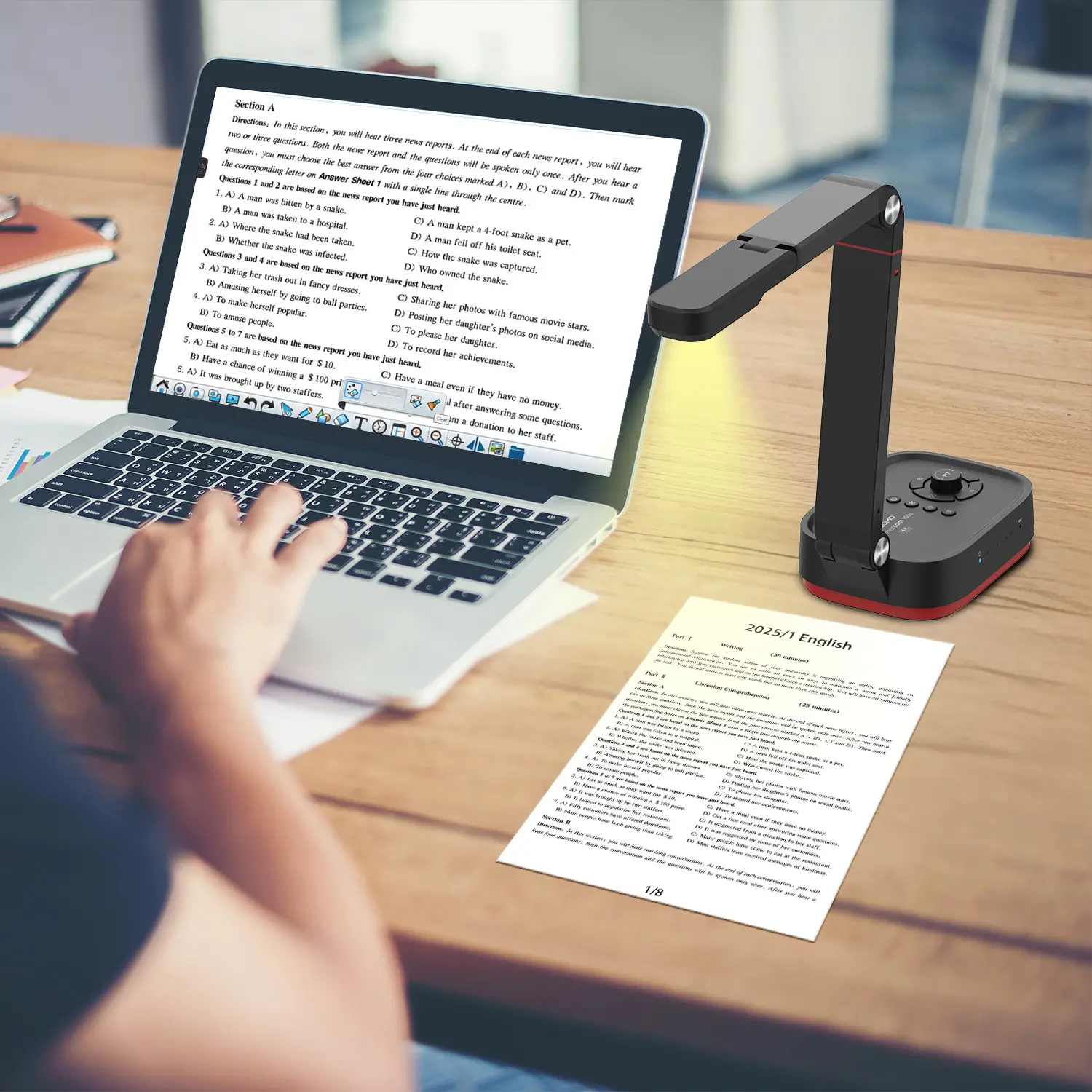
That flexibility may be unnecessary at a desk. Not every desktop camera is a simple webcam, either; some support higher-quality recording or manual adjustments. Check how it connects, how it handles focus at your usual sitting distance, and whether its field of view shows more than you want.

It is easy to overlook the cable, or the clutter behind you.

The Main Types of Cameras Used at a Desktop

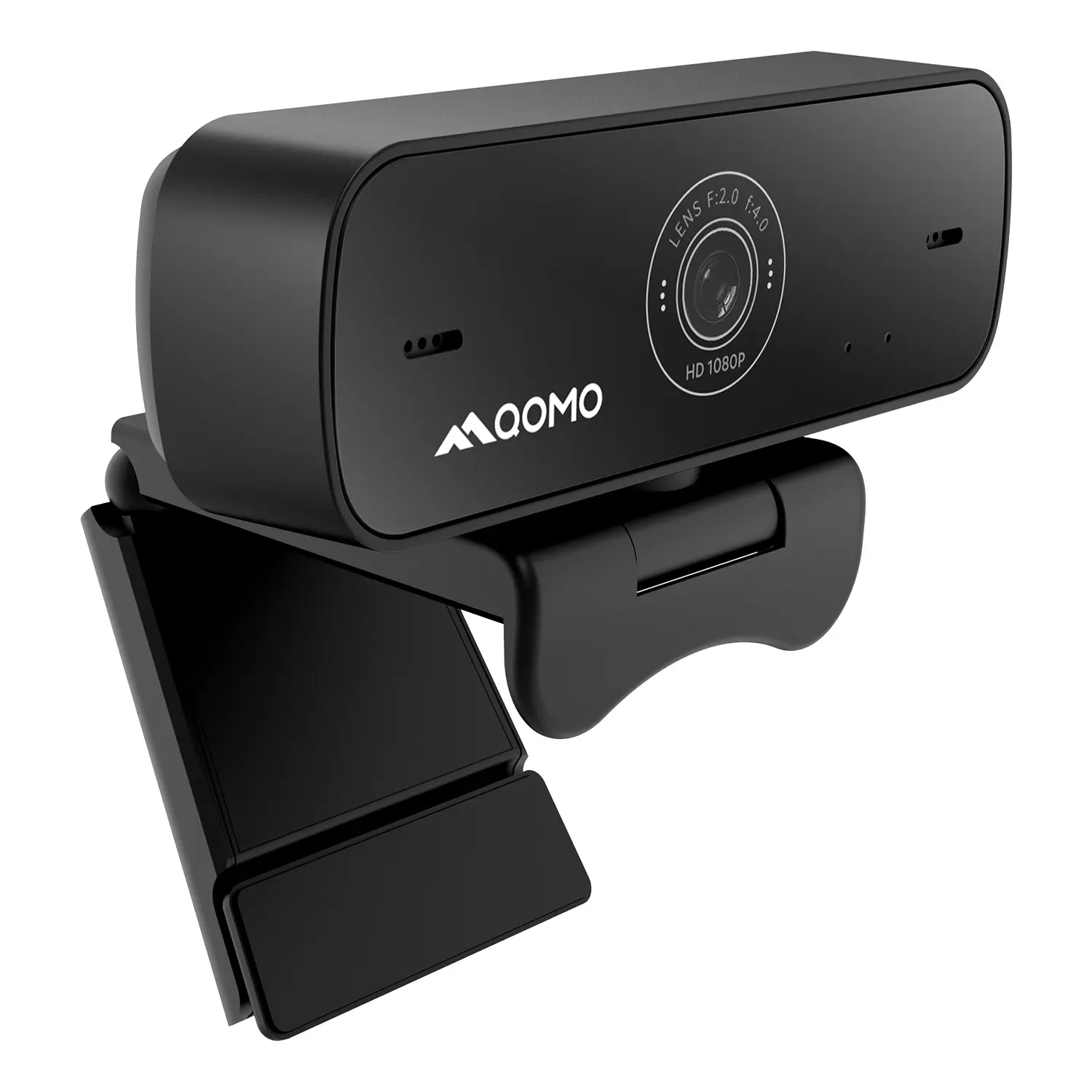
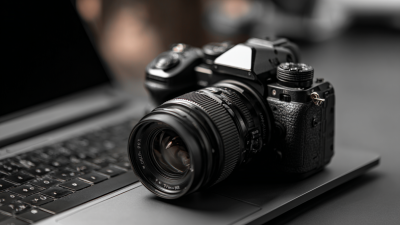
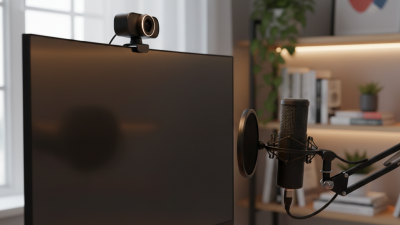
Desktop cameras generally fall into four groups: built-in webcams, USB webcams, conference cameras, and interchangeable-lens camera setups. Each fits a different workspace. Built-in cameras are convenient for quick calls, though the image can look flat under overhead lighting. USB webcams are easy to position above a monitor and often offer better framing. Small, but practical.

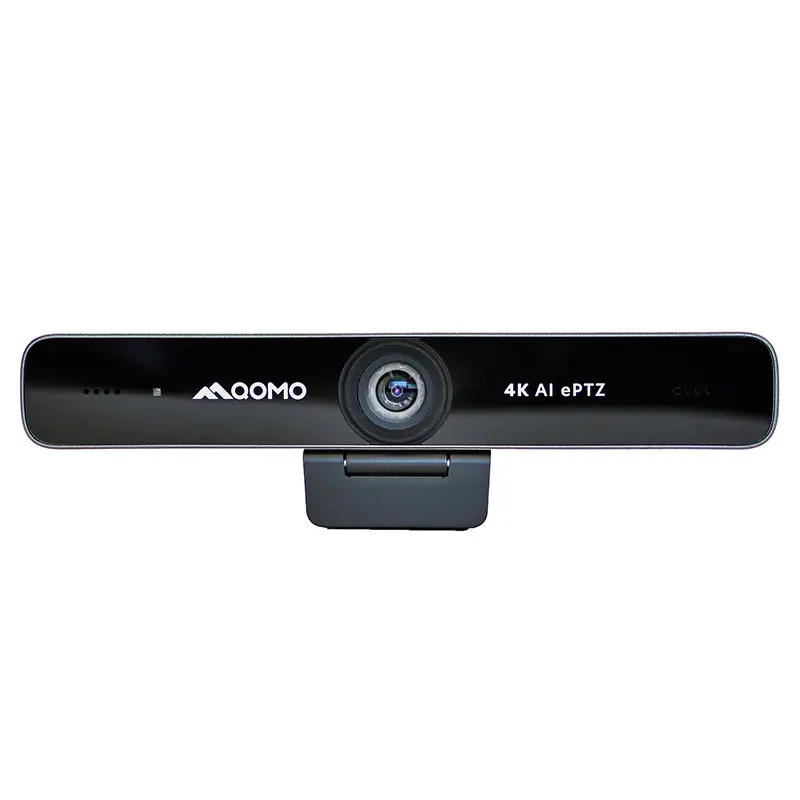
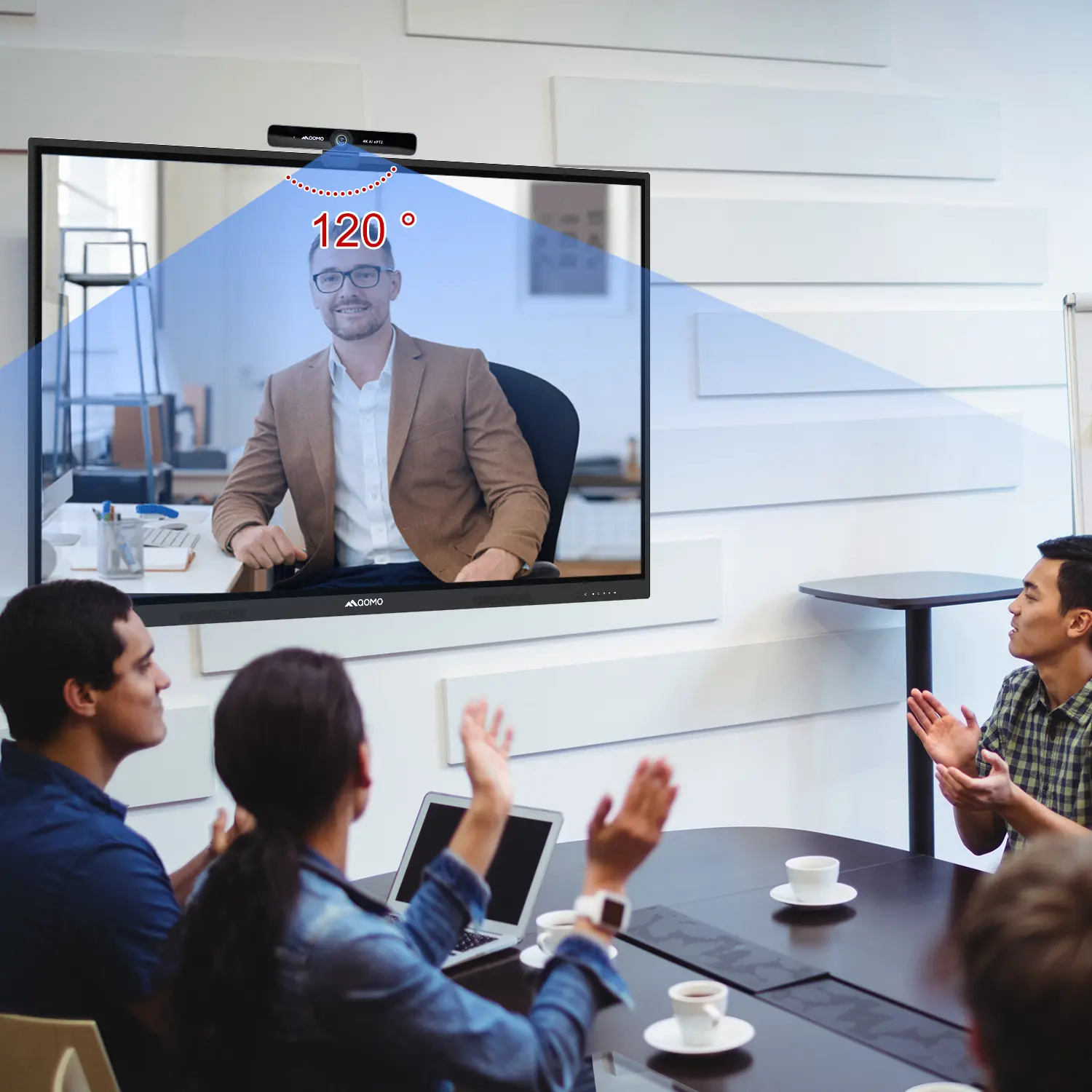
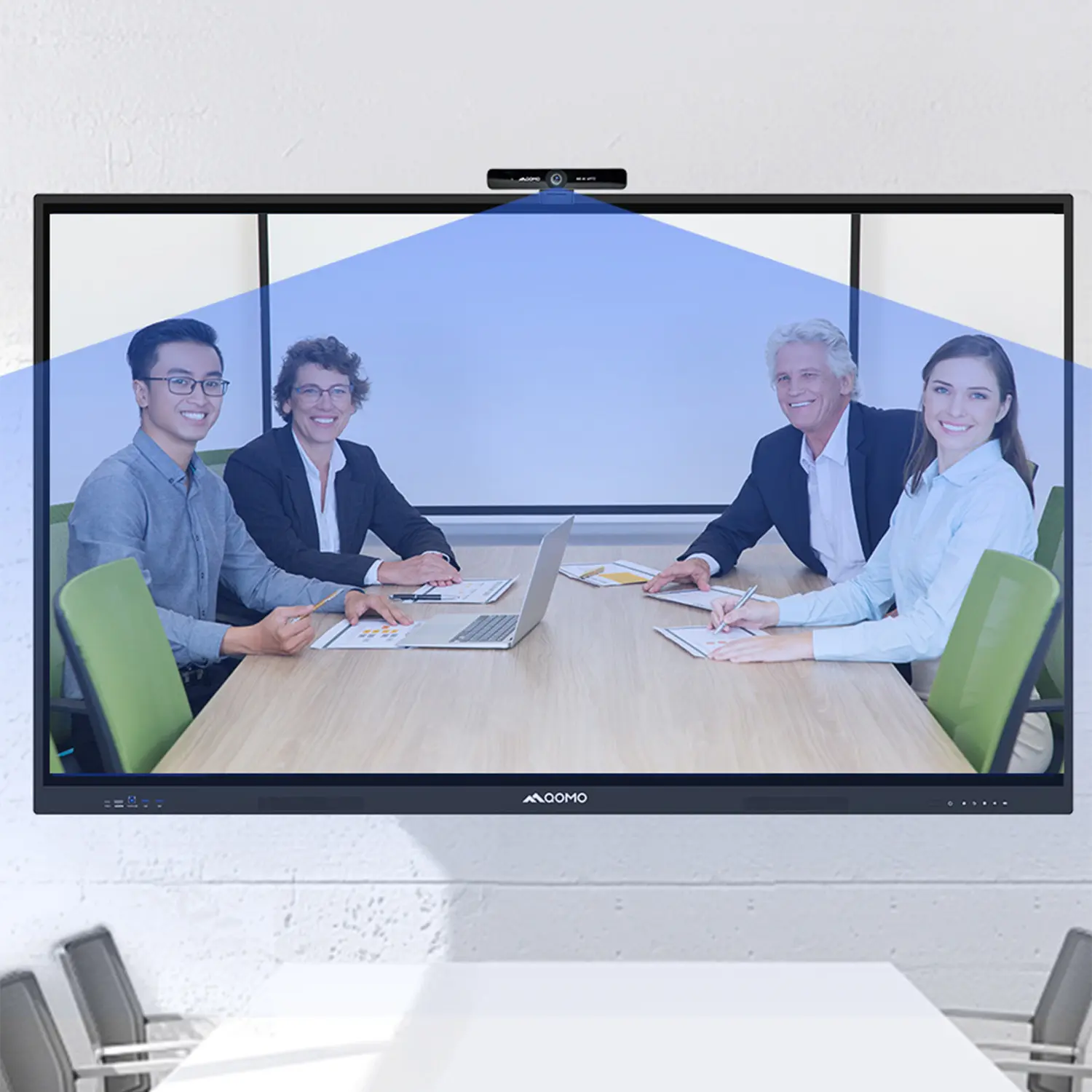
Conference cameras typically capture a wider view, making them useful when several people sit around one desk. Some include microphones, but a wide shot can make faces appear distant. Interchangeable-lens cameras offer more control over focus and background blur, yet they need extra setup, such as a capture device and secure mounting. More control, more clutter.

Grand View Research’s 2023 market report estimated the global video-conferencing market at $7.02 billion in 2022, reflecting broad demand for video communication. That figure covers conferencing, not camera sales, so it should not be treated as a ranking of desktop camera types.

For a solo workstation, compare autofocus, low-light performance, and how easily the camera fits your screen. For shared desks, check viewing angle and microphone pickup. A camera with impressive specifications may still disappoint if it points toward a bright window. I would test the actual room setup before paying for features you may never use.

Features That Determine Desktop Camera Quality

A desktop camera’s quality depends on more than its advertised resolution. The sensor, lens, autofocus, frame rate, and image processing all shape the picture. A larger sensor can gather more light, helping keep your face visible when a window is behind you. Resolution matters, but it cannot rescue a noisy image or slow focus. More pixels help. Lighting matters.

Check field of view, too. A very wide view may show distracting shelves, while a narrow one can crop your shoulders during a call. At 30 frames per second, movement usually looks smoother than at 15, though poor lighting can still make the image muddy. ITU-T Recommendation P.910 describes video-quality testing with a five-point rating scale, from “bad” to “excellent.” That’s a useful reminder: perceived quality includes more than sharpness. Still, standardized scores cannot predict every dim home office.

Tips: Sit facing a soft light source, clean the lens, and test autofocus with a small head turn. Compare the preview at your usual desk, not just on a bright product page. One limitation is easy to miss: automatic exposure may brighten your face while washing out a sunlit window.

How Desktop Camera Needs Vary by Task

A desktop camera should match the work, not just promise the sharpest picture. Pew Research Center’s 2023 report found that 35% of U.S. workers with remote-capable jobs worked from home full time, while 41% followed hybrid schedules. That mix matters: a camera used for daily meetings has different demands from one used for demonstrations or recorded lessons.

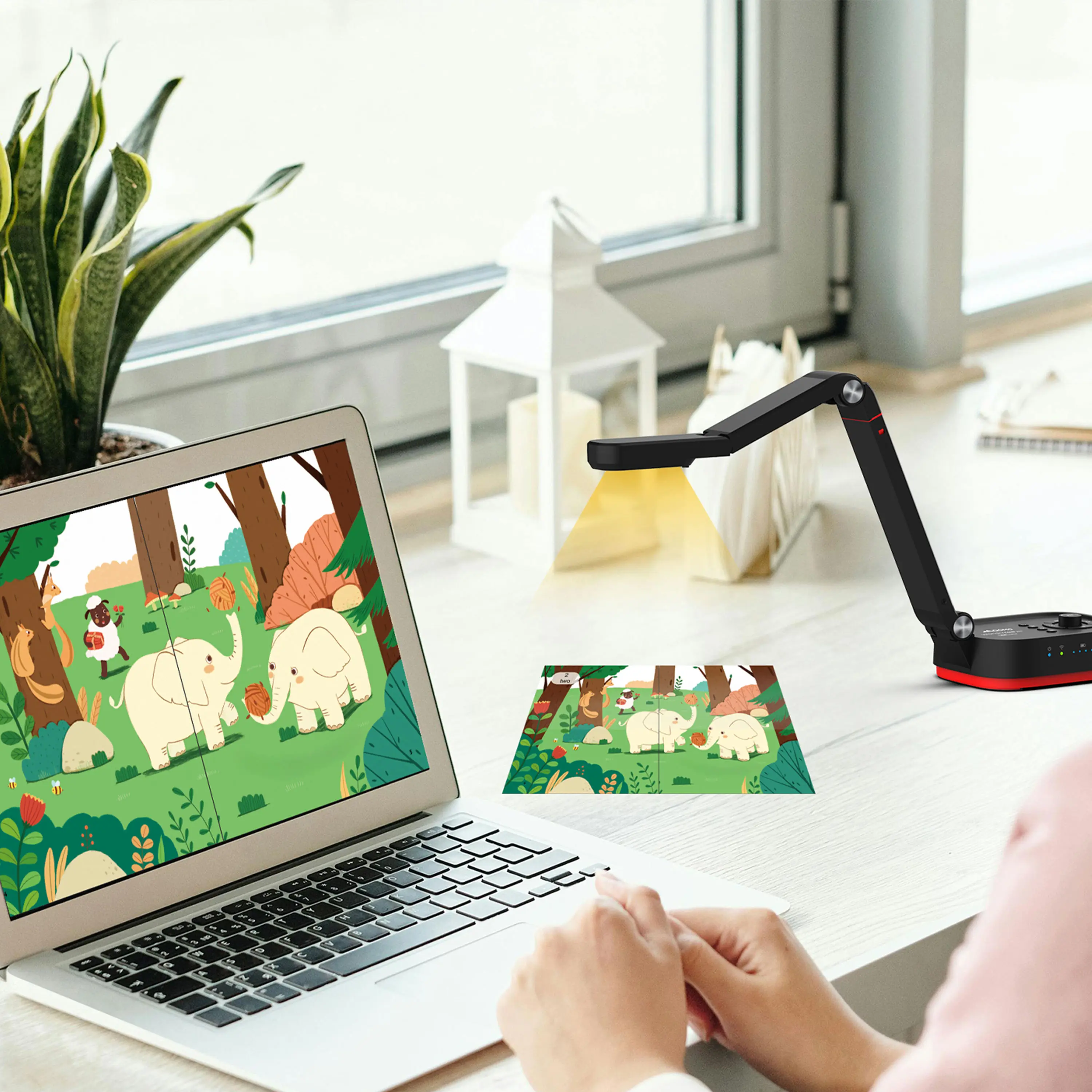
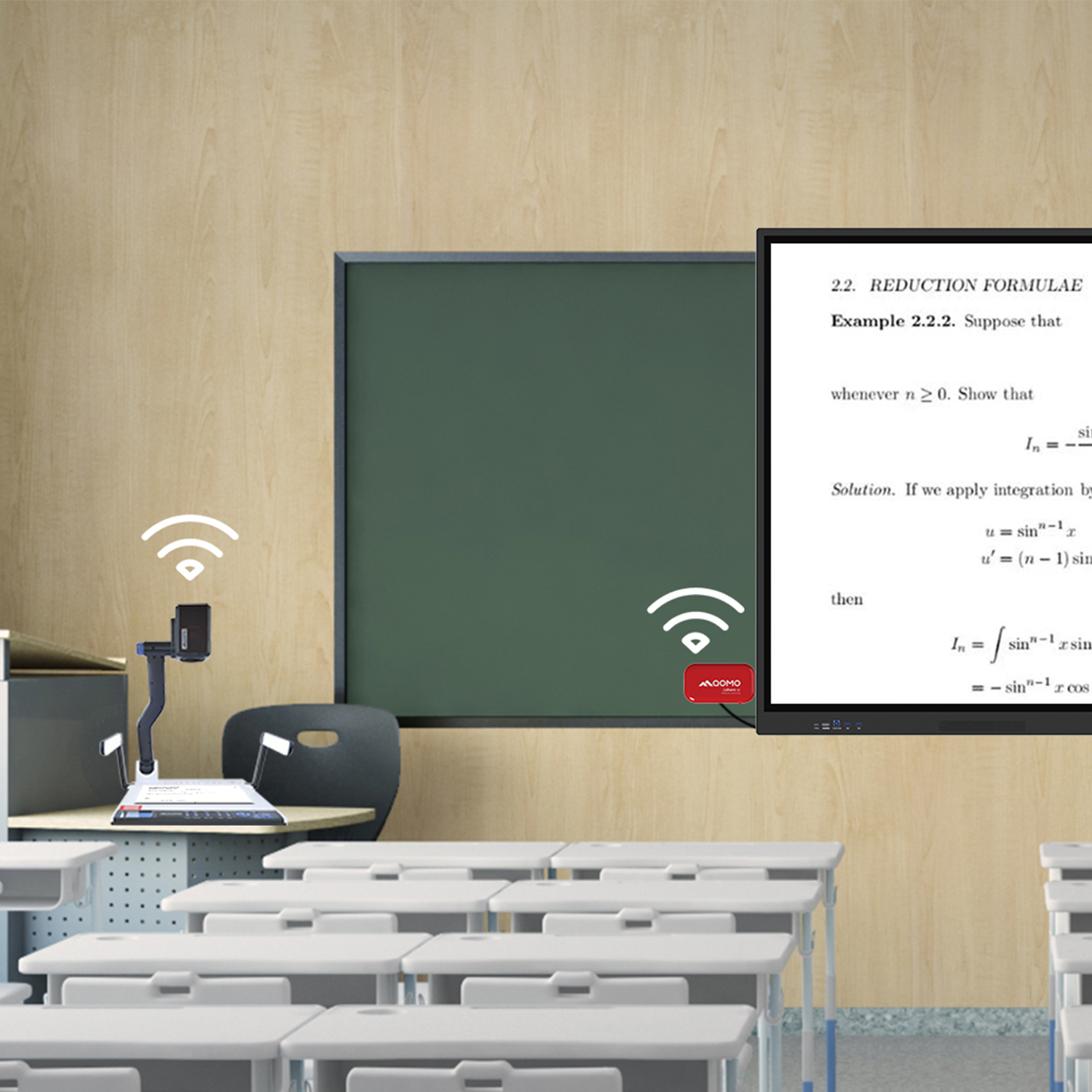
For calls, prioritize natural eye contact, steady exposure, and a frame that includes your face without making it fill the screen. A wider view helps when you teach with objects or gesture; autofocus and clear close-up detail matter more when showing small parts. Lighting matters. A window behind you can turn your face into a silhouette, even with a high-resolution camera. For recordings, check color consistency and focus recovery after you move an object toward the lens.

Stanford researchers’ 2021 analysis of 10,591 survey responses linked video-call fatigue with close-up faces, constrained movement, and extra cognitive effort. That’s a reminder to consider framing and comfort, not just pixel counts. Not megapixels alone.

A practical test: sit where you usually work, switch on your normal lights, and record a short clip while speaking and moving your hands. I’d still treat any “best” setting as provisional; my desk light changes, and so does the picture.

How to Choose the Best Camera for Your Desktop Setup

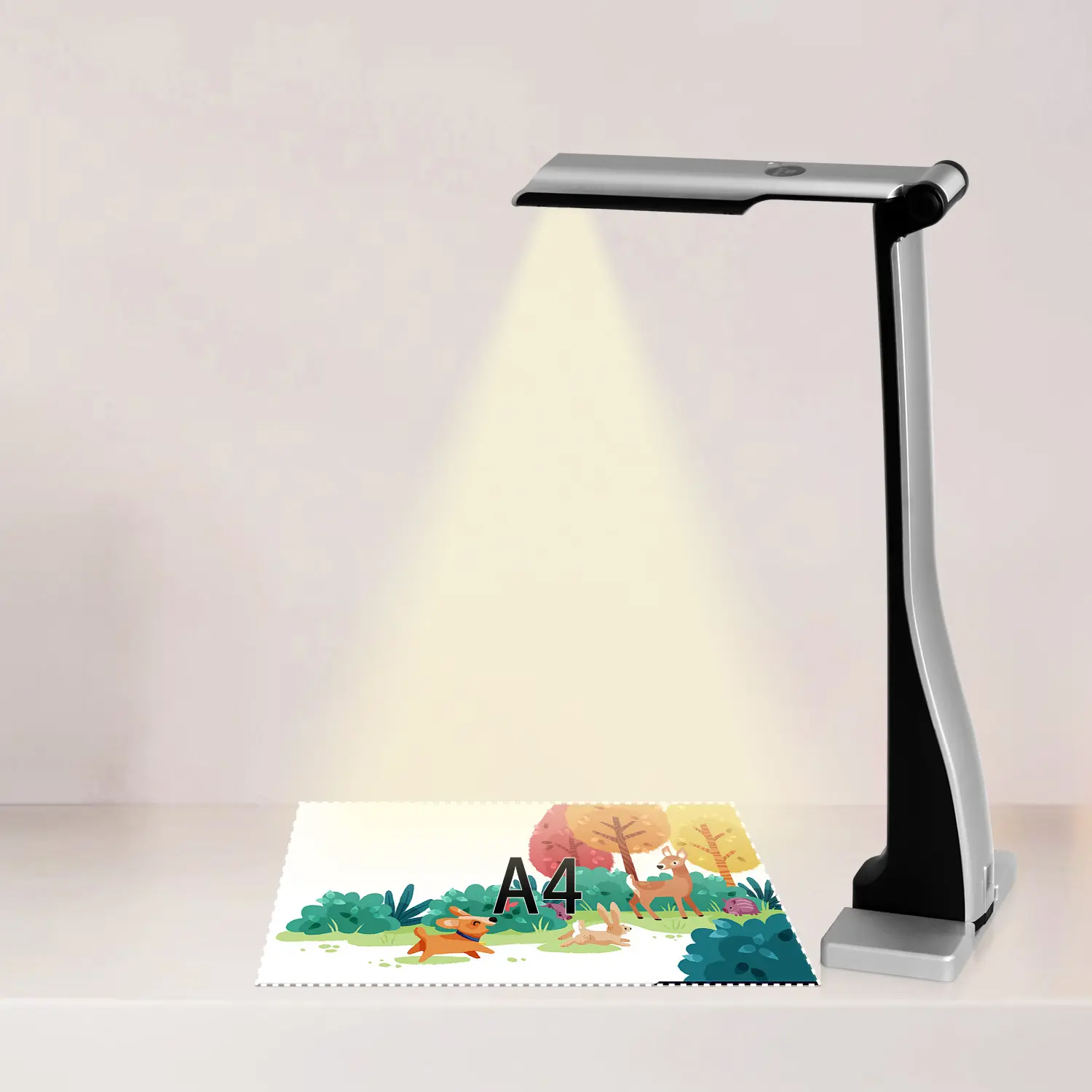
Choosing the best camera for your desktop setup starts with how you use it. For daily video calls, prioritize clear 1080p video, reliable autofocus, and a built-in microphone that reduces room noise. If you record lessons or demonstrations, check whether the camera can capture a wider view and handle changing light. A small desk lamp placed near eye level can often improve the image more than a higher-resolution camera.

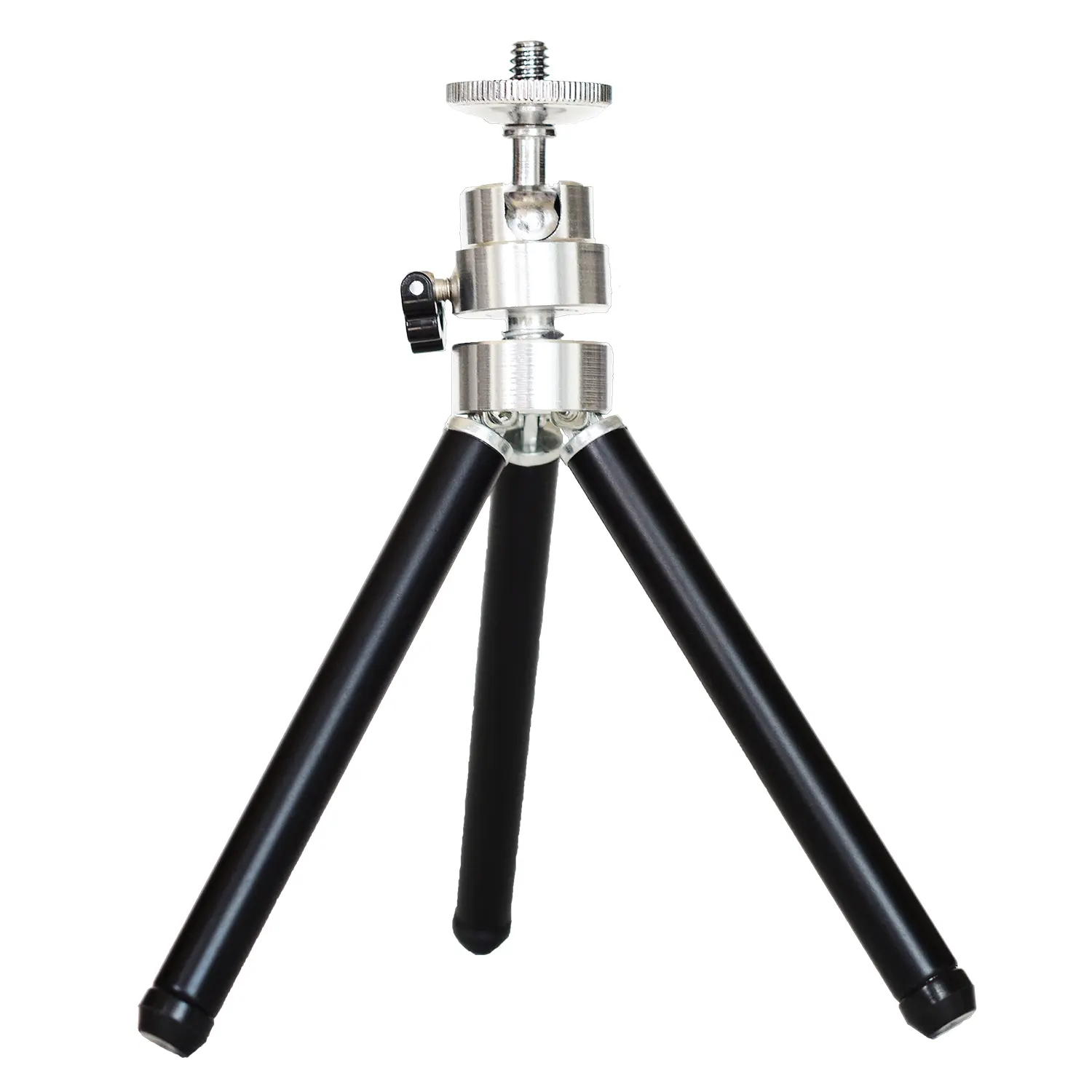
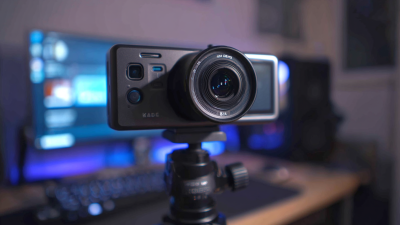
Check the camera’s connection, mounting options, and compatibility with your computer before buying. A clip mount works well on many monitors, but a tripod may suit a thick screen or an unusual desk angle. Test the camera at your normal seating distance. More pixels are not always better. In a dim room, a sharp image can still look grainy, and autofocus may shift when objects move behind you. I would pay attention to those details, though it is easy to overlook them while comparing specifications.

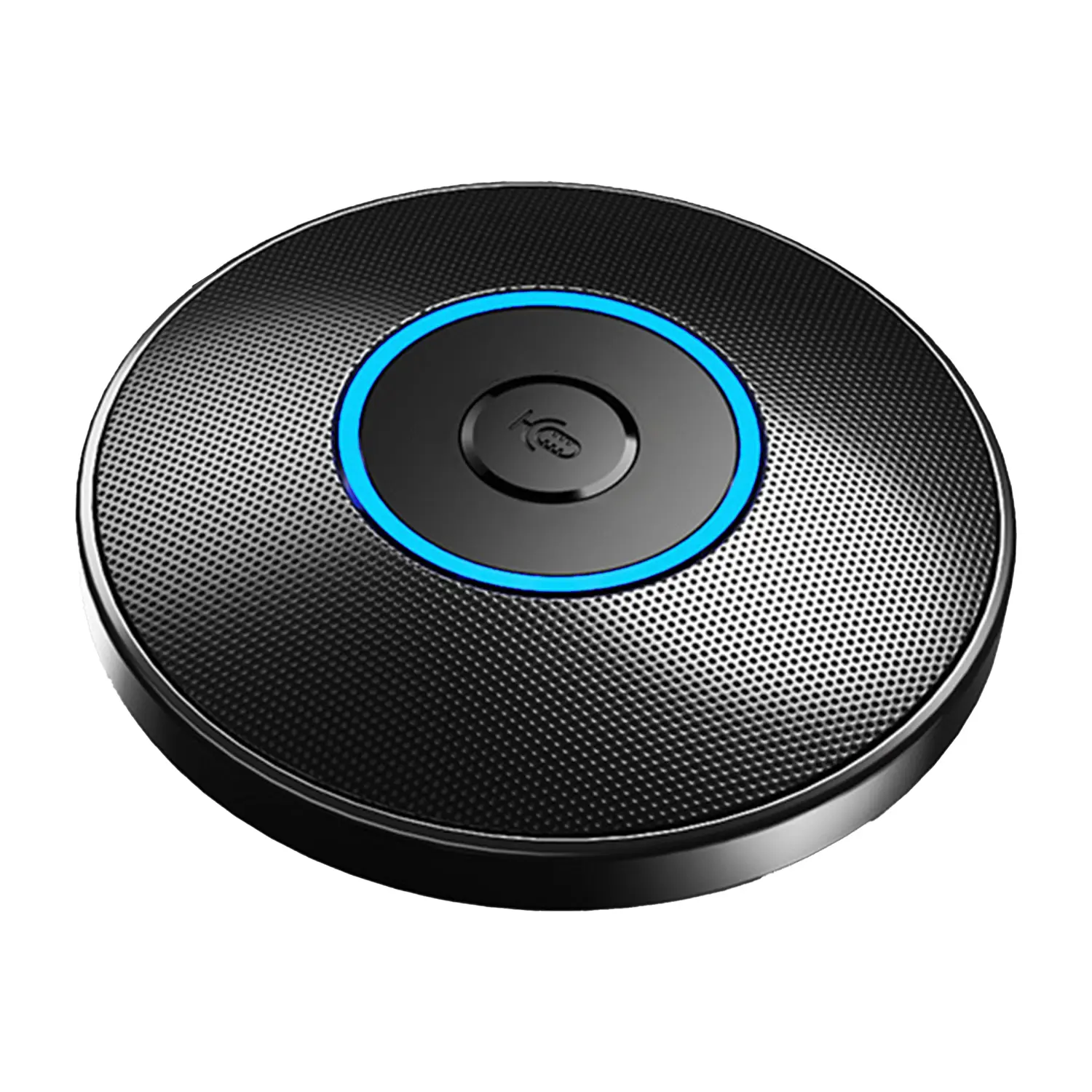
Tips: Sit facing a window or soft light, and keep the lens near eye level. Test a short recording before an important call. Small adjustments matter. If your audio sounds hollow, try a separate microphone; the camera’s built-in one may not suit every room.