request to quote
Leave Your Message

What Are the Best Interactive Touchscreens for Business?

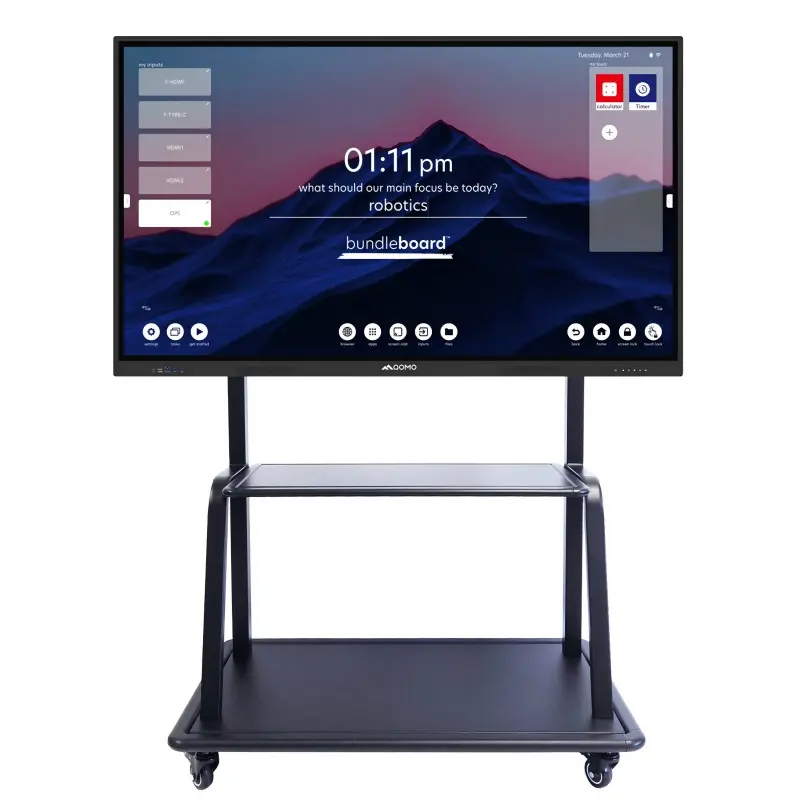
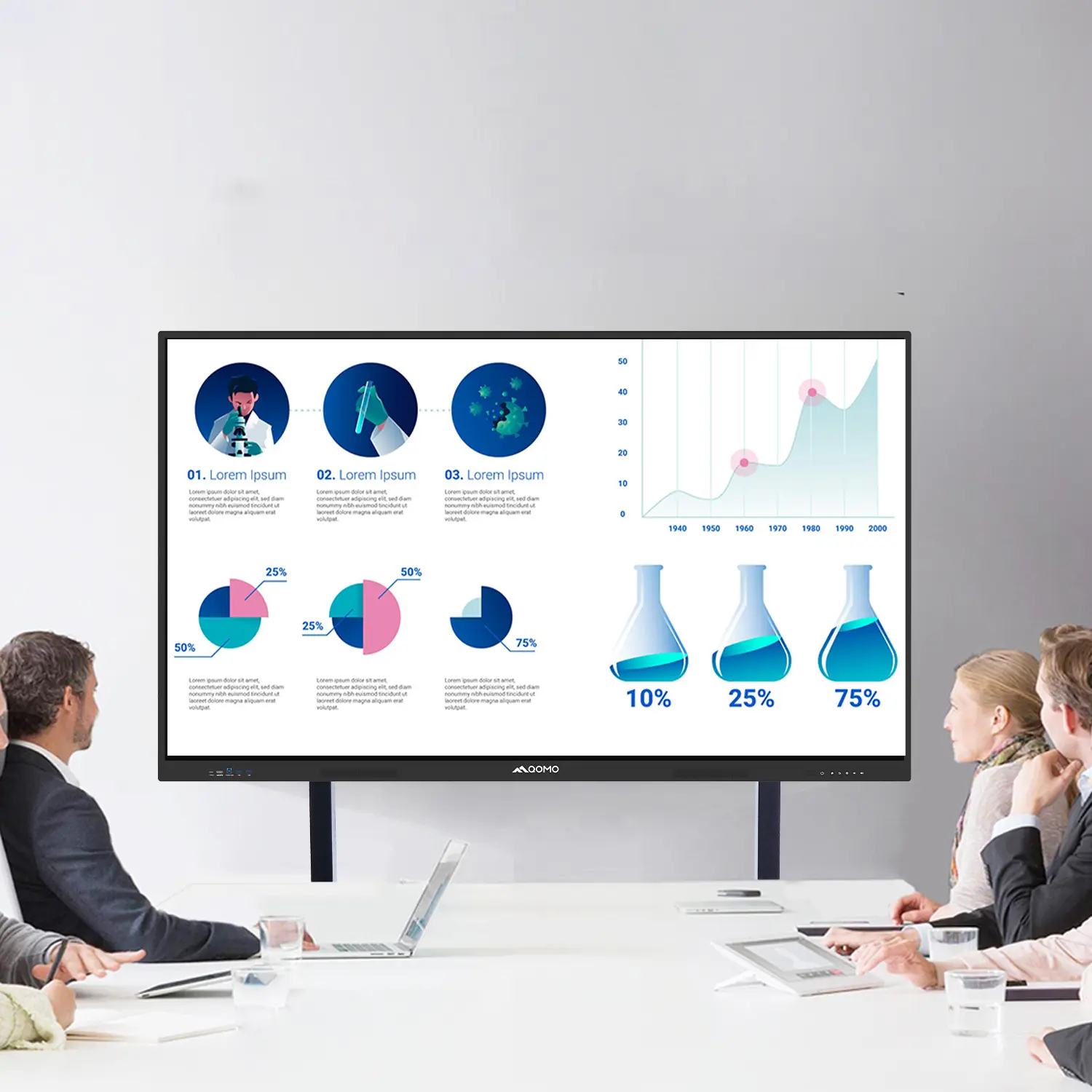
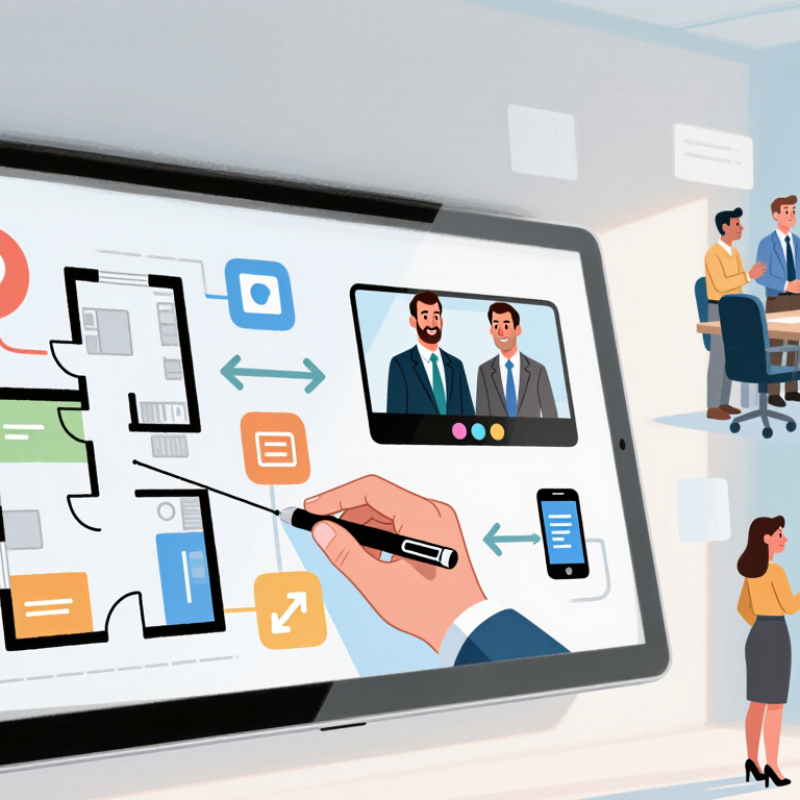
Choosing the best Interactive Touchscreens for business means looking beyond screen size. Teams need clear text, responsive touch, reliable video connections, and simple ways to share content. A sales team might annotate a floor plan with a finger, while a meeting host switches from a laptop to a video call. Small details matter. A brief delay or awkward cable can break the flow.

The market is growing, but growth alone does not identify the right product. Grand View Research valued the global interactive display market at $45.17 billion in 2023 and projected an 8.3% compound annual growth rate through 2030. That figure covers a broad display market, not business touchscreens alone, so buyers should treat it as context rather than a purchasing verdict. Human-computer interaction pioneer Mark Weiser captured a useful design principle: “The most profound technologies are those that disappear.” His 1991 essay in Scientific American argued that technology works best when it fits naturally into daily life. For a workplace touchscreen, that means legible menus, dependable wireless sharing, and touch that feels immediate.

This guide compares business displays by practical criteria: image quality, touch accuracy, collaboration tools, connectivity, accessibility, and ongoing support. It also considers room size and how people actually meet. A large screen can still frustrate a team. No display fixes unclear meeting habits, either. That is worth remembering. Product specifications rarely show how a device performs after months of use, and published market forecasts cannot replace hands-on testing. We’ll separate measurable features from trade-offs, so buyers can match the display to real workflows rather than a flashy feature list.

What Are the Best Interactive Touchscreens for Business?

What Defines an Interactive Touchscreen for Business?

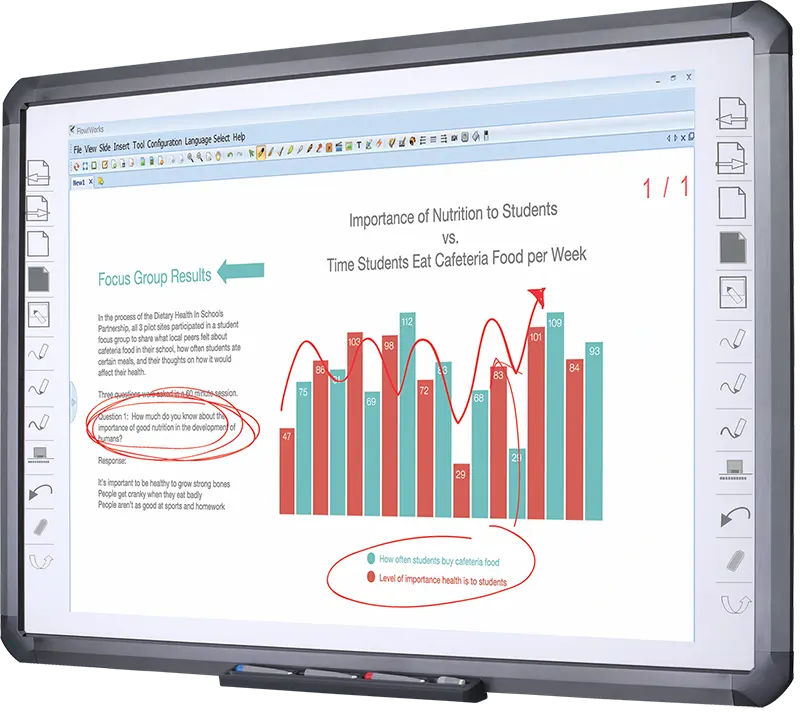
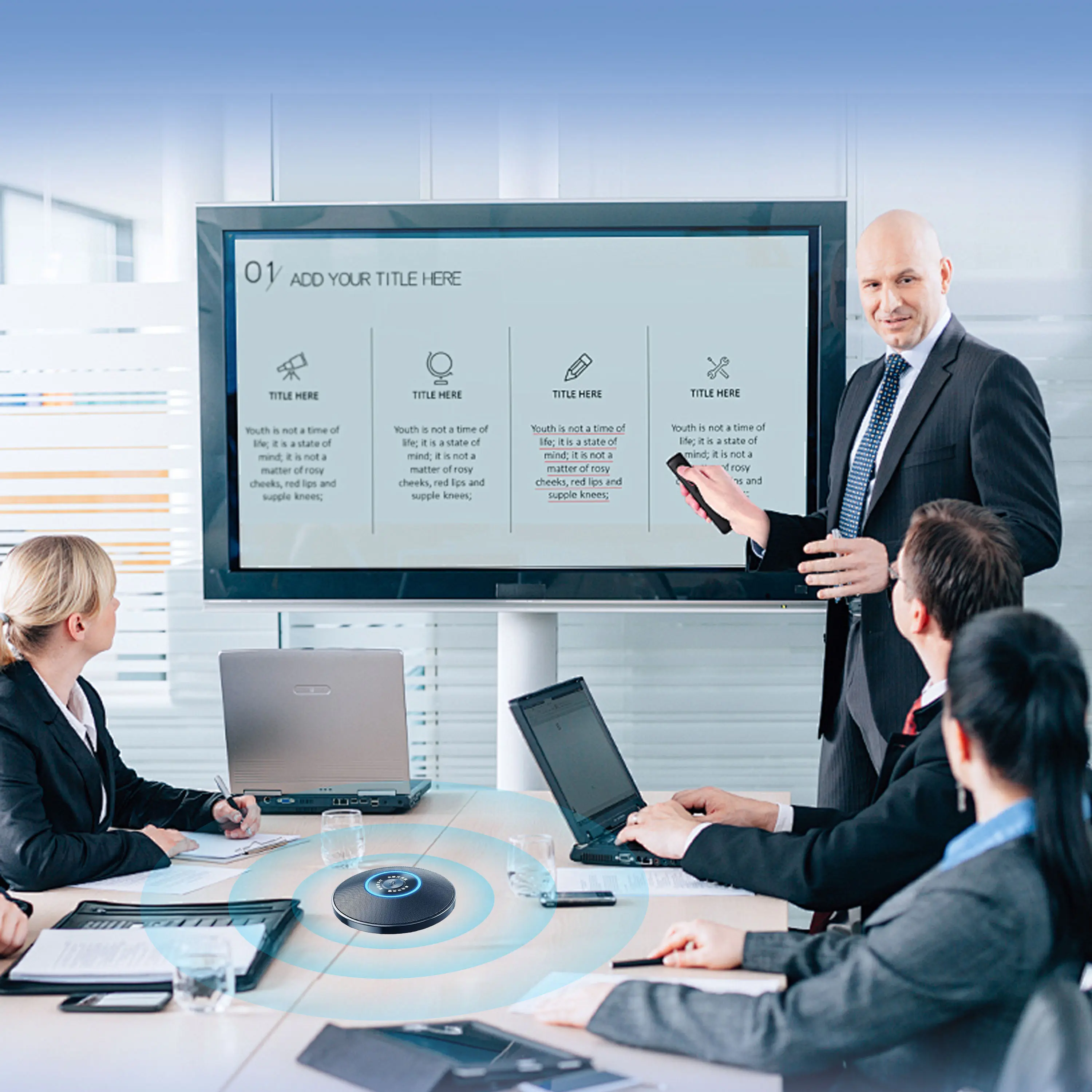
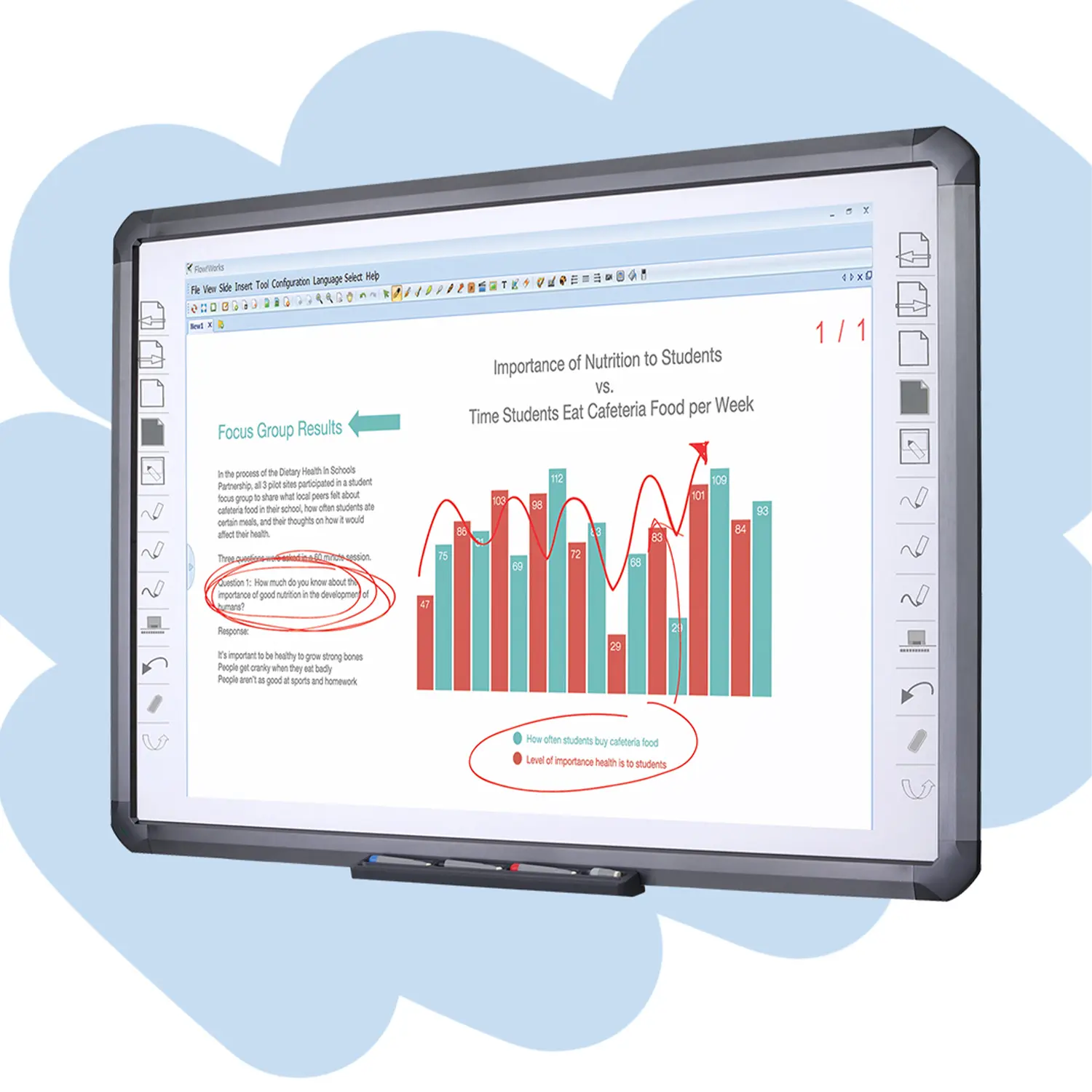
An interactive touchscreen for business combines a display with touch input, collaboration tools, and dependable connections. People should be able to write, move objects, and open shared files without switching devices. In a meeting room, that might mean annotating a sales chart with a finger, then saving the marked-up page for remote colleagues. Fast response matters. So does accurate touch detection, especially when several people work at the screen together.

Tips: Check multi-user touch, glare handling, and compatibility with your meeting software. Test the screen from the back row. Small text can look clear up close and unreadable across the room.

The best fit depends on the work, not a feature checklist. A training room may need a large, durable panel and simple controls. A design team may value precise writing and low-latency input more. Ask how updates are managed, what files can be shared, and whether access can be restricted. These details affect daily reliability. An impressive demo can hide awkward setup; honestly, that is easy to overlook. Test common tasks with actual staff before choosing, and note where they pause or ask for help.

What Are the Best Interactive Touchscreens for Business? — What Defines an Interactive Touchscreen for Business?
Dimension What Defines It What to Look For Why It Matters in Business
Touch interaction A display that responds to direct touch, allowing users to select, write, draw, or manipulate on-screen content. Responsive, accurate touch input; support for common gestures; and enough simultaneous touch points for the intended group activity. Capabilities vary by model. Enables natural collaboration, annotation, presentations, and hands-on instruction without relying solely on a mouse or keyboard.
Display and readability A visual surface designed to show text, charts, images, and video clearly in its intended room. Choose a suitable screen size and resolution for viewing distance, with brightness and anti-glare treatment appropriate to the room’s lighting. Readable content helps participants follow meetings, training sessions, and customer-facing presentations.
Writing and annotation On-screen tools that let users write or mark up content with a finger or compatible stylus. Check writing accuracy, palm rejection where available, erasing options, and whether notes can be saved or exported. Teams can capture ideas, explain complex material, and preserve meeting notes for later use.
Software compatibility The ability to run or connect to the applications and content sources used by an organization. Confirm compatibility with the organization’s operating systems, conferencing tools, file formats, and collaboration workflows. Compatibility reduces workarounds and helps staff use familiar tools during meetings and presentations.
Connectivity The available wired and wireless connections for computers, networks, peripherals, and shared content. Review the ports and wireless options needed for laptops, conferencing equipment, network access, and screen sharing. Flexible connections make it easier to present from different devices and fit the display into existing meeting-room setups.
Collaboration features Tools that support shared viewing, discussion, annotation, and participation by people in the room or joining remotely. Consider screen sharing, multi-user interaction, remote meeting compatibility, and options for sharing or saving session content. These features help connect in-room participants with distributed teams and keep discussions focused on shared material.
Security and privacy Controls for protecting accounts, data, network connections, and information displayed on the screen. Look for support for organizational access policies, secure network configuration, software updates, and session sign-out or data-clearing practices. Business displays may be used with internal documents or customer information, so they should fit the organization’s security procedures.
Device management Ways for IT staff to configure, monitor, update, and support displays across one or more locations. Check whether remote configuration, software updates, status monitoring, and troubleshooting are supported and compatible with existing IT processes. Manageability can simplify maintenance and help keep shared displays consistent across meeting rooms or facilities.
Accessibility and usability Design and controls that make the screen practical for a range of users and working environments. Assess interface clarity, text visibility, physical reach, input options, and compatibility with relevant accessibility tools. Inclusive, easy-to-use controls help more employees and visitors participate without unnecessary assistance.
Installation and support The practical requirements for mounting, powering, connecting, and maintaining the display. Verify dimensions, weight, mounting compatibility, power requirements, warranty terms, and the availability of appropriate technical support. Planning these details helps avoid installation delays and supports reliable use over the display’s service life.
Business use case The specific task the touchscreen is expected to support, such as meetings, training, presentations, or customer interaction. Match screen size, software, connectivity, and room setup to the primary use rather than selecting features that will not be used. The best choice is the display that fits the organization’s workflow, environment, and support requirements—not simply the one with the most features.

How Business Touchscreens Detect and Respond to Input

Business touchscreens turn contact into digital commands through a sensor layer, a controller, and software. Most use projected capacitive or infrared sensing. Capacitive panels detect changes in an electrical field when a finger nears the glass. Infrared frames register interruptions in light beams across the screen. Both can support multiple touch points, but they behave differently.

Gloves, bright sunlight, dusty edges, and thick protective covers may affect response. No screen is immune to its surroundings.

When someone taps a menu, sensors send coordinates to a controller, which filters noise and passes the touch to software. The software maps that point to a button, ink stroke, or gesture. Low latency matters: a pen line should follow the tip, not trail behind it. Palm rejection helps, though it can occasionally miss a resting hand.

Test with actual users. Try quick writing, two-finger zooming, and edge taps under the room’s real lighting. Check whether touch works near the bezel and after repeated cleaning. Calibration and system settings can change the experience, so document the setup. A smooth demo proves little. Sometimes the problem is a loose cable or outdated driver, not the touchscreen itself. Even careful testing may miss how people will use it day to day.

Which Types of Business Touchscreens Serve Different Needs?

Business touchscreens serve different jobs, so screen size is only one factor. Interactive flat panels suit meeting rooms where teams annotate plans or compare spreadsheets. Choose a size people can read from the back row, with reliable wireless sharing and simple controls. McKinsey Global Institute’s 2021 report found that 20–25% of workers in advanced economies could work remotely three to five days weekly. That shift makes shared, room-based collaboration useful, but it does not mean every room needs a large display.

For reception areas, check-in kiosks can reduce repetitive front-desk tasks and guide visitors through clear, step-by-step prompts. Grand View Research estimated the global interactive kiosk market at $28.06 billion in 2022, with projected growth through 2030. Market size signals adoption, not suitability. A kiosk with tiny buttons or a confusing flow can slow people down. Test it with actual visitors.

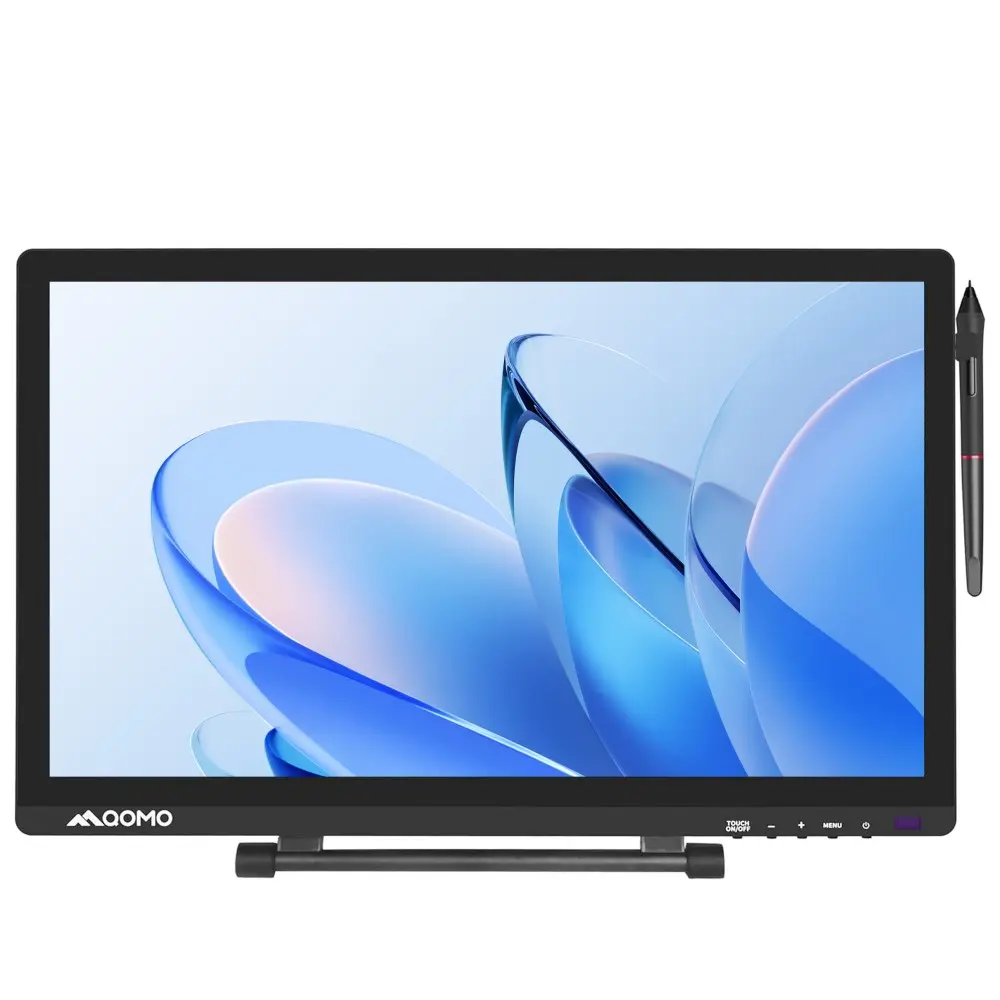
Design studios and training spaces may need touch tables or large interactive displays for detailed diagrams, group markups, and hands-on lessons. Portable touch monitors work better for smaller teams that move between desks. Small rooms need less. In practice, the best choice depends on viewing distance, glare, accessibility, and how often staff will maintain the device.

One detail is easy to overlook: fingerprints accumulate quickly, especially on shared screens. Cleaning time belongs in the buying decision.

How to Compare Display, Connectivity, and Collaboration Features

An interactive touchscreen should make a meeting room easier to use, not add another setup hurdle. Compare brightness, resolution, and touch response under real room lighting. A glossy display can reflect ceiling lights; small text may become hard to read from the back row. Check whether the screen supports the devices and operating systems staff actually use, including wireless sharing and wired connections. Test it live.

Connectivity deserves equal attention. Look for reliable Wi-Fi, USB-C, HDMI, and network options, then confirm what each port supports. A 2023 Work Trend Index report found that 62% of workers spend too much time searching for information. Easy screen sharing and access to meeting files can reduce friction, though a touchscreen alone will not fix poor workflows. AVIXA’s 2024 Industry Outlook estimated the professional audiovisual market at about $325 billion, reflecting the scale of investment in workplace AV.

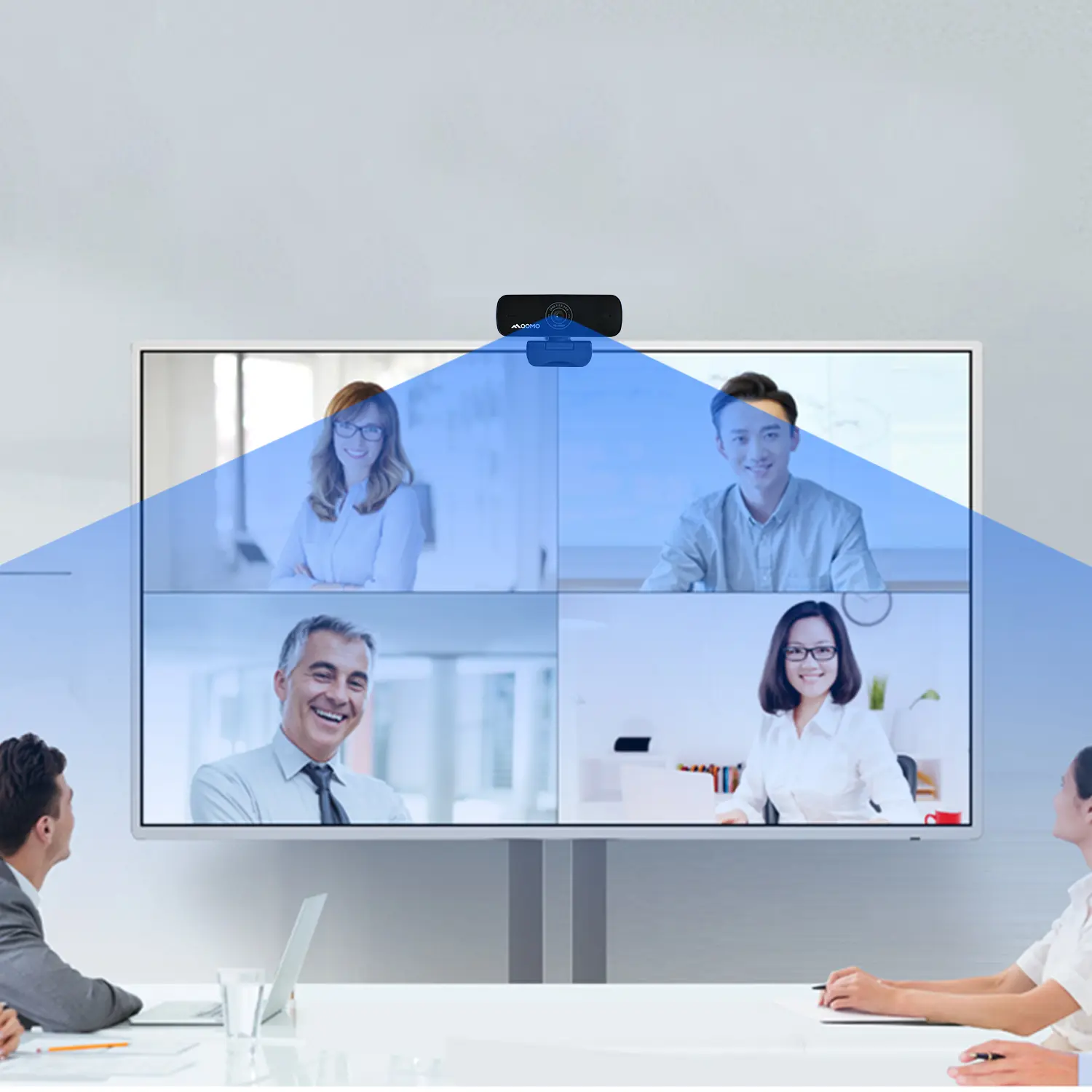
Collaboration features should work for both people in the room and remote colleagues. Check annotation, multi-user touch, camera placement, and whether notes can be saved or shared afterward. Ask staff to run a short meeting on the exact model being considered. Menus that look simple in a demo can feel slow in daily use. I would also test handwriting recognition with real names and quick sketches; results can be uneven.

What Are the Best Interactive Touchscreens for Business?

How to Compare Display, Connectivity, and Collaboration Features

Example buying-checklist scores on a 1–5 scale. Prioritize clear display quality, simple device connections, and collaboration tools that fit your team. Scores are illustrative, not a market survey or product ranking.

What Factors Guide Selection and Workplace Integration?

An interactive touchscreen should fit the room’s actual work, not just its floor plan. Gallup’s 2023 workplace data found that 52% of remote-capable U.S. employees worked in hybrid arrangements. That makes reliable room-to-remote collaboration essential. Check whether the display supports the organization’s meeting, file-sharing, and device-management systems. Test screen sharing with different laptops, then check writing delay from the back of the room. Test it live. A bright panel can still be hard to read beside a sunny window.

AVIXA’s 2024 Industry Outlook and Trends Analysis projected global professional audiovisual revenue would reach $325 billion by 2028. That growth makes long-term support worth checking, not assuming. Ask about software updates, warranty coverage, and replacement parts. Confirm that cables, cameras, microphones, and room controls work together. Still, a polished demonstration can deceive. Try a real meeting, including remote participants, before choosing. Check that users can reach the controls, read text comfortably, and share notes afterward. Small details matter. A board installed too high may exclude seated users; confusing menus can waste meeting time. Gather feedback after installation, then adjust the setup. Dialogue quality may improve, but habits take longer to change.